
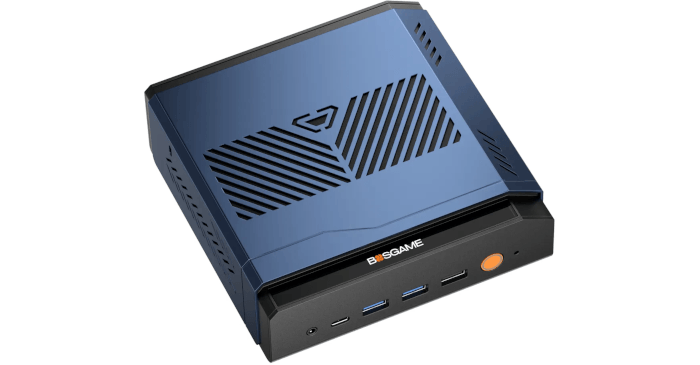
In this series, I put the BOSGAME VTA-439 mini PC, powered by the Ryzen AI 9 HX 470, through its paces under Linux. I compare it with other systems, including desktops, to see how it performs in everyday use.
The VTA-439’s Radeon 890M integrated GPU shares the machine’s DDR5 memory with the CPU. Part of that memory is reserved for the GPU at boot, reducing the amount available to Linux and its applications.
I’ve already explored how to change this allocation through the VTA-439’s BIOS. Recent changes to the AMDGPU driver make it possible to request a different allocation directly from Linux through sysfs. I tested the interface on the VTA-439 and increased the GPU’s reserved memory from 4GB to 8GB without entering the BIOS. The change took effect after a reboot.
The BIOS Method
In my earlier article examining the VTA-439’s BIOS, I explained how to reveal a second Advanced menu that’s hidden by default. Enter the BIOS, press Alt + F5, then press F4 to save the change and reboot.
Once the hidden menu is available, navigate to Advanced – AMD CBS – NBIO Common Options – GFX Configuration. The Dedicated Graphics Memory setting controls how much RAM the Radeon 890M reserves.
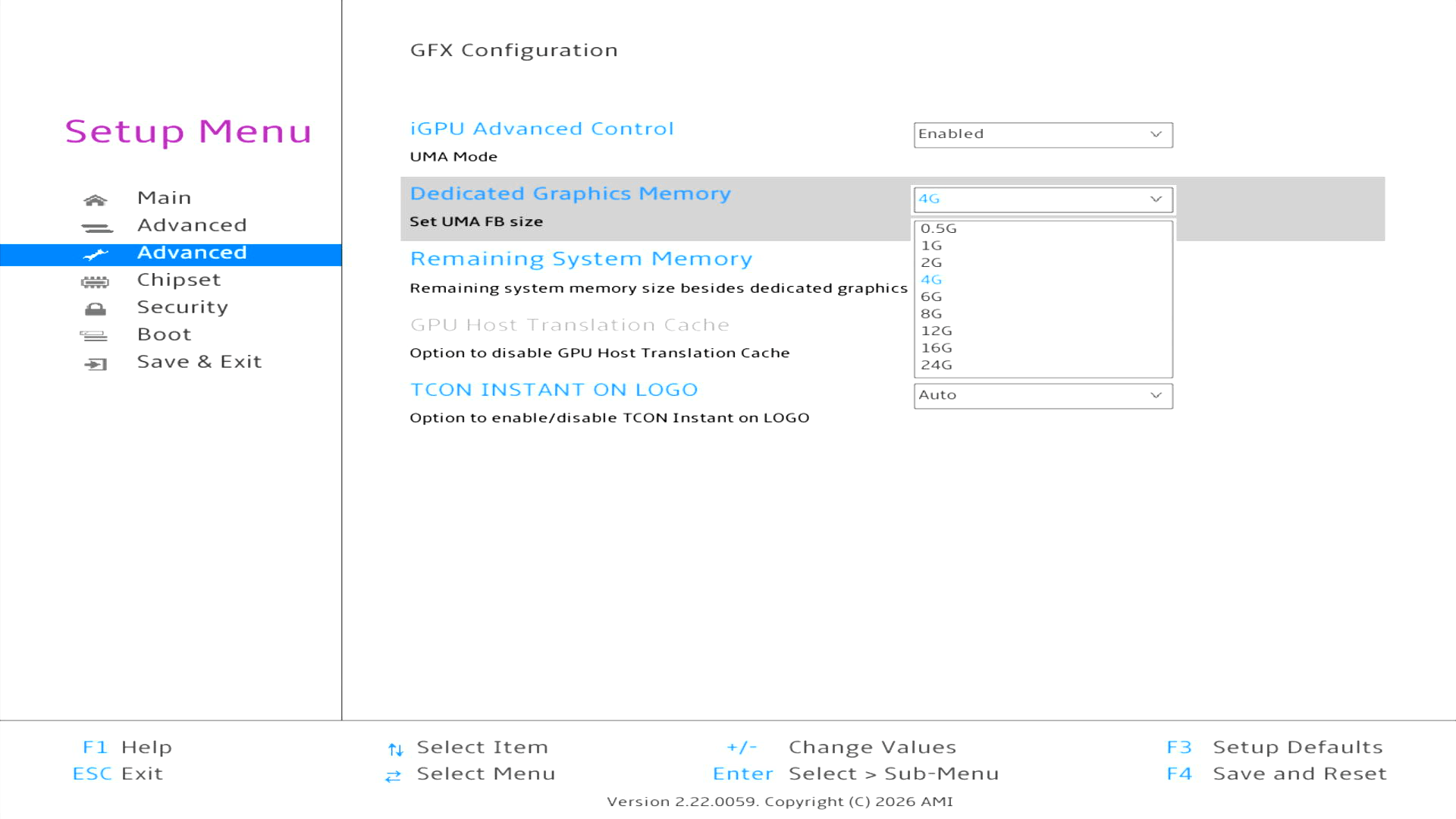
The VTA-439 defaults to a 4GB allocation. With the original 32GB of RAM installed, the BIOS offers 512MB, 1GB, 2GB, 4GB, 6GB, 8GB, 12GB, 16GB and 24GB options. After reviewing the BIOS, I replaced the two 16GB SO-DIMMs with two 32GB modules, doubling the system memory to 64GB. With 64GB installed, the BIOS also offers 32GB and 48GB GPU memory allocations.
The AMDGPU interface makes the allocation settings accessible from the Linux terminal.
Checking the Current Memory Allocation
I’m running CachyOS with KDE Plasma on the VTA-439. Before changing the allocation, I checked the kernel version and the amount of RAM Linux could use.
uname -r
free -h
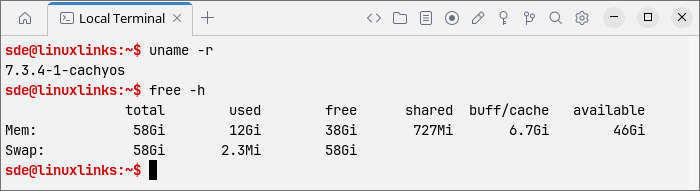
The VTA-439 is running kernel 7.3.4-1-cachyos. With 64GB of RAM installed and the default 4GB GPU allocation, free -h reports 58GiB of total usable memory, with 12GiB used and 46GiB available.
The total reported by free excludes the fixed GPU reservation and other memory reserved by firmware, hardware and the kernel. The used and available figures fluctuate as applications run, so I use the total to compare allocations.
AMDGPU’s New UMA Carveout Interface
Through sysfs, the Linux kernel exposes information about devices and drivers. The new AMDGPU interface lets you view and change the UMA carveout, the portion of system memory reserved for the integrated GPU.
AMD’s implementation uses information exposed by the GPU’s firmware and an ACPI ATCS function to request a different allocation. The interface exposes two files.
uma/carveout_optionslists the available memory allocations and their numerical indices.uma/carveoutreports the selected allocation index and accepts a new index.
Check whether the sysfs interface is available.
ls /sys/class/drm/card*/device/uma/
If the directory exists, read both files.
cat /sys/class/drm/card*/device/uma/carveout_options
cat /sys/class/drm/card*/device/uma/carveout
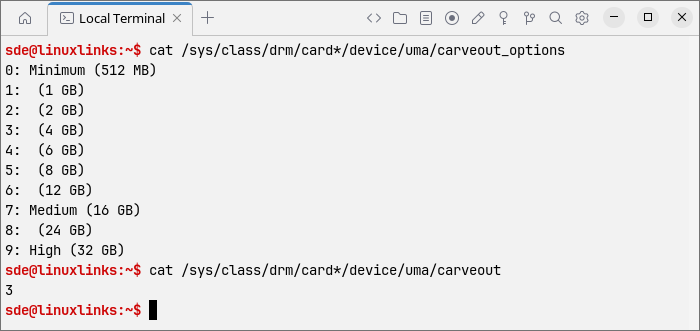
On the VTA-439, the first command lists ten allocation options ranging from 512MB to 32GB. The second returns 3, the index for the current 4GB allocation.
The sysfs interface lists the same allocation sizes as the BIOS apart from 48GB. The largest option available through sysfs is 32GB, which corresponds to index 9.
The 48GB option is particularly useful when running larger language models locally with Lemonade Server. Some GPU backends use the reported dedicated graphics memory to determine how much of a model they can load onto the GPU. A larger fixed allocation gives those backends more room.
According to the Linux kernel documentation, the interface requires firmware supporting the necessary ATCS functionality. The upstream kernel feature was introduced in Linux 7.0, although distributions can backport it to earlier kernels.
Both sysfs files are present on the VTA-439 and report the GPU’s memory configuration.
Changing the GPU Memory Allocation
With the new interface available, changing the allocation involves writing the desired index to the carveout file. Administrator privileges are required.
I decided to increase the fixed GPU allocation from 4GB to 8GB. On my VTA-439, index 5 corresponds to 8GB and the GPU appears as card1. I ran the following command to write the index to the file.
echo 5 | sudo tee /sys/class/drm/card1/device/uma/carveout

The command printed the requested index, 5, and exited without an error.
The GPU may have a different card number on other systems, so check the actual sysfs path before issuing the command. The index must also correspond to an allocation reported by carveout_options.
Writing to the file requests a different allocation for the next boot. The existing reservation stays in place until you restart the machine.
Comparing the Memory Before and After
After rebooting the VTA-439, I checked the allocation index and the total usable memory.
cat /sys/class/drm/card*/device/uma/carveout
free -h
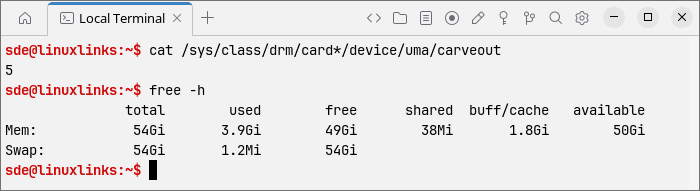
The first command now returns 5, the index for an 8GB fixed UMA allocation. The total usable memory reported by free -h fell from 58GiB to 54GiB, confirming that the GPU reservation had increased.
Reducing the allocation should make more RAM usable by Linux. I haven’t tested that change yet.
Does More GPU Memory Improve Performance?
A larger UMA allocation reserves more system RAM for the Radeon 890M. The GPU’s processing power and memory bandwidth stay the same.
A larger allocation can help applications that use the reported dedicated video memory to set their limits. Examples include some local AI inference and GPU compute applications and games that use large textures.
The Radeon 890M can also draw on shared system memory allocated dynamically. How much of that additional memory a workload can use depends on the application and driver.
For everyday desktop use, allocating a very large amount of RAM to the GPU is unlikely to offer much benefit. A 16GB or 24GB reservation leaves less RAM for other Linux applications.
With 64GB of RAM installed, I have plenty of room to test different allocations. Measuring any performance gains would require separate benchmarks with workloads that can use the extra reserved memory.
Final Thoughts
On the VTA-439, a terminal command and a reboot were enough to increase the GPU reservation from 4GB to 8GB. That makes it easier to try different allocations without navigating the hidden BIOS menus.
For my local AI experiments with Lemonade Server, I still need to enter the BIOS to select the 48GB allocation.
Complete list of articles in this series:
| BOSGAME VTA-439 Mini PC | |
|---|---|
| Introduction | Introduction to the series and interrogation of the machine |
| Benchmarks | Benchmarking the BOSGAME VTA-439 Mini PC |
| Power | Testing and comparing the power consumption |
| Easy Diffusion | Local Stable Diffusion package with a browser-based GUI |
| BIOS | Explore the machine's BIOS |
| Noise | How quiet is this mini PC? |
| NPU | Running LLMs on the Ryzen AI 9 HX 470 NPU |
| VirtualBox | Run VirtualBox on the Ryzen AI 9 HX 470's Zen 5 Cores |
| Lemonade Server | Local AI server on the BOSGAME VTA-439 |
| Compiling Software - Mini PC Performance Compared | Real-world compilation benchmarks comparing three mini PCs with Intel and AMD processors. |
| Lemonade and Local LLMs | Qwen and Ornith benchmarks with Vulkan and ROCm on the Radeon 890M |
| GPU Memory Allocation | Changing GPU Memory Allocation with sysfs |
| Gaming with the Radeon 890M | |
| Shadow of the Tomb Raider | Comparing graphics presets and frame rates |
| Tiny Tina’s Wonderlands | How well does this demanding shooter perform? |
| The Callisto Protocol | Pushing the integrated GPU with a demanding title |
| Deus Ex: Mankind Divided | Performance across the graphics presets |
| World War Z | Comparing Linux and Windows gaming performance |
| Total War: WARHAMMER III | Campaign and battle benchmark performance |
| Thief | Testing the integrated GPU in this stealth-action game |
Please read our Comment Policy before commenting.