
Last Updated on May 13, 2026
This is a new series looking at the Minisforum MS-R1 ARM Mini Workstation running Linux. In this series, I’ll examine every aspect of this mini workstation in detail from a Linux perspective. I’ll compare the machine with other machines to put my findings into context.
The Minisforum MS-R1 is a unique, ARM-based mini workstation aimed at developers and homelab enthusiasts looking for Linux/ARM experimentation. It uses a 12-core CIX CP8180 chip with built-in AI acceleration. Key hardware includes dual 10 GbE networking and also a PCIEx16 (PCIE4.0x8) for PCIe expansion. There’s UEFI support too.
The machine came with 64GB LPDDR5 5500MHz memory and a 1TB NVMe disk. This configuration retails for £585. On the UK site, there’s also the option of a machine without the NVMe. There are other configurations available in different regions (32GB RAM with 0TB or 1TB disk).
What’s in the Box
- Mini Workstation PC
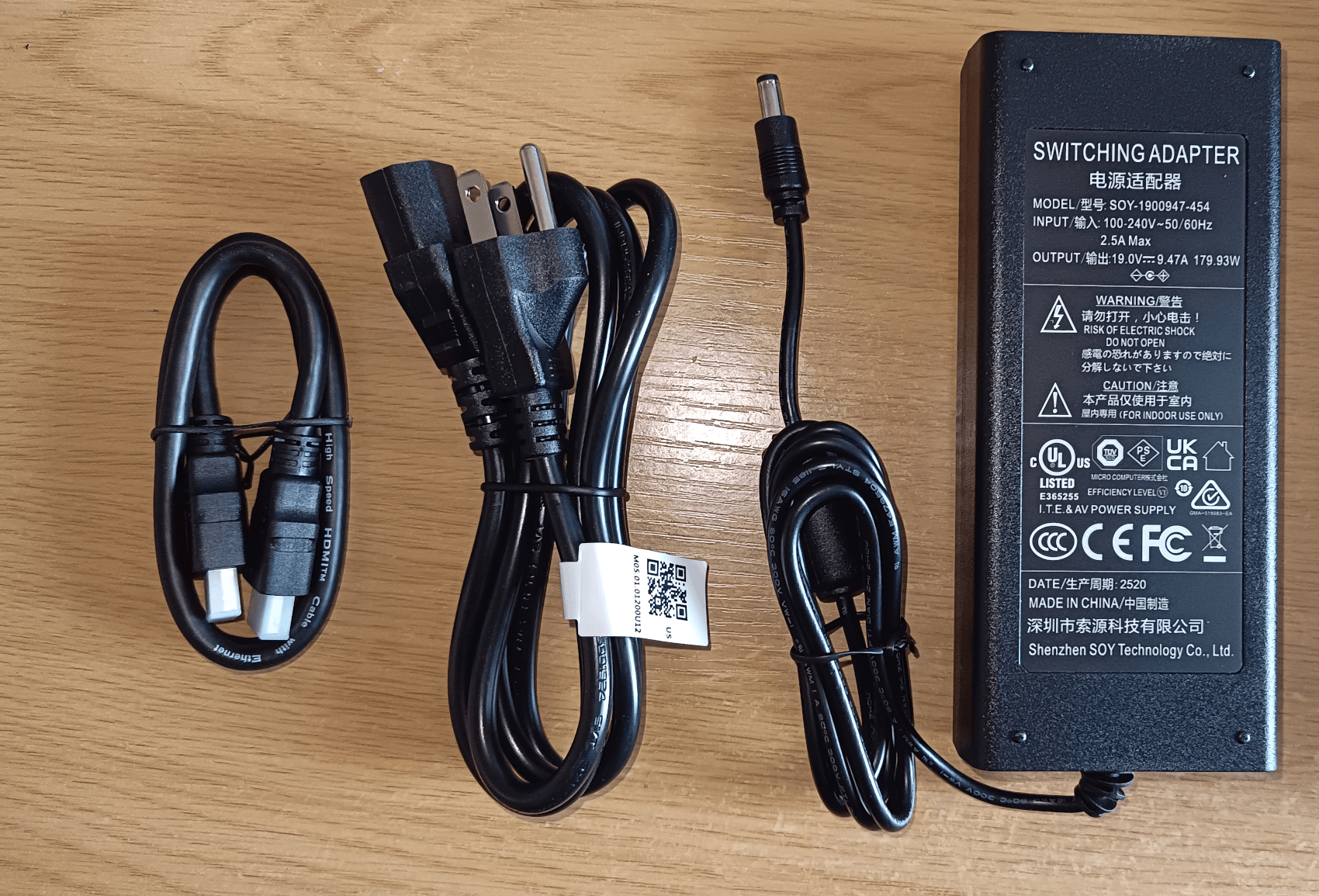
- AC Power Adapter with Power Cord. My machine came with a US three-pin Type B plug, so I needed to use a US-to-UK plug adapter (not included).
- HDMI cable
- SSD heatsink
- M.2 M-Key to M.2 E-Key adapter
- U.2 to M.2 E-Key riser card
- Mounting screws
- User Manual

The M.2 M-Key to M.2 E-Key adapter lets you plug an M.2 E-Key device into an M.2 M-Key slot. The U.2 to M.2 E-Key riser card is an adapter that lets a motherboard’s M.2 slot connect to a U.2 device.
Design
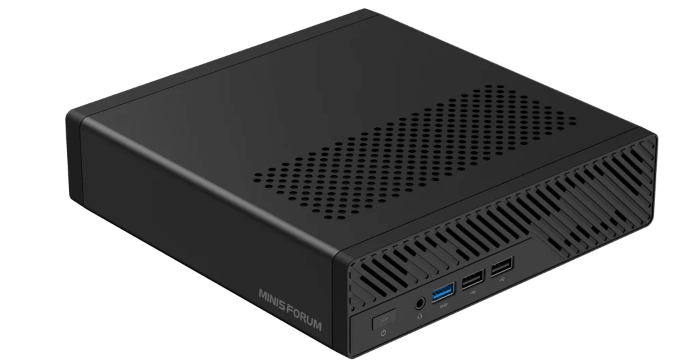
The MS-R1 feels solidly built and has a practical, understated design rather than anything showy. It measures 196 x 189 x 48 mm and weighs 1.35 kg.
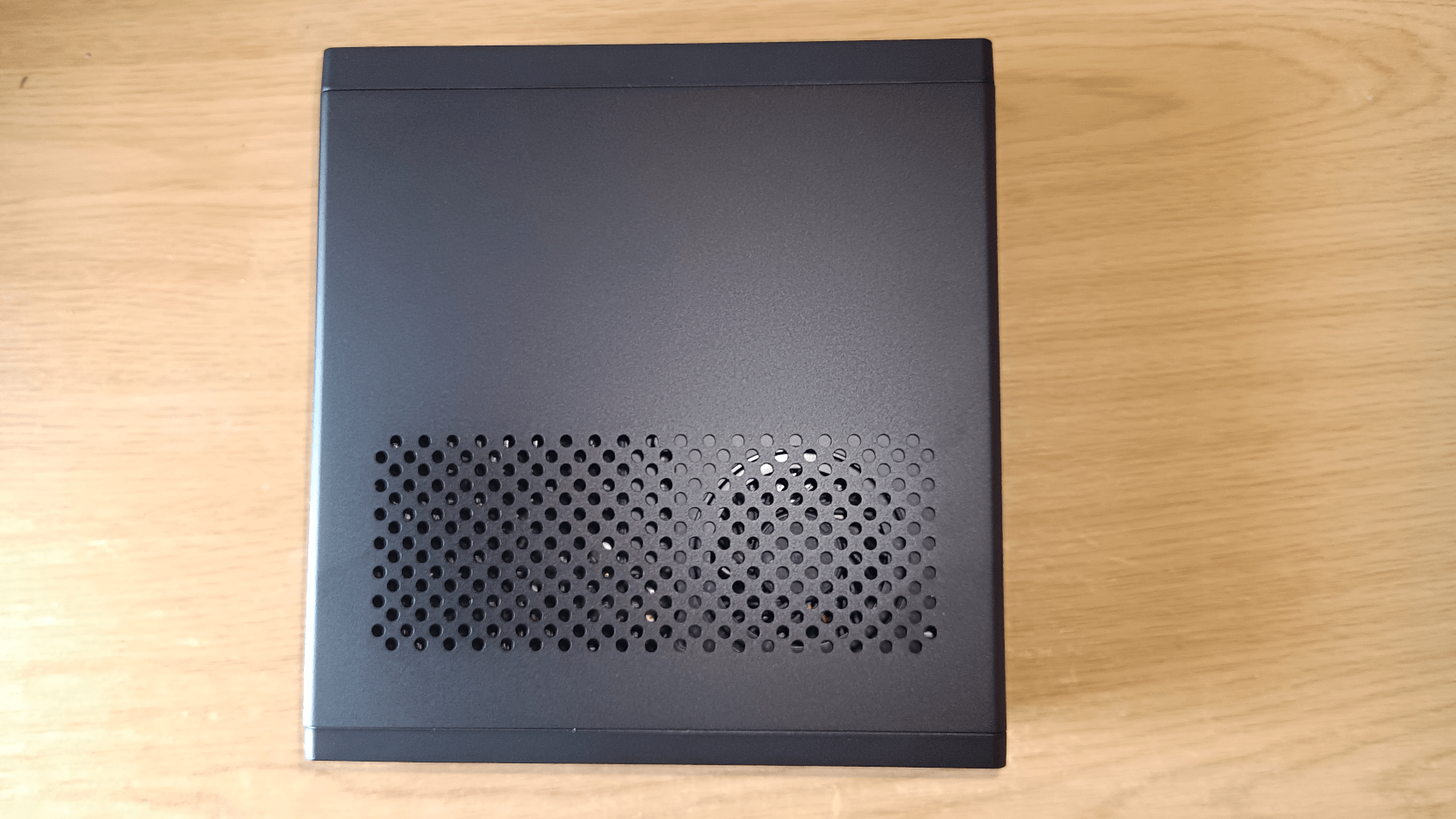
The top is metal with large ventilation perforations, while the front and side sections are metal too, and overall fit and finish look clean.
The chassis is designed with thermals foremost. The cooling uses triple copper heat pipes, a turbine fan, aerodynamic airflow channels, and phase-change thermal material.
Front view
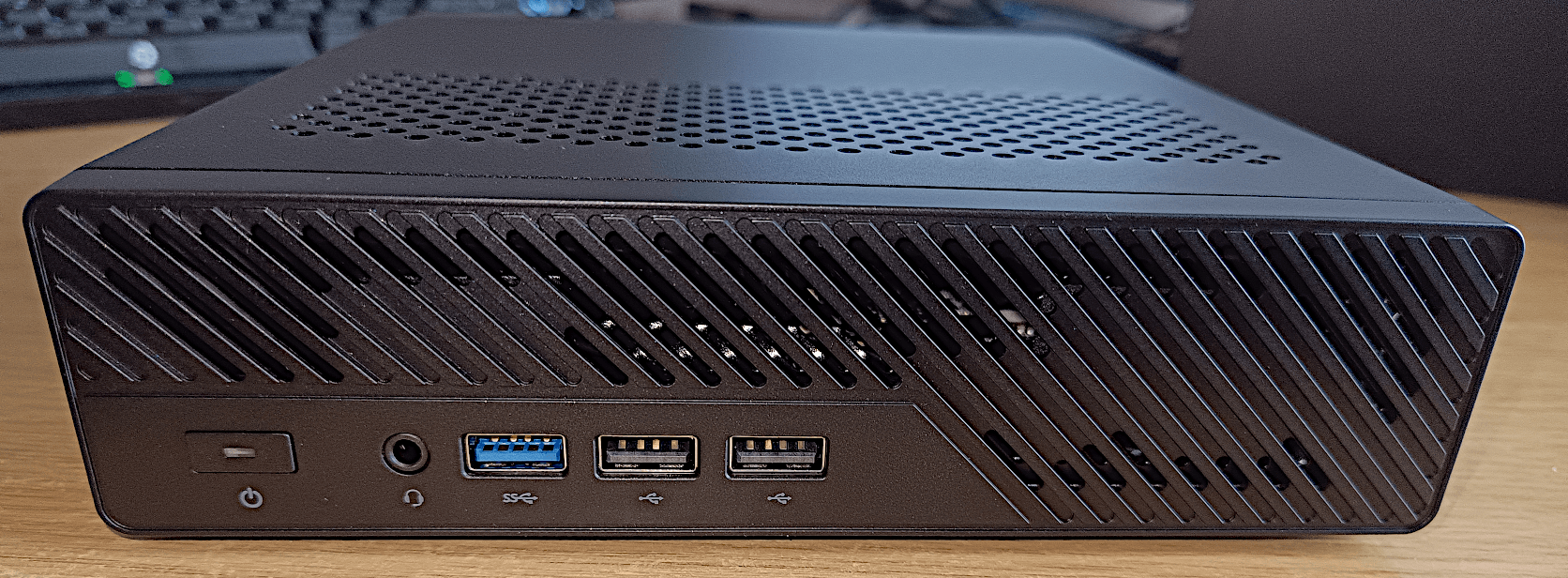
From left to right on the front panel:
- Power button – the button lets you put the Mini PC to sleep mode or force a shutdown
- 3.5 mm headphone/audio jack – for audio output or to connect an external microphone
- 1 USB Type-A port – blue, high-speed; it’s a USB 3.2 Gen 2×1 port, providing up to 10 Gbps
- 2 USB 2.0 Type-A ports for keyboard/mouse/printer/webcam/USB flash drive etc
The rest of the front is ventilation grille, not ports.
Rear view
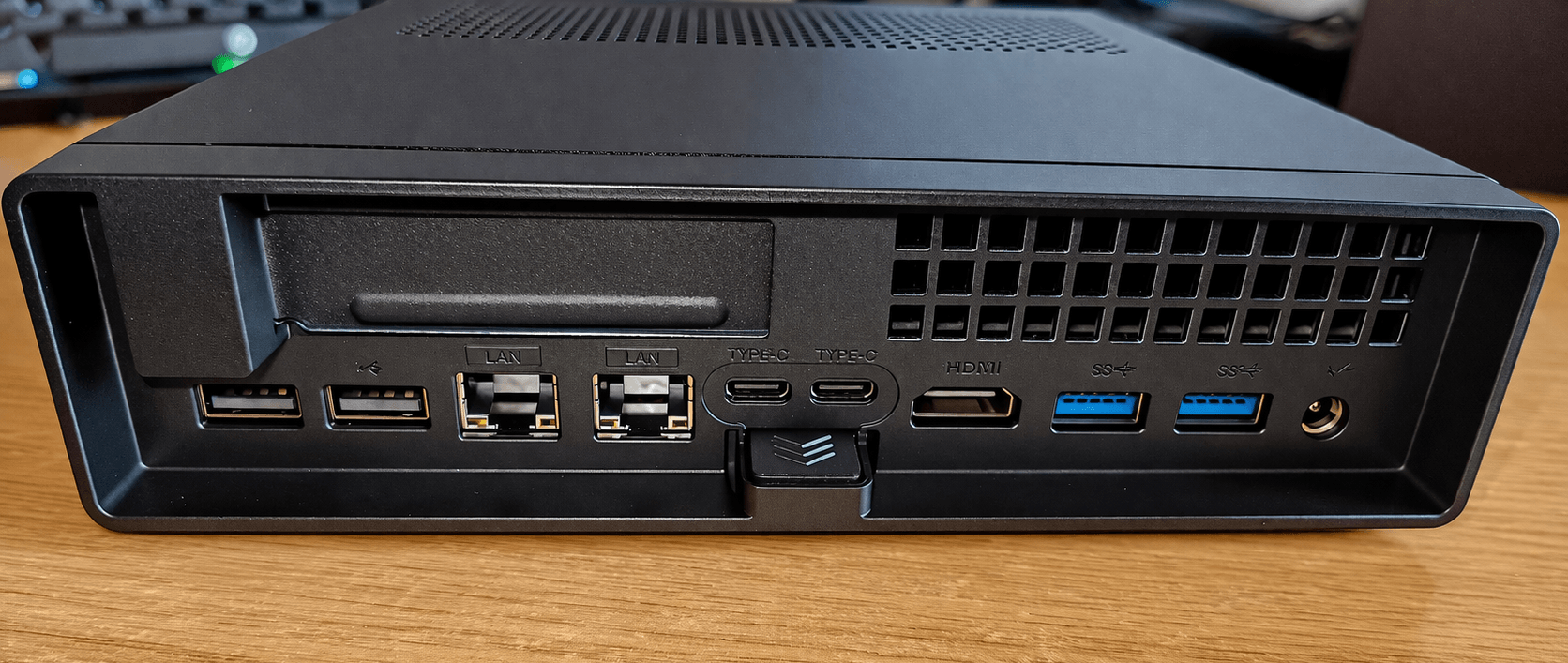
From left to right on the rear panel:
- 2 USB 2.0 Type-A ports for keyboard/mouse/printer/webcam/USB flash drive etc
- 2 RJ45 Ethernet/LAN ports. The dual ports are 10GbE (RTL8127 chip)
- 2 USB Type-C ports – full function – charging, data, and display output all in one, providing a transfer rate up to 10 Gbps and support DisplayPort Alt Mode 1.4, up to 4K@120Hz
- HDMI port (up to 4K@60Hz)
- 2 USB Type-A ports – blue, high-speed; they are USB 3.2 Gen 2×1 ports, providing up to 10 Gbps each
- DC power input
- Covered connector located below the two USB Type-C ports – the chassis release latch/button used to slide the internal assembly out of the outer shell
The array of ports is impressive. In total, the machine can support 3 displays via its HDMI and USB-C ports. I doubt I’ll ever need 4 USB 2.0 Type-A ports other than for a couple of basic peripherals, but the 3 USB 3.2 Gen 2×1 Type-A (or 5 if you include the Type-C ports) offer fast connection up to 10 Gbps and offer excellent connectivity.
As the machine came supplied with a 1TB NVMe, Minisforum installed Debian 12 on the disk. If you get the machine without a disk, you’ll need to install the OS, but that’s very easy.
The first thing needed is to update the system. In Debian that’s performed by apt. Issue the command
$ sudo apt update
apt update refreshes APT’s package indexes from the configured repositories which are located at the University of Science and Technology of China (USTC).
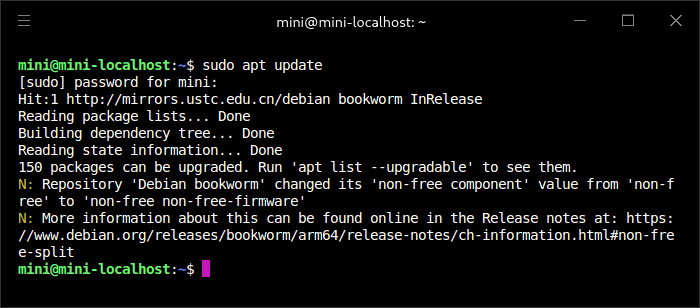
There are 150 packages to upgrade.
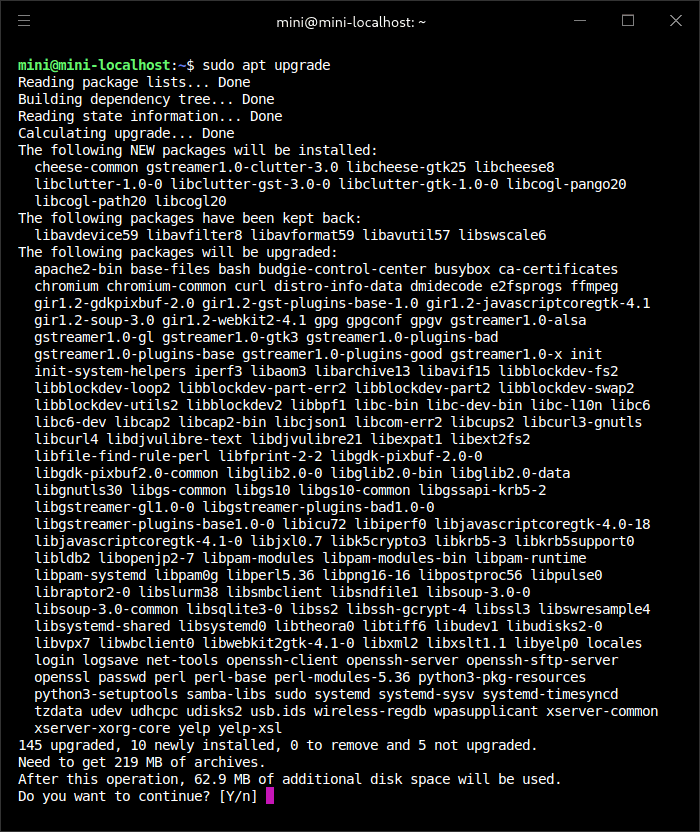
$ sudo apt upgrade
Let’s interrogate the system. We’re running Debian 12. Here’s the kernel information.
$ uname -a
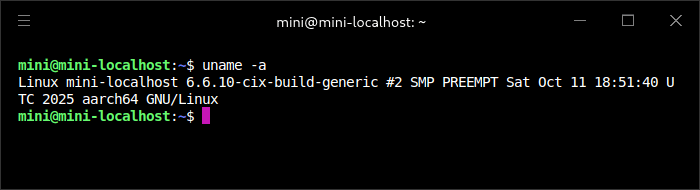
- The hostname is mini-localhost.
- It is running a 64-bit ARM kernel.
- The kernel is version 6.6.10.
- The kernel is a custom/vendor build, not a default distro kernel. That’s because the stock Debian 12 kernel doesn’t support all the machine’s hardware.
- The specific kernel build was compiled on October 11, 2025.
I’ll interrogate the system using inxi.
$ sudo apt install inxi
CPU
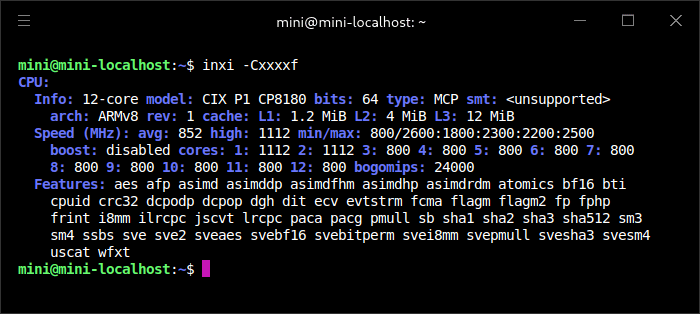
The CPU setup is a 12-core hybrid design. The CIX P1 has 4 Cortex-A720 big cores and 4 Cortex-A720 medium cores, and 4 small Cortex-A520 cores. The small cores clock up to 1.8 GHz. There’s also 12 MB shared L3 cache. The machine offers up to 45 TOPS of integrated AI performance.
The small cores offer substantially lower performance and internal interconnect bandwidth than the big and medium cores. As a result, multi-core workloads that use the small cores can noticeably reduce overall system performance. Unless you specifically need the additional cores for virtualization or similar tasks, Minisforum recommends disabling the small cores for everyday use.
We can identify the small cores from the output of lscpu.
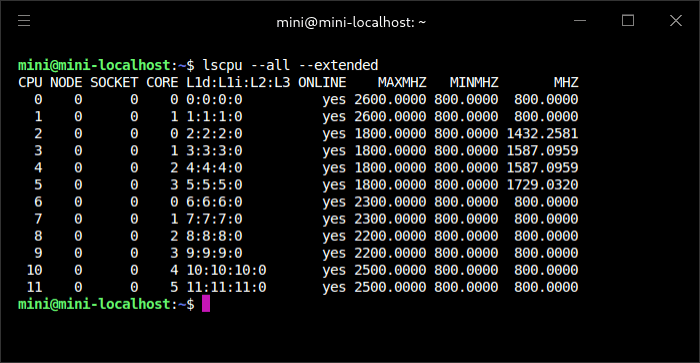
The 4 small cores clock up to 1.8 GHz (1800 MHz) and therefore are CPU Cores 2, 3, 4 and 5. The machine’s UEFI BIOS lets you disable them. I’ll be publishing a separate article looking at the BIOS in a later article in this series.
Graphics
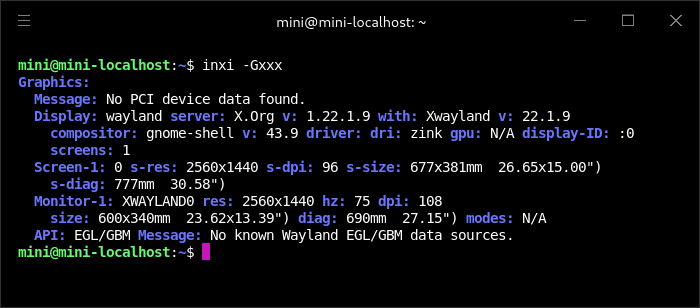
The built-in graphics are the Arm Immortalis-G720 MC10 integrated GPU inside the CIX CP8180 SoC.
In practical terms, the MS-R1’s graphics are mainly about display output and light-to-moderate GPU acceleration, not replacing a gaming card. It supports 1× HDMI 2.0 up to 4K@60Hz plus 2× USB-C with DisplayPort 1.4 Alt Mode up to 4K@120Hz, so it can serve well as a multi-monitor desktop or lab box.
A big plus is expandability: the MS-R1 has a full-size PCIe x16 slot wired as x8 which can be used for an external/discrete GPU. Only low-profile, single-slot, short cards will fit in the case.
Memory
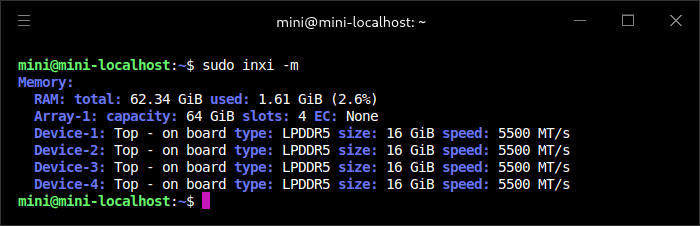
The machine came with 64GB of LPDDR5 RAM running at 5500 MT/s (that’s a lower speed than the memory with the Orange Pi 6 Plus). There’s ECC support.
Keep in mind that the LPDDR5 memory is soldered rather than socketed, so it can’t be removed, replaced, or upgraded later. If you buy the 32GB RAM model, the memory can’t be upgraded later.
Disk
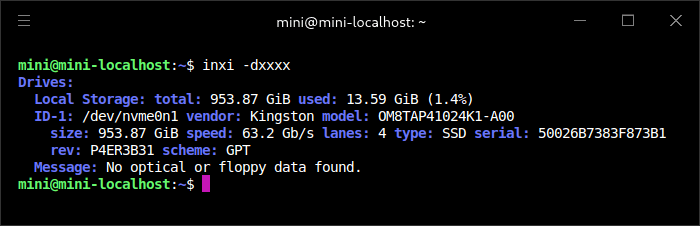
The machine came with a 1TB Kingston NVMe drive. That’s an PCIe Gen 4 NVMe with a maximum read speed of 6,100 MB/s and a maximum write speed of 5,300 MB/s. It’s a fast QLC drive from a very reliable brand. It’s the same model that Minisforum provide in their high end mini PCs I’ve previously reviewed.
As previously mentioned, the machine comes with bundled adapters for U.2 or extra NVMe.
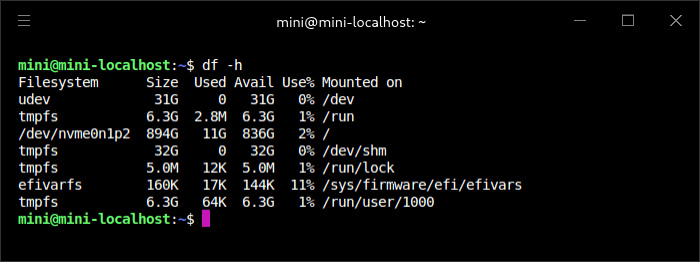
df is showing the disk information with the pre-installed Debian 12.The OS is therefore consuming 11 GB of disk space prior to updating the packages and installing software.
Network
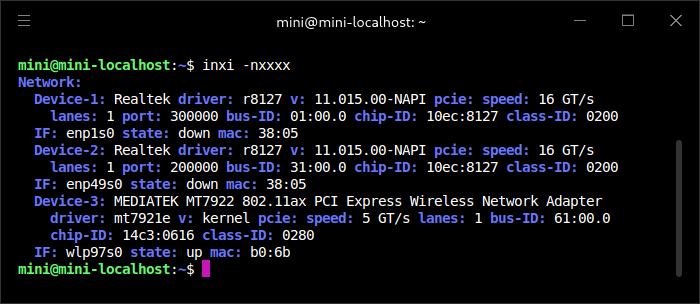
One of the highlights of the MS-R1 is that it has dual 10 Gbps ethernet ports which can auto-negotiate at 10 Mbps, 100 Mbps, 1 Gbps, 2.5 Gbps, 5 Gbps, or 10 Gbps.
The machine also has Wi-Fi 6E and Bluetooth 5.3 At the time of taking the image, only Wi-Fi was being used.
Audio
Temperature
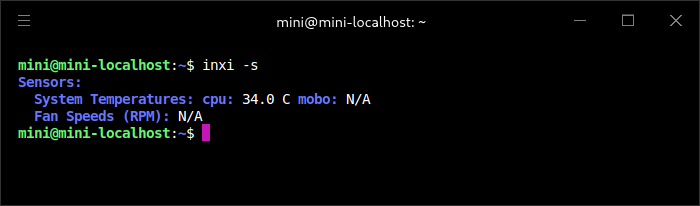
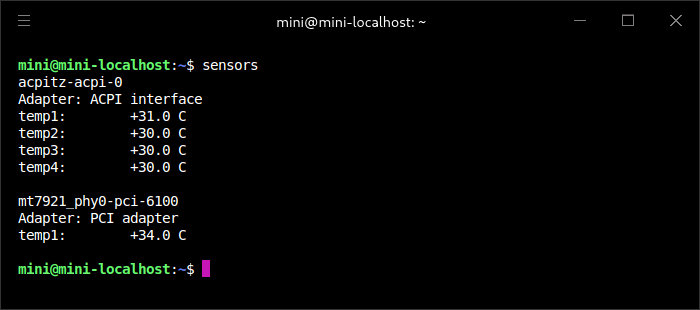
This temperature reading was taken with the machine under no load and a room temperature of 18C.
In the next article in the series, I’ll put the machine through a range of benchmarks.
Complete list of articles in this series:
| Minisforum MS-R1 ARM Mini Workstation | |
|---|---|
| Introduction | Introduction to the series and interrogation of the Mini Workstation |
| Benchmarks | Benchmarking the Minisforum MS-R1 ARM Mini Workstation |
| Power | Testing and comparing the power consumption |
| BIOS | Exploring the BIOS |
| Ubuntu | Testing the Ubuntu 26.04 LTS image |