
Last Updated on June 17, 2026
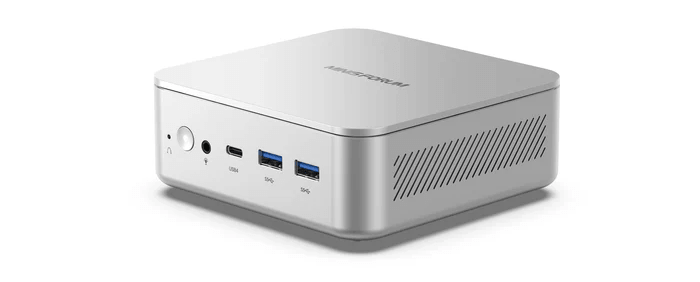
The Minisforum Elite Mini M2 is a compact mini PC built around Intel’s Panther Lake platform. In this series, I’ll explore the machine in detail from a Linux perspective, looking at hardware support, installation, power consumption, performance, thermals, noise, and everyday usability. I’ll also compare the M2 with a range of other mini PCs to see where it excels, where it falls short, and whether it’s a good choice for Linux users.
The M2 is a Panther Lake mini PC powered by Intel’s Core Ultra 7 356H, a 16-core, 16-thread processor. It belongs to Intel’s Core Ultra Series 3 family, launched in Q1 2026.
Graphics are handled by Intel Graphics with 4 Xe-cores. It’s worth noting that the Core Ultra 7 356H doesn’t have the most powerful GPU available in Intel’s Panther Lake range. Some higher-end Core Ultra X-series processors feature Intel Arc B390 graphics, whereas the 356H uses Intel Graphics with 4 Xe-cores. Even so, the M2’s graphics should be well suited for desktop use, media playback, and light GPU workloads under Linux.
The feature I’m most interested in is AI acceleration. The M2 combines a 50 TOPS NPU with up to 90 TOPS of combined NPU and GPU AI performance. The M2’s 50 TOPS NPU is a strong specification for a mini PC. For camera effects, inference tasks, background AI workloads, and supported local models, 50 TOPS is definitely a positive point. It clears the 40 TOPS threshold commonly associated with modern AI PC features, and puts the machine in the same broad class as recent AI-focused processors from Intel and AMD. Under Linux, the bigger question isn’t the raw TOPS figure, but software support. The NPU has plenty of theoretical performance, but its usefulness depends on whether Linux applications, drivers, runtimes, and AI frameworks can actually make use of it.
My review unit came preconfigured with 32GB of DDR5 RAM, a 1TB NVMe SSD, and Windows 11 Pro preinstalled. MINISFORUM also sells the M2 as a barebones system, which lets you choose and install your own memory, storage, and operating system.
Design and Build
The case has a metallic appearance, although it doesn’t have the distinctly cold feel often associated with bare metal, so I’m not certain whether it’s a metal alloy or a coated plastic/composite finish. It’s finished in light silver with a soft satin sheen rather than a glossy coating. The fine-grained surface can look slightly speckled under certain lighting, which makes it awkward to photograph accurately, particularly around the port labels. The finish also picks up highlights easily, so it can take on cooler or warmer colour casts depending on the lighting and reflections from the desk or nearby objects. Overall, though, the design is clean, minimal, and premium-looking.
The machine measures just 130 × 127 × 50 mm. It’s a little larger than the smallest N100-class mini PCs, but still very much a palm-sized system and small enough to sit unobtrusively on a desk or mount behind a monitor. The extra height helps accommodate a useful range of ports and cooling, while the rounded enclosure gives it a more polished feel than a basic plastic mini PC.
Front view
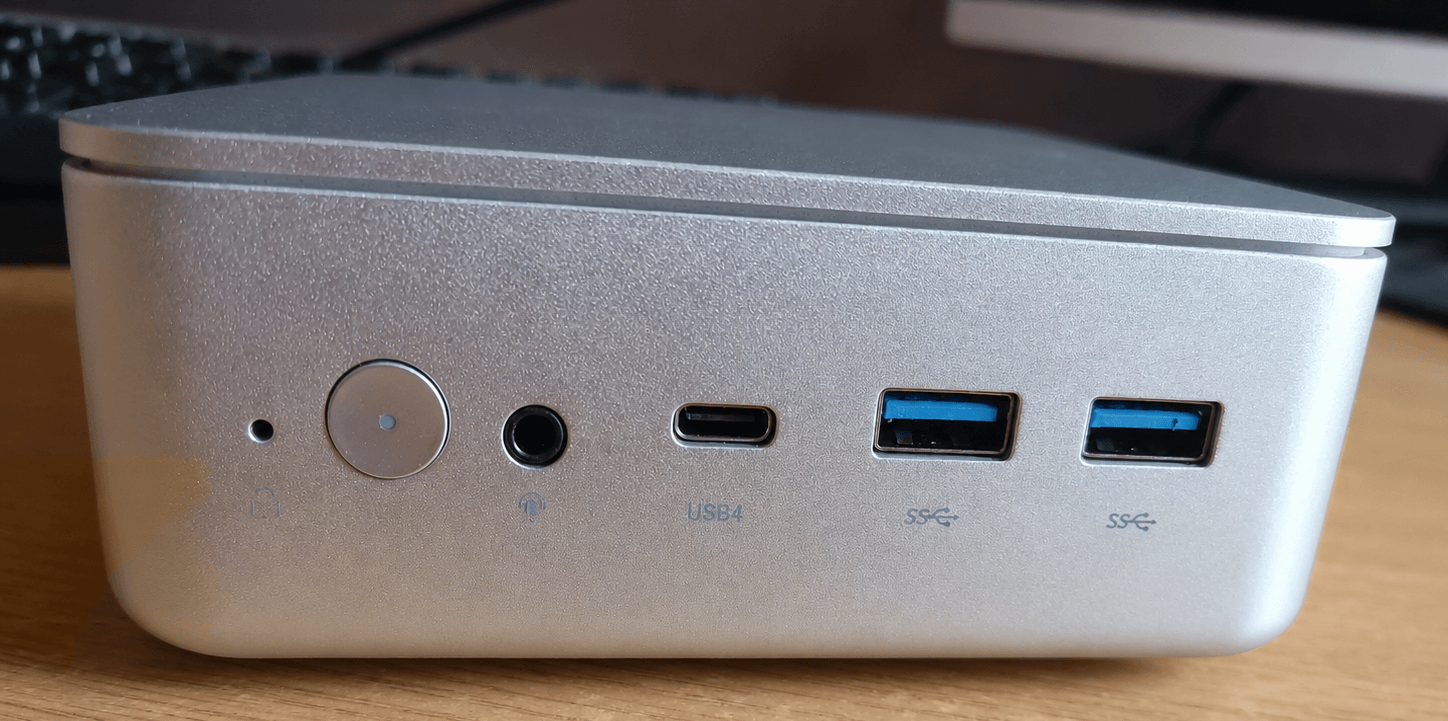
The front panel is kept fairly simple. From left to right there’s a recessed reset / Clear CMOS hole, the power button, a 3.5mm combo audio jack, a USB4 Type-C port with DisplayPort Alt Mode and 15W power delivery, and two USB-A ports marked with SuperSpeed USB symbols. These two USB-A ports are USB 3.2 Gen2.
Rear view
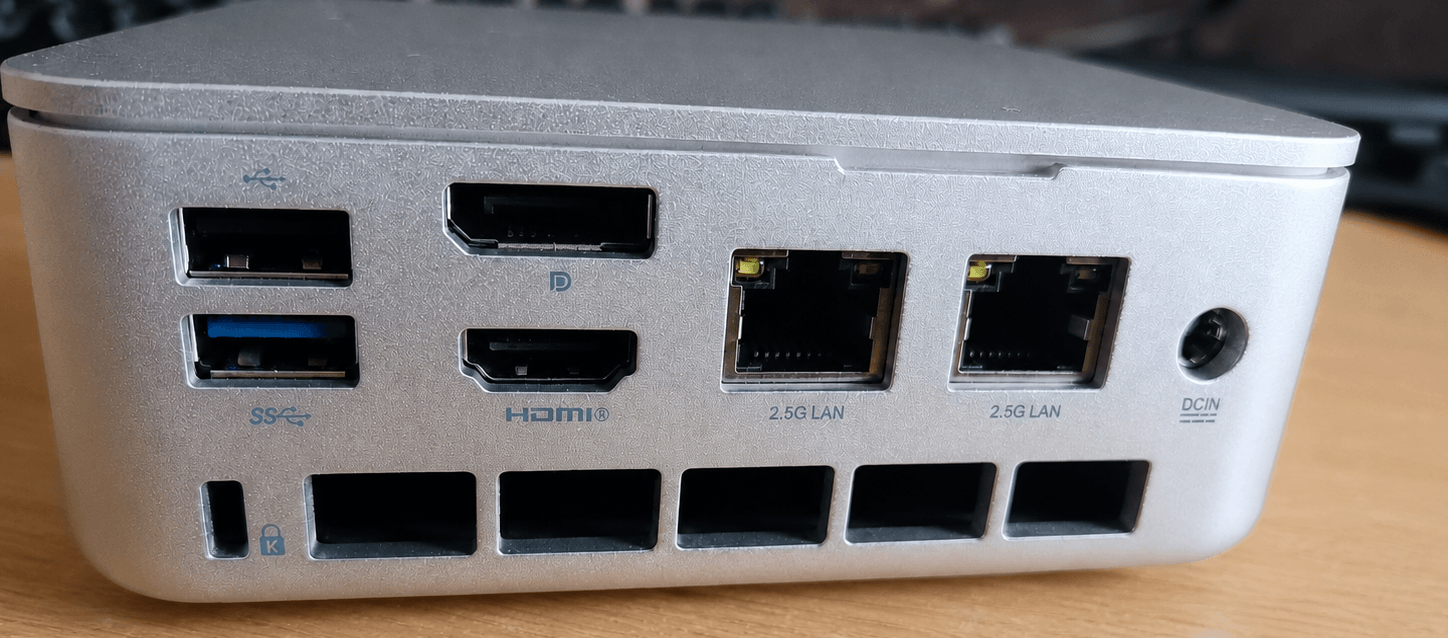
The rear panel carries most of the fixed connectivity. From left to right there are two stacked USB-A ports, with the lower one marked SuperSpeed USB, followed by DisplayPort 1.4 above HDMI 2.1 TMDS, two 2.5G Ethernet ports, and the DC-in power connector. Along the lower edge there’s also a Kensington lock slot on the far left, followed by a row of ventilation openings.
Unlike many mini PCs I’ve reviewed, the M2 supports up to three displays rather than four. I don’t see that as a major weakness. Three-display support is still generous for a compact desktop and will cover the needs of most Linux users, including users running dual monitors with a third screen for monitoring, messaging, documentation, or media playback. Four-display support is useful in some specialist setups, but for general desktop use, development, office work, and media consumption, three outputs are unlikely to feel restrictive.
Side view
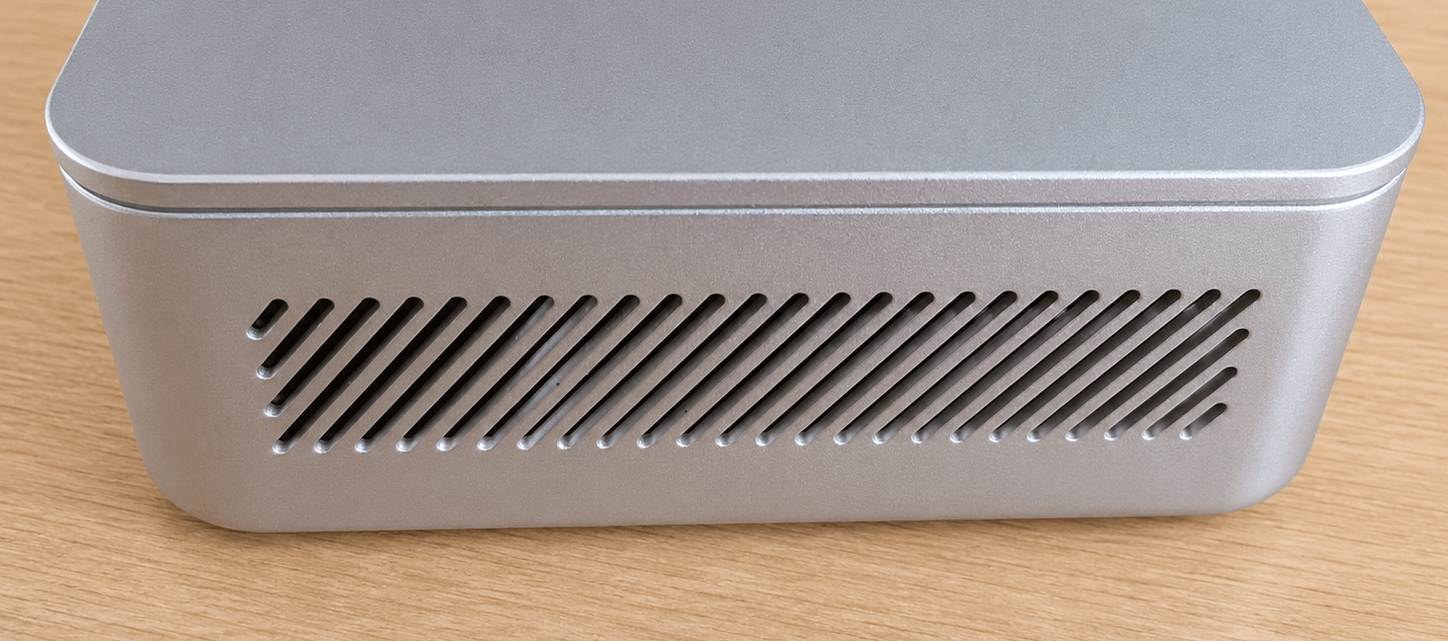
The side panels are dominated by a long diagonal ventilation grille running across most of the case. The vents are neatly cut into the side panels and provide a large intake or exhaust area without breaking the clean look of the enclosure. Like the rest of the case, the side has rounded edges and the same light silver satin finish, giving the M2 a simple but polished appearance.
Next page: Page 2 – Installing Linux
Pages in this article:
Page 1 – Introduction and Design
Page 2 – Installing Linux
Page 3 – Interrogation of the System
Page 4 – Adding RAM
Complete list of articles in this series:
| MINISFORUM M2 Core Ultra 7 356H Mini PC | |
|---|---|
| Introduction | Introduction to the series and interrogation of the machine |
| NPU | Setting up and testing the NPU |
| Benchmarks | I run a series of benchmarks focusing on the CPU, GPU, Memory, and Disk performance |
| Power | Testing and comparing the power consumption |
| BIOS | In the world of computing, BIOS, which stands for Basic Input/Output System, plays a crucial role |
| Cores | A look at Intel’s hybrid architecture |
| Intel processors | P-Cores, E-Cores and LP E-Cores Compared Across 4 Intel Processors |
| Next articles in the series will focus on the machine's NPU | |