
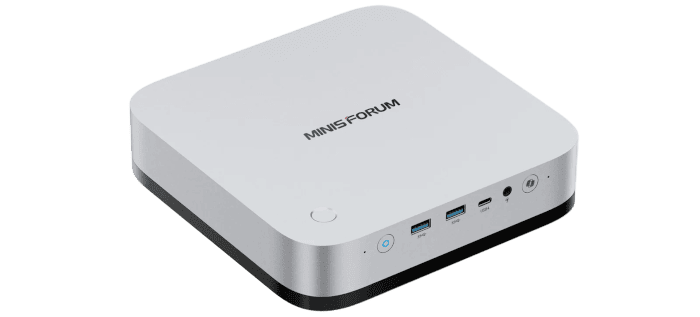
This is the first in a new series looking at the Minisforum M2 Pro running Linux. I’ll be examining its performance in everyday use, CPU and GPU benchmarks, gaming, and local AI, together with power consumption and noise.
The M2 Pro pairs an Intel Core Ultra X7 358H processor with Intel Arc B390 integrated graphics. Based on Intel’s Panther Lake architecture, it offers a welcome opportunity to see how Intel compares with the AMD systems that have featured in many of my recent mini PC reviews. The B390 is of particular interest: its 12 Xe3 cores should give it rather more scope for gaming and GPU workloads than the modest integrated graphics traditionally associated with small office PCs.
My review unit has 32GB of LPDDR5X memory running at 7467 MT/s. This is soldered to the motherboard, so the capacity you buy is the capacity you’re keeping. For general desktop use, 32GB offers plenty of room, but local AI workloads can soon make a fixed memory ceiling feel restrictive.
There’s also an unusually generous selection of connections, including 10GbE and 2.5GbE Ethernet, three USB4 ports, and Wi-Fi 7. With space for three NVMe SSDs, the M2 Pro has storage expansion to match, although the slots don’t all offer the same performance.
I’ll be using CachyOS with KDE Plasma throughout this series. Among the comparison systems is the Minisforum AI X1 Pro, with its AMD Ryzen AI 9 HX 370 processor and Radeon 890M graphics. That should make for an interesting contest, particularly in games and local AI inference.
What’s in the Box
Minisforum supplies the following:
- M2 Pro mini PC.
- Mains power lead.
- HDMI cable.
- Vertical stand.
- Mounting bracket and screws.
- SSD heatsink.
- User manual.
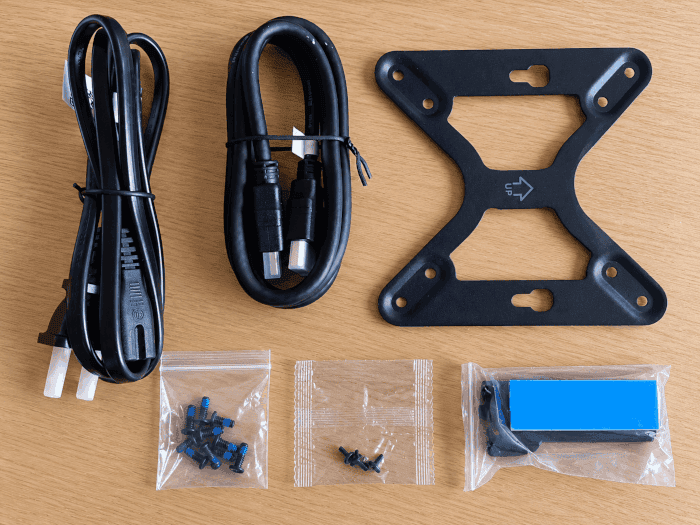
There’s no external power brick to find room for: the power supply is built into the computer.
My review sample arrived with a US two-pin mains lead. I’m using it with a suitable US-to-UK plug adapter, although replacing the lead with an appropriate UK one would make for a neater arrangement.
Design
The M2 Pro will look familiar to anyone who has seen the Minisforum AI X1 Pro, which I reviewed previously. It uses a similar low, square chassis, measuring 195 x 195 x 47.5mm. That’s a larger footprint than many mini PCs, but accommodating the power supply inside the case saves space elsewhere.
The predominantly aluminium casing has a restrained silver finish, with a contrasting black lower section. It can sit flat on a desk or stand vertically using the supplied stand. The mounting bracket provides another option for keeping it off the desk, although its size makes positioning it behind a monitor less practical than with a smaller machine.
There are also built-in speakers, which could save some desk space. I’ll reserve judgement on their usefulness until I’ve spent more time with them.
A fingerprint reader sits on top of the chassis. Whether that becomes a useful part of the Linux experience will depend on software support; its presence alone doesn’t establish compatibility.
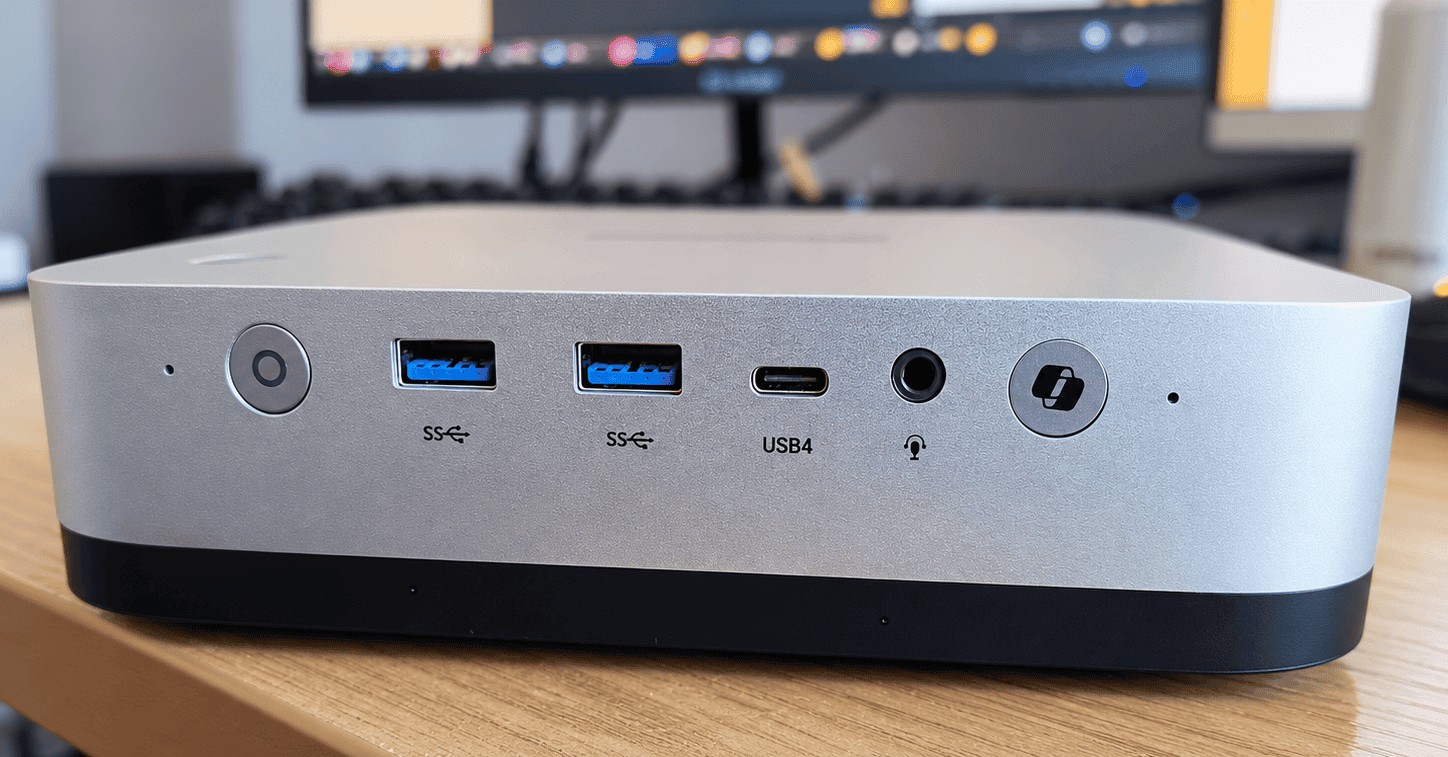
The front panel provides two USB 3.2 Gen 2 Type-A ports, a USB4 Type-C port, and a 3.5mm audio combo jack, alongside the power and Copilot buttons. It’s a practical selection for devices that are plugged in and removed regularly. In particular, a front-facing USB4 port saves reaching around the machine when connecting a fast portable SSD.
That USB4 connection supports speeds of up to 40Gbps, DisplayPort Alt Mode, and up to 15W of power output. Two further USB4 ports are on the rear, together with USB 2.0 Type-A, HDMI 2.1, DisplayPort 1.4, the two Ethernet ports, and the mains inlet. One rear USB4 port also accepts 65W to 100W USB-C Power Delivery input, providing an alternative way to power the machine.
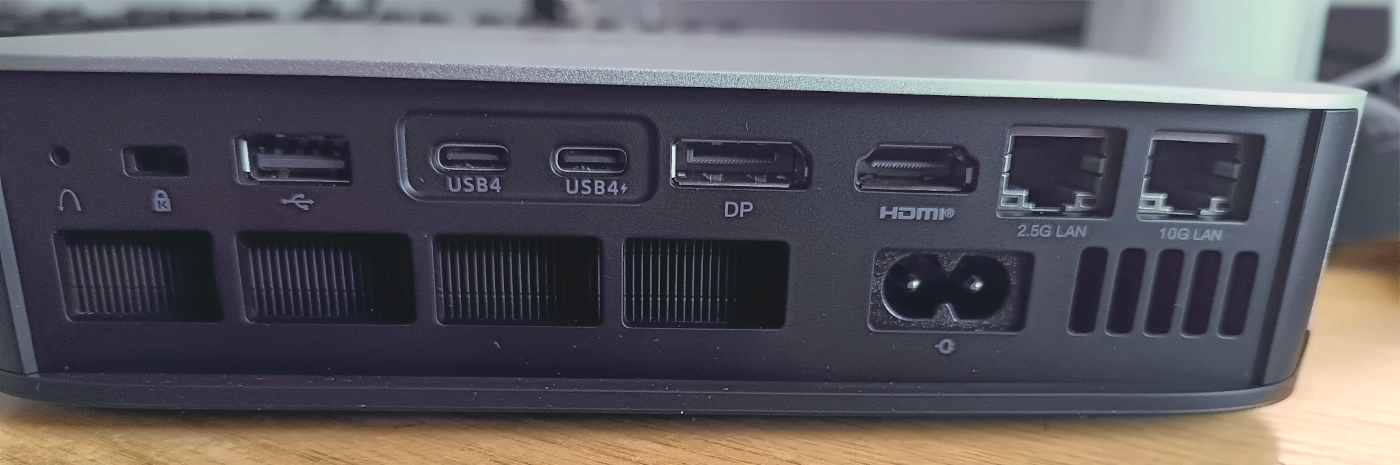
For my purposes, 10GbE is one of the more appealing additions. Fast internal storage is of limited benefit when copying large files to another machine over a much slower network connection. Making full use of this port requires suitable equipment at the other end, of course, but it’s good to have the connection built in rather than needing an adapter. The separate 2.5GbE port adds flexibility for anyone working across two networks.
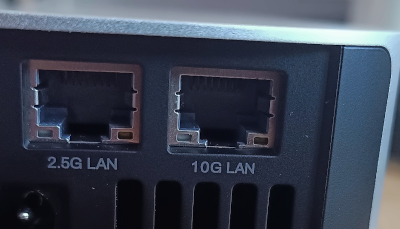
There are a couple of less welcome choices. Unlike the AI X1 Pro and BOSGAME VTA-439, the M2 Pro has no OCuLink port. The M2 Pro has considerably stronger integrated graphics than the AI X1 Pro, but removing OCuLink unnecessarily limits its potential as an expandable gaming or GPU-compute system. You can still connect an eGPU to the M2 Pro over USB4, but that isn’t a complete substitute for OCuLink.
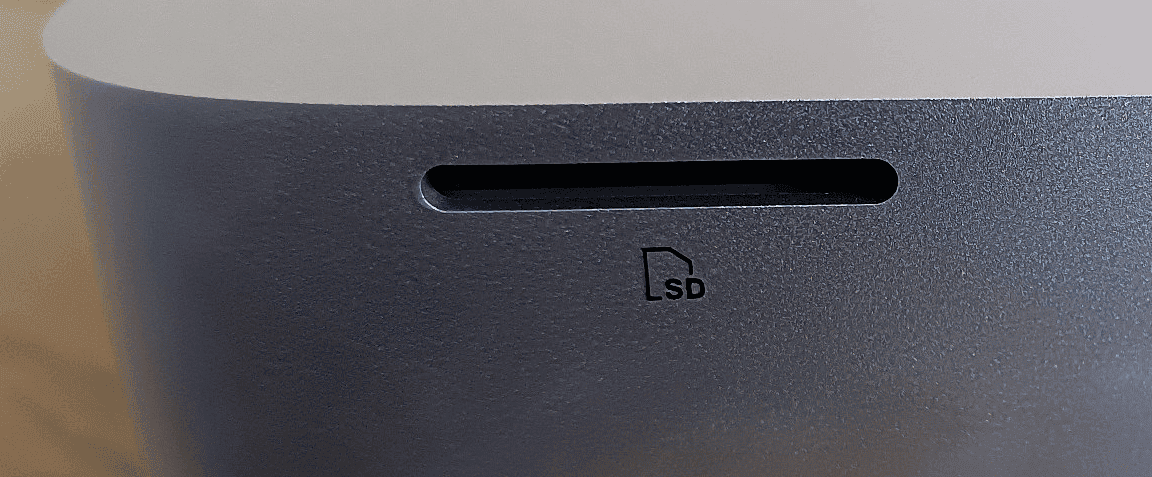
The full-size SD card reader on the right side is another slight disappointment. It uses USB 2.0, making it poorly matched to the rest of the machine’s connectivity. It’s convenient for occasional use, but a faster external reader would be a better choice for transferring large collections of photographs or video.
Storage expansion is more encouraging. The M2 Pro accommodates three M.2 2280 NVMe SSDs, with two slots offering PCIe 4.0 x4 connections. The third operates at PCIe 4.0 x1, so it provides additional capacity without the same transfer speeds. That’s still useful, particularly for keeping a growing games library or collection of AI models on a separate drive.
The Arc B390 is the component I’m most keen to put to work. Gaming is an obvious test, but I’m also interested in its performance with Vulkan-based applications and local language models. As an integrated GPU, it shares system memory, which offers different possibilities from a discrete card with a fixed allocation of VRAM. That memory still has to accommodate Linux and everything else running on the machine.
The series will examine how these components work together under Linux, including the less glamorous details that matter in daily use: driver support, sustained performance, power consumption, and fan noise. First, though, it’s time to get CachyOS installed.
Next page: Page 2 – First Impressions of Running Linux
Pages in this article:
Page 1 – Introduction and Design
Page 2 – First Impressions of Running Linux
Page 3 – Interrogation of the System
Complete list of articles in this series:
| MINISFORUM M2 Pro-358H | |
|---|---|
| Introduction | Introduction to the series and interrogation of the machine |
Please read our Comment Policy before commenting.