
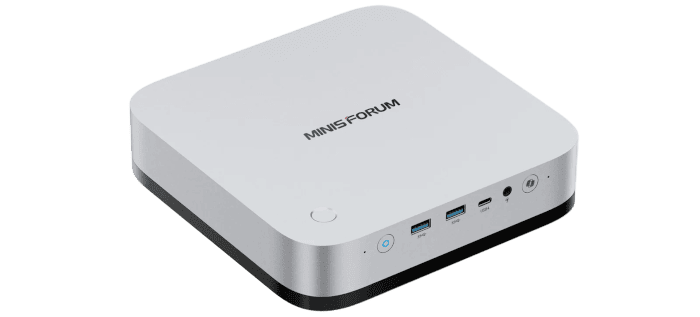
First Impressions of Running Linux on the M2 Pro
On first boot, the M2 Pro launches the Windows 11 setup process. That’s hardly surprising, as Minisforum supplies the machine with Windows preinstalled. Before replacing it with Linux, I wanted to see whether everything was working as expected.
Unfortunately, the initial experience wasn’t particularly encouraging. Windows 11 reached the familiar “Just a moment” screen and appeared to get stuck. There was no indication of progress, and for a long time I wondered whether the installation had frozen completely. In the end, I had to reboot the machine.
Eventually, Windows did finish setting itself up and installing updates, but the entire process took around two hours. Two hours! On a brand-new machine with an Intel Core Ultra X7 358H processor and a fast NVMe SSD, that’s a ridiculous amount of time to spend staring at setup screens.
Once Windows was fully configured, I could turn my attention to the operating system I’d actually be using for this series. I’ve been running CachyOS on several of my other machines, so it was the natural choice for the M2 Pro. The next step was to install it and see how well it handled Intel’s new Panther Lake hardware.
CachyOS
CachyOS uses Calamares as its graphical installer, customised for the distribution. It also offers a separate command-line installer.
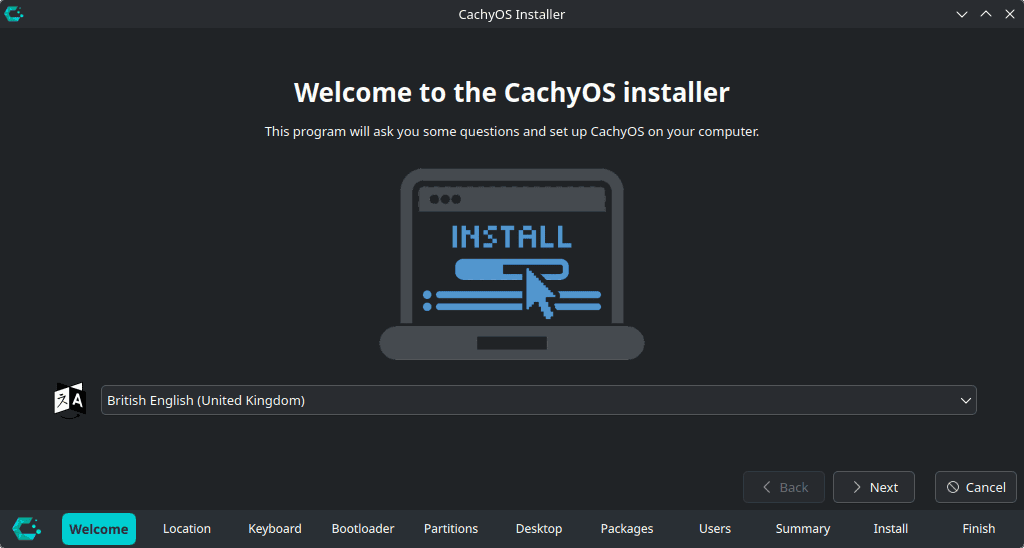
Language
The installer opens with a language selection screen. A row of tabs along the bottom shows the installation stages, making it easy to see where you are in the process. Location and keyboard settings follow.
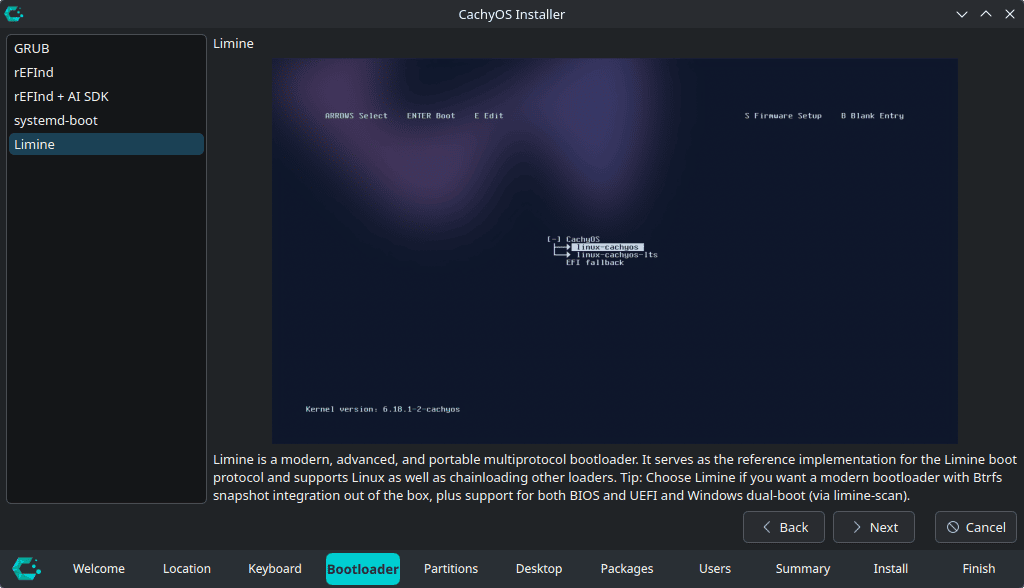
Bootloader
CachyOS offers a choice of bootloaders, including GRUB, rEFInd, systemd-boot, and Limine. Limine is selected here, with the installer highlighting its support for Btrfs snapshots and dual booting with Windows. Each option comes with a short explanation to help you decide.
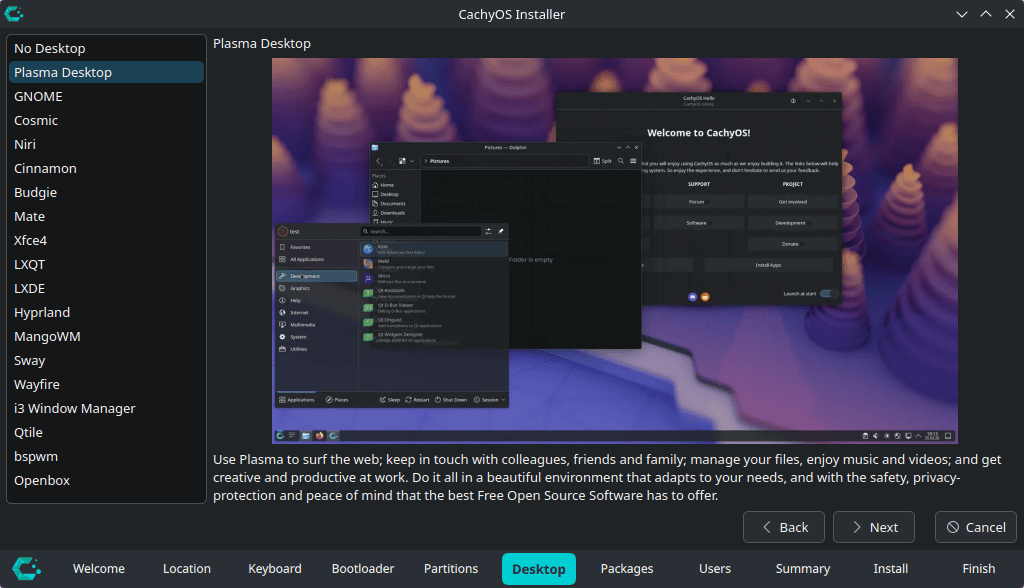
Desktop
There’s also a generous choice of desktop environments and window managers, with a preview and description of each selection. I chose KDE Plasma, my preferred desktop for everyday use. GNOME, Cinnamon, Xfce, and COSMIC are among the alternatives, alongside options such as Hyprland and Sway.
Installation was straightforward, with the M2 Pro’s hardware detected automatically, including the displays, Ethernet, Wi-Fi, and Bluetooth. I was up and running in 15 minutes, a welcome contrast to the Windows 11 setup. That left the familiar jobs of installing my must-have applications and preferred KDE Plasma theme, setting up mount points, and copying over my configuration files.
CachyOS also provides optimised software packages. Its installer detects the CPU’s capabilities and selects the appropriate repositories automatically. These packages are compiled to use newer processor instructions, which can improve performance in some workloads.
The following command shows which CachyOS repositories are enabled:
$ grep -E '^\[cachyos' /etc/pacman.conf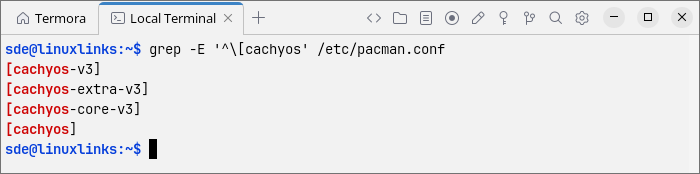
The output confirms that the M2 Pro’s installation has CachyOS’s x86-64-v3 repositories enabled. These provide software compiled to take advantage of instructions such as AVX2. The packages target compatible modern CPUs rather than the M2 Pro specifically, and any performance gains depend on the workload.
A Firefox Irritation
One recent irritation cropped up which has nothing to do with the M2 Pro or CachyOS. It’s Firefox.
I use two monitors, with a Firefox window open on each. The trouble is that the inactive Firefox window makes almost all its tab titles so faint they’re virtually unreadable. Only the selected tab remains clearly visible. Why? Both windows are right in front of me, and I want to be able to read the tabs on both without constantly switching focus. I can understand wanting to distinguish the active window, but surely there’s a better way than making the other window’s tabs almost impossible to read?
The solution that worked for me was to override Firefox’s inactive-window styling using a userChrome.css file.
- Open
about:configin Firefox and settoolkit.legacyUserProfileCustomizations.stylesheetstotrue. - Open
about:profilesand find the profile marked as currently in use. Locate its Root Directory. - Inside that directory, create a folder named
chromeif it doesn’t already exist. - Create or edit
chrome/userChrome.cssand add the following CSS::root {
--inactive-titlebar-opacity: 1 !important;
--toolbox-background-color-inactive: var(--toolbox-background-color) !important;
--toolbox-text-color-inactive: var(--toolbox-text-color) !important;
} - Completely quit Firefox and restart it.
Next page: Page 3 – Interrogation of the System
Pages in this article:
Page 1 – Introduction and Design
Page 2 – First Impressions of Running Linux
Page 3 – Interrogation of the System
Complete list of articles in this series:
| MINISFORUM M2 Pro-358H | |
|---|---|
| Introduction | Introduction to the series and interrogation of the machine |
Please read our Comment Policy before commenting.