

Windows, Workspaces & Tiling continued
17. WinTile
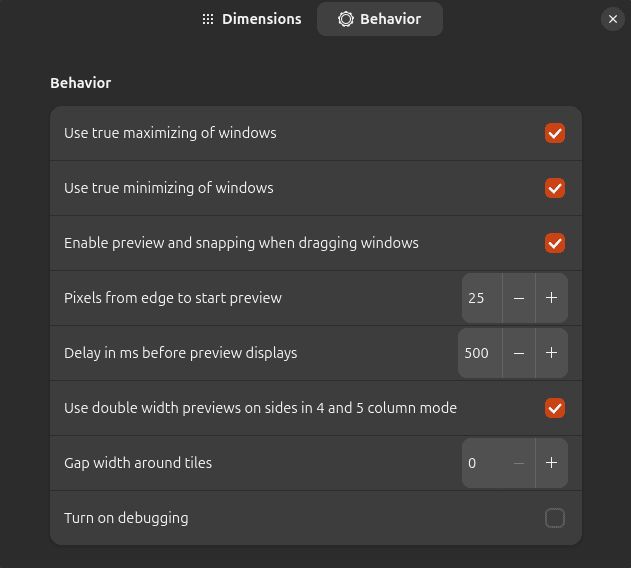
WinTile is a hotkey-driven window tiling system which takes inspiration from Windows.
It supports familiar keyboard-driven placement of windows at the sides and corners of the screen, together with more elaborate layouts.
The number of rows and columns can be configured, which is particularly useful with ultrawide monitors. There’s mouse preview and snapping, configurable gaps, and sensible handling of portrait displays.
WinTile is a good fit for users who want more tiling flexibility without adopting a full tiling window-manager workflow.
Website: nowsci.com/wintile
18. Tiling Shell

Tiling Shell brings advanced window tiling to GNOME Shell.
It supports customized tiling layouts, multiple monitors, a Snap Assistant inspired by Windows 11 and ideas similar to Microsoft’s FancyZones.
You can design layouts appropriate for a particular monitor or workflow and quickly snap windows into those zones.
There are several excellent tiling extensions for GNOME, but Tiling Shell strikes a particularly good balance between power, visual feedback and ease of use.
Website: github.com/domferr/tilingshell
19. No overview at start-up
The name says almost everything.
By default, GNOME can present the Overview after logging in. No overview at start-up prevents that behaviour and takes you directly to the desktop instead.
There’s virtually nothing to configure. Install it, enable it and GNOME behaves the way many users expect when starting a desktop session.
A tiny extension, but a very welcome one if the default behaviour irritates you.
Website: github.com/fthx/no-overview
20. Space Bar
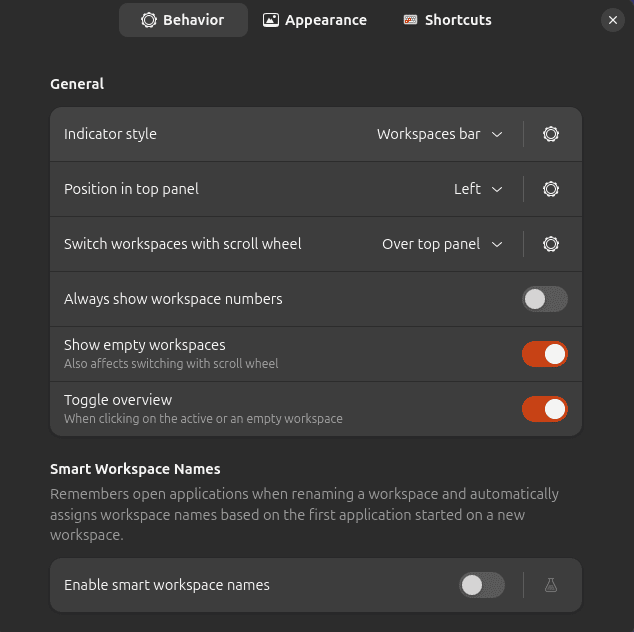
Space Bar replaces GNOME’s standard workspace indicator with an i3-inspired workspace bar.
It supports both static and dynamic workspaces, as well as multi-monitor configurations. Workspaces can be created, removed, renamed and rearranged by drag and drop.
Names can even be assigned automatically according to applications running on a workspace.
Keyboard shortcuts, mouse-wheel workspace switching and appearance customization round out an excellent extension for anyone whose workflow revolves around multiple workspaces.
Website: github.com/christopher-l/space-bar
Next page: Page 6 – Custom Hot Corners – Extended, Just Perfection, Blur My Shell, Burn My Windows
Pages in this article:
Page 1 – Dash to Dock, ArcMenu, Window List, Places Status Indicator
Page 2 – Top Panel Workspace Scroll, Extension List, Tasks in panel, Dash to Panel
Page 3 – Alphabetical App Grid, Kiwi Menu, Auto Move Windows, V-Shell
Page 4 – AATWS, Coverflow Alt-Tab, PaperWM, Tiling Assistant
Page 5 – WinTile, Tiling Shell, No overview at start-up, Space Bar
Page 6 – Custom Hot Corners – Extended, Just Perfection, Blur My Shell, Burn My Windows
Page 7 – Panel corners, Light Style, Lilypad Top Bar Manager, User Themes
Page 8 – Night Theme Switcher, Clipboard History, ddterm, Cronomix
Page 9 – Picture of the day, Emoji Copy, Todoit, Caffeine
Page 10 – Color Picker, Grand Theft Focus, Colosseum, Vitals
Page 11 – Astra Monitor, SimpleWeather, Removable Drive Menu, Quick Settings Audio Panel
Page 12 – Bluetooth Quick Connect, Battery Health Charging, Gtk4 Desktop Icons NG, GSConnect
Page 13 – Hanabi, AppIndicator and KStatusNotifierItem Support
Please read our Comment Policy before commenting.
Hey Steve. Thanks for updating your recommended GNOME Shell Extensions pages.
Hi Torin.
No worries, it was overdue!