

Panels, Menus & Navigation continued
5. Top Panel Workspace Scroll
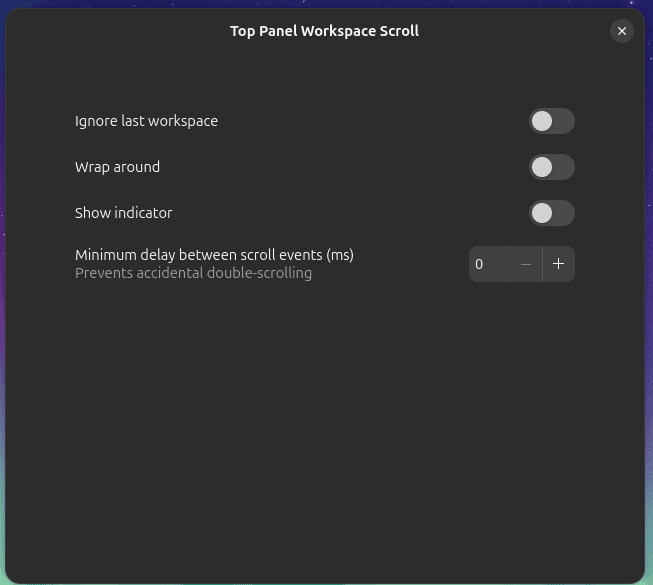
Top Panel Workspace Scroll lets you change workspaces simply by scrolling the mouse wheel while the pointer is over GNOME’s top panel.
That’s essentially the entire purpose of the extension, but it is a good example of how a tiny modification can improve a desktop workflow.
If you make extensive use of workspaces and prefer mouse-driven navigation, switching between them becomes quick and almost effortless.
Website: github.com/timbertson/gnome-shell-scroll-workspaces
6. Extension List
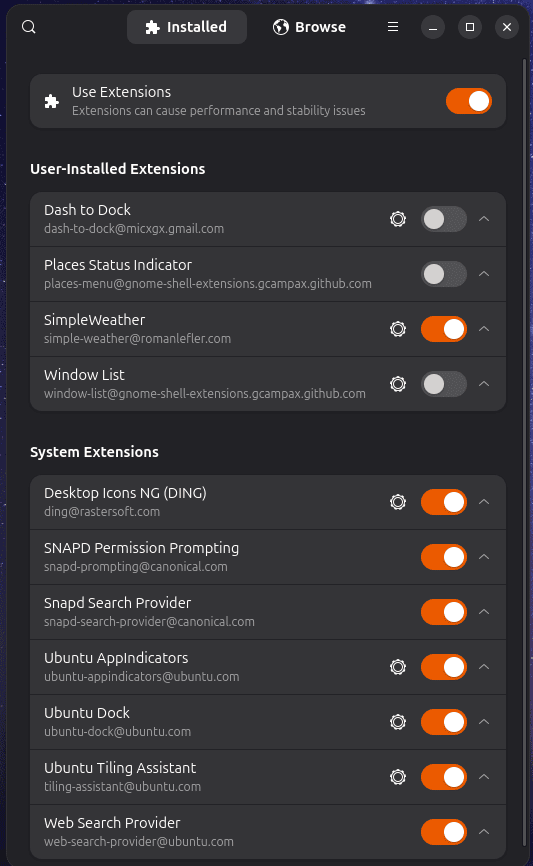
Extension List lacks something in the imagination stakes when it comes to its name, but it’s a handy addition.
It adds a popup menu to the top panel from which installed extensions can be quickly enabled or disabled. The menu provides an at-a-glance view of what is available, avoiding the need to open GNOME’s Extensions application for routine changes.
You can also jump directly to an extension’s settings. This makes Extension List particularly useful if you have lots of extensions installed or regularly experiment with different combinations.
The extension stays neatly out of the way when it isn’t needed, while keeping common extension-management tasks only a couple of clicks away.
It’s a good example of the KISS principle put into practice.
Website: github.com/tuberry/extension-list
7. Tasks in panel

Tasks in panel adds a lightweight taskbar to GNOME’s top panel while retaining the visual style of GNOME Shell.
It can display running applications, optionally group windows by application, raise windows when hovering over their task, and expose an application’s menu with a right click. A middle click can launch a new window.
There’s multi-monitor support as well as optional workspace, favourite application and recent application functionality.
The extension is particularly interesting because it can be pared back. For example, configuring it to display only the focused window reproduces the functionality offered by some older, now discontinued panel extensions.
Website: github.com/fthx/tasks-in-panel
8. Dash to Panel

Dash to Panel is another hugely popular way of reshaping the standard GNOME interface.
Instead of creating a separate dock, it moves GNOME’s Dash into the main panel. Application launchers, running applications and system indicators can therefore occupy a single panel, producing an interface reminiscent of KDE Plasma or Windows.
There is extensive control over positioning, sizing, behaviour, appearance, previews, click actions and multiple monitors.
We slightly prefer Dash to Dock, but Dash to Panel is arguably the better choice if you want a traditional taskbar-style desktop.
Website: github.com/home-sweet-gnome/dash-to-panel
Next page: Page 3 – Alphabetical App Grid, Kiwi Menu, Auto Move Windows, V-Shell
Pages in this article:
Page 1 – Dash to Dock, ArcMenu, Window List, Places Status Indicator
Page 2 – Top Panel Workspace Scroll, Extension List, Tasks in panel, Dash to Panel
Page 3 – Alphabetical App Grid, Kiwi Menu, Auto Move Windows, V-Shell
Page 4 – AATWS, Coverflow Alt-Tab, PaperWM, Tiling Assistant
Page 5 – WinTile, Tiling Shell, No overview at start-up, Space Bar
Page 6 – Custom Hot Corners – Extended, Just Perfection, Blur My Shell, Burn My Windows
Page 7 – Panel corners, Light Style, Lilypad Top Bar Manager, User Themes
Page 8 – Night Theme Switcher, Clipboard History, ddterm, Cronomix
Page 9 – Picture of the day, Emoji Copy, Todoit, Caffeine
Page 10 – Color Picker, Grand Theft Focus, Colosseum, Vitals
Page 11 – Astra Monitor, SimpleWeather, Removable Drive Menu, Quick Settings Audio Panel
Page 12 – Bluetooth Quick Connect, Battery Health Charging, Gtk4 Desktop Icons NG, GSConnect
Page 13 – Hanabi, AppIndicator and KStatusNotifierItem Support
Please read our Comment Policy before commenting.
Hey Steve. Thanks for updating your recommended GNOME Shell Extensions pages.
Hi Torin.
No worries, it was overdue!