
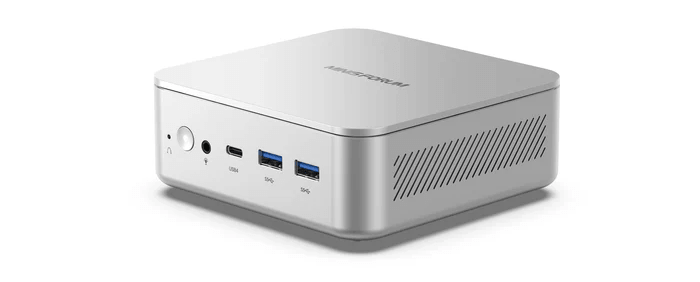
The Minisforum Elite Mini M2 is a compact mini PC built around Intel’s Panther Lake platform. In this series, I’m exploring the machine in detail from a Linux perspective, looking at hardware support, installation, power consumption, performance, thermals, noise, and everyday usability. I’ll also compare the M2 with a range of other mini PCs to see where it excels, where it falls short, and whether it’s a good choice for Linux users.
The M2 is a compact Panther Lake mini PC powered by Intel’s Core Ultra 7 356H, a 16-core, 16-thread processor, with dual DDR5 SODIMM slots, dual M.2 storage, Wi-Fi 7, dual 2.5GbE, and USB4. Its headline feature is local AI acceleration, with a 50 TOPS NPU and up to 90 TOPS combined NPU and GPU AI performance.
BIOS, or Basic Input/Output System, remains one of the most important pieces of low-level software in any computer. This firmware handles the essential groundwork before the operating system takes over, initialising hardware and providing the runtime services needed for the system to boot properly.
For this quick look at the Minisforum M2’s BIOS, I’m using a basic video capture device rather than a camera. That approach delivers far cleaner screenshots and makes the interface much easier to see.
The screenshots below show the default options.
Main
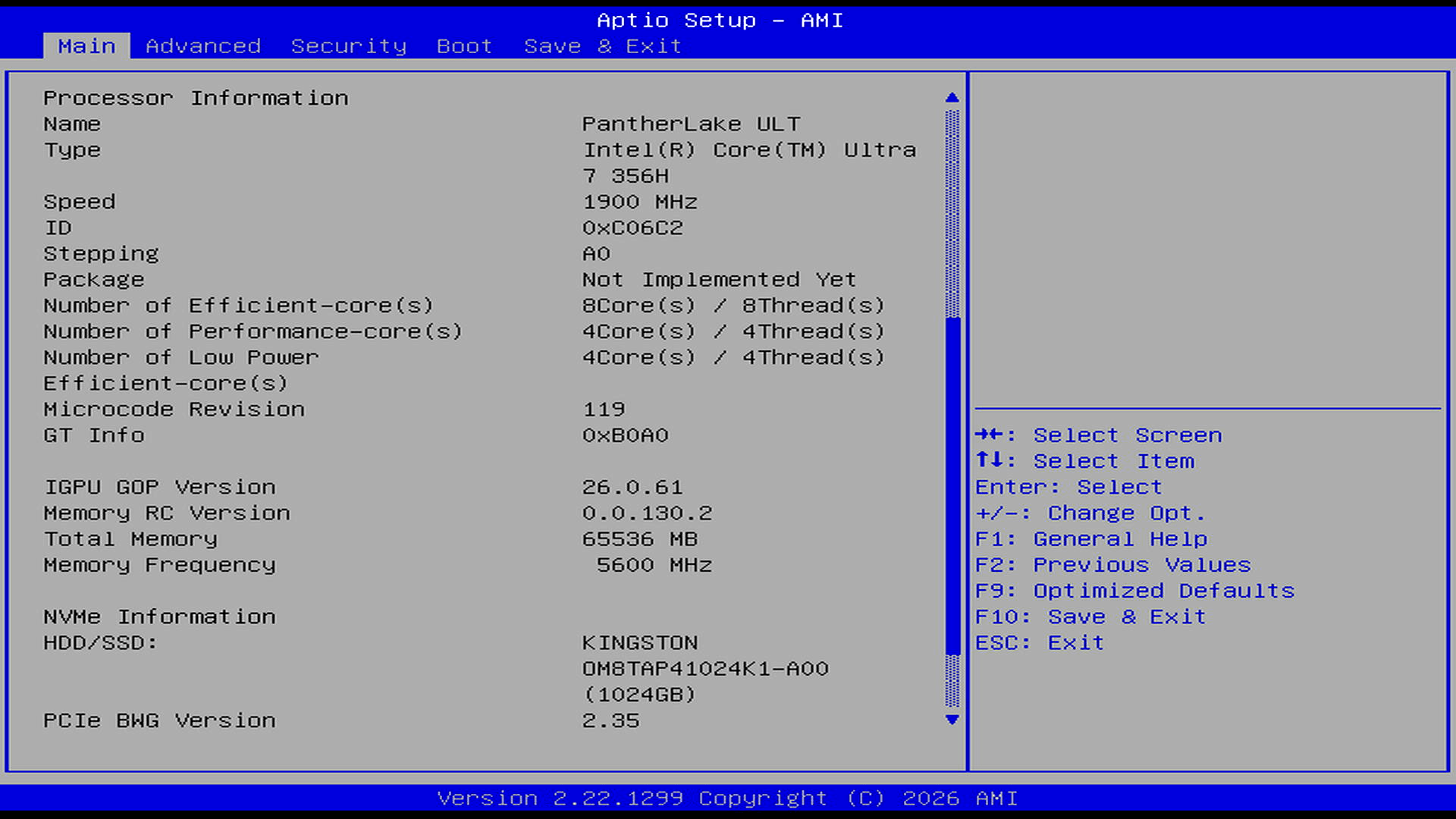
The main BIOS page gives a useful hardware snapshot. It identifies the system as a Panther Lake ULT machine with an Intel Core Ultra 7 356H, running at a base speed of 1.9GHz. The core layout is interesting: 4 Performance cores, 8 Efficient cores, and 4 Low Power Efficient cores, for a total of 16 cores and 16 threads.
Memory is reported as 64GB running at 5600MHz. The machine originally shipped with 32GB installed as a single SODIMM, and I added a second 32GB SODIMM to enable a dual-channel 64GB configuration. Storage is provided by a 1TB Kingston NVMe SSD, identified as OM8TAP41024K1-A00.
Advanced
The screenshots below show every menu available under Advanced.
Device Control
S5 RTC Wake Settings
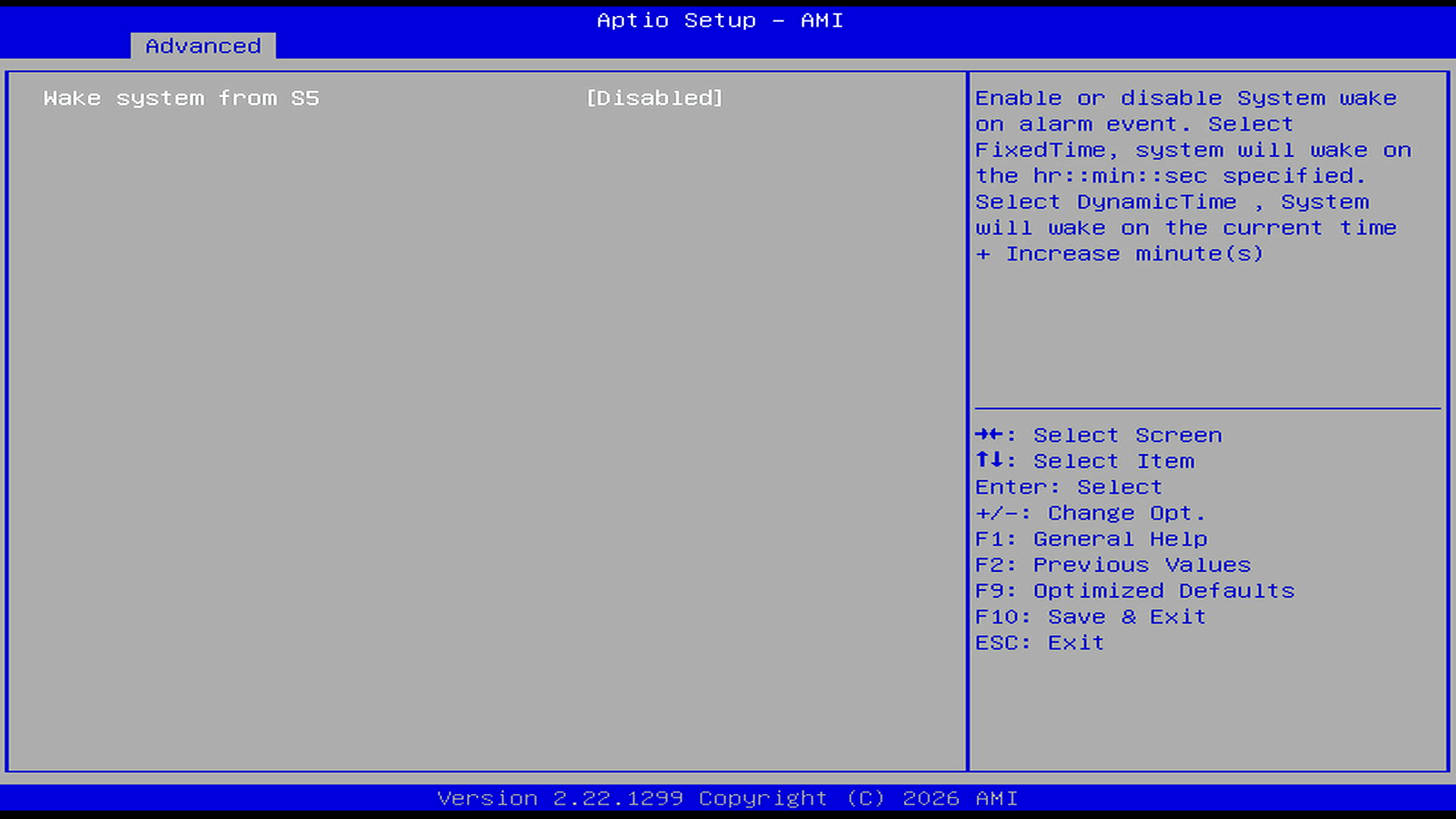
Network Stack Configuration
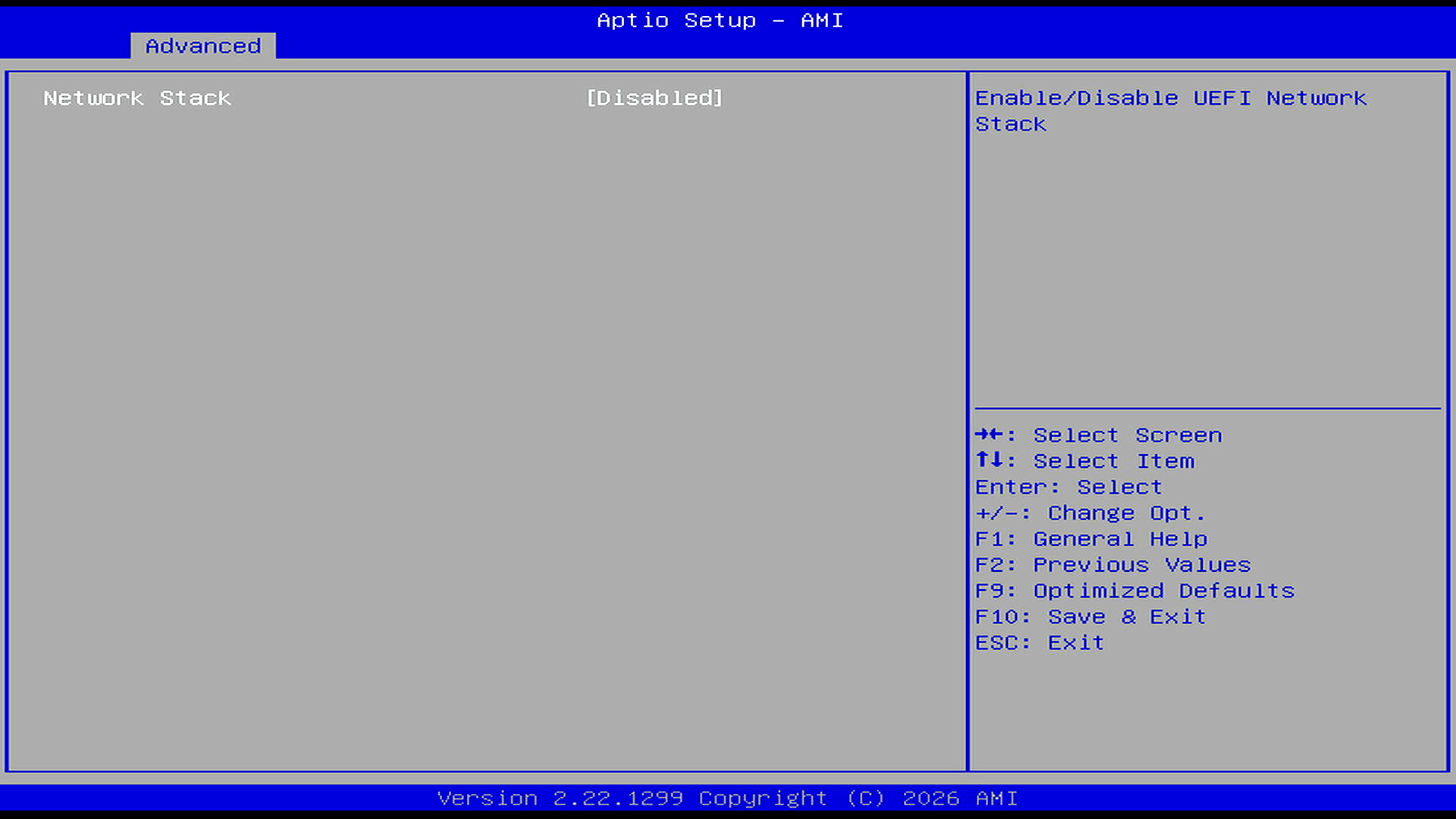
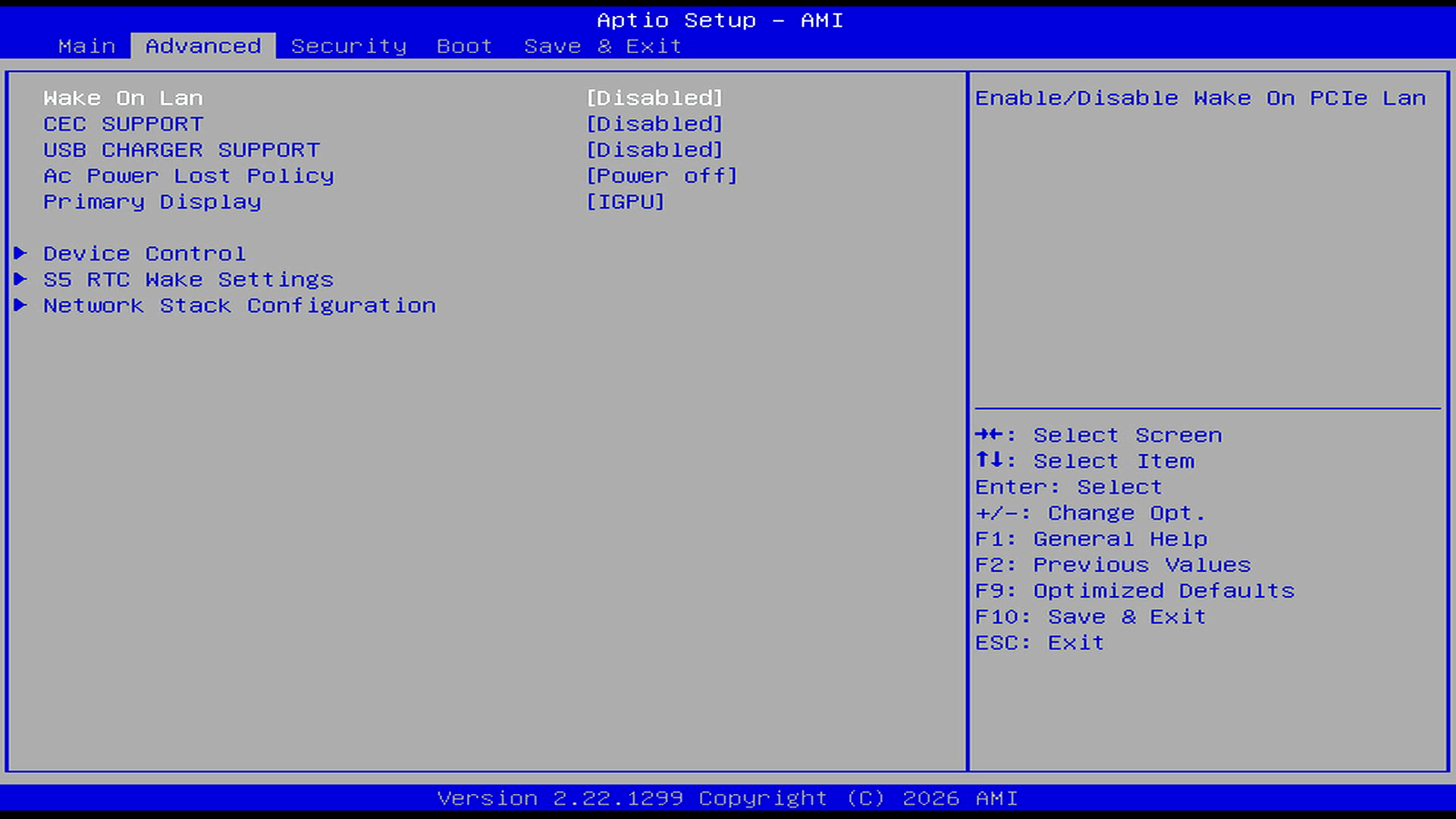
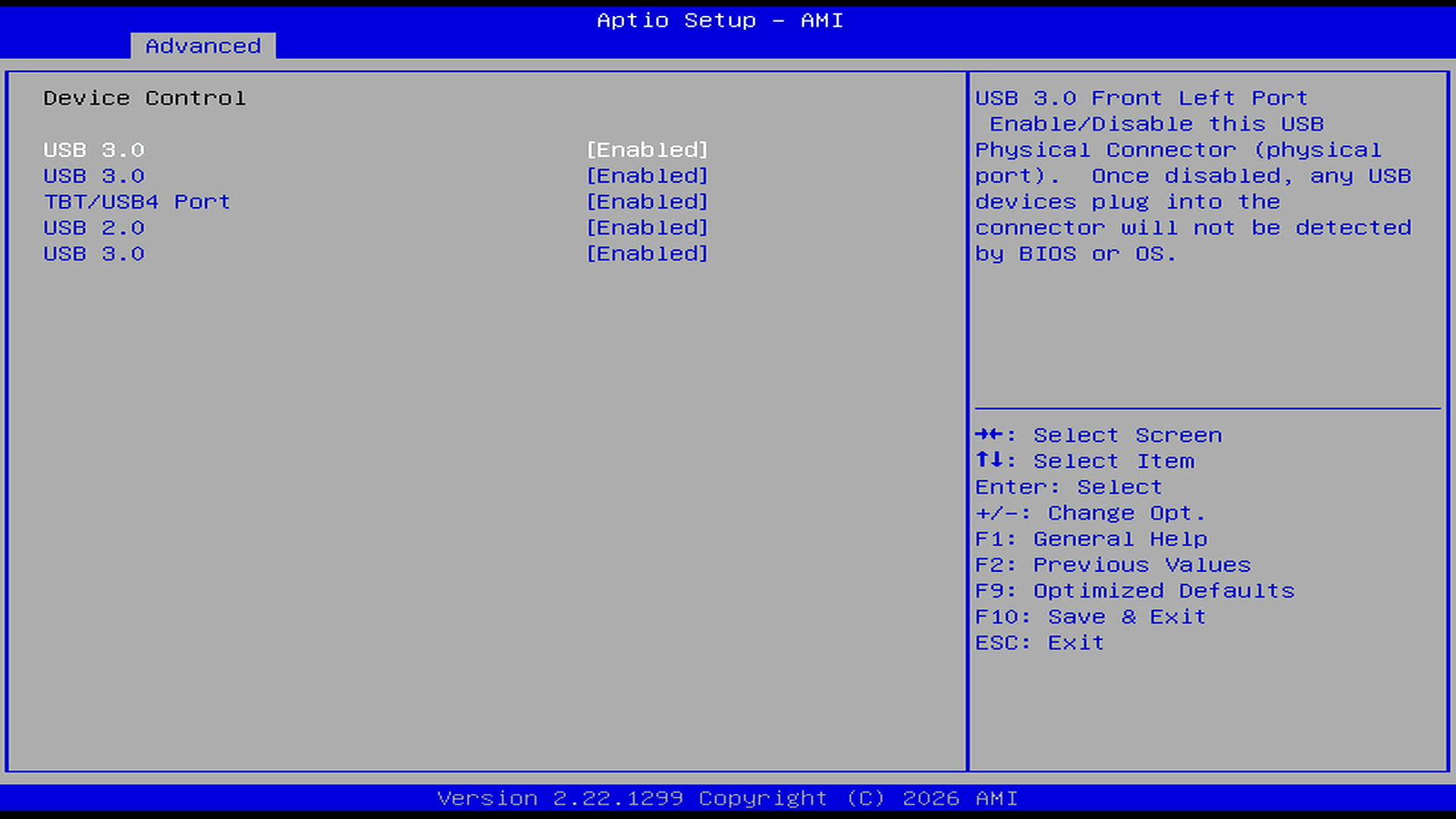
The Advanced section is very sparse for a high-end mini PC. It covers a few basic platform options, including Wake-on-LAN, CEC support, USB charging support, AC power loss behaviour, primary display selection, scheduled wake, and the UEFI network stack. Device control is limited to enabling or disabling a handful of USB ports. There are no visible options for fan control, CPU power limits, thermal behaviour, PCIe power management, memory tuning, or detailed USB4/Thunderbolt configuration.
For a machine built around a new high-end mobile processor, this is one of the barest Advanced BIOS sections I’ve seen.
Next page: Page 2 – Security and Boot
Pages in this article:
Page 1 – Main and Advanced
Page 2 – Security and Boot
Complete list of articles in this series:
| MINISFORUM M2 Core Ultra 7 356H Mini PC | |
|---|---|
| Introduction | Introduction to the series and interrogation of the machine |
| NPU | Setting up and testing the NPU |
| Benchmarks | I run a series of benchmarks focusing on the CPU, GPU, Memory, and Disk performance |
| Power | Testing and comparing the power consumption |
| BIOS | In the world of computing, BIOS, which stands for Basic Input/Output System, plays a crucial role |
| Cores | A look at Intel’s hybrid architecture |
| Intel processors | P-Cores, E-Cores and LP E-Cores Compared Across 4 Intel Processors |
| NPU | NPU and Llama |
| Scheduling | Does Linux Schedule Panther Lake Correctly? |
| Next articles in the series will continue to focus on the machine's NPU | |
Please read our Comment Policy before commenting.
A Panther Lake mini PC with USB4, Wi-Fi 7 and a 50 TOPS NPU deserves more than a BIOS that looks like it was designed to stop users touching anything interesting. No fan curves, no useful power-limit controls, no memory tuning, no detailed USB4 options, and barely any device control. I get that vendors want to avoid support headaches, but locking down enthusiast hardware this tightly undermines one of the main reasons people buy these boxes in the first place. The hardware looks exciting; the firmware looks timid.