

MinisCloud OS is a customised Linux NAS operating system developed for Minisforum. It is reportedly based on the Siyouyun OS framework. It’s a headless appliance OS rather than a normal Debian desktop installation. Minisforum supplies it with storage management, ZFS snapshots and compression, SMB sharing, Docker applications, user management and media features.
The OS is supplied with the Minisforum N5 Air, N5 Pro and M5 Max NAS systems. This article takes you through some of the functionality of the operating system. I’m evaluating the OS on the N5 Pro, a high-specification NAS. I’ll be publishing a separate article reviewing the N5 Pro.
MinisCloud OS comes pre-installed on a dedicated 128GB AirDisk PCIe 3.0 NVMe drive. This keeps the operating system separate from the main storage drives. The SSD occupies one of the N5 Pro’s three M.2 storage slots.
Getting Started
Getting started is very simple and involves only a few steps.
- Install at least one HDD or SSD for data storage. The AirDisk needs to remain connected as it contains MinisCloud OS and cannot serve as the main data pool.
- Connect the Ethernet cable and power supply, then switch on the NAS. Internet access is required for the initial setup.
- Install the MinisCloud client on Windows, macOS, Android or iOS on a separate machine. The official downloads page currently lists Windows, Android and Apple clients, but no Linux desktop client. Hopefully a Linux client will be made available in the future.
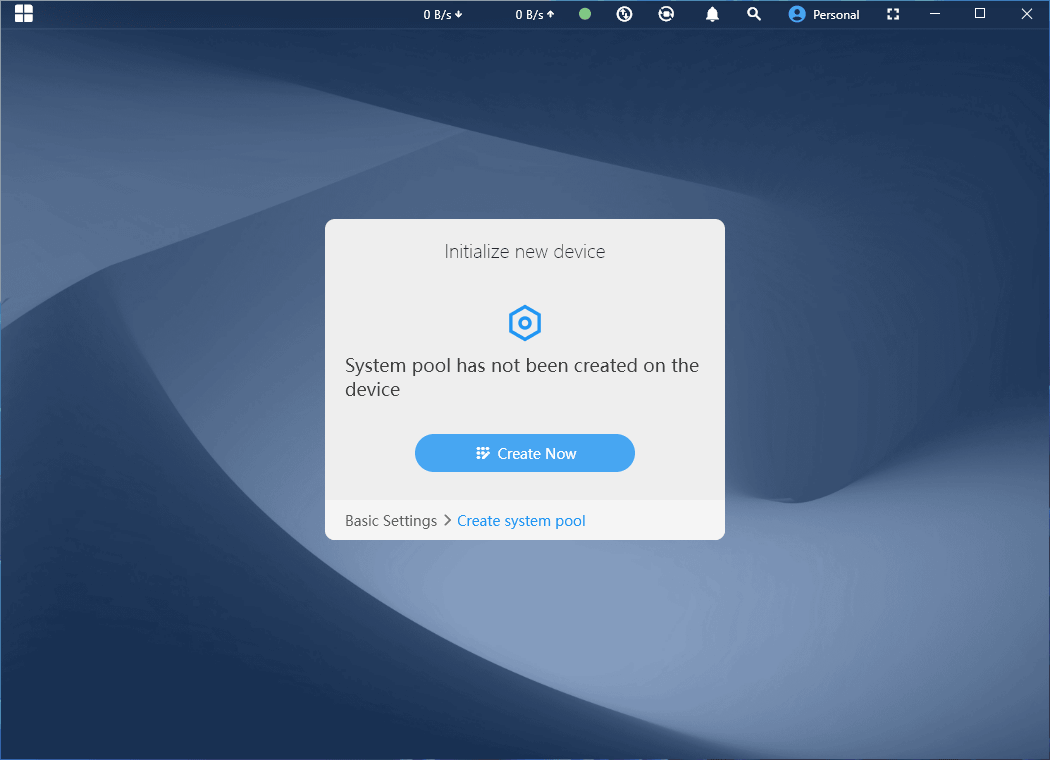
- After creating an administrator account, you will be prompted to initialise the new device.
Connecting a monitor directly to the NAS does not provide access to a local MinisCloud OS setup interface. It simply displays a message confirming that the system is online and instructing you to access the NAS through the MinisCloud app. This limitation applies only when using the supplied MinisCloud OS. If you install your own operating system, the display outputs can be used normally for installation, configuration and local access, with support for up to three displays with the N5 Pro.
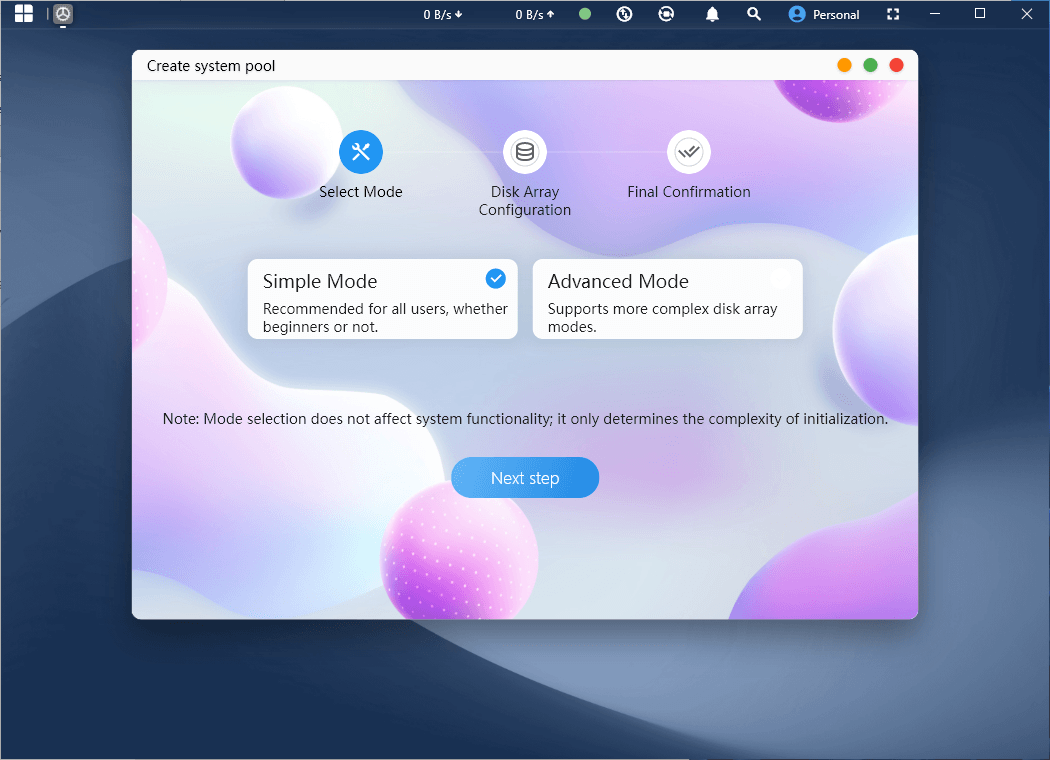
The MinisCloud OS “Create system pool” wizard offers Simple and Advanced setup modes. Simple Mode is selected and recommended for most users, while Advanced Mode supports more complex disk-array configurations.
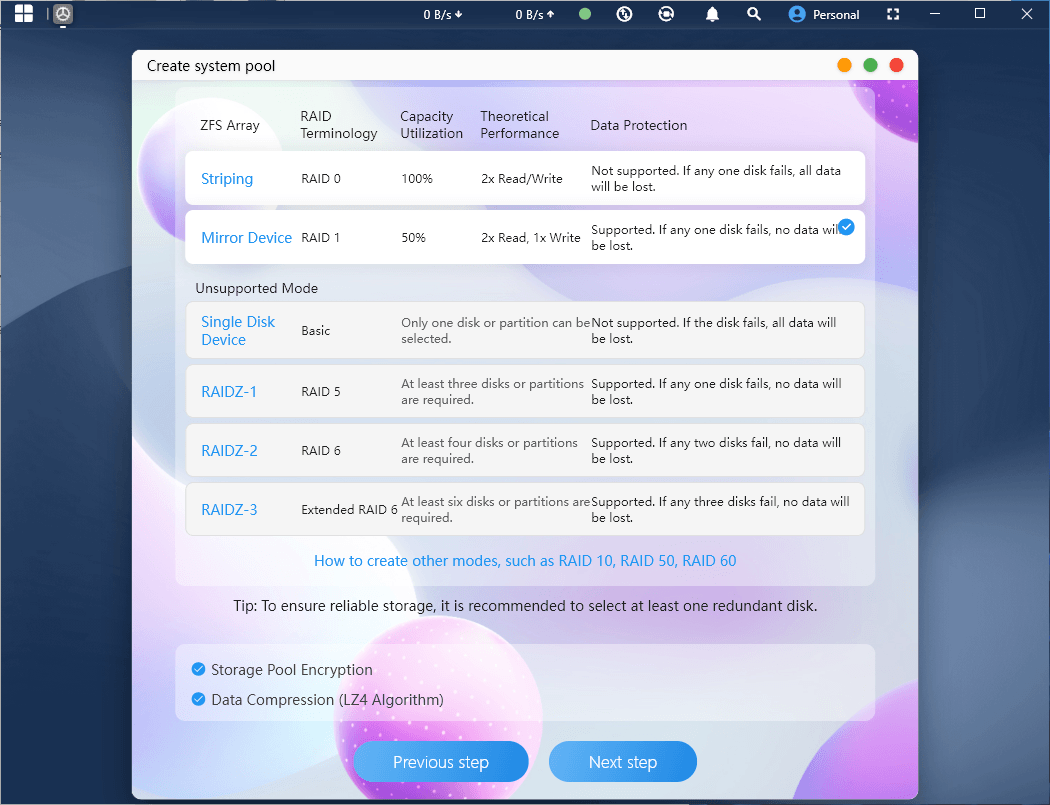
The “Create system pool” wizard lists available ZFS array types, including RAID 0 striping and RAID 1 mirroring, with capacity, performance and data-protection details. RAID 1 is selected, while single-disk, RAIDZ-1, RAIDZ-2 and RAIDZ-3 modes are shown as unsupported. Storage pool encryption and LZ4 data compression are enabled, but both are optional.
NVMe drives can also be added to a storage pool. The image below shows two NVMe drives installed.
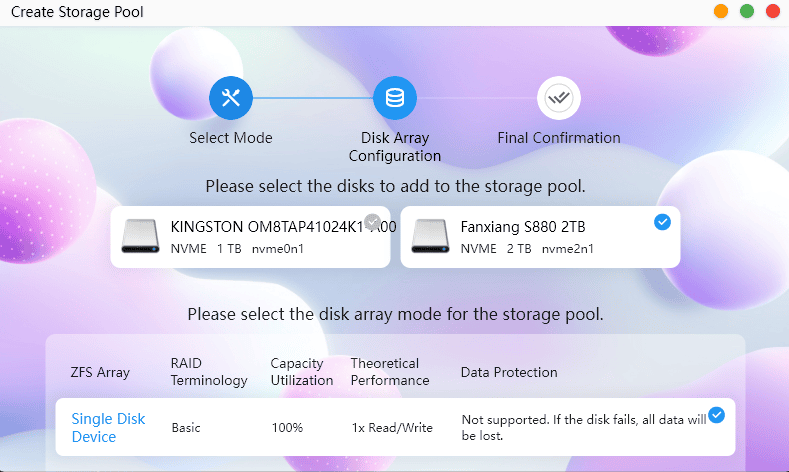
Whether Simple or Advanced Mode is selected, MinisCloud OS currently supports only ZFS storage pools. Other filesystems, including Btrfs and ext4, are not available.
During the process, I was prompted to update the OS to the latest version. Once the update was complete, I was presented with the desktop.
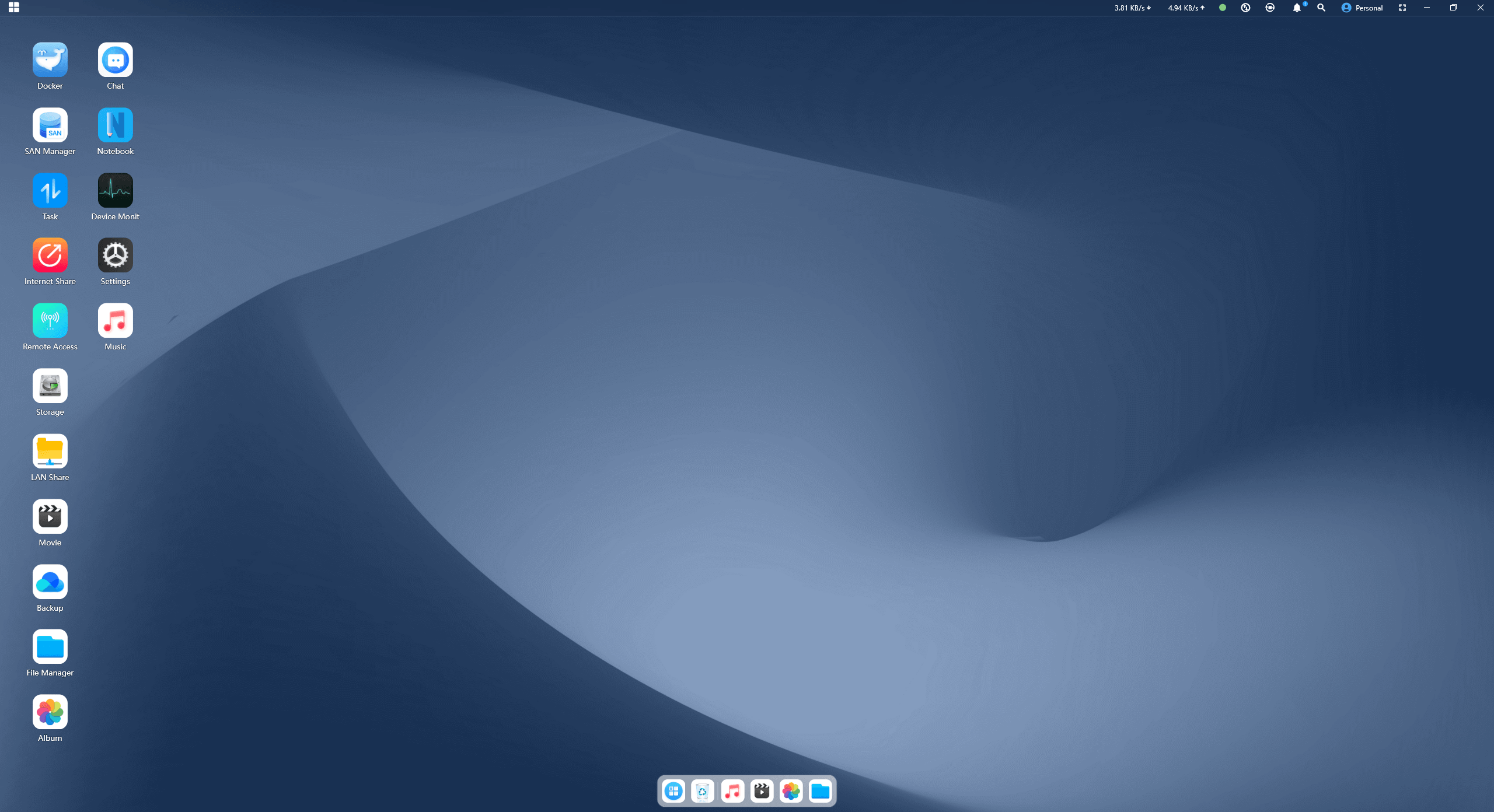
The desktop provides shortcuts to core NAS functions, including Docker, Backup, File Manager, SAN Manager, Storage, LAN Share, Remote Access, media applications and system monitoring. A dock at the bottom offers quick access to frequently used applications, while the top panel shows network activity, notifications, search and the current user account.
On the following pages, I’ll give a brief overview of the apps included.
Next page: Page 2 – Applications: Docker
Pages in this article:
Page 1 – Introduction and Setup
Page 2 – Applications: Docker
Page 3 – Applications: Storage
Page 4 – Applications: LAN sharing
Page 5 – Applications: Album
Page 6 – Applications: Backup
Page 7 – Applications: File Manager
Page 8 – Applications: Device Monitoring
Page 9 – Applications: Virtual Machine
Page 10 – Applications: Settings
Page 11 – Applications: Other Apps
Page 12 – Summary
Complete list of articles in this series:
| Minisforum N5 Pro NAS | |
|---|---|
| Hardware Review | Five-Bay NAS with Ryzen AI 9 Power |
| MinisCloud OS | Customised Linux NAS operating system |
| NPU | Using the NPU with FastFlowLM |
| More articles to be published next week | |
Please read our Comment Policy before commenting.
MinisCloud OS looks very promising, but I would be reluctant to entrust important data to a beta NAS operating system.