

Having a solid data backup strategy is imperative in keeping your data safe. Your storage drives won’t last forever. Also, hardware failure is just one way you can lose data. Even though Linux is less at risk of nasties like ransomware attacks than other operating systems, it offers no protection from things like natural disasters.
Probably one of the most important software applications, but often neglected, is the backup program. The best Linux backup software will keep you covered when you accidentally delete files, or when a disk bites the dust. Backup software protects a variety of file types, including documents, databases, photos, music, and videos. Backup software provides an automated solution for creating, managing, and restoring data from backups.
There are different types of backup software including full backup software, incremental backup software, and image backup software.
NPBackup is a backup application aimed at both system administrators and desktop users. It builds on the established restic backup engine, adding graphical and command-line interfaces, configuration management, scheduling, monitoring and support for multiple repositories. Backup repositories remain fully compatible with restic.
Installation
I evaluated NPBackup with CachyOS, a popular Arch-based Linux distribution.
Pre-built Linux archives are available for x86-64, ARM, and ARM64 systems. There are separate packages for the graphical interface, command-line program and repository viewer, together with legacy builds for distributions using an older version of glibc.
For desktop use, download and extract the graphical package, then copy the executable somewhere in your PATH.
$ cd ~/Downloads
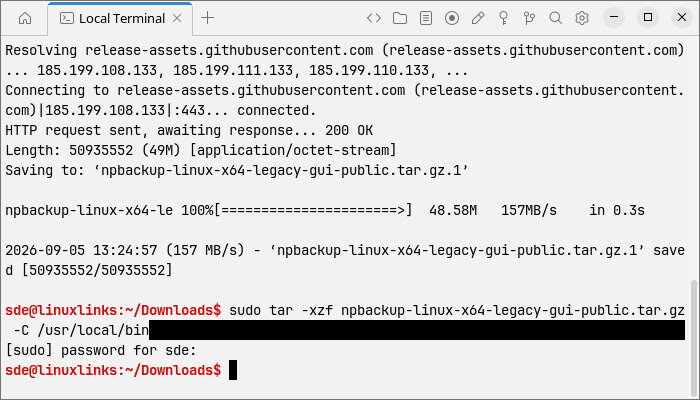
$ wget https://github.com/netinvent/npbackup/releases/download/v3.1.0-rc3/npbackup-linux-x64-legacy-gui-public.tar.gz
$ sudo tar -xzf npbackup-linux-x64-legacy-gui-public.tar.gz -C /usr/local/bin
$ mkdir -p ~/.config/npbackup
$ mkdir -p ~/.local/state/npbackup
Launch NPBackup with:
$ /usr/local/bin/npbackup-gui/npbackup-gui --config-file "$HOME/.config/npbackup/npbackup.conf" --log-file "$HOME/.local/state/npbackup/npbackup.log"
The program opens its configuration wizard. This guides you through selecting the backup sources, backend and destination, as well as configuring scheduling, retention, notifications, and other options.
Next page: Page 2 – In Operation
Pages in this article:
Page 1 – Introduction and Installation
Page 2 – In Operation
Page 3 – Summary
Please read our Comment Policy before commenting.