
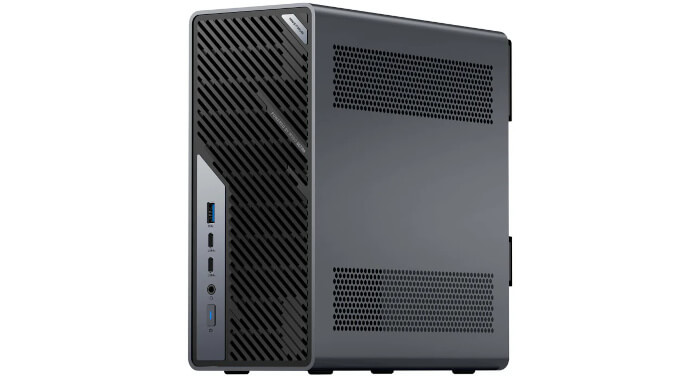
This is a new series looking at the Minisforum MS-02 Ultra 285HX Mini Workstation running Linux. In this series, I put the machine through its paces from a Linux perspective, comparing it with other systems, including desktops, to show how it really stacks up.
The Minisforum MS-02 Ultra is very different from a conventional mini PC. It’s a compact workstation and mini-server-class machine built around the Intel Core Ultra 9 285HX processor. The model I’m testing offers far more expansion than a typical mini PC, including PCIe expansion, four M.2 NVMe slots, an internal 350W power supply, 10GbE and 2.5GbE networking, and dual 25GbE.
BIOS, or Basic Input/Output System, remains one of the most important pieces of low-level software in any computer. This firmware handles the essential groundwork before the operating system takes over, initialising hardware and providing the runtime services needed for the system to boot properly.
For this quick look at the MS-02 Ultra’s BIOS, I’m using a basic video capture device rather than a camera. That approach delivers much clearer screenshots and makes the interface far easier to see.
Press the Del key to access the BIOS.
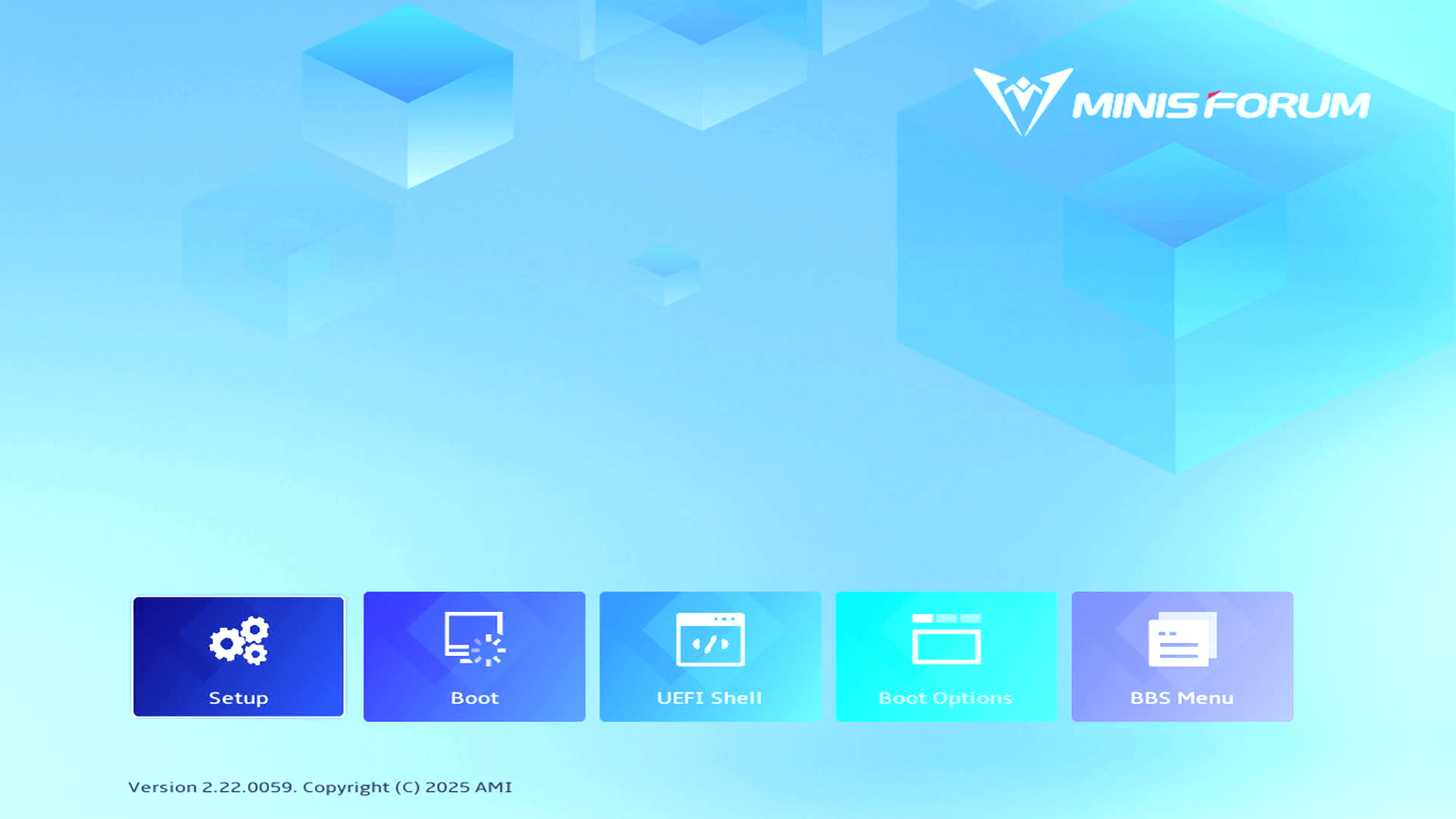
The MS-02 Ultra opens to a clean AMI graphical BIOS home screen rather than dropping straight into a dense text interface. The layout is simple and approachable, with large tiles for Setup, Boot, UEFI Shell, Boot Options, and BBS Menu. It’s not especially information-rich, but it makes the main firmware functions easy to access, particularly boot management and the UEFI shell.
Setup
Main
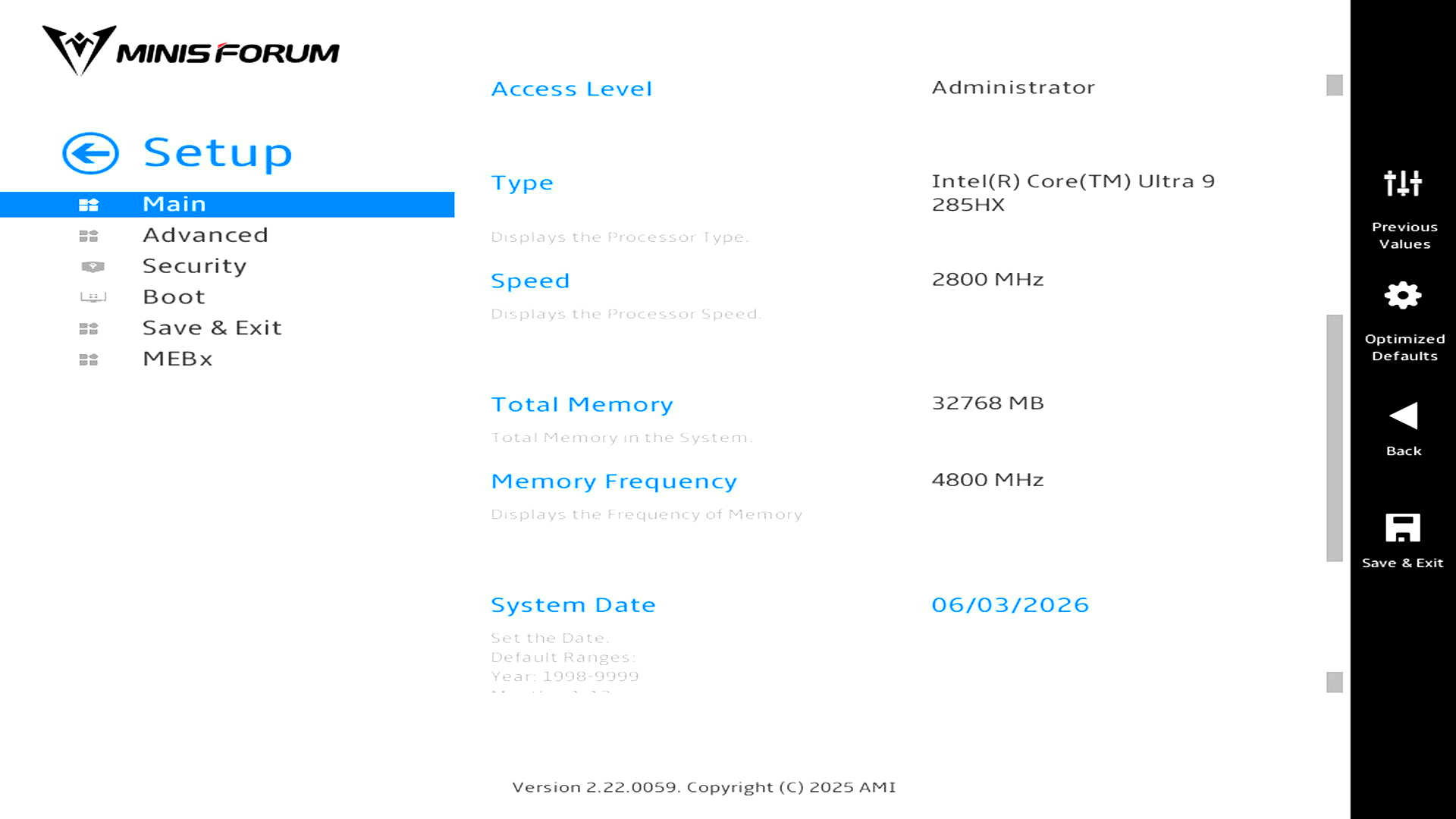
This is a basic information screen rather than a tuning page. It simply reports key system details such as the processor, installed memory, memory frequency, system date, and BIOS access level. There are no performance controls here, but the reported 4800MHz memory frequency is still worth noting, as it shows the MS-02 Ultra is running the RAM below the rated speed of faster DDR5 modules.
Advanced
Let’s look at each section.
Power & Performance
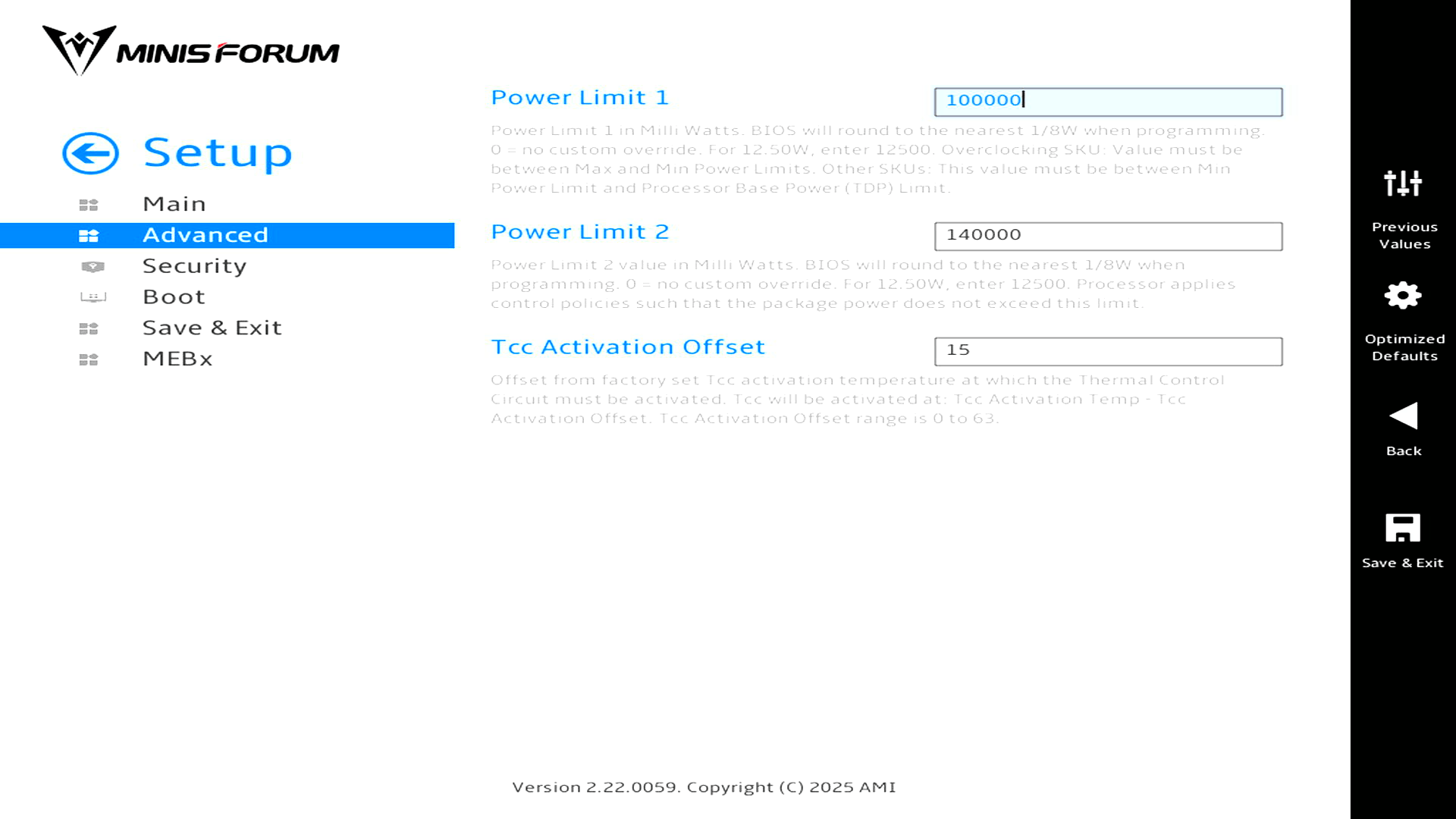
This Advanced BIOS page exposes the MS-02 Ultra’s CPU power and thermal limits. Power Limit 1 is set to 100,000 mW, so the long-term package power limit is 100W, while Power Limit 2 is 140,000 mW, giving the processor a higher short-term boost ceiling of 140W.
Minisforum is allowing fairly generous power limits for the Core Ultra 9 285HX, which helps sustained multi-core performance but also increases heat output and fan demand. The Tcc Activation Offset setting controls how early thermal throttling behaviour begins relative to the processor’s factory thermal limit, so it’s another lever affecting noise, temperature, and sustained performance.
Trusted Computing
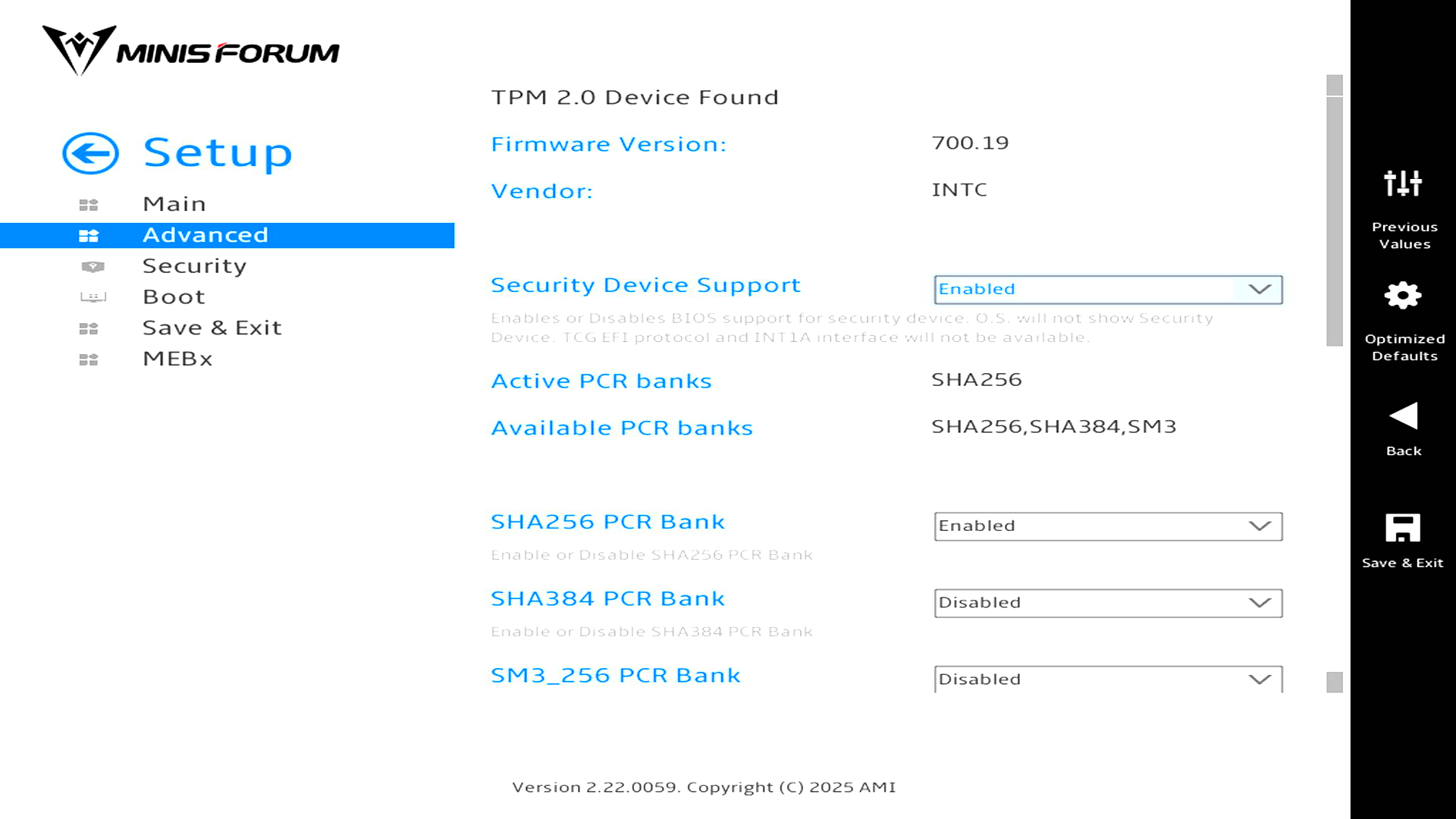
This Trusted Computing page confirms the MS-02 Ultra has a TPM 2.0 device present and enabled, using Intel firmware. The active PCR bank is SHA256, while SHA384 and SM3 are available but disabled. For most Linux users, there’s nothing unusual here, but it’s useful confirmation for Secure Boot, disk encryption, measured boot, and Windows 11 compatibility.
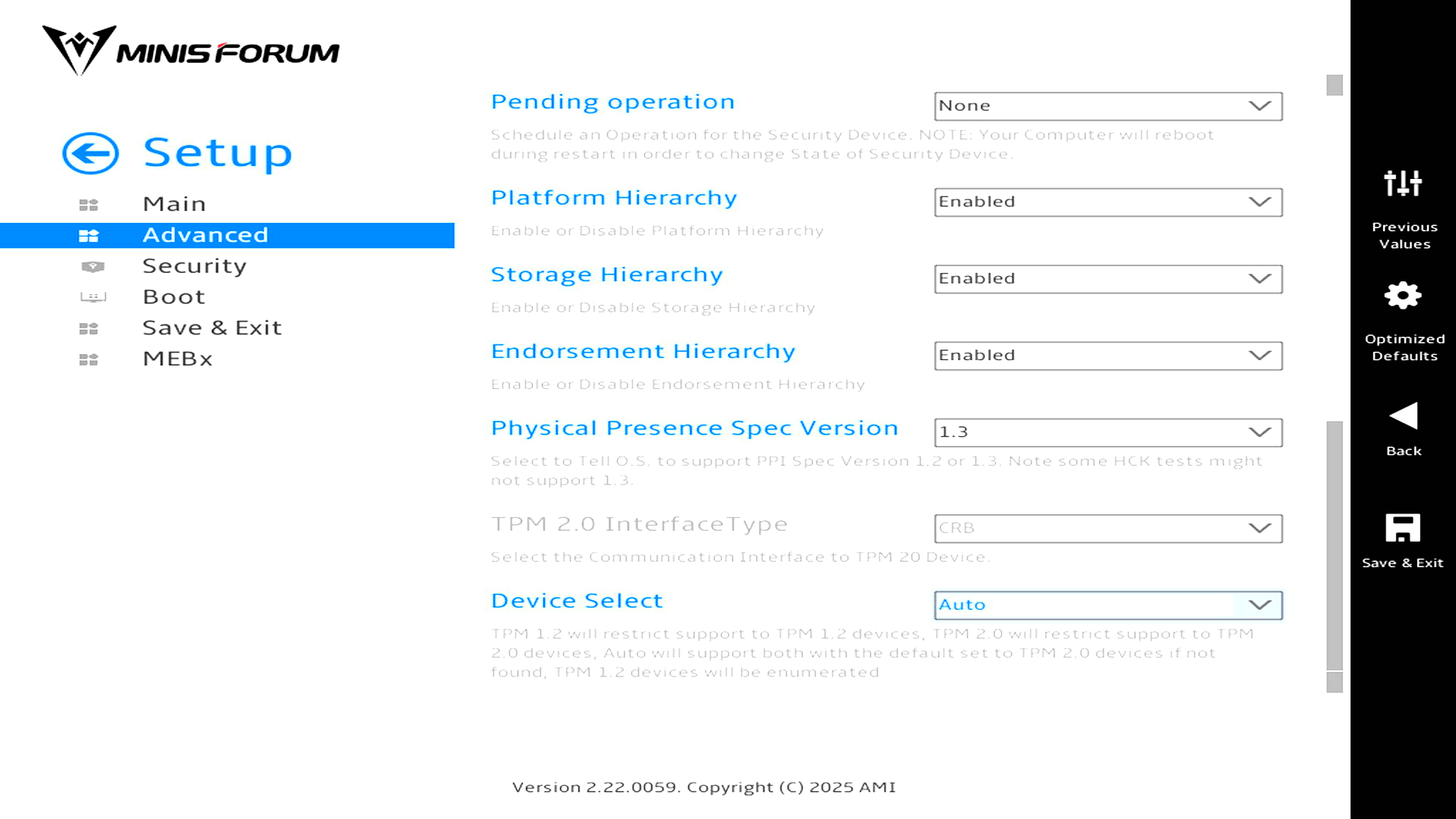
This lower part of the Trusted Computing page shows the TPM configuration rather than performance-related BIOS options. The key TPM hierarchies, Platform, Storage, and Endorsement, are all enabled, with no pending TPM operation scheduled.
The Physical Presence Spec Version is set to 1.3, the TPM 2.0 interface is CRB, and device selection is left on Auto. These are sensible defaults, and most Linux users won’t need to change them unless clearing the TPM, troubleshooting measured boot, or dealing with a specific encryption/security setup.
CPU Configuration
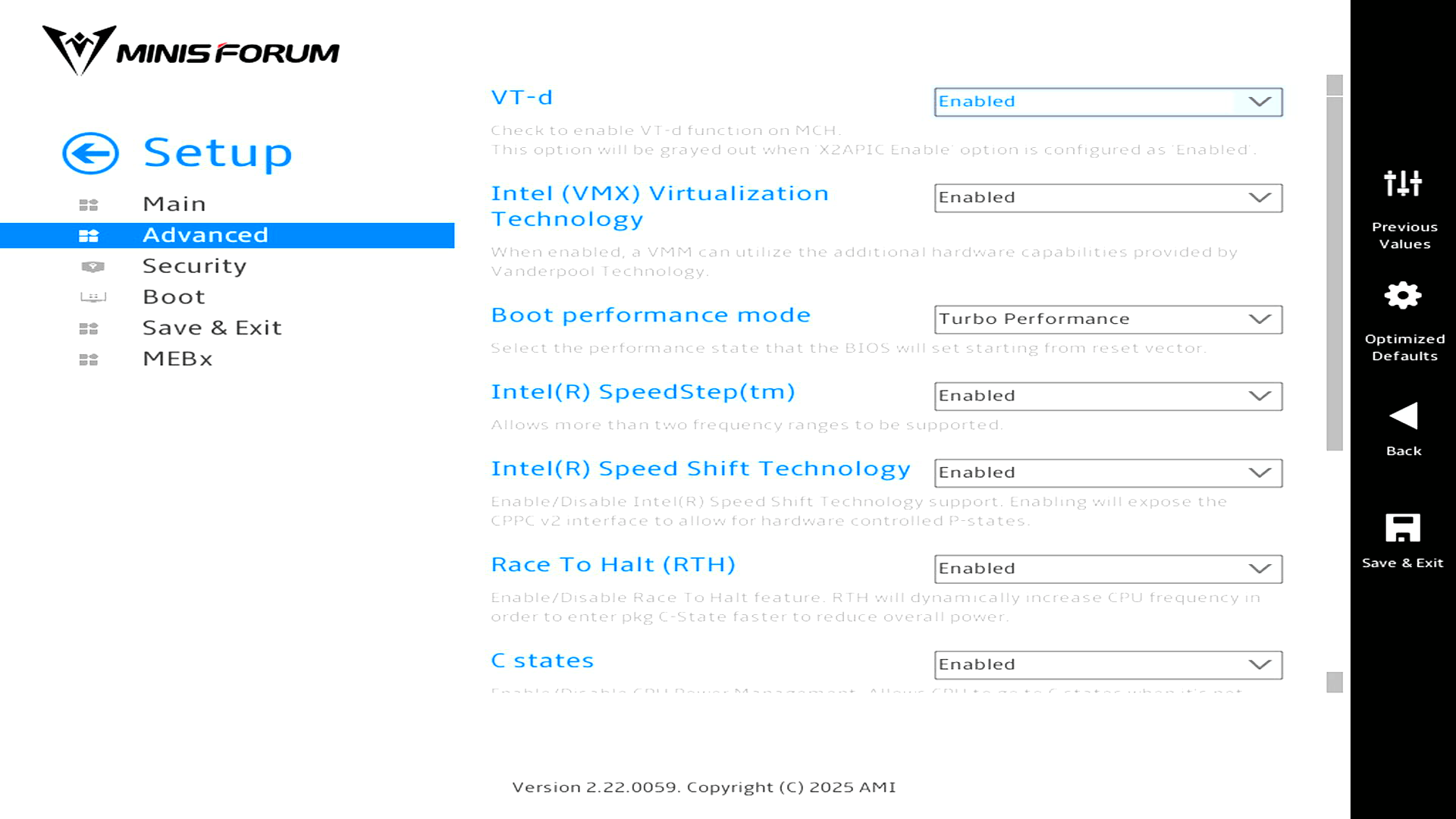
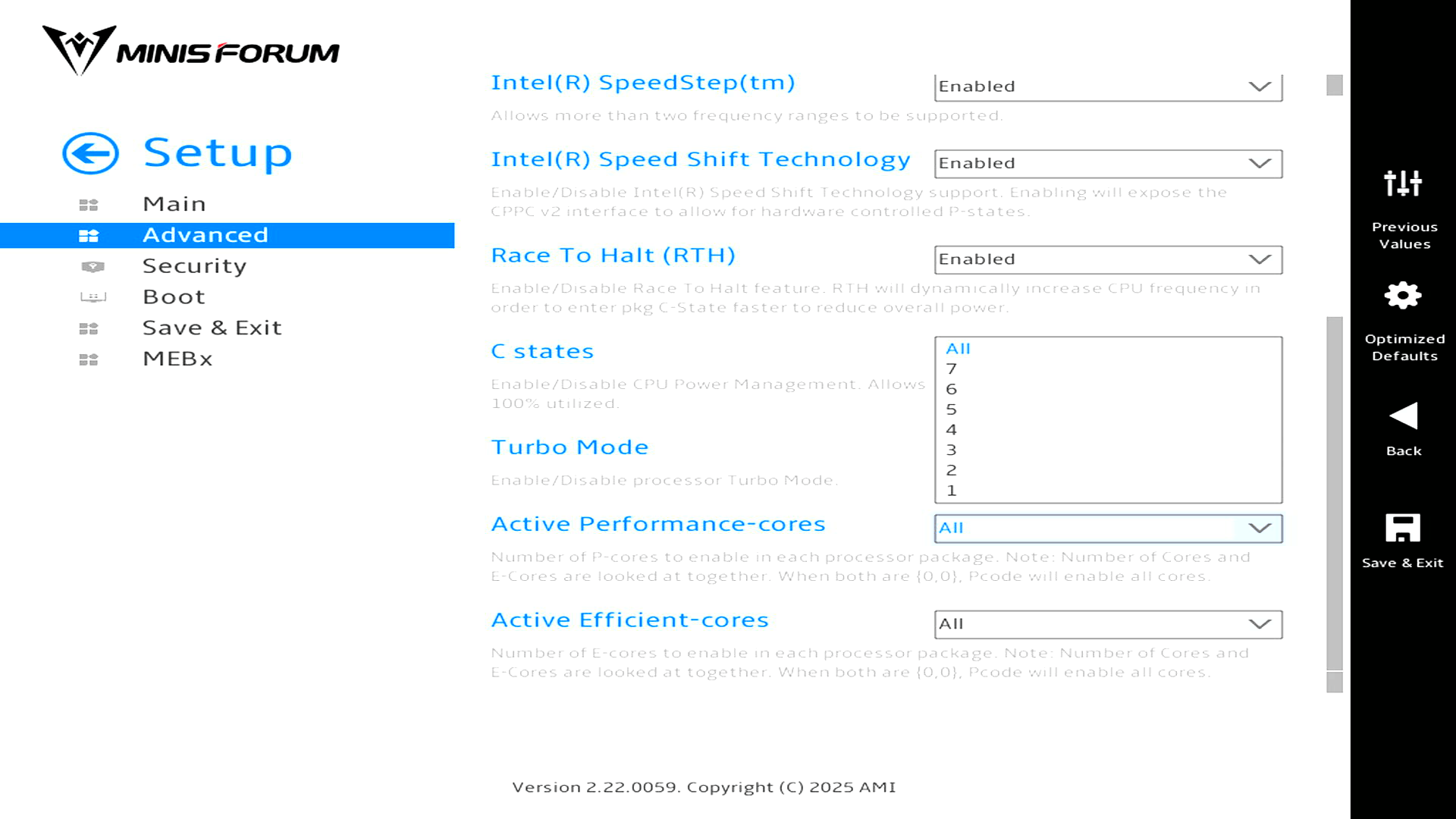
This CPU Configuration section contains the more useful processor controls. VT-d and Intel VMX virtualization are both enabled, so the system is ready for hypervisors and device assignment scenarios. Power-management features such as SpeedStep, Speed Shift, Race to Halt, C-states, and Turbo Mode are also enabled, which is the expected default for a modern Intel system.
The most interesting part is the core control. The BIOS lets you choose how many Performance-cores and Efficient-cores are active, with both set to All here. This is useful for benchmarking the Core Ultra 9 285HX’s P-core and E-core behaviour separately, although at least one P-core has to remain enabled, so a pure E-core-only BIOS configuration isn’t possible. The processor has no LP E-cores.
Onboard Devices setting
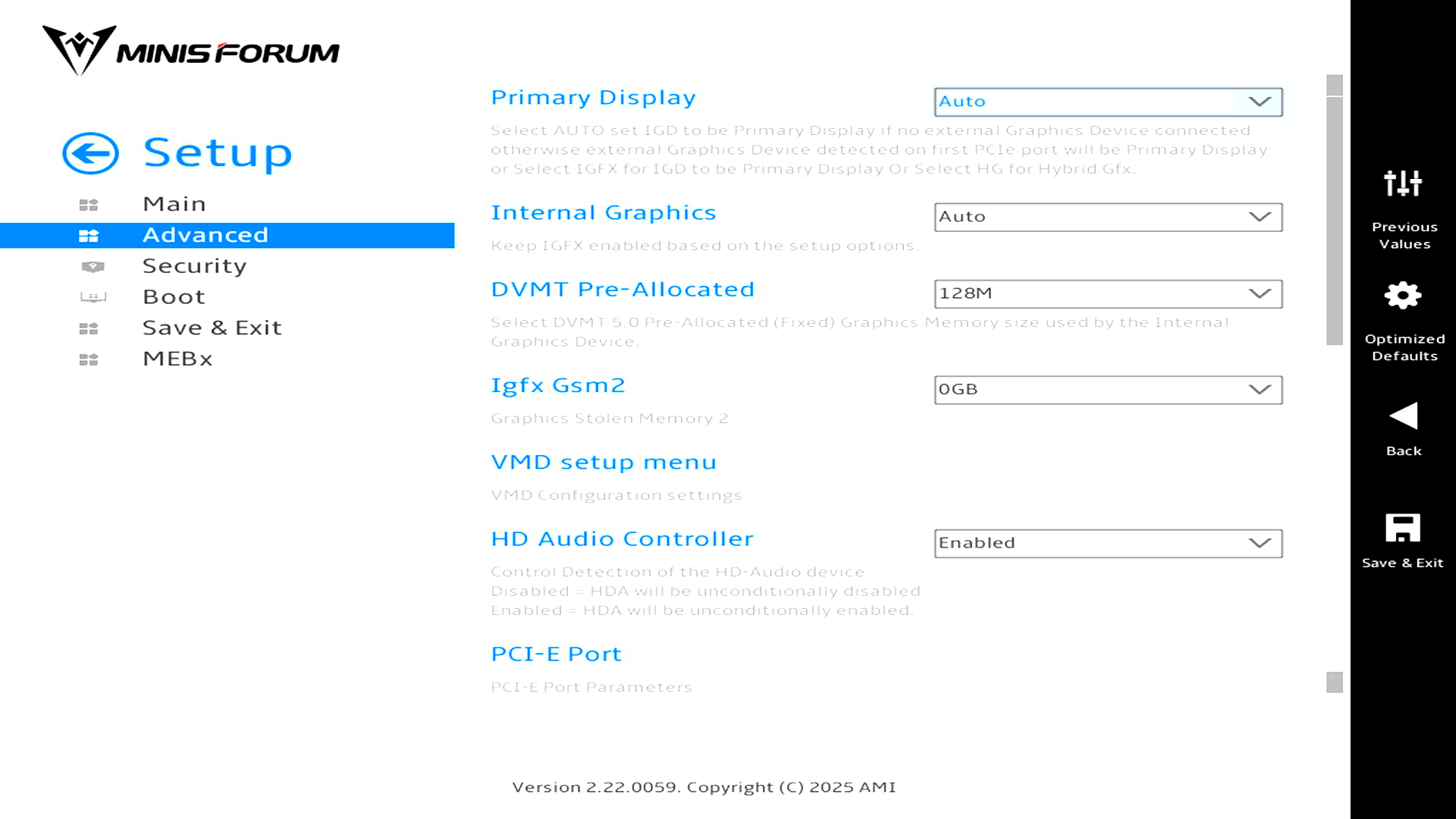
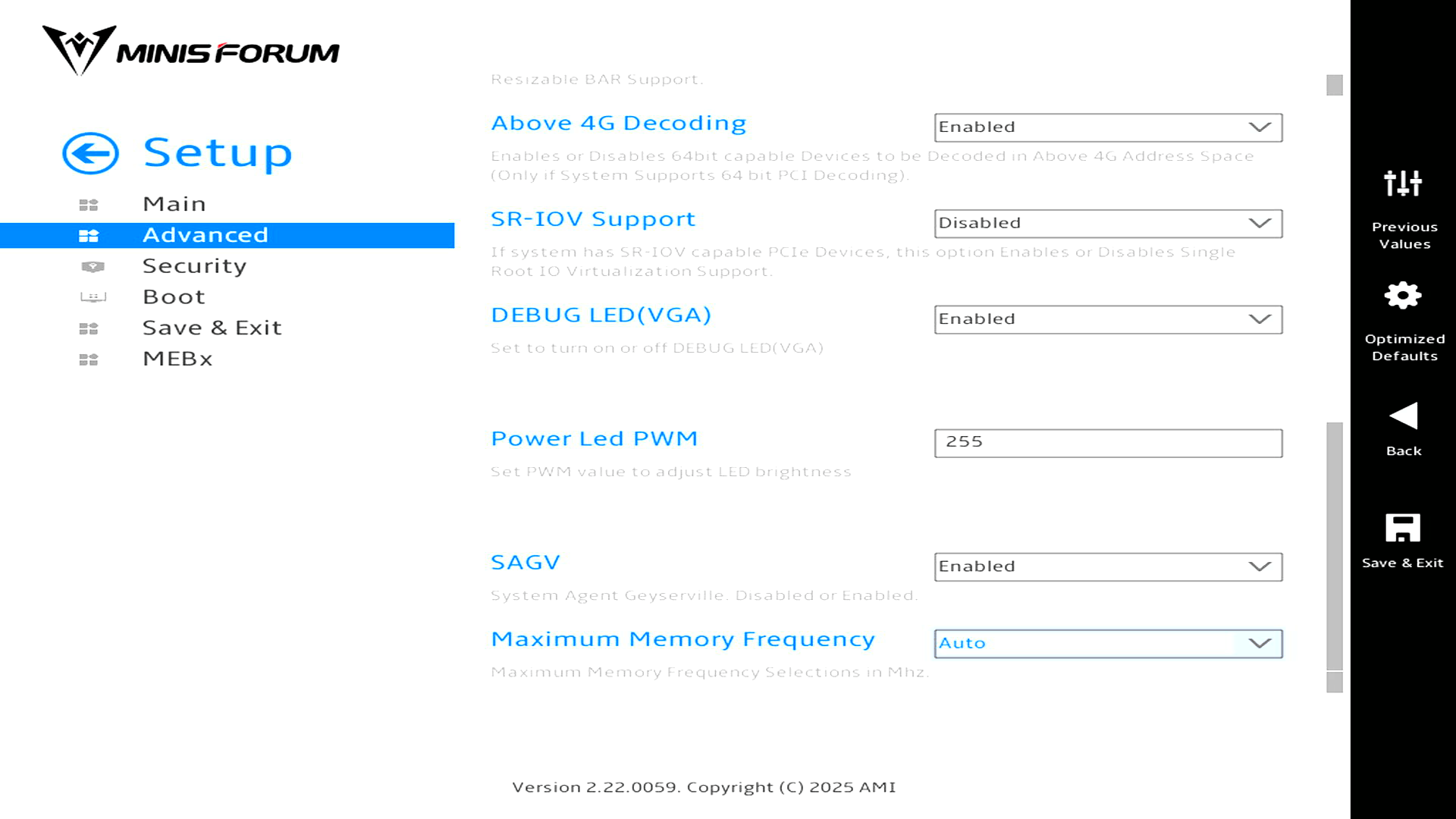
This Onboard Devices section exposes a mix of PCIe, graphics, memory, and integrated-device options. Above 4G Decoding is enabled, which is useful for modern PCIe devices and discrete GPUs, while SR-IOV is disabled by default. There’s also a Maximum Memory Frequency option, currently left on Auto, although the earlier Main screen shows the system running memory at 4800MHz.
The graphics section is also conservative by default: Primary Display and Internal Graphics are both set to Auto, with DVMT Pre-Allocated memory at 128MB. HD Audio is enabled, and there are separate menus for VMD and PCIe port configuration. Overall, this is a useful but fairly standard onboard-device configuration page rather than a deep tuning section.
ACPI Setting
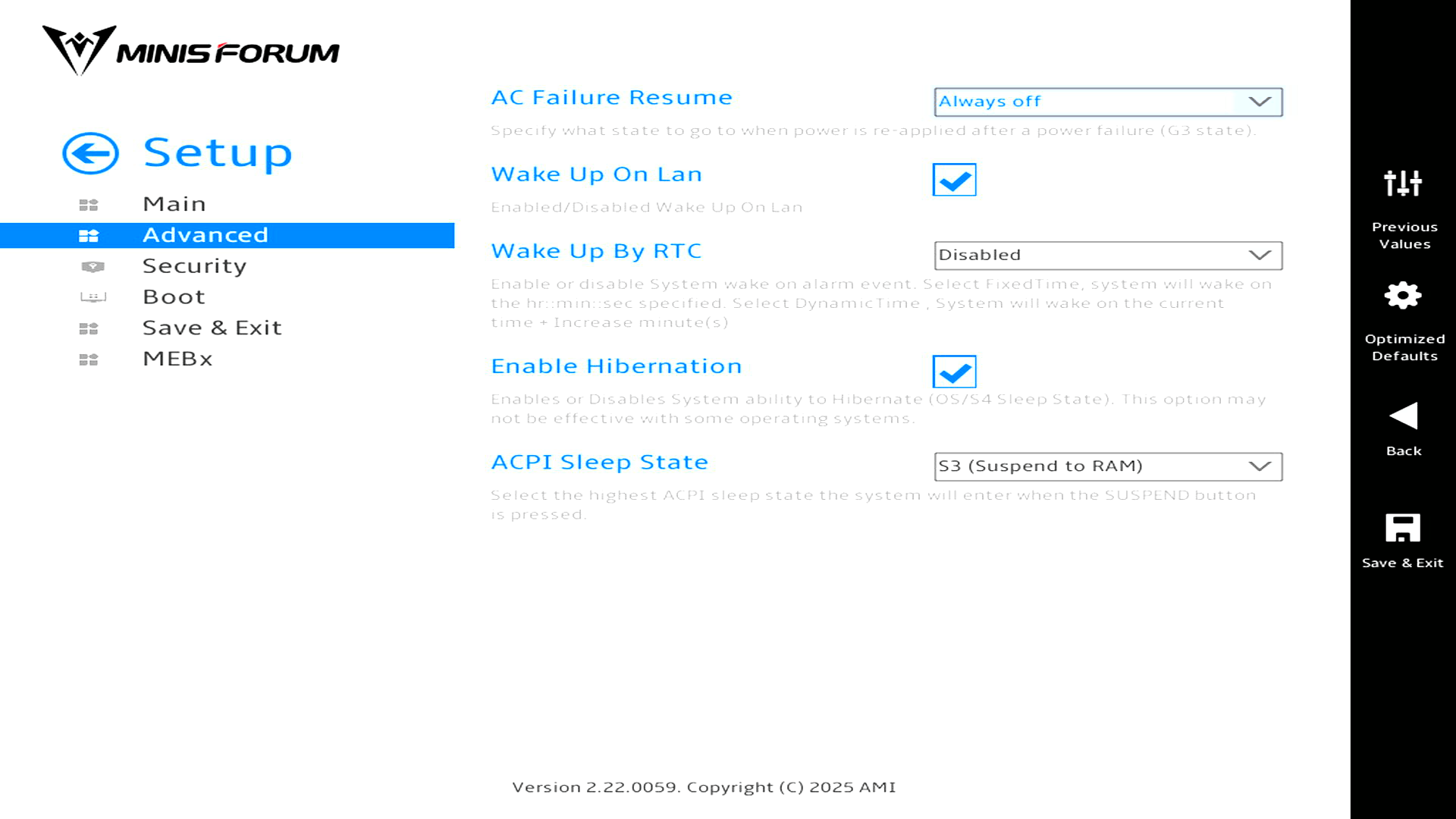
This ACPI settings page controls power recovery and sleep behaviour. The system is set to remain off after AC power loss, while Wake-on-LAN is enabled and RTC wake is disabled.
The important Linux-friendly detail is the sleep setting: ACPI Sleep State is set to S3, the traditional Suspend-to-RAM mode. Hibernation is also enabled at the firmware level, although actual hibernation support still depends on the Linux distribution, swap configuration, and kernel setup.
Hardware Monitor
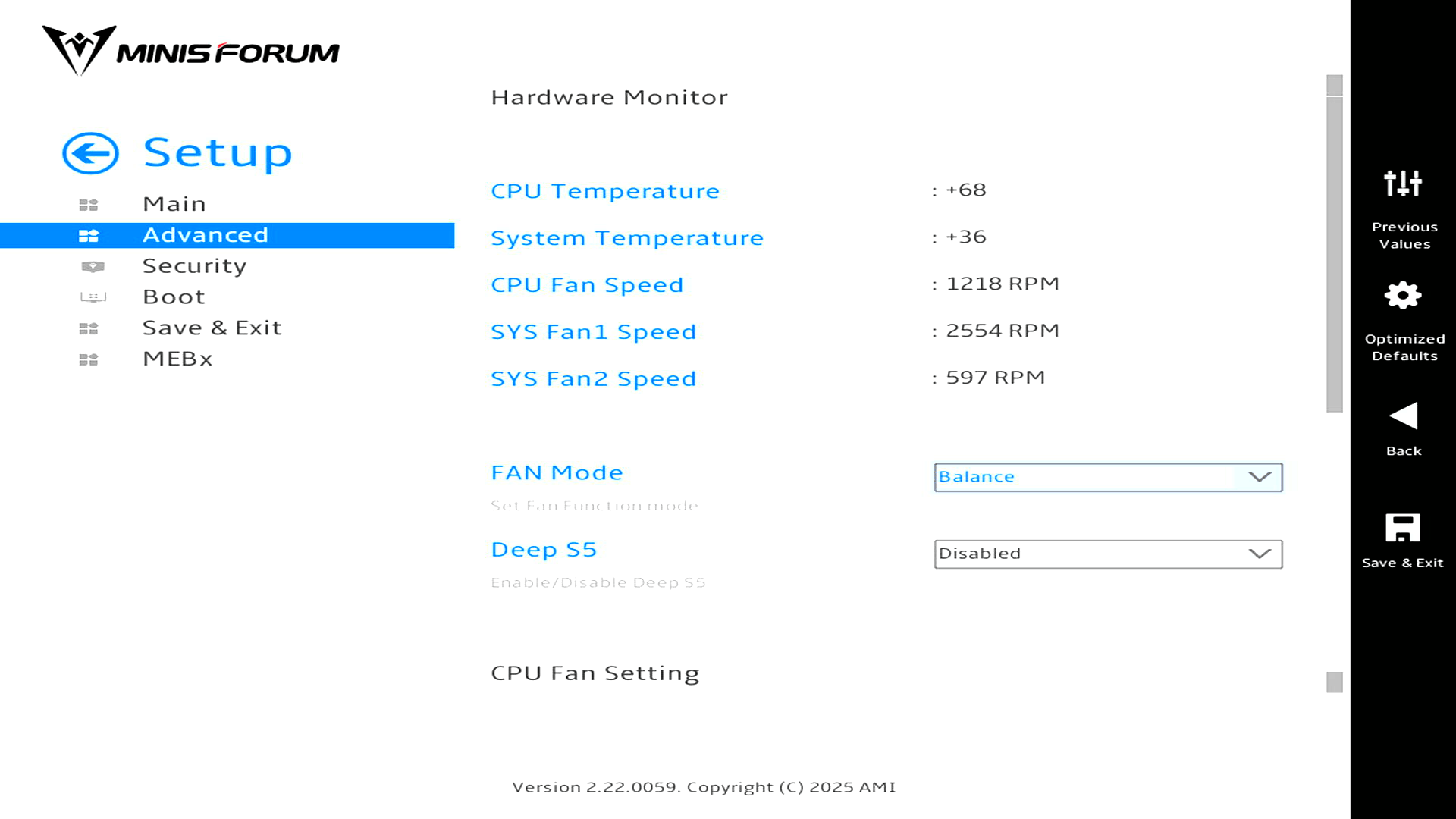
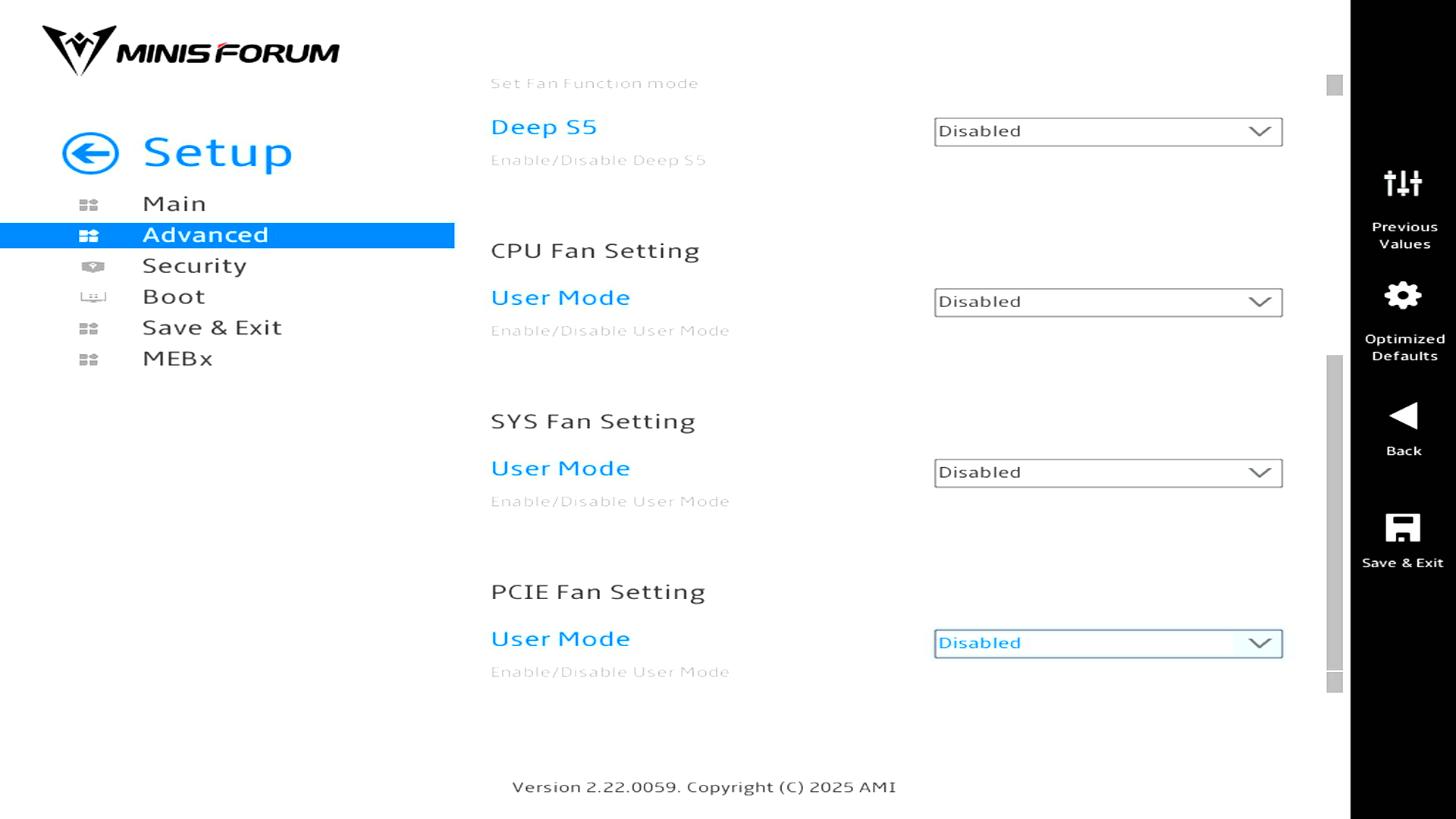
The Hardware Monitor page is more useful than most of the basic BIOS screens. It reports live temperatures and fan speeds, with the CPU at 68°C, system temperature at 36°C, CPU fan at 1218 RPM, SYS Fan1 at 2554 RPM, and SYS Fan2 at 597 RPM.
Fan control is set to Balance, with Deep S5 disabled. By default, the CPU, system, and PCIe fan user modes are disabled, but enabling user mode exposes a simple custom fan curve with temperature points and PWM values. That’s useful, as it gives some scope to tune the MS-02 Ultra for lower noise or more aggressive cooling without relying entirely on Minisforum’s preset fan profile.
Let’s take a deeper look at the CPU Fan Setting. Change User Mode from Disabled to Enabled.
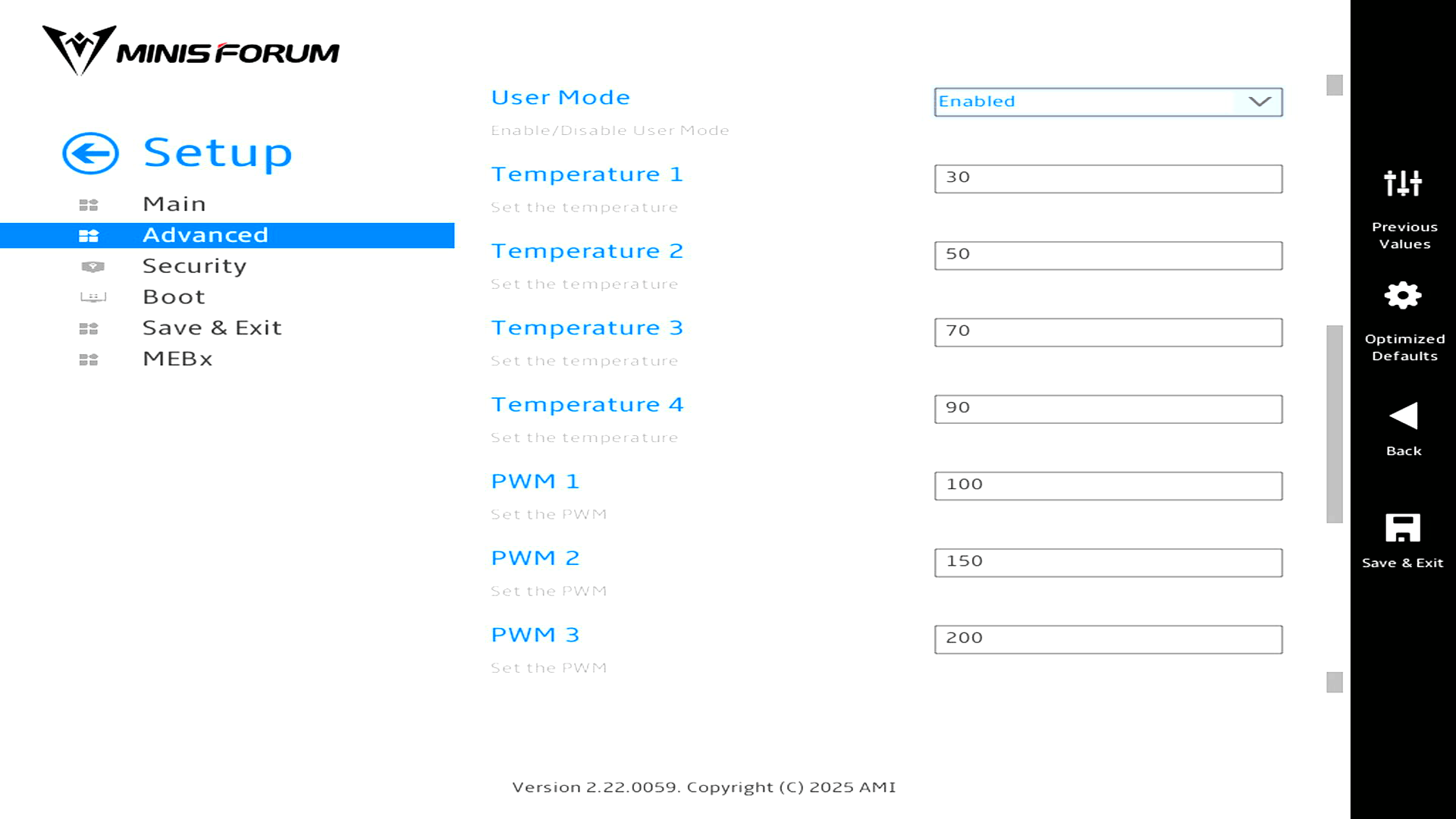
There’s also a PWM 4 setting not shown in the screenshot.
For the SYS Fan, changing User Mode from Disabled to Enabled lets you set PWM 1 in the range 0 to 100.
For the PCIe Fan Setting, there are four temperature trip points and four PWM settings, just like the CPU fan controls.
Network Stack Configuration
For brevity, I’m not showing this screen, as it simply lets you enable or disable the UEFI network stack.
Addons
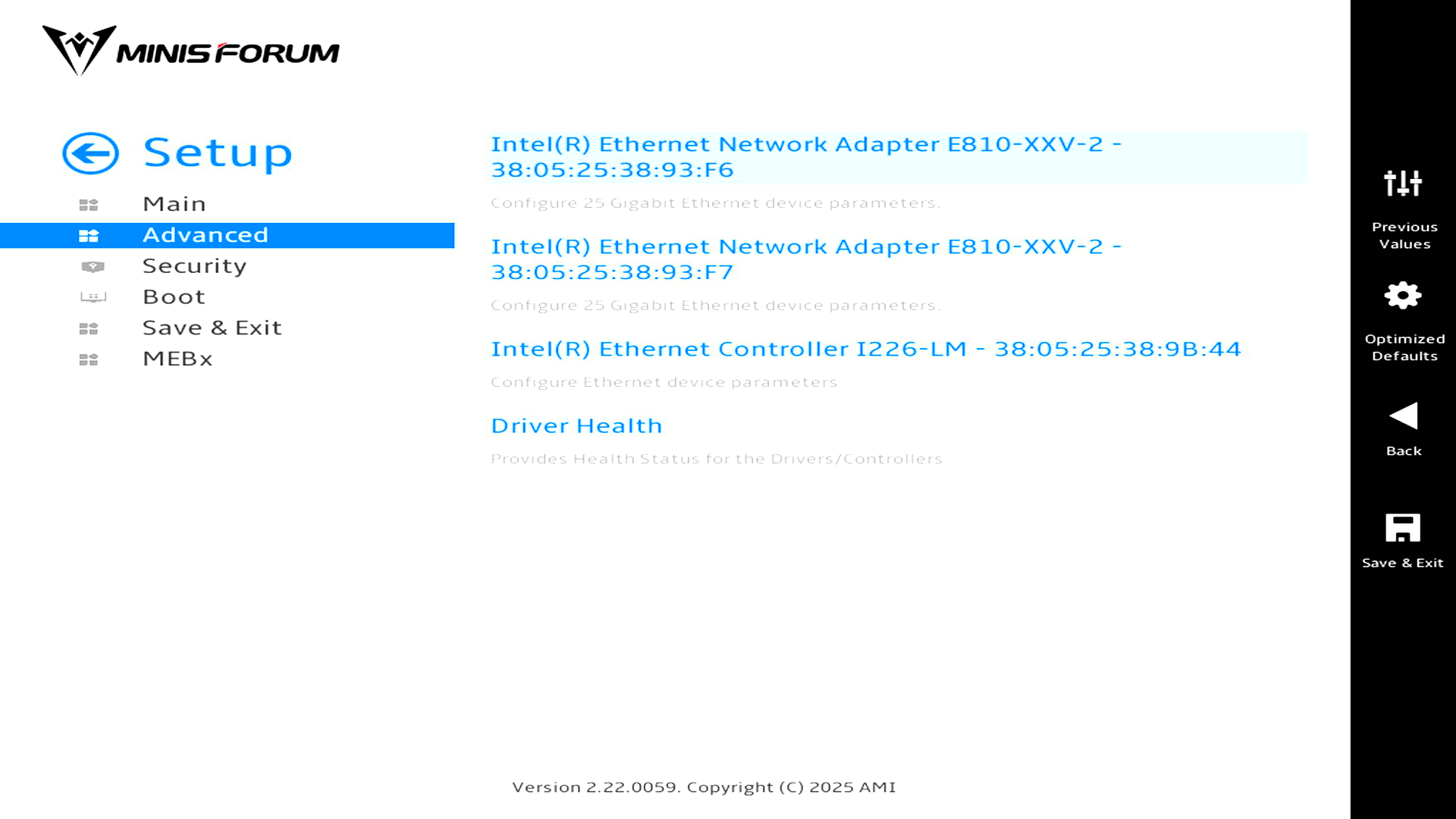
This Addons page shows the firmware-level network devices detected by the MS-02 Ultra. The standout entries are the two Intel Ethernet Network Adapter E810-XXV-2 ports, which are the machine’s 25 Gigabit Ethernet interfaces. It also lists the Intel Ethernet Controller I226-LM, used for the lower-speed onboard Ethernet connection.
These are actually menus that offer configuration options for the Ethernet network adapters and controller.
Security
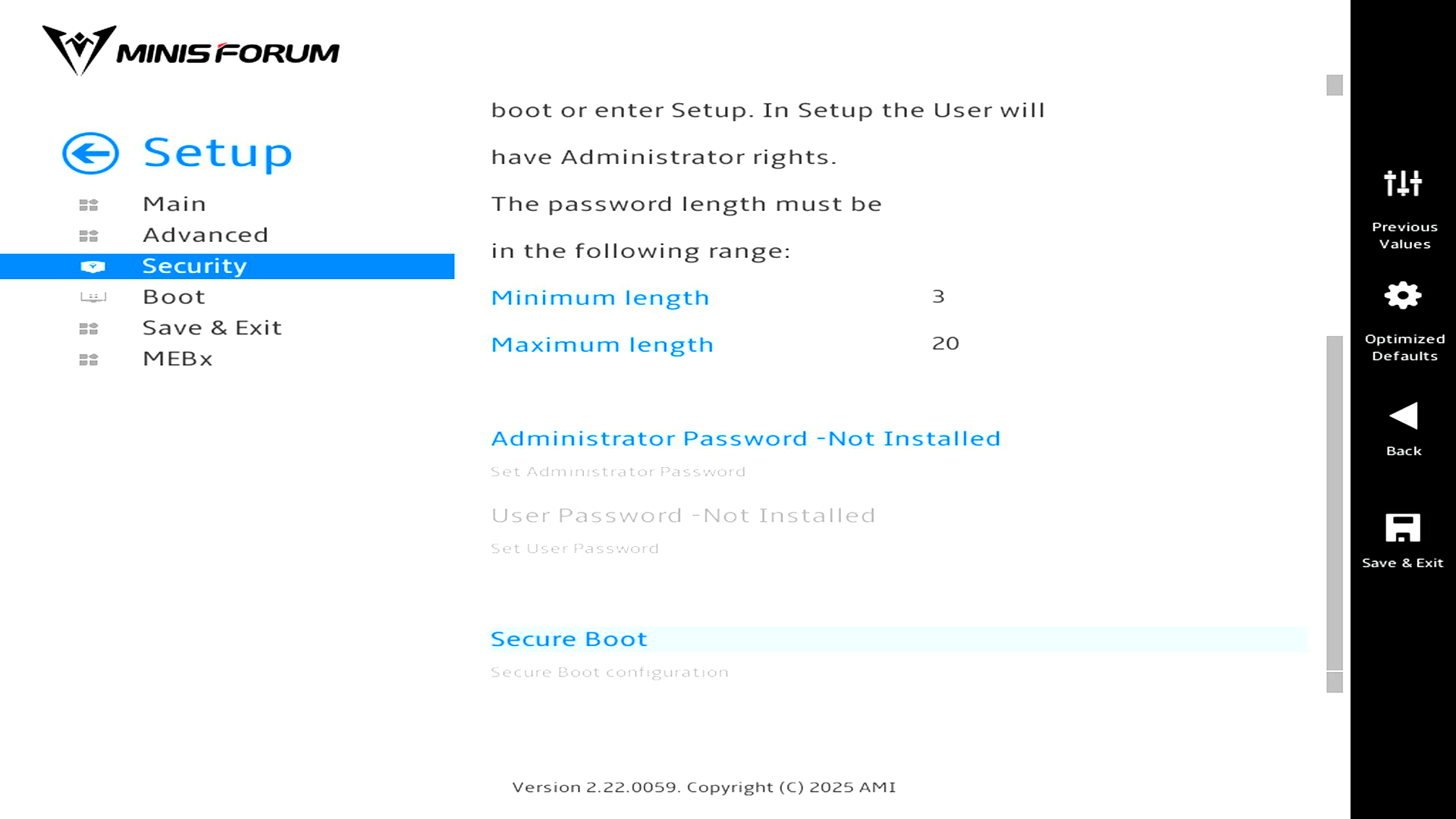
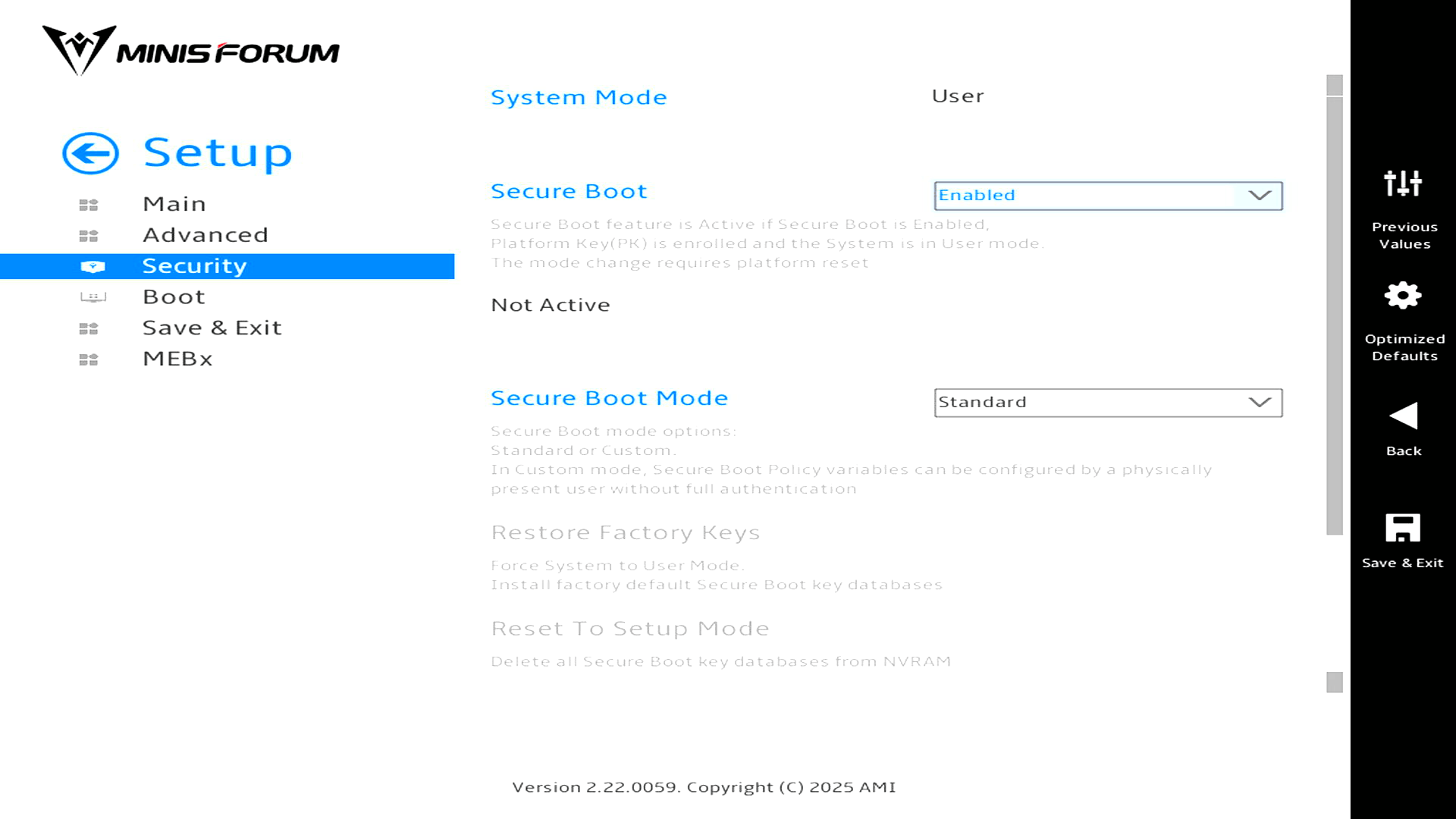
so firmware access isn’t locked down by default. The Secure Boot submenu is more interesting: Secure Boot is set to Enabled and the mode is Standard, but the status still reports Not Active
For my CachyOS installation, I need to disable Secure Boot; otherwise, the system won’t boot into CachyOS.
Boot
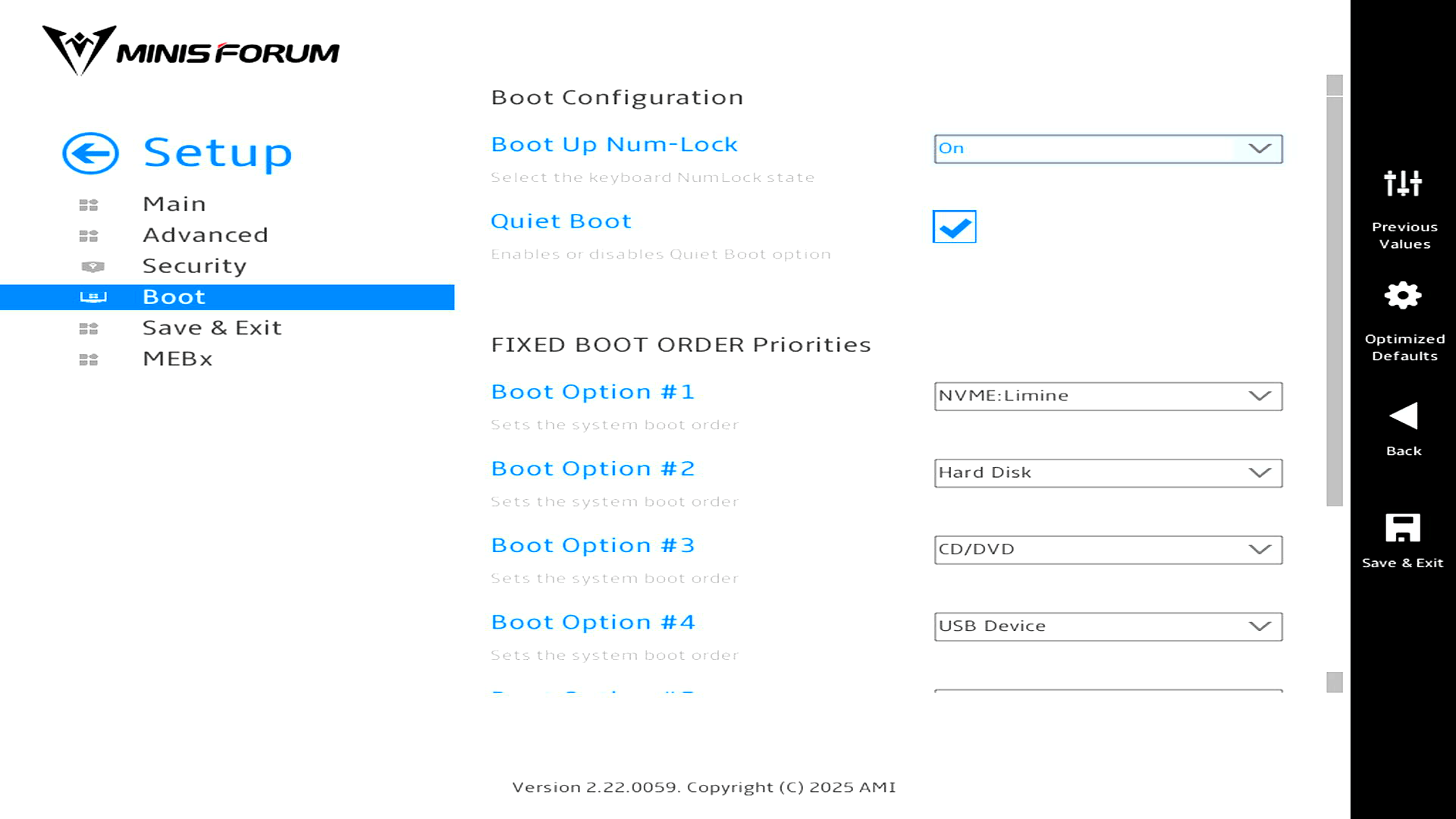
The Boot page now shows the CachyOS installation: Boot Option #1 is set to NVME:Limine. Limine is the bootloader used by the installed system. That confirms the MS-02 Ultra’s firmware has detected the NVMe installation correctly and is prioritising it ahead of generic hard disk, optical, and USB boot options.
Quiet Boot is enabled, so startup will favour the vendor splash screen rather than verbose firmware messages. For testing, the separate Boot Options or BBS Menu entries are still useful when booting a USB installer or rescue image without permanently changing the main boot order.
Complete list of articles in this series:
| Minisforum MS-02 Ultra 285HX | |
|---|---|
| Introduction | Introduction to the series and interrogation of the machine |
| Benchmarks | Benchmarking the Minisforum MS-02 Ultra 285HX Mini Workstation |
| Power | Testing and comparing the power consumption |
| Dual channel memory | Assessing the impact of adding a second SO-DIMM |
| Cores | Benchmarking cores under Linux |
| BIOS | In the world of computing, BIOS, which stands for Basic Input/Output System, plays a crucial role |
| Btrfs | Advanced, modern copy-on-write (CoW) file system for Linux |
| Intel processors | P-Cores, E-Cores and LP E-Cores Compared Across 4 Intel Processors |
| More articles will be published next week | |
Please read our Comment Policy before commenting.