
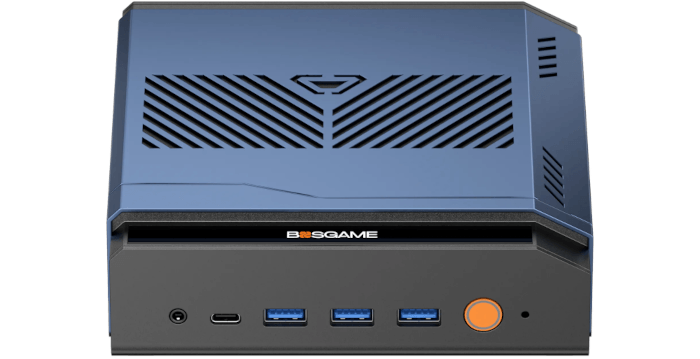
This is a new series looking at the Bosgame M7 Core Ultra 9 285H mini PC running Linux. In this series, I put this mini PC through its paces from a Linux perspective, comparing it with other systems, including desktops, to show how it really stacks up.
The Bosgame M7 is a recent addition to Bosgame’s wide range of mini PCs. This model is based on the Intel Core Ultra 9 285H processor with integrated Intel Arc 140T graphics. The processor has 16 cores and 16 threads with a CPU Mark of around 34,327. My machine came with 32GB of DDR5 5600 MT/s RAM and a 1TB PCIe 4.0 SSD, a configuration well-suited to heavy multitasking, development work, and media-rich workloads.
BIOS, or Basic Input/Output System, remains one of the most important pieces of low-level software in any computer. This firmware handles the essential groundwork before the operating system takes over, initializing hardware and providing the runtime services needed for the system to boot properly. Stored on the motherboard, the BIOS is the first thing that springs into action when you power on a machine.
For this quick look at the Bosgame M7’s BIOS, I’m using a basic video capture device rather than a camera. That approach delivers far cleaner screenshots and makes the interface much easier to see. The Bosgame M7 has an extraordinary number of options in its BIOS. To keep things moving, I’m not covering every single menu item and option, but this tour should give a good sense of what’s on offer.
Press the Del key at boot to access the BIOS.
Main
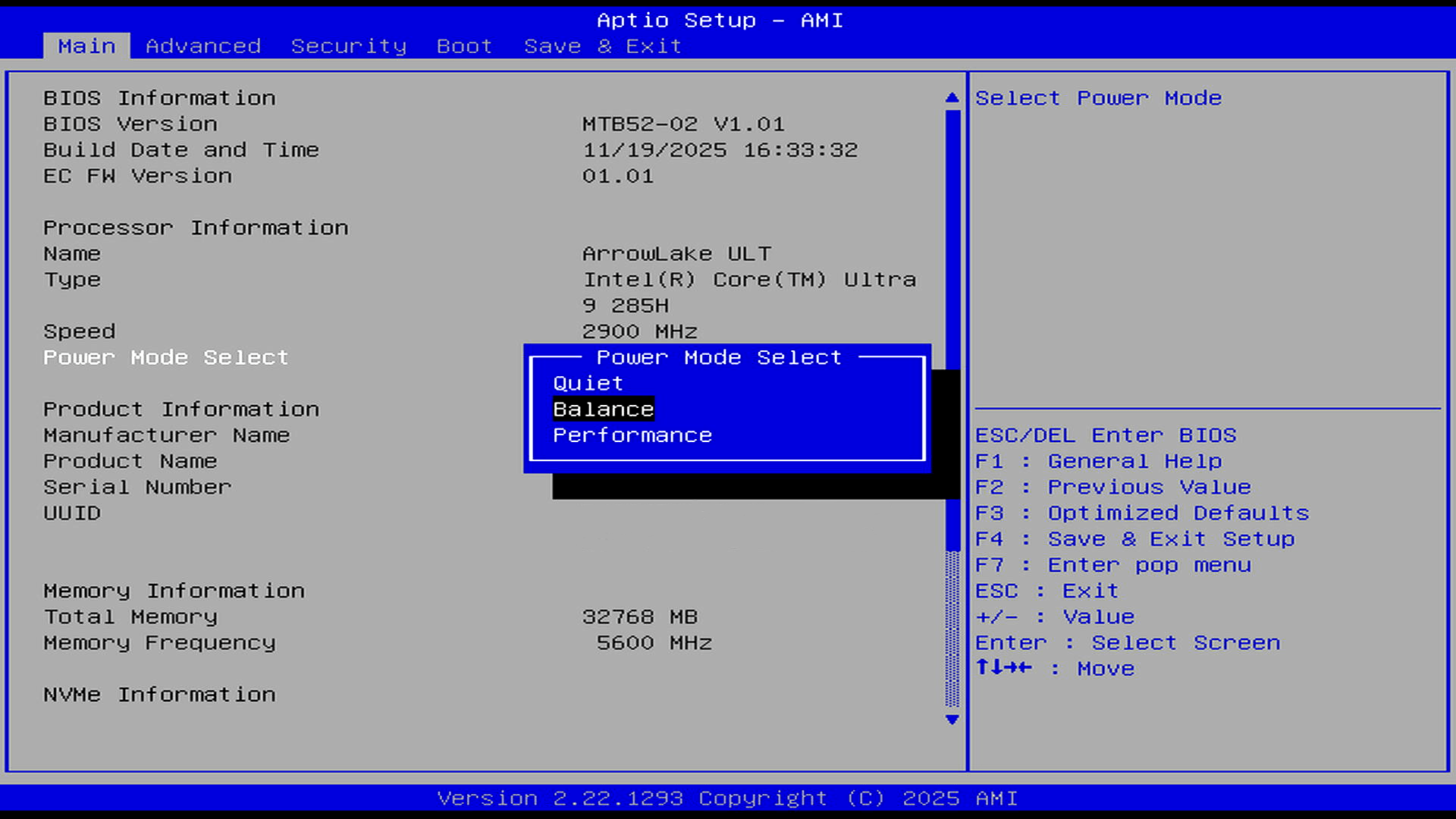
The main page is refreshingly simple. It exposes three power profiles, Quiet, Balance, and Performance, making it easy to switch the M7 between lower-noise operation and maximum performance. The M7 is quiet even with the power profile set to Performance. This screen also confirms the Core Ultra 9 285H processor, 32GB of memory running at 5600 MHz, and AMI Aptio firmware.
Advanced
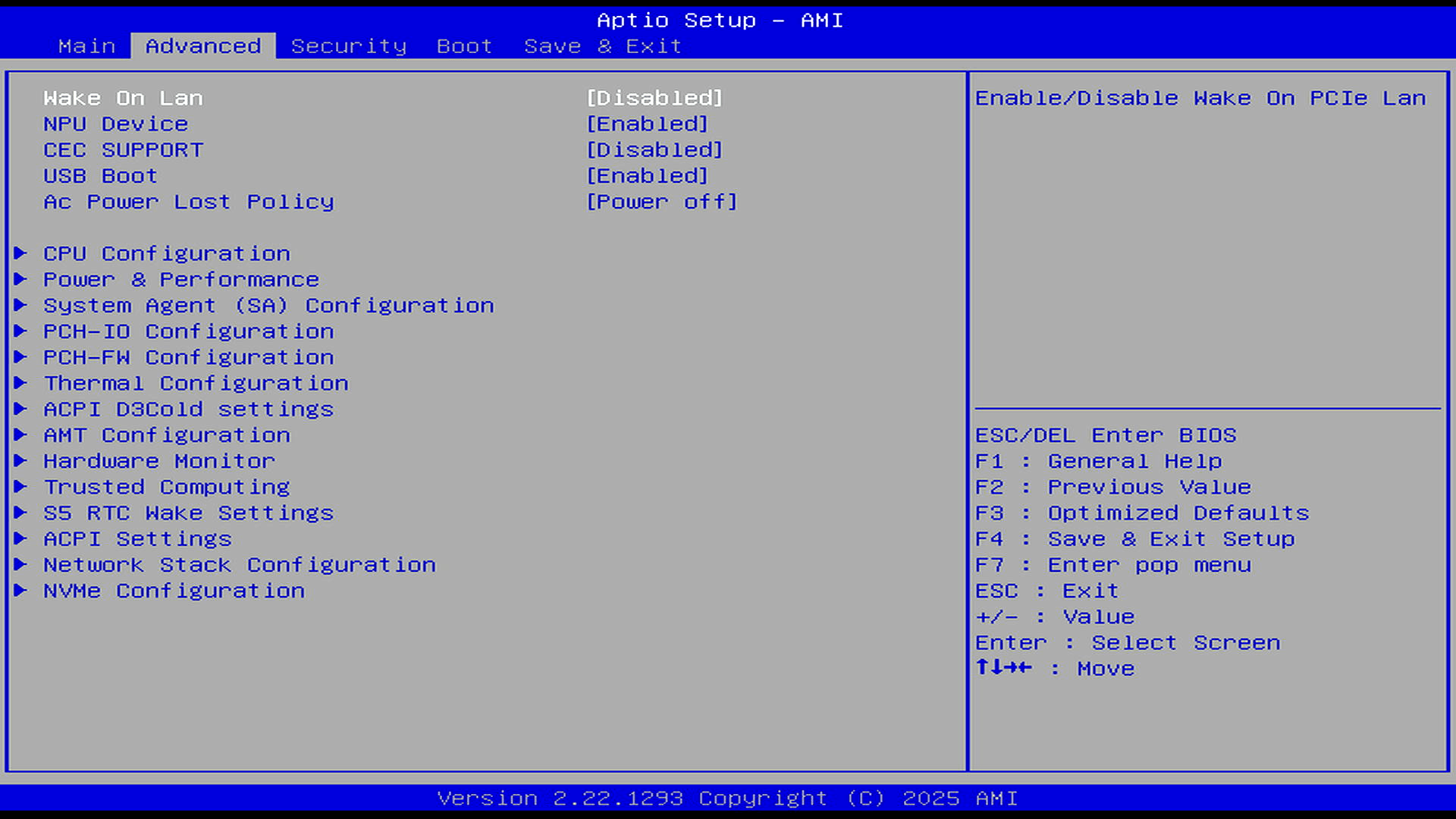
The Advanced tab exposes a decent spread of firmware controls without being overwhelming. Notably, the NPU is enabled by default, USB boot is enabled, Wake on LAN is disabled, and there are separate sections for CPU, power/performance, thermal, ACPI, network stack, TPM/trusted computing, and NVMe configuration.
I’m not going to look at every section, just the most interesting ones. But if there’s something you’d like to see, drop a comment below.
Power & Performance
Here’s the CPU Power Management Control menu. There’s also a menu for GT/Media Power Management Control.
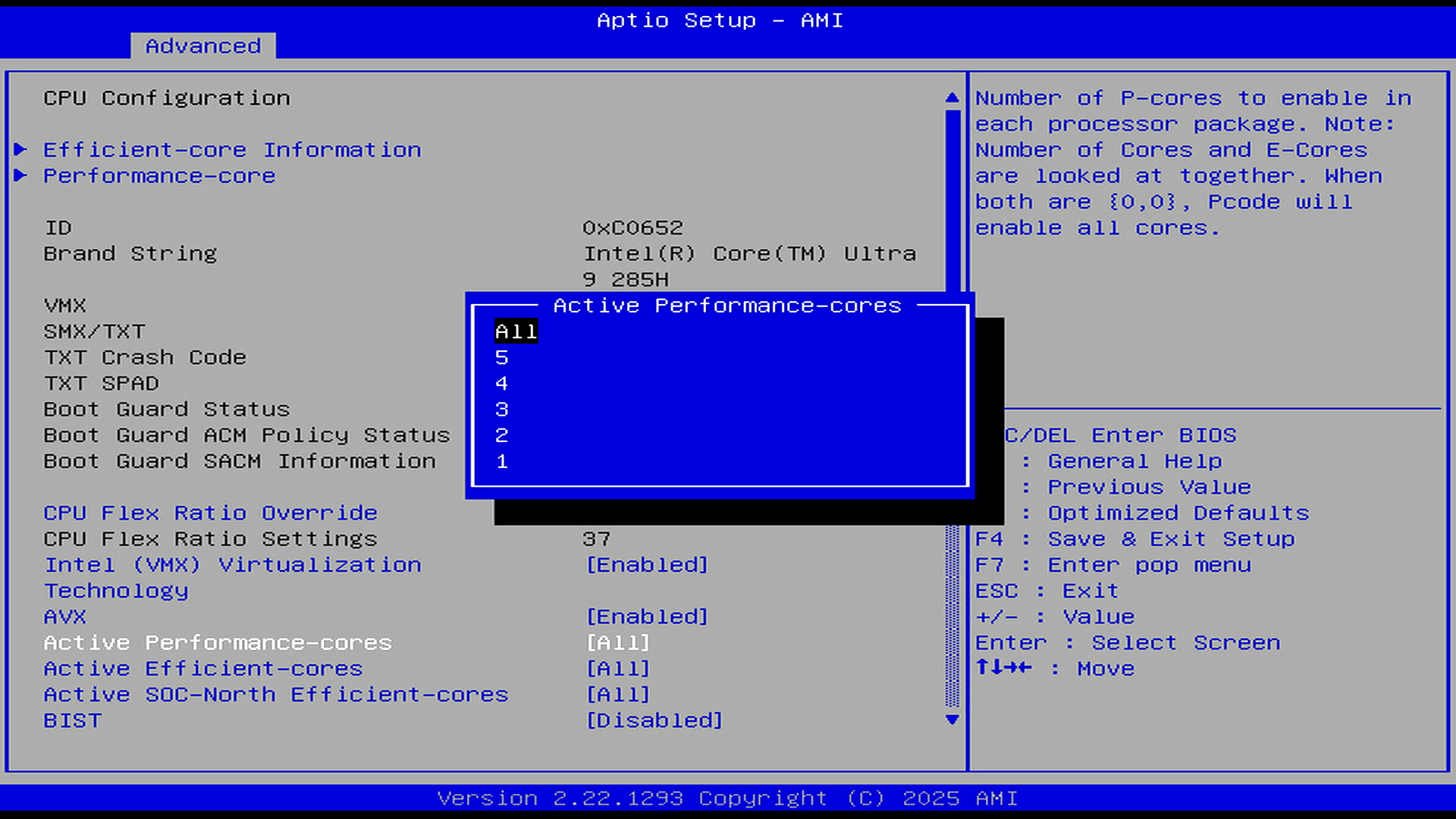
This CPU configuration screen is unusually useful for tuning and testing. It exposes separate controls for active Performance cores, Efficient cores, and SoC-North Efficient cores, allowing the M7 to be benchmarked with different core combinations. Intel VMX virtualization and AVX are enabled, while BIST is disabled. While it’s not possible to set the number of active Performance cores to zero, that restriction doesn’t apply to the other core types.
CPU Power Management Control
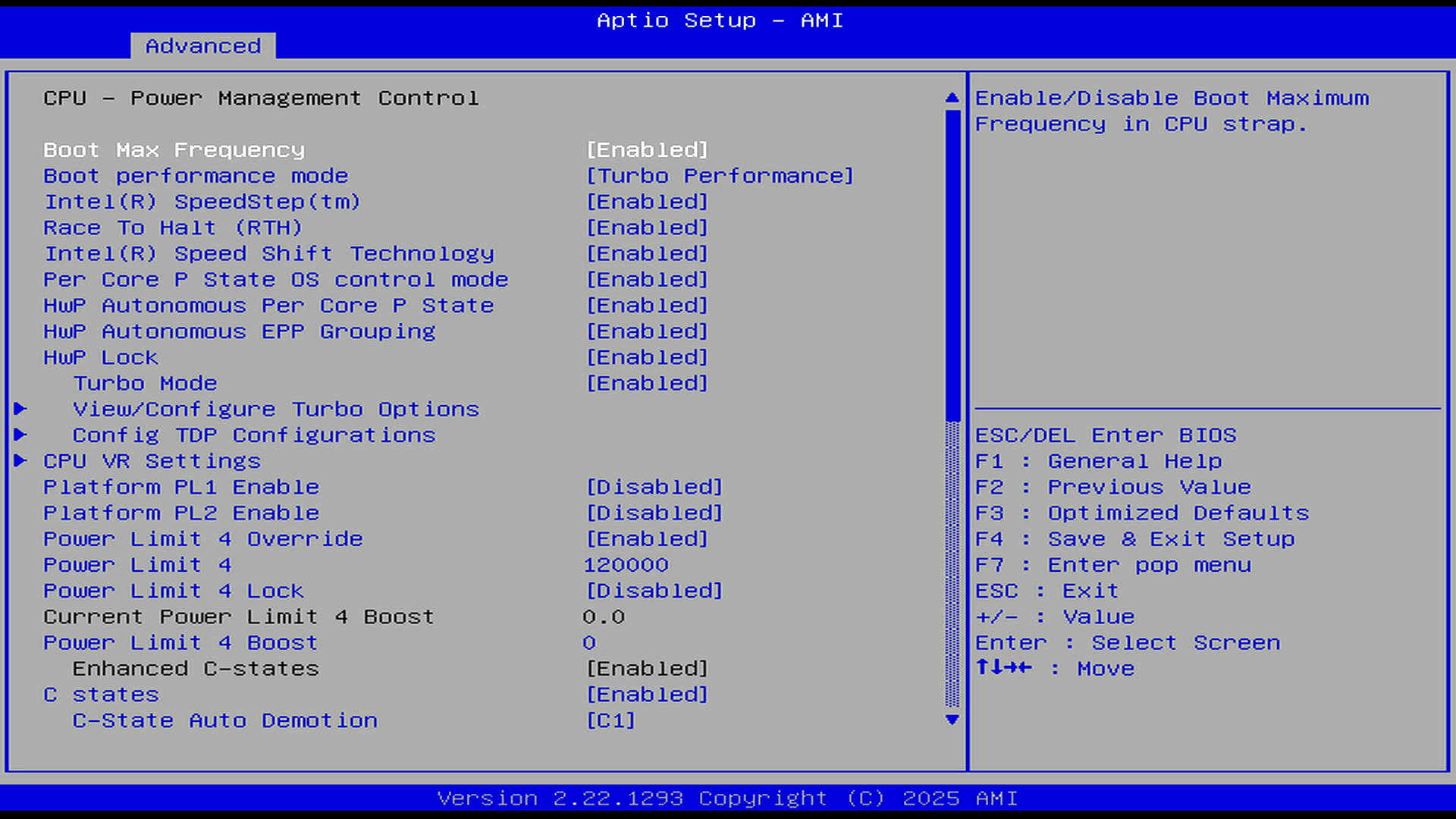
This page gives more granular CPU power control than many mini PCs expose. Turbo Performance boot mode, SpeedStep, Speed Shift, HWP, Turbo Mode, and C-states are all enabled, so the M7 is configured to scale clocks dynamically rather than run in a fixed low-power state. Platform PL1/PL2 controls are disabled here, while Power Limit 4 override is enabled, showing a value of 120000.
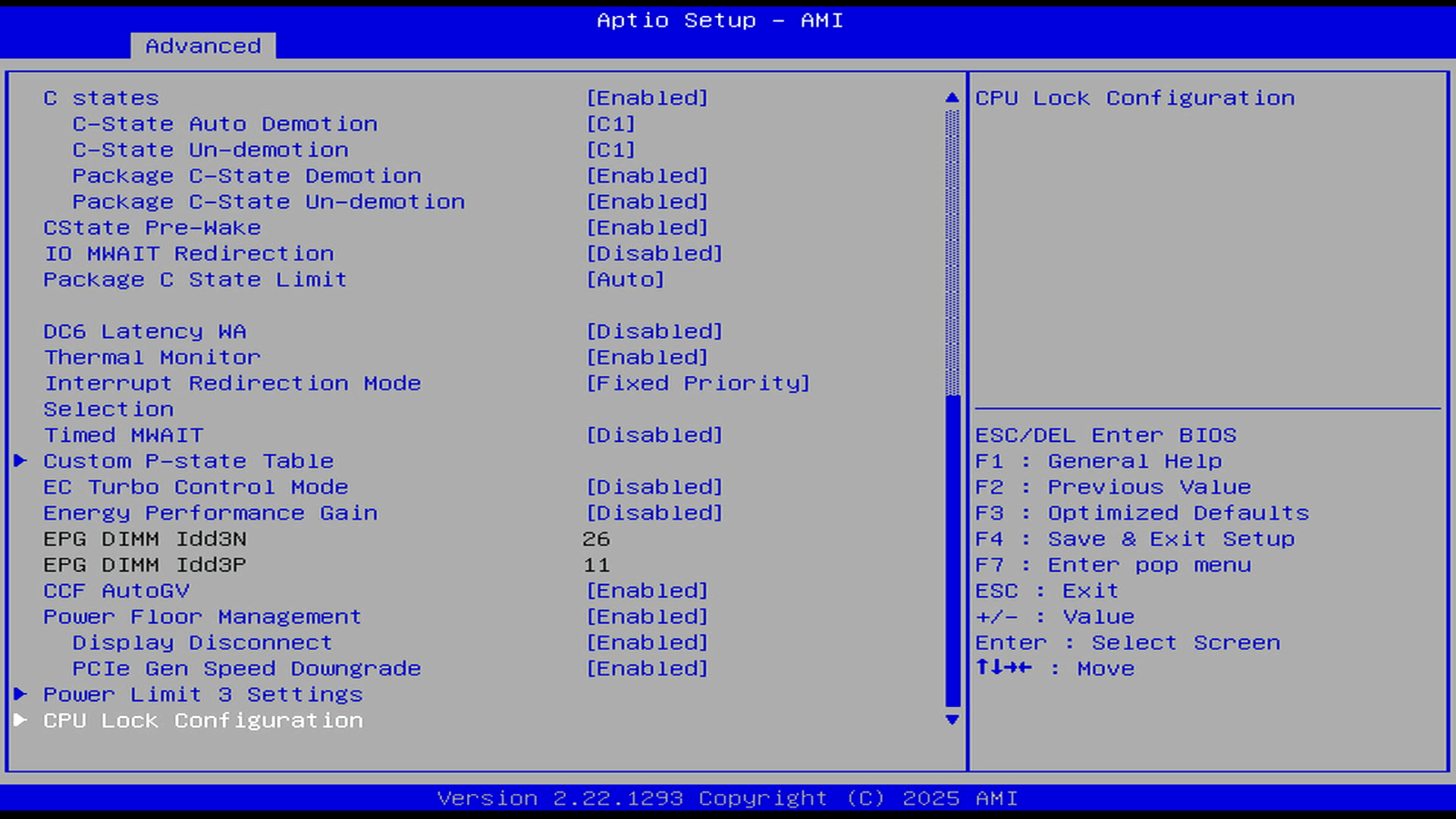
This lower section continues the detailed power-management controls. C-states and package C-state demotion are enabled, thermal monitoring is enabled, and the package C-state limit is left on Auto. It also exposes useful low-level options such as display disconnect, PCIe speed downgrade, Power Limit 3 settings, and CPU lock configuration, which is more tuning access than many compact systems provide.
Thermal Configuration
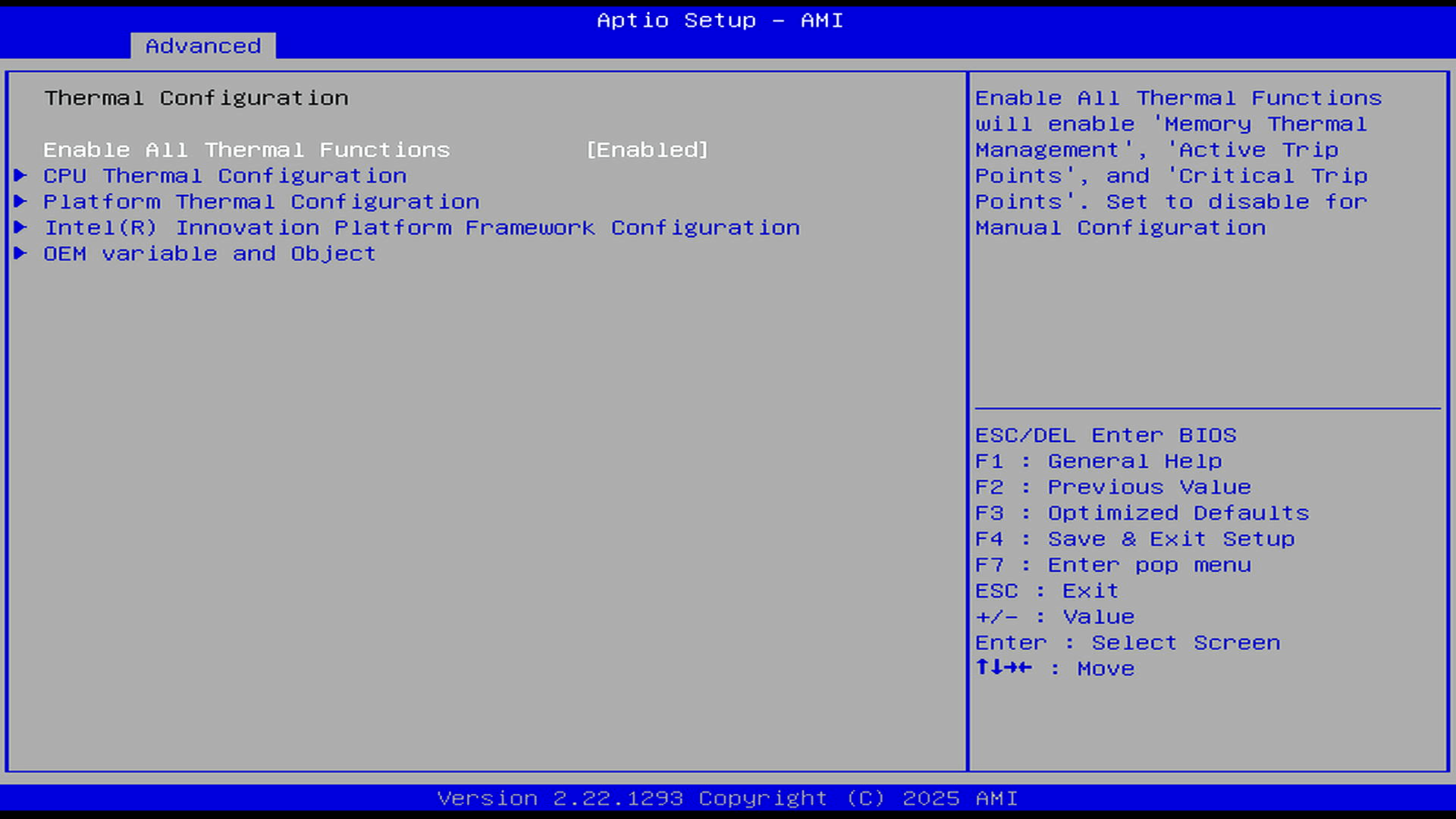
Thermal controls are also exposed in the BIOS, with all thermal functions enabled by default. The submenus cover CPU thermal configuration, platform thermal settings, Intel Innovation Platform Framework options, and OEM variables, giving scope for fan, trip-point, and thermal-management tuning beyond the basic power modes.
CPU Thermal Configuration
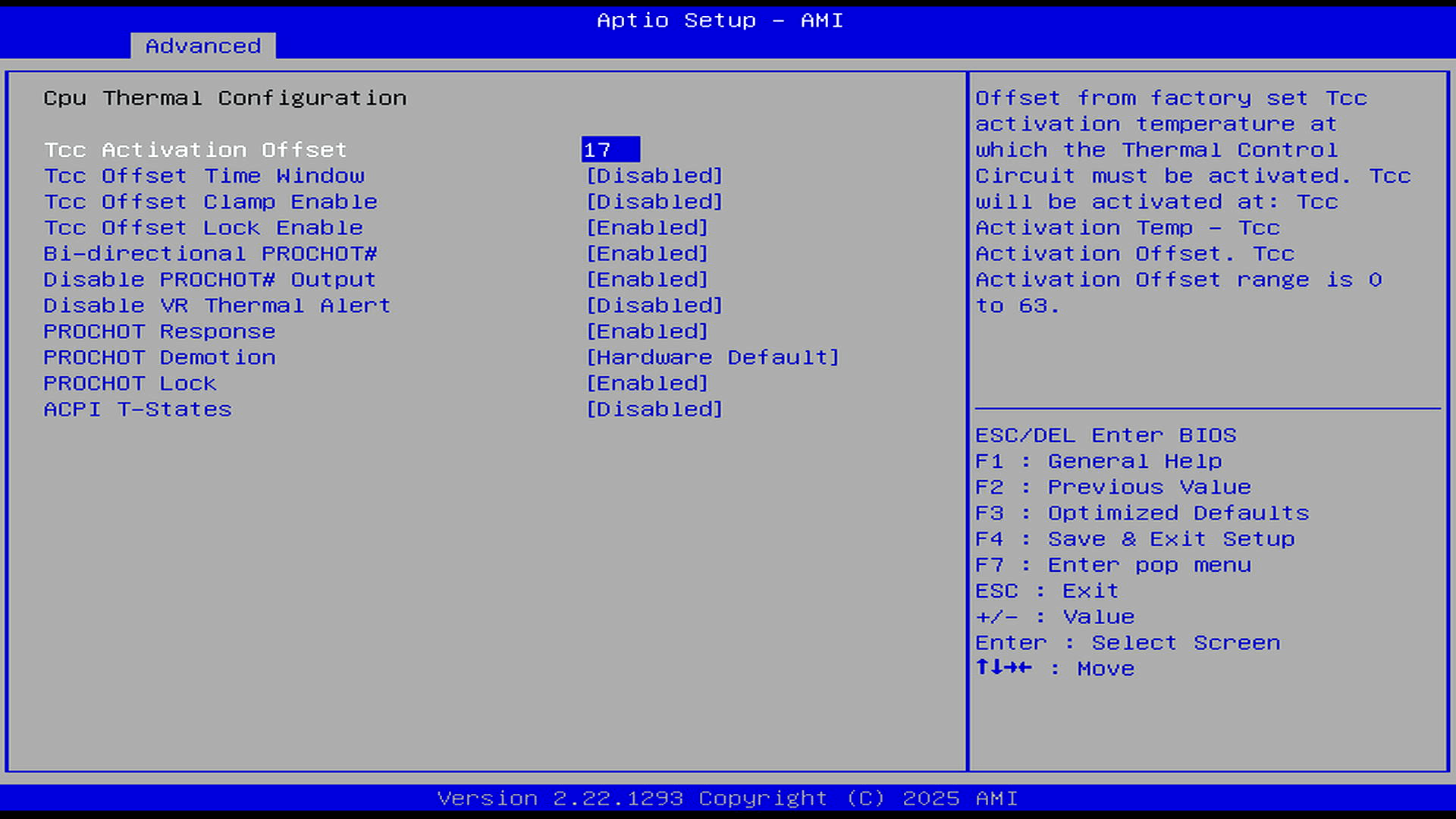
This is an important thermal page. The standout setting is TCC Activation Offset which is set to 17. That’s a fairly conservative configuration. It helps keep temperatures and fan noise under tighter control, but it might also reduce sustained peak performance under long CPU-heavy loads.
Other notable defaults:
- PROCHOT Response is enabled, so the CPU will react to thermal throttle signals.
- Bi-directional PROCHOT# is enabled, allowing platform-level thermal events to influence CPU throttling behaviour.
- TCC Offset Lock and PROCHOT Lock are enabled, so some of these thermal protections are locked once configured.
- ACPI T-States are disabled, so thermal management is mainly handled through modern CPU throttling/power mechanisms rather than legacy ACPI throttling states.
Overall, Bosgame appears to be prioritising safer thermal behaviour rather than letting the Core Ultra 9 285H run right up to its maximum junction temperature.
Platform Thermal Configuration
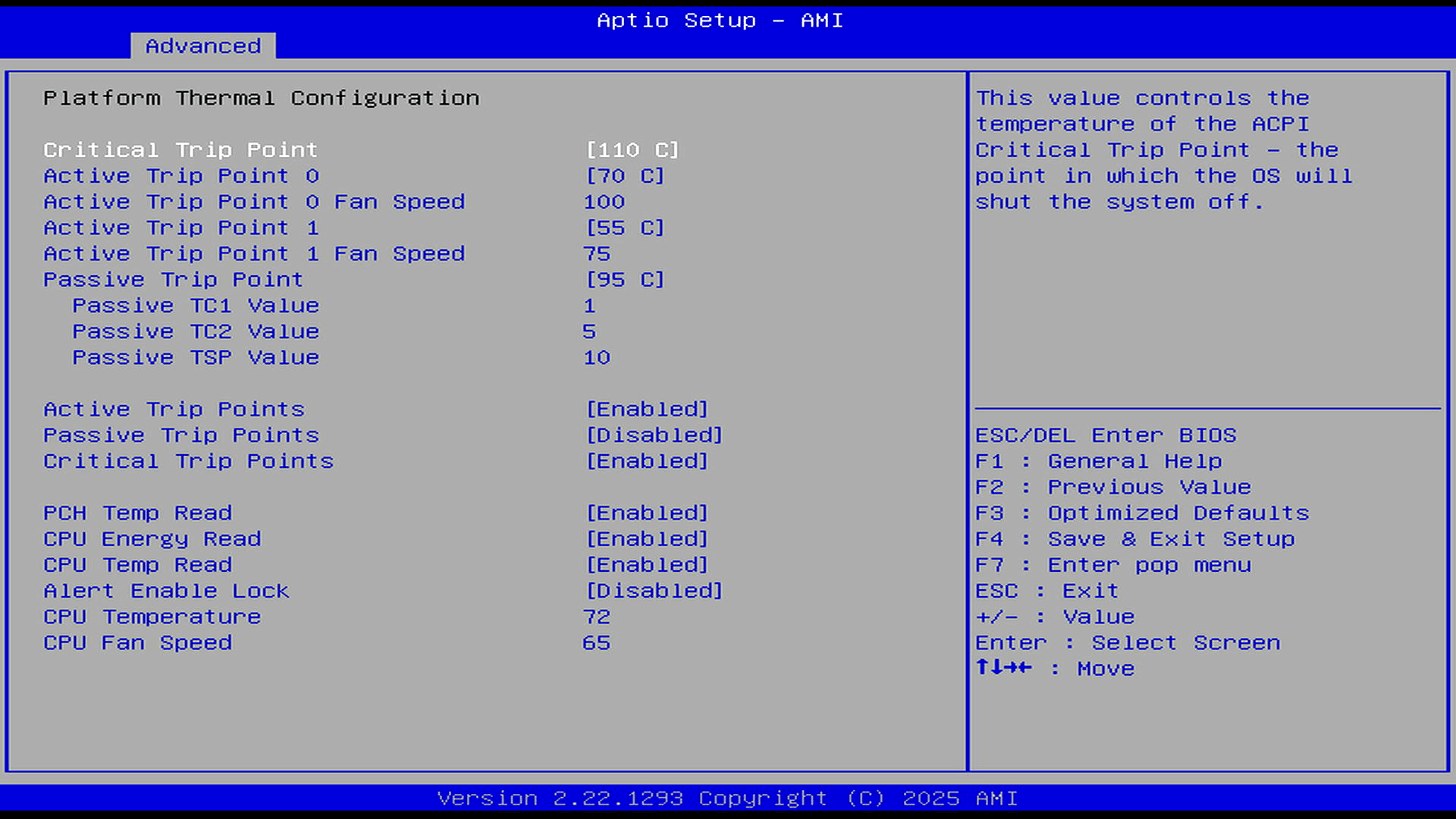
This platform thermal page shows a fairly aggressive fan policy. Active cooling is enabled, with the fan set to ramp to 75% at 55°C and 100% at 70°C. I really like the fact that you can change the trip points. This alone gives you a lot of flexibility over CPU fan noise.
Hardware Monitor
And you have even more flexibility as you can force the CPU and/or system fan to run at a specific percentage rather than fluctuate.
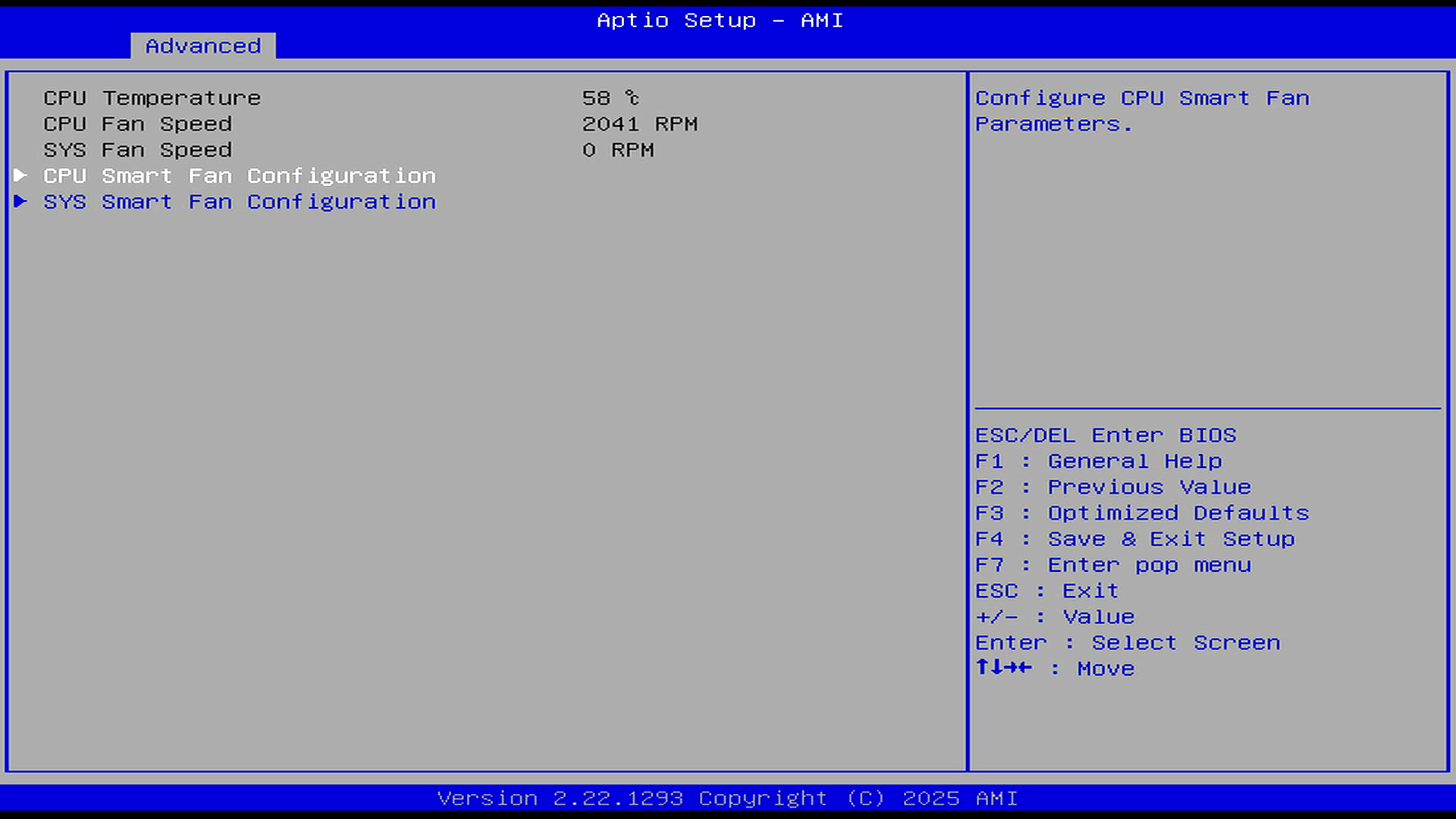
By default, the CPU and SYS Smart Fan Configuration options are disabled. Enabling them lets you run the CPU and system fans at fixed percentage speeds.
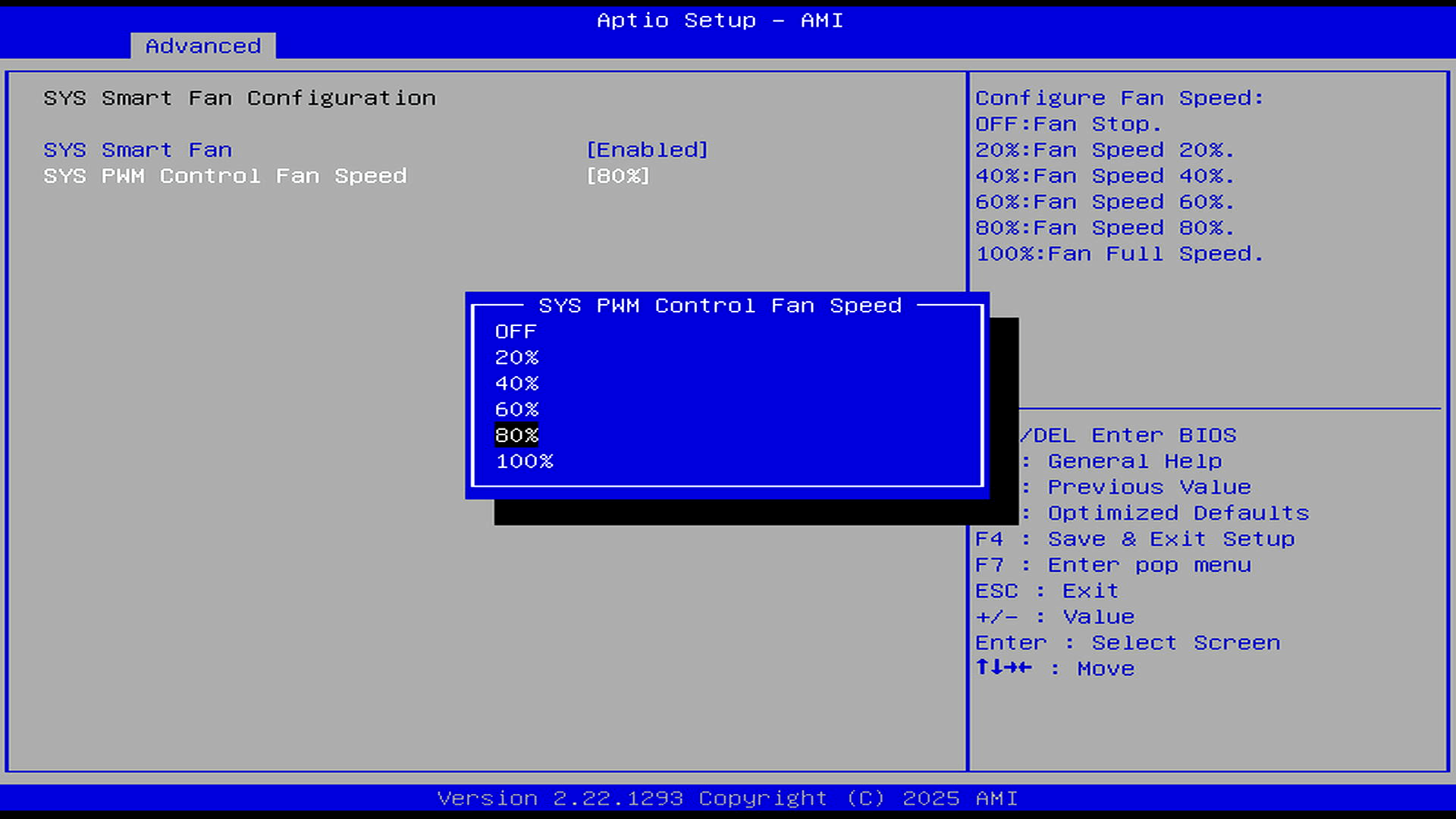
The Bosgame BIOS offers unusually good control for a mini PC. Beyond the basic Quiet, Balance, and Performance profiles, it exposes CPU core controls, C-state options, power-limit settings, TCC/PROCHOT thermal behaviour, and configurable platform trip points. The Hardware Monitor section adds another useful layer of flexibility, letting users set the CPU and/or system fan to specific fixed speeds, including low-speed or fan-stop options where available. This gives real scope to tune the M7 for quiet running, although sustained silence will still depend on workload, ambient temperature, and the limits of the cooling system.
Next page: Page 2 – Security and Boot
Pages in this article:
Page 1 – Main and Advanced
Page 2 – Security and Boot
Complete list of articles in this series:
| Bosgame M7 Core Ultra 9 285H Mini PC | |
|---|---|
| Introduction | Introduction to the series and interrogation of the machine |
| Benchmarks | Benchmarking the Bosgame M7 Core Ultra 9 285H Mini PC |
| Power | Testing and comparing the power consumption |
| BIOS | In the world of computing, BIOS, which stands for Basic Input/Output System, plays a crucial role |
| Cores | Benchmarking the Bosgame M7’s Core Ultra 9 285H on Linux, comparing P-cores, E-cores and LP E-cores with Crafty, Coremark and smallpt. |
| Intel processors | P-Cores, E-Cores and LP E-Cores Compared Across 4 Intel Processors |
| More articles will be published next week | |
Please read our Comment Policy before commenting.
The BIOS on my desktop PC is so spartan in comparison.
I was hoping for a little analysis – not one piece of constructive criticism in this write-up. Is this just a marketing series?
No, it isn’t a marketing series.
This is an ongoing Linux review series, not a single-page verdict. The BIOS article you commented on is a focused look at the firmware, so its purpose is to show what the BIOS exposes, what’s configurable, and what matters from a Linux/testing perspective.
There’s already substantial analysis elsewhere in the series, including comparative benchmarks, graphics testing, memory and disk performance, and power-consumption testing against other mini PCs and desktop systems. Those articles don’t simply repeat specifications; they examine where the M7 performs well, where AMD systems are stronger, how Intel’s Arc 140T compares, how the 285H behaves in single-threaded and multi-threaded workloads, and what its idle/load power draw looks like.
Even in this BIOS article, there’s analysis rather than marketing copy: the conservative TCC Activation Offset, the fan trip points, the ability to tune cooling behaviour, the exposed CPU core controls, and the power-management options are all discussed because they affect thermals, noise, sustained performance, and testing flexibility.
A final judgement comes at the end of a series, once Linux compatibility, performance, power use, thermals, noise, hardware design, and any weaknesses have all been examined. Calling the series marketing because one BIOS-focused instalment isn’t a full teardown of every drawback ignores the wider work already published and the fact the series isn’t finished.
This is a very useful series. Unlike most YouTubers it comes across as both impartial and detailed. I’m looking forward to more articles. Maybe you can do a ROADMAP so I know what’s coming up?
Thanks for the detailed BIOS screenshots.