

In Operation
Here’s an image of XPipe in action showing the program’s connection hub. Here you keep track and manage your remote connections in one place.
On the right of the UI is an icon bar. The first three icons let you access connections, file browser, and settings.
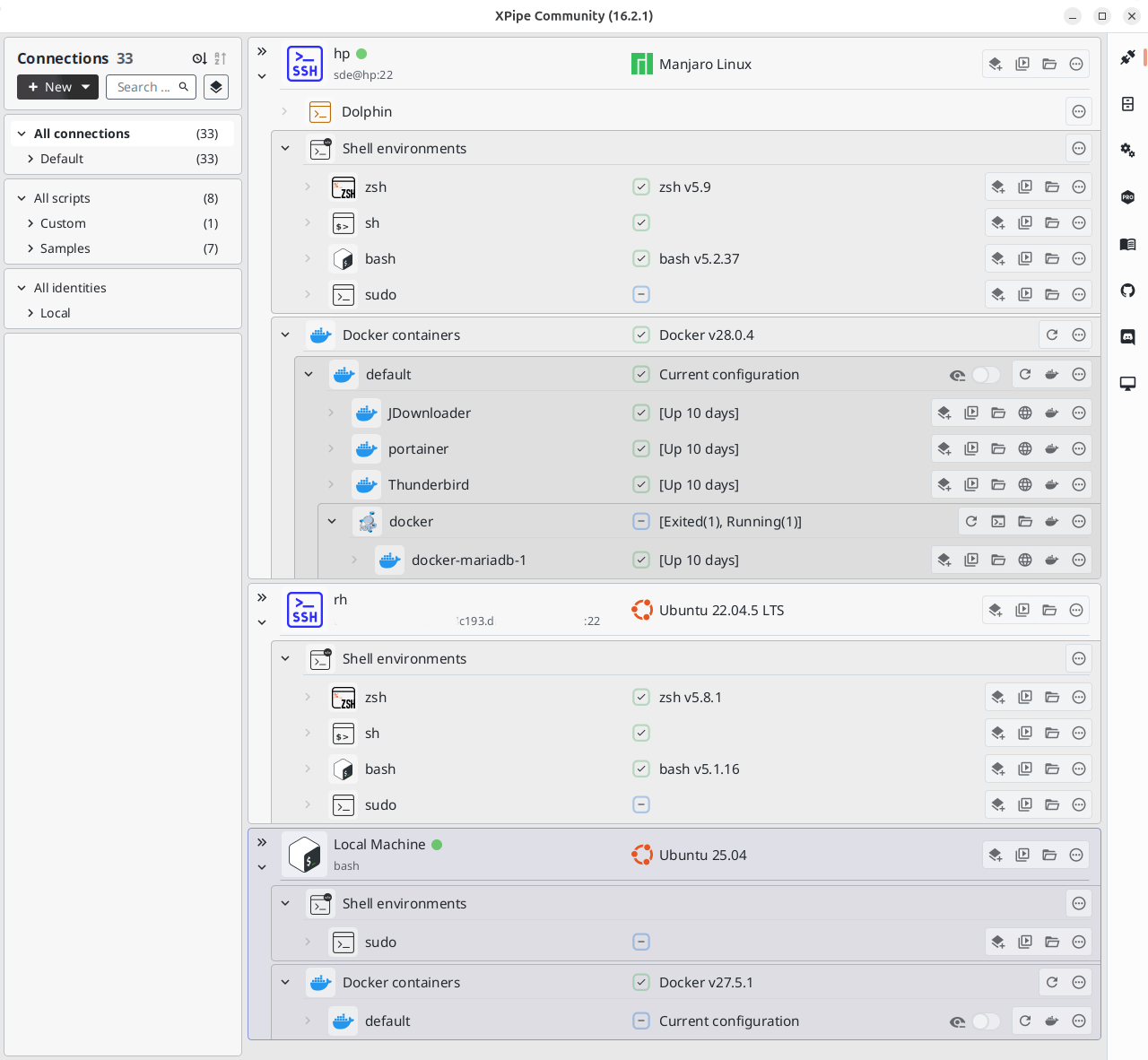
We’ve added a couple of SSH connections.
The process of adding a connection is made simple. When you add a connection, the software looks for integrations.
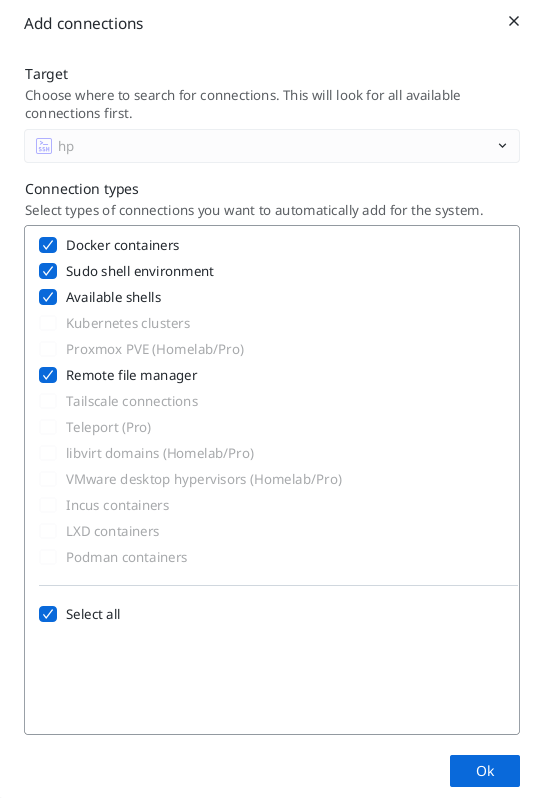
There’s complete SSH support including config files, agent integrations, jump servers, tunnels, key files, smartcards, X11 forwarding, and more. The software supports password authentication (including the ability to use a password manager), and key-based authentication (although this is quite limited with the community edition).
There’s also support for VNC connections over SSH, and RDP connections over SSH. And there’s a remote file browser that optimizes your workflow.
In the image above, you can see some Docker containers. There’s also support for Podman, LXD, and Incus containers. Functionality for hypervisors is extremely limited in the Community edition though.
To say the program is highly customizable would be an understatement. Here’s a brief overview of the main customization options in the Community Edition:
- Appearance – define the language, theme, performance mode, UI scale, use system font, censor mode, window opacity, and save the window location.
- Vault – manage existing value users or create new ones, and encrypt vault data.
- Vault sync – enable git synchronization, Git remote URL, and Git SSH identify.
- Password management – set the password manager implementation to execute to fetch passwords. Options include 1Password, KeePassXC, Bitwarden, Dashlane, LastPass, Keeper or use a custom command.
- Terminal – set the terminal emulator, terminal prompt, and terminal multiplexer.
- Editor – set the default text editor.
- RDP – set the RDP client program to call when launching RDP connections.
- Connection hub – condense connection display, show child categories in parent category, and open connection search window on connection creation.
- File browser – enable terminal docking, edit files with double click, custom downloads directory, and pin local machine tab on startup..
- Icons – add your own sources for icons.
- System – set the startup and exit behaviour.
- Updates – check for updates, check for security updates.
- Security – confirm permission elevation, don’t cache prompted passwords, don’t accept new SSH host keys automatically and more.
- HTTP API – enable HTTP API, set the API key, and more.
- Workspaces – manage workspaces.
Summary
XPipe is the best open source connection manager for Linux. It gets our strong recommendation. And it’s cross-platform software so you can use the software whatever platform.
XPipe has an attractive UI, a good feature set including flexible file management, and it’s highly customizable.
We like that the software interacts with your installed command-line tools on local and remote shell connections. This embodies flexibility as it doesn’t need to deal with file system APIs, protocols, or libraries. The software extends the functionality of your existing tools. For example, if you use a text editor that lacks remote capabilities, XPipe makes it remote compatible. The same applies to a terminal emulator which doesn’t have built-in SSH connection management.
What don’t we like about XPipe?
The interface is not optimally designed. For example, when adding a new remote connection, the Add connection box has Connection name as the last field. That should be the first, and be grouped with the Connection information fields.
The software is also rather heavy with system resources. For example, the useful ps_mem utility reports that memory usage is over 750MB.
XPipe is available under various plans one of which is a community edition. This edition doesn’t offer all the program’s functionality. While the community edition is missing some features (in particular support for Hyper-V, KVM, VMWare, as well as terminal logging), most users will be more than happy with functionality provided by this edition. It includes unlimited connections, file management, shell scripting and more.
Website: github.com/xpipe-io/xpipe
Support:
Developer: XPipe UG
License: Apache License 2.0
XPipe is written in Java. Learn Java with our recommended free books and free tutorials.
Pages in this article:
Page 1 – Introduction and Installation
Page 2 – In Operation and Summary
Related Software
| Graphical SSH Frontends | |
|---|---|
| XPipe | Shell connection hub and remote file manager |
| Termix | Self-hosted all-in-one server management platform |
| RustConn | Connection orchestrator with a GTK4/Wayland-native interface |
| Ásbrú Connection Manager | Full-featured connection manager written in Perl |
| sshPilot | Lightweight SSH connection manager |
| PuTTY | SSH and telnet client with sessions |
| EasySSH | Connection manager written in Vala |
| Kerminal | Modern terminal emulator and SSH manager |
| OpenSSH GUI | Frontend for managing your SSH Keys |
Read our verdict in the software roundup.
 Explore our carefully curated directory of recommended free and open source software, covering every major software category. Explore our carefully curated directory of recommended free and open source software, covering every major software category.The directory forms part of our extensive collection of articles for Linux enthusiasts. It includes hundreds of detailed reviews, together with free and open source alternatives to proprietary software from companies such as Google, Microsoft, Apple, Adobe, IBM, Cisco, Oracle, and Autodesk. LinuxLinks also covers interesting projects worth exploring, Linux-compatible hardware, free programming books and tutorials, and much more. Know a useful free and open source Linux application that we haven’t covered? Tell us about it using our submission form. |
Please read our Comment Policy before commenting.
The problem with XPipe is that it’s massive overkill for what I need. I just want a simple GUI program that lets me connect via SSH without consuming huge amounts of RAM.
Java programs can often have larger memory footprints, and that’s true with XPipe. But it’s the best open source solution we’ve found.
I found maintaining my ssh aliases in the ~/.ssh/config file, then using ssh from terminal is a snap.
Yes, although Nathan says he wants a GUI tool.