
Waypipe is a utility that lets me run graphical applications on a remote Linux computer while displaying their windows on my local Wayland desktop. It provides functionality broadly comparable to traditional X11 forwarding, but is designed specifically for the Wayland display protocol.
Unlike remote desktop solutions such as RDP or VNC, Waypipe does not transmit an entire desktop environment. Instead, it forwards the Wayland protocol messages and graphical buffers associated with individual applications.
Waypipe can operate over SSH, providing an encrypted connection between two computers. It also supports compression, GPU buffer forwarding and optional video encoding to reduce the amount of data transferred.
For this review, I’m using two computers running CachyOS with KDE Plasma on Wayland. One is the BOSGAME VTA-439, powered by an AMD Ryzen AI 9 HX 470 processor with Radeon 890M graphics. The other is the Minisforum MS-02 Ultra, a compact workstation powered by an Intel Core Ultra 9 285HX processor.
This configuration lets me investigate Waypipe between two different hardware platforms while keeping the operating system and desktop environment consistent.
Installation
Waypipe is available in CachyOS’s repositories, making installation straightforward. It needs to be installed on both computers.
I install Waypipe and OpenSSH using pacman:
$ sudo pacman -S waypipe openssh
I verify the installed version with:
$ waypipe --version
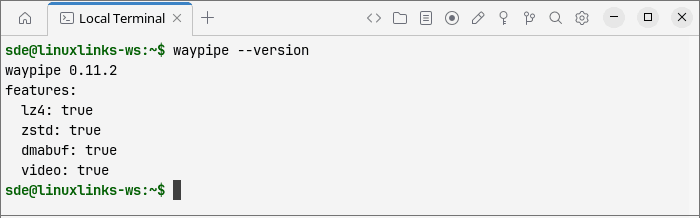
To avoid compatibility issues, both machines are running the same Waypipe version.
As I want to use Waypipe in both directions, I enable the SSH daemon on each computer:
$ sudo systemctl enable --now sshd
Both computers are running KDE Plasma in a Wayland session.
Before testing graphical forwarding, I check that the computers can communicate over SSH:
$ ssh username@remote-ip
Once SSH connectivity works, there is no additional Waypipe server to configure. Waypipe automatically starts the required processes and establishes the forwarding connection.
For the initial tests, I also install two graphical applications:
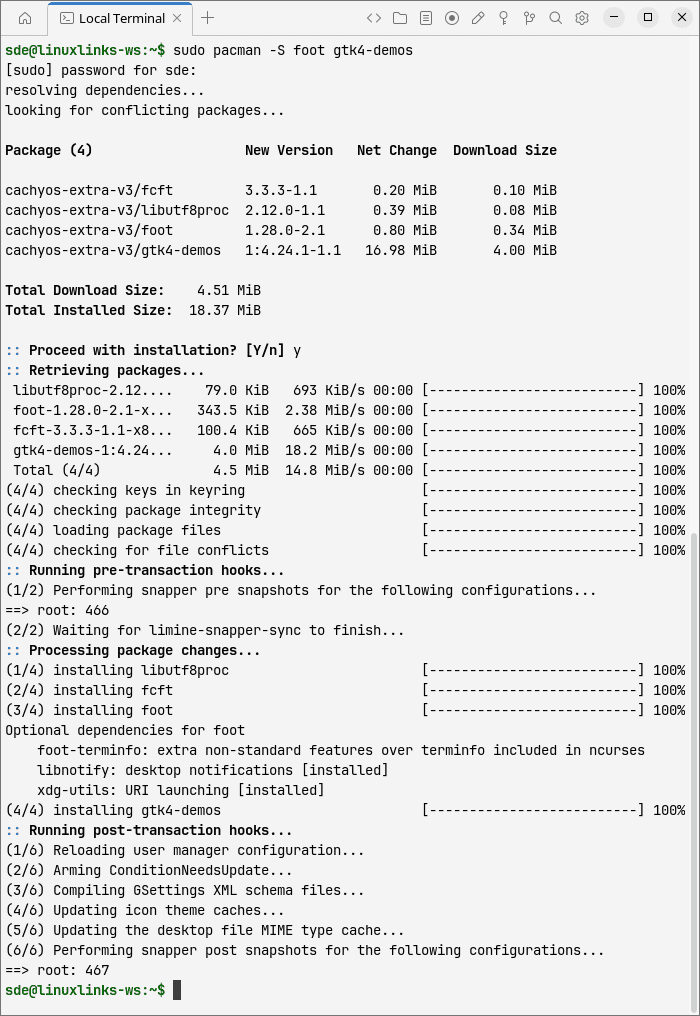
$ sudo pacman -S foot gtk4-demos
Foot is a lightweight Wayland-native terminal emulator. The GTK 4 demonstration application provides a collection of graphical widgets for examining rendering and interaction.
In Action
Waypipe is controlled from the command line. Its general syntax is:
$ waypipe ssh user@remote-host application
The application runs on the remote computer, but its window is displayed through the local Wayland compositor.
My first test involves using the Minisforum MS-02 Ultra as the local computer and the BOSGAME VTA-439 as the remote host.
From a terminal on the MS-02 Ultra, I enter:
$ waypipe ssh [email protected] foot
This establishes an SSH connection to the BOSGAME and launches Foot remotely.
The terminal window appears on the MS-02 Ultra’s desktop, but commands entered in Foot execute on the BOSGAME. KDE Plasma on the Minisforum manages the window.
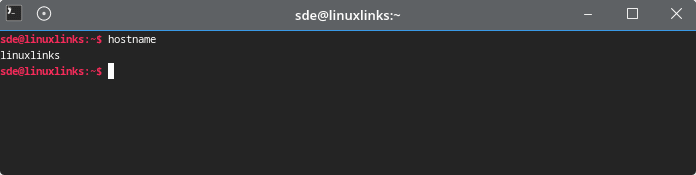
To confirm which computer is executing the application, I enter:
$ hostname
The output identifies linuxlinks, which is the hostname of the BOSGAME VTA-439.
Next, I test a more complex graphical application using GTK 4 Demo:
$ waypipe ssh [email protected] env GDK_BACKEND=wayland gtk4-demo
This provides an opportunity to examine window resizing, scrolling, menu interaction and graphical updates across the network.
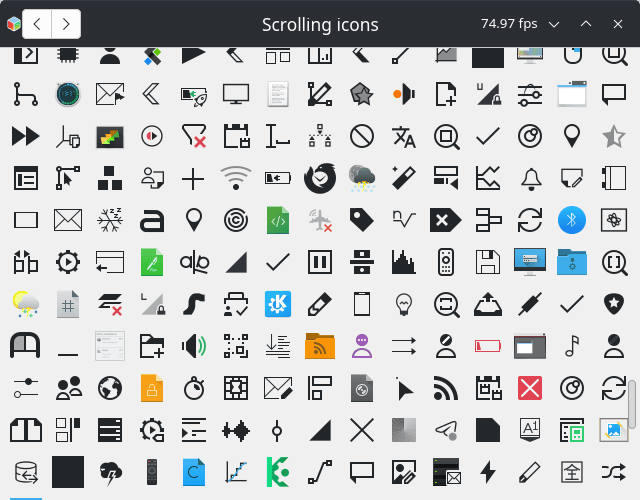
The application reported approximately 75 FPS while scrolling through the icons, an encouraging result for a GTK 4 application running remotely over SSH. Just as importantly, scrolling feels responsive, with no noticeable input lag. The reported frame rate reflects the application’s rendering performance and does not necessarily represent the number of complete frames transmitted across the network.
I also test Qt applications, starting with Dolphin, KDE’s file manager:
$ waypipe ssh [email protected] env QT_QPA_PLATFORM=wayland dolphin
The QT_QPA_PLATFORM environment variable tells Qt to use its native Wayland platform plugin. Dolphin opens on the MS-02 Ultra’s desktop, providing access to files on the remote BOSGAME.
Some desktop applications reuse an existing process through D-Bus or other inter-process communication mechanisms. If an application opens on the remote desktop instead of being forwarded, terminating the existing instance or using a separate-instance option may be necessary.
Firefox also works through Waypipe:
$ waypipe ssh [email protected] firefox
This is a more demanding test than Foot or Dolphin. Modern web browsers render complex pages, update large areas of their windows and make extensive use of graphics acceleration.
Performance is very good. Scrolling is responsive and video playback is silky-smooth, without obvious visual glitches or noticeable lag.
Bear in mind that both the BOSGAME VTA-439 and Minisforum MS-02 Ultra are well specified, although the MS-02 Ultra has considerably less powerful integrated graphics than the BOSGAME’s Radeon 890M. I’m also using a 2.5GbE network, so performance over a slower connection may be different.
One significant limitation is that Waypipe doesn’t forward audio itself. It handles the graphical display, but sound normally remains on the remote computer.
Fortunately, audio can be forwarded separately using SSH’s Unix-domain socket forwarding and the PulseAudio compatibility layer provided by PipeWire.
For Firefox, I use:
$ waypipe ssh -R /tmp/waypipe-audio-sde.sock:${XDG_RUNTIME_DIR}/pulse/native [email protected] env PULSE_SERVER=unix:/tmp/waypipe-audio-sde.sock firefox
The -R option creates a forwarded Unix socket on the remote computer, connected to the audio server on my MS-02 Ultra. The PULSE_SERVER environment variable tells Firefox to use that socket.
This allows the graphical interface and audio to travel over the same encrypted SSH connection, although they use separate forwarding mechanisms.
Audio forwarding is less straightforward than graphical forwarding. I encountered problems with stale socket files, which prevented SSH from establishing new forwarding connections. Applications that reuse an existing process can introduce further complications, particularly if the process was started without the appropriate audio settings.
One approach is to maintain a persistent SSH audio tunnel that several applications can share. This avoids repeatedly creating forwarding sockets, but it requires additional setup and management.
Different applications can also require different configurations. For example, fooyin, a music player, uses its native PipeWire output by default. To forward its audio over SSH, I need to change fooyin’s output backend to PulseAudio.
After some experimentation, I settled on a single command that successfully launches fooyin with both graphical and audio forwarding:
$ ssh [email protected] 'pkill -x fooyin || true'; sock="/tmp/fooyin-audio-$$.sock"; waypipe ssh -R "$sock:${XDG_RUNTIME_DIR}/pulse/native" [email protected] env QT_QPA_PLATFORM=wayland PULSE_SERVER="unix:$sock" fooyin
The command closes any existing fooyin instance on the BOSGAME, creates an audio socket name incorporating the local shell’s process ID, then launches fooyin through Waypipe. SSH forwards the PulseAudio connection to the MS-02 Ultra’s PipeWire sound server.
Using a different socket name helps avoid conflicts with earlier forwarding attempts, although repeating the command from the same shell can reuse the name.
This successfully provides sound on the MS-02 Ultra while fooyin continues running on the BOSGAME. Once configured, playback works well.
Getting audio working is clearly more complicated than displaying a remote graphical application. It is also an area where Waypipe falls short of the convenience offered by some remote desktop solutions with integrated audio support.
One of Waypipe’s more interesting capabilities is GPU buffer forwarding. Supported applications can use DMA-BUF mechanisms rather than relying exclusively on conventional shared memory buffers.
My two systems use different graphics hardware, making compatibility particularly relevant. If an application encounters graphical problems, Waypipe provides an option to disable GPU buffer forwarding:
$ waypipe --no-gpu ssh [email protected] foot
This can help with applications that encounter problems using GPU buffers, although it may affect rendering performance or prevent some GPU-dependent applications from working correctly.
Waypipe also supports optional lossy video encoding for certain DMA-BUF formats, with H.264, VP9 and AV1 among the available codecs. Software encoding and hardware acceleration are available depending on the build and system configuration. This provides another way to reduce bandwidth requirements, particularly for graphics-intensive applications.
Waypipe supports three compression modes:
$ waypipe --compress none ssh [email protected] foot
$ waypipe --compress lz4 ssh [email protected] foot
$ waypipe --compress zstd ssh [email protected] foot
The uncompressed mode avoids compression overhead and is suitable for high-bandwidth connections. LZ4 prioritises fast compression and decompression, making it a sensible general-purpose choice. Zstandard typically achieves higher compression ratios but requires more processing.
LZ4 is the default when Waypipe is built with support for it. On my 2.5GbE network, bandwidth is less of a concern than it would be over a slower connection. The choice of compression becomes more important when network bandwidth is limited.
Summary
Waypipe offers an interesting alternative to conventional remote desktop software. Rather than presenting an entire remote desktop, it allows individual graphical applications to be integrated into a local Wayland session.
Installation is straightforward on CachyOS, with no dedicated Waypipe server configuration beyond SSH access. The command-line interface is also relatively simple, particularly for anyone already familiar with SSH.
My tests with Foot, GTK 4 Demo, Dolphin and Firefox demonstrate how effectively Waypipe handles different types of graphical applications. Scrolling through GTK 4 Demo’s icons produced approximately 75 FPS, while Firefox delivered impressively smooth scrolling and video playback. I encountered no significant responsiveness problems during these tests.
The availability of different compression methods, GPU buffer forwarding and optional video encoding adds flexibility for different hardware and network environments.
Audio forwarding is Waypipe’s most obvious limitation. Although I was able to configure audio forwarding for multimedia applications, the process was considerably more complicated than forwarding their graphical interfaces. Dealing with PulseAudio settings, existing application processes and SSH socket conflicts required more effort than I would have liked.
Nevertheless, Waypipe proved to be an effective way of running applications on my BOSGAME VTA-439 while interacting with them from the Minisforum MS-02 Ultra. It provides a practical alternative to conventional remote desktop solutions when I only need access to individual graphical applications.
For anyone using Wayland on multiple Linux computers, Waypipe is well worth investigating, particularly over a fast local network. Just don’t expect audio forwarding to be quite as straightforward as the graphical side.
Website: gitlab.freedesktop.org/mstoeckl/waypipe
Support:
Developer: Manuel Stoeckl
License: GNU General Public License v3.0
Please read our Comment Policy before commenting.