
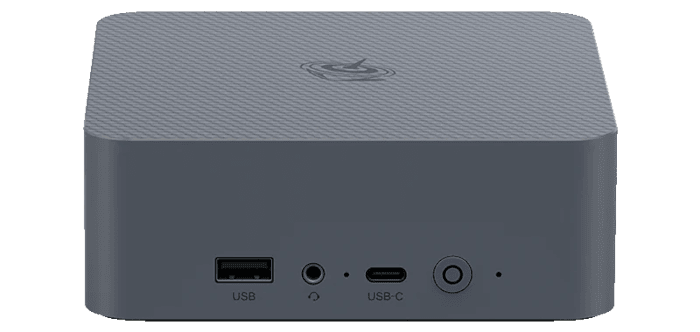
This is a series looking at the Beelink EQi Core 3 304 mini PC running Linux. In this series, I’ll put the Beelink mini PC through its paces from a Linux perspective, comparing it with other systems to see how it performs in real-world Linux use.
The Beelink EQi Core 3 304 is a recent addition to Beelink’s EQ range of compact PCs. It’s built around Intel’s Wildcat Lake Core 3 304 processor, a 5-core, 5-thread chip comprising one performance core and four low-power efficiency cores. The processor integrates Xe3-LPG graphics and currently has a CPU Mark of 11,720. The review unit comes with 16GB of LPDDR5 6400MT/s memory and 512GB of UFS 3.1 storage, giving the system a capable hardware base for everyday desktop use, office work, media playback and lighter Linux workloads.
BIOS, or Basic Input/Output System, remains one of the most important pieces of low-level software in any computer. This firmware handles the essential groundwork before the operating system takes over, initialising hardware and preparing the system to boot.
For this quick look at the Beelink EQi 304’s BIOS, I’m using a basic video capture device rather than a camera. This approach produces much cleaner screenshots and makes the interface much easier to see. Unless otherwise stated, the screenshots below show the default settings.
Main
The BIOS opens on the Main page, which summarises the system hardware and firmware.
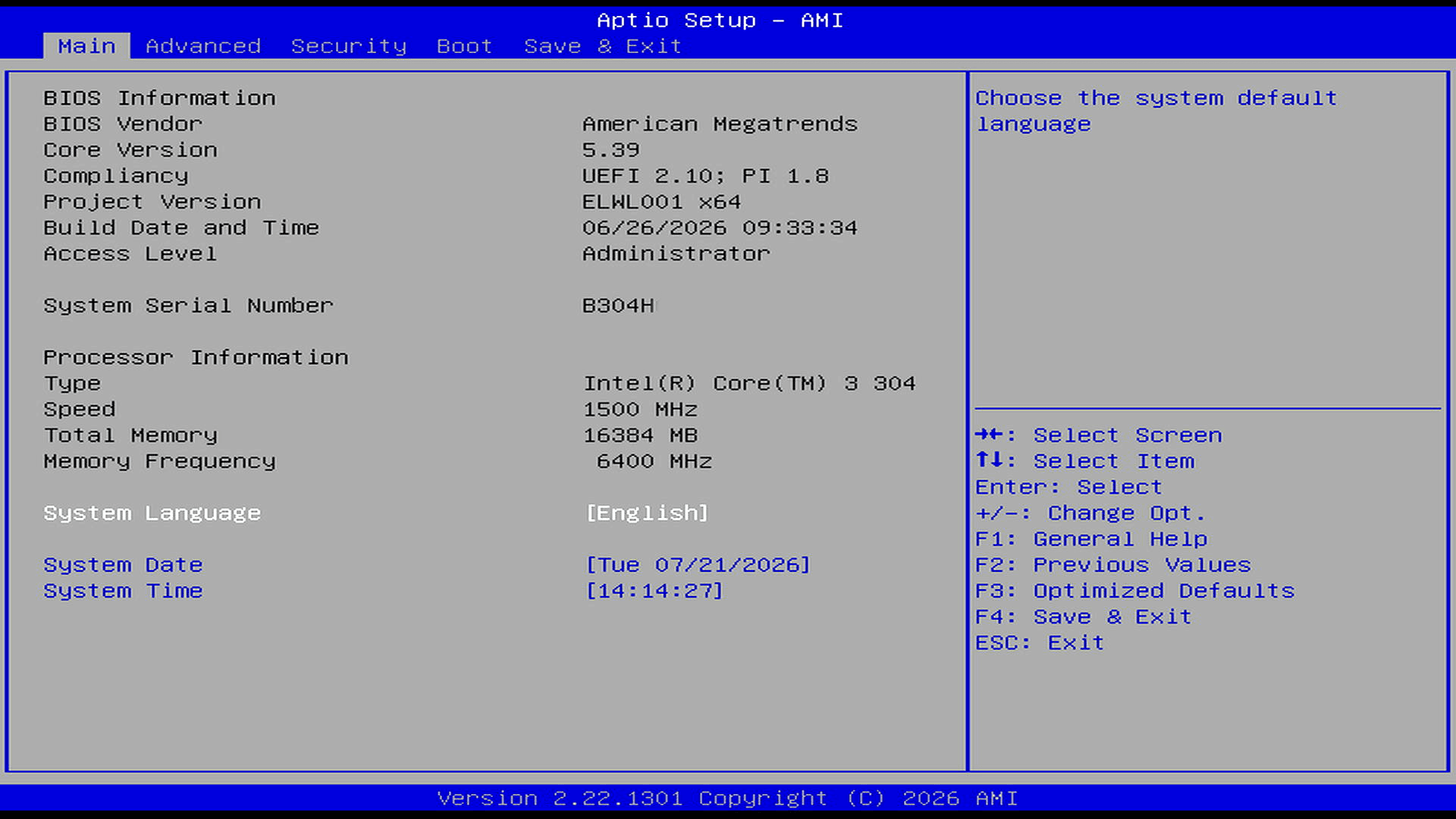
The Main page provides basic system information: AMI Aptio BIOS, UEFI 2.10 compliance, a BIOS build dated 26 June 2026, Intel Core 3 304 processor, and 16GB of memory running at 6400 MT/s. It also allows the system language, date and time to be changed.
Advanced
here are many menus in the Advanced section so I’m going to focus on the most interesting ones.
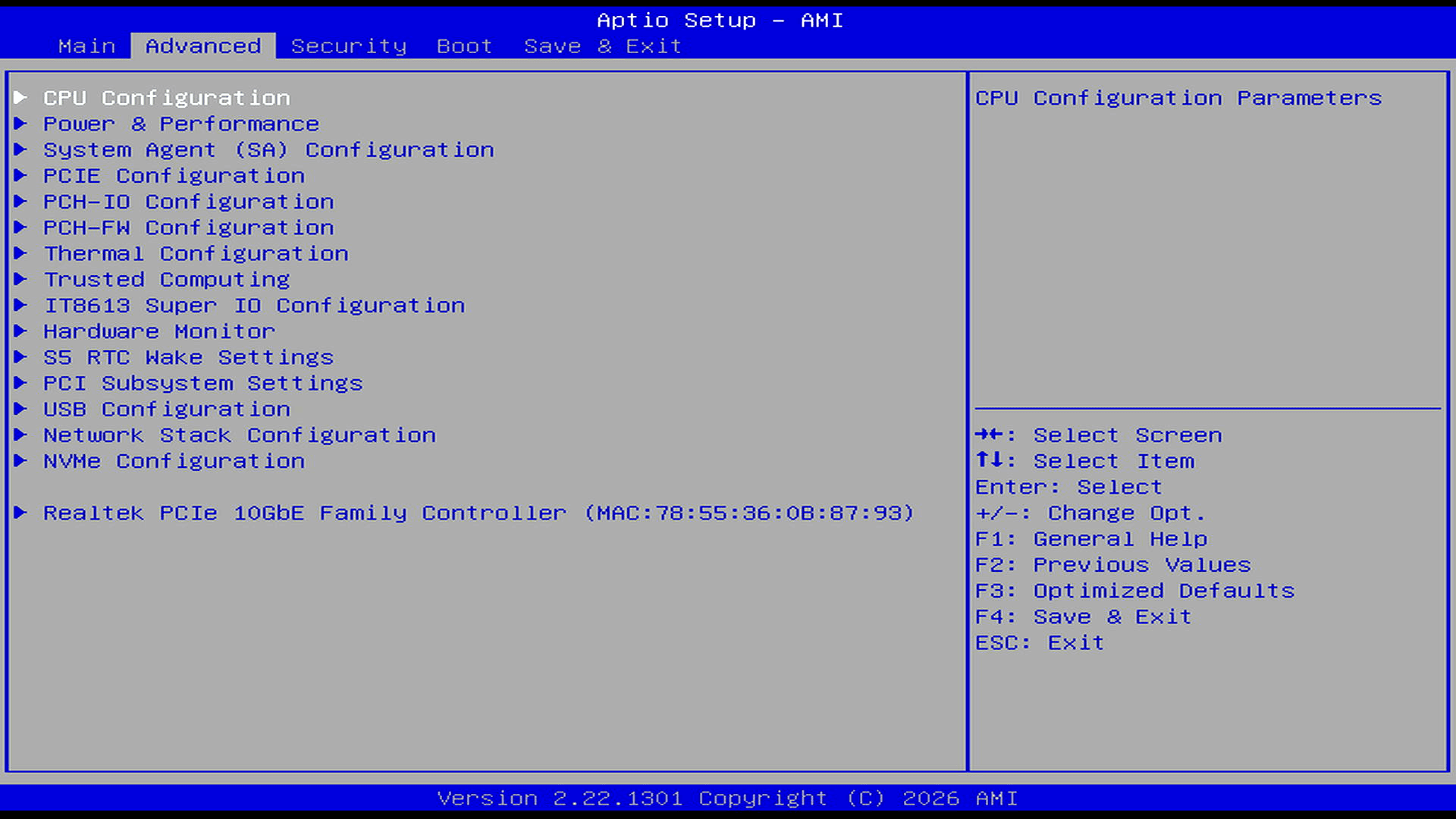
CPU Configuration
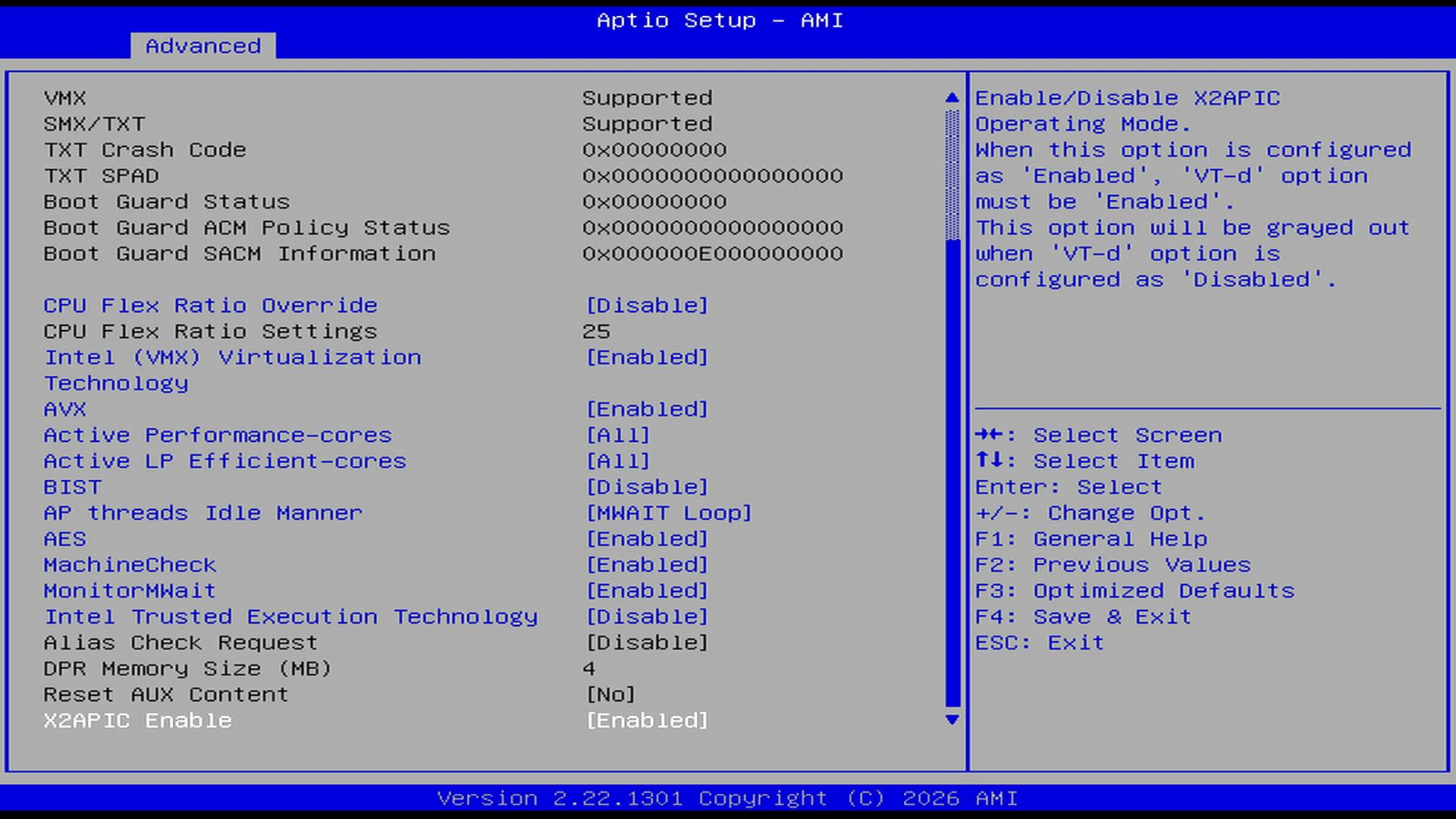
The CPU Configuration page confirms that hardware virtualisation, AVX and AES are enabled. The machine’s single P-core cannot be disabled, but the number of low-power E-cores can be set from zero to four. Intel Trusted Execution remains disabled.
Power & Performance –> CPU – Power Management Control
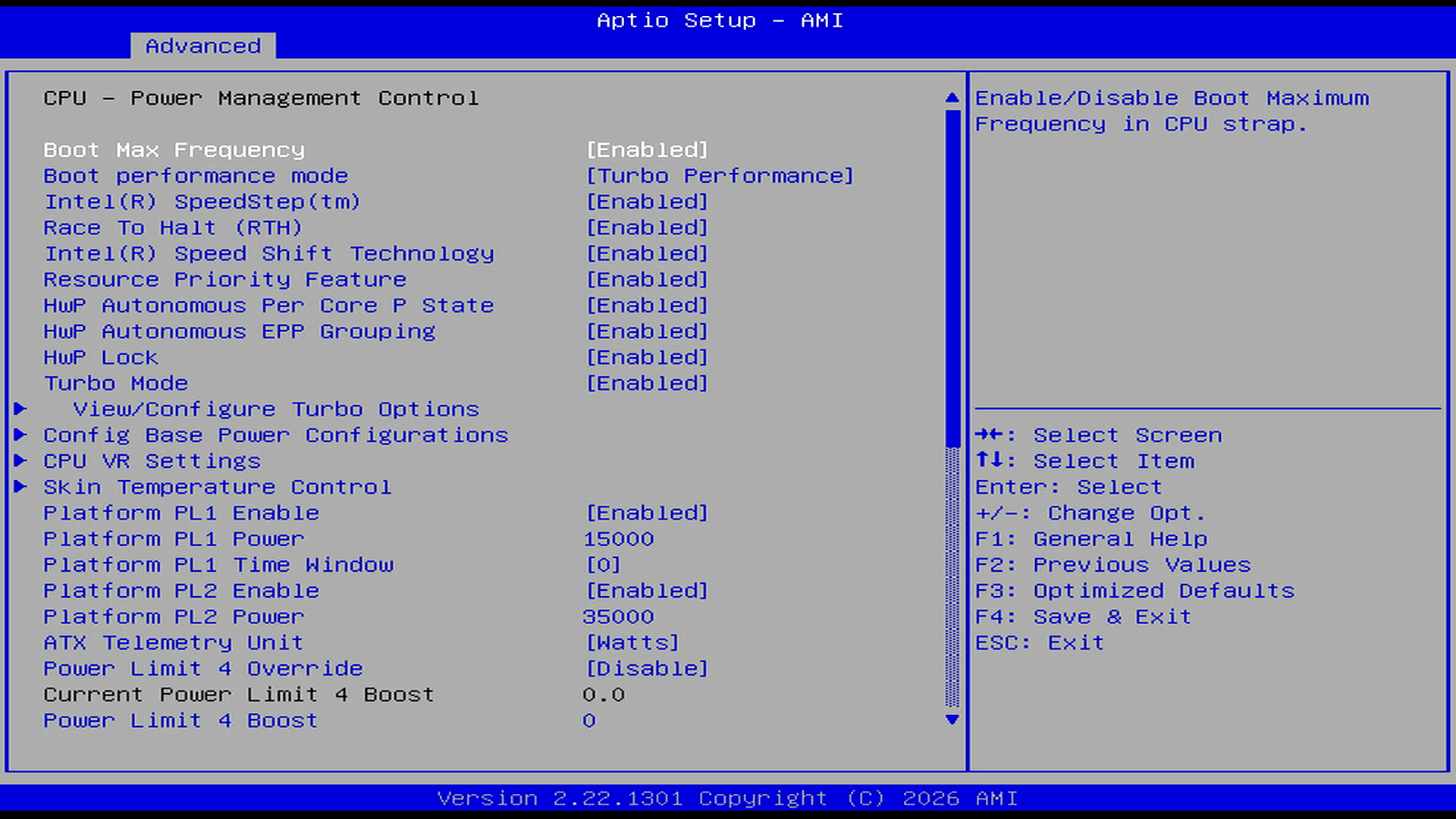
There is an extensive range of CPU power-management controls. Turbo Boost, SpeedStep, Speed Shift, hardware-managed performance states and C-states are enabled, while the processor power limits are set to 15W PL1 and 35W PL2.
System Agent
There are separate menus for memory and graphics configuration. I’m showing the graphics configuration screen below.
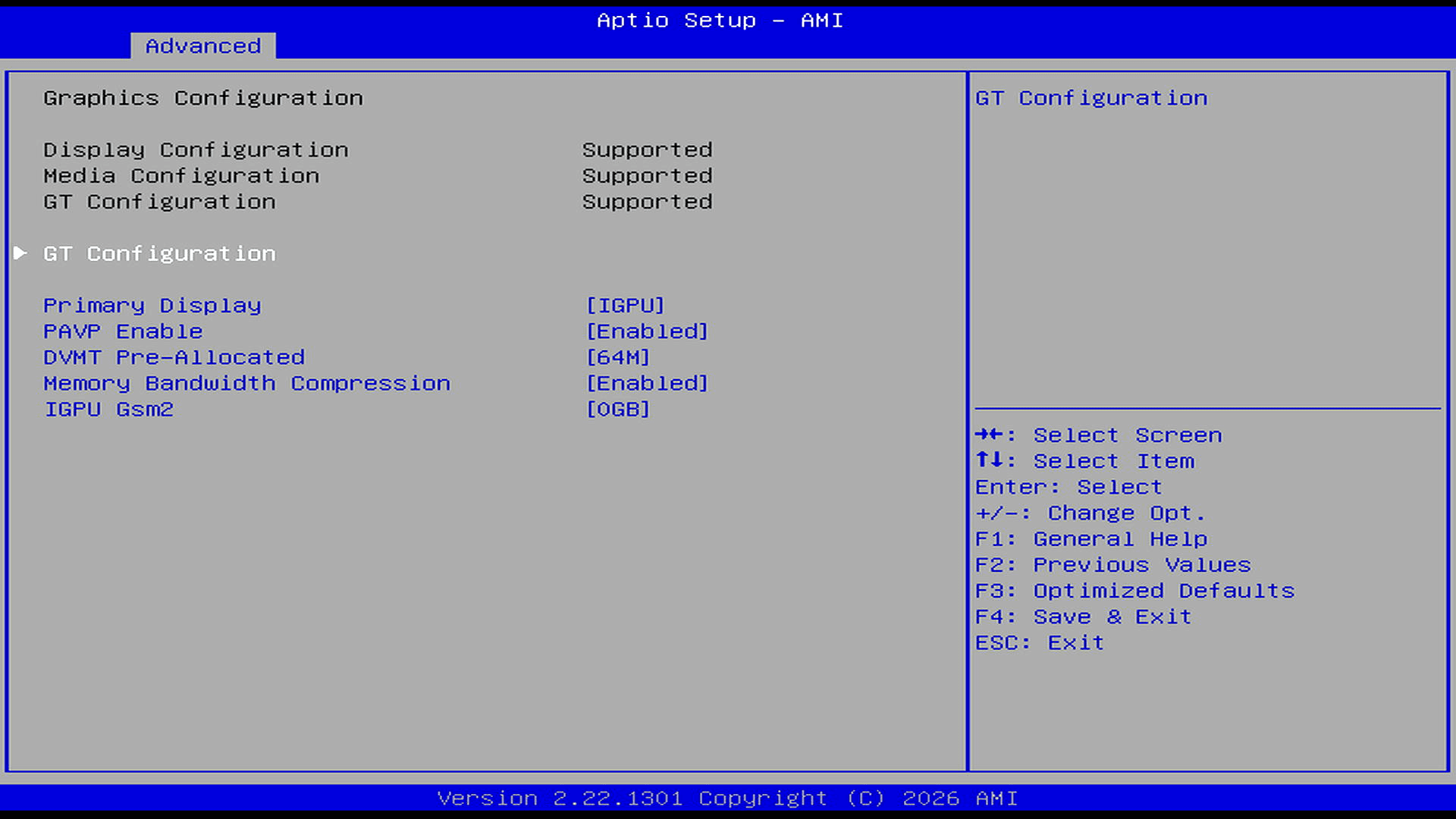
With this Intel integrated GPU, the 64MB DVMT value is only the pre-allocated framebuffer; the GPU can dynamically use additional system memory as required.
Hardware Monitor
This is one of the most interesting sections. I’m showing the Smart Fan Function page.
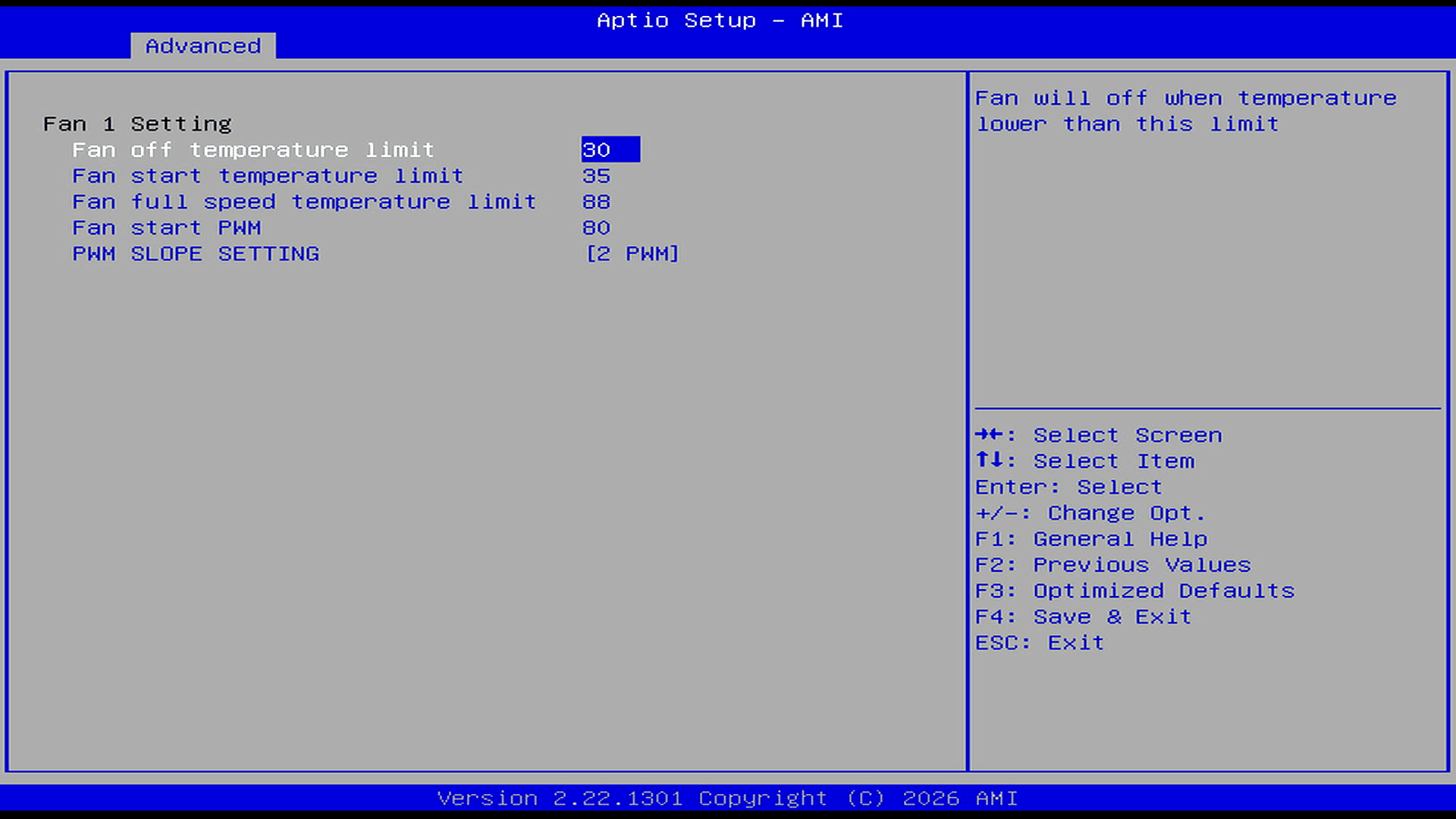
The Smart Fan Control section exposes unusually detailed cooling controls. By default, the fan stops below 30°C, starts at 35°C and reaches full speed at 88°C, with adjustable starting PWM and ramp rate. The machine is extremely quiet with its default configuration, but these settings provide considerable flexibility for further tuning.
With the slope set to 2 PWM, the controller generally adds about two PWM steps for each 1°C increase. Given the starting value of 80 PWM, the fan rises progressively from that level until the 88°C full-speed threshold takes precedence. A larger slope produces a faster, more aggressive fan-speed increase; a smaller slope gives a gentler, quieter curve.
In my experience, this degree of fan-control flexibility is extremely rare on mini PCs.
I went through every section of the Advanced menu but did not find a Wake-on-LAN option. Wake-on-LAN is nevertheless supported and enabled under the operating system where it is configured to wake the machine only when it receives a magic packet.
Security
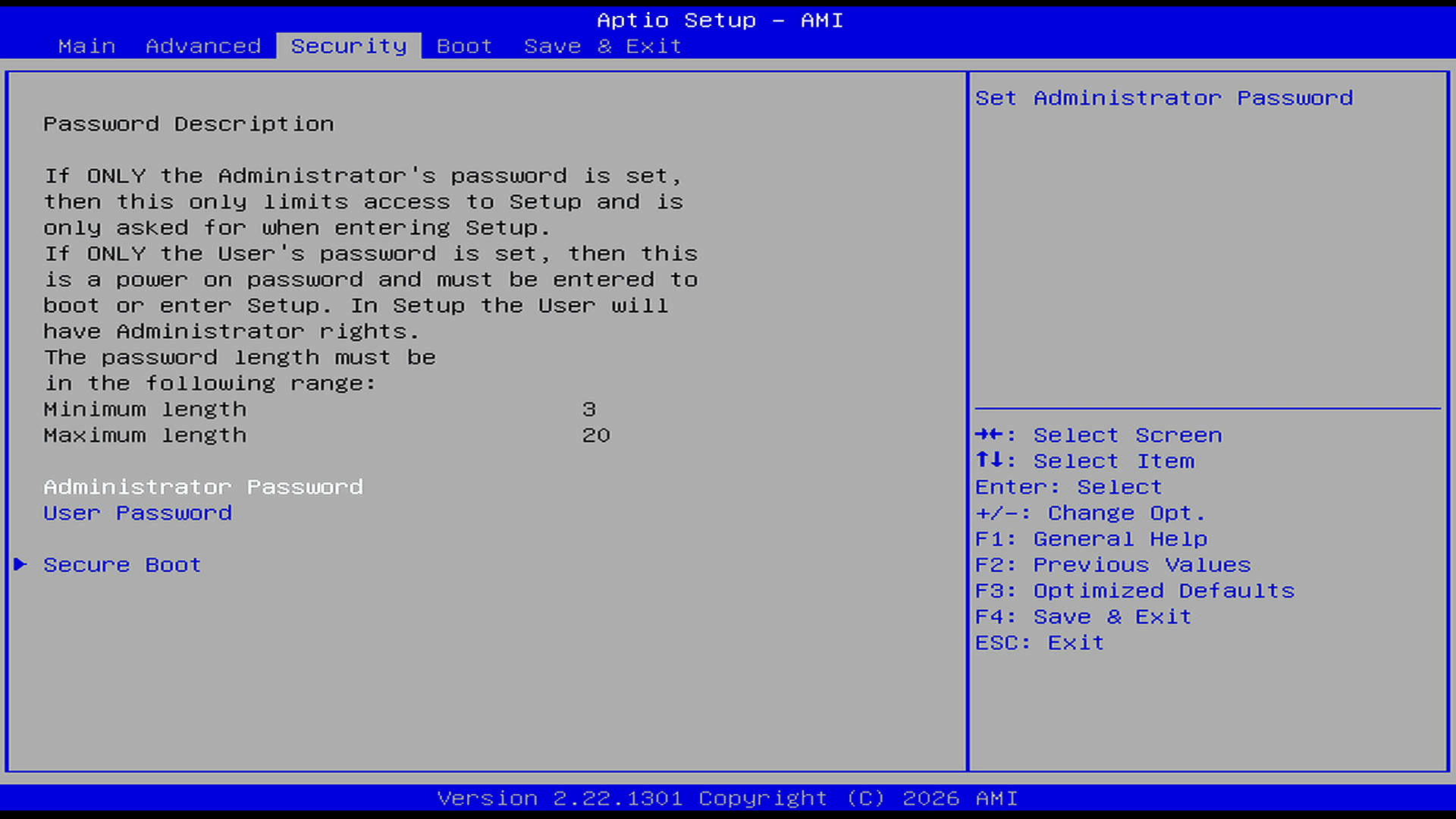
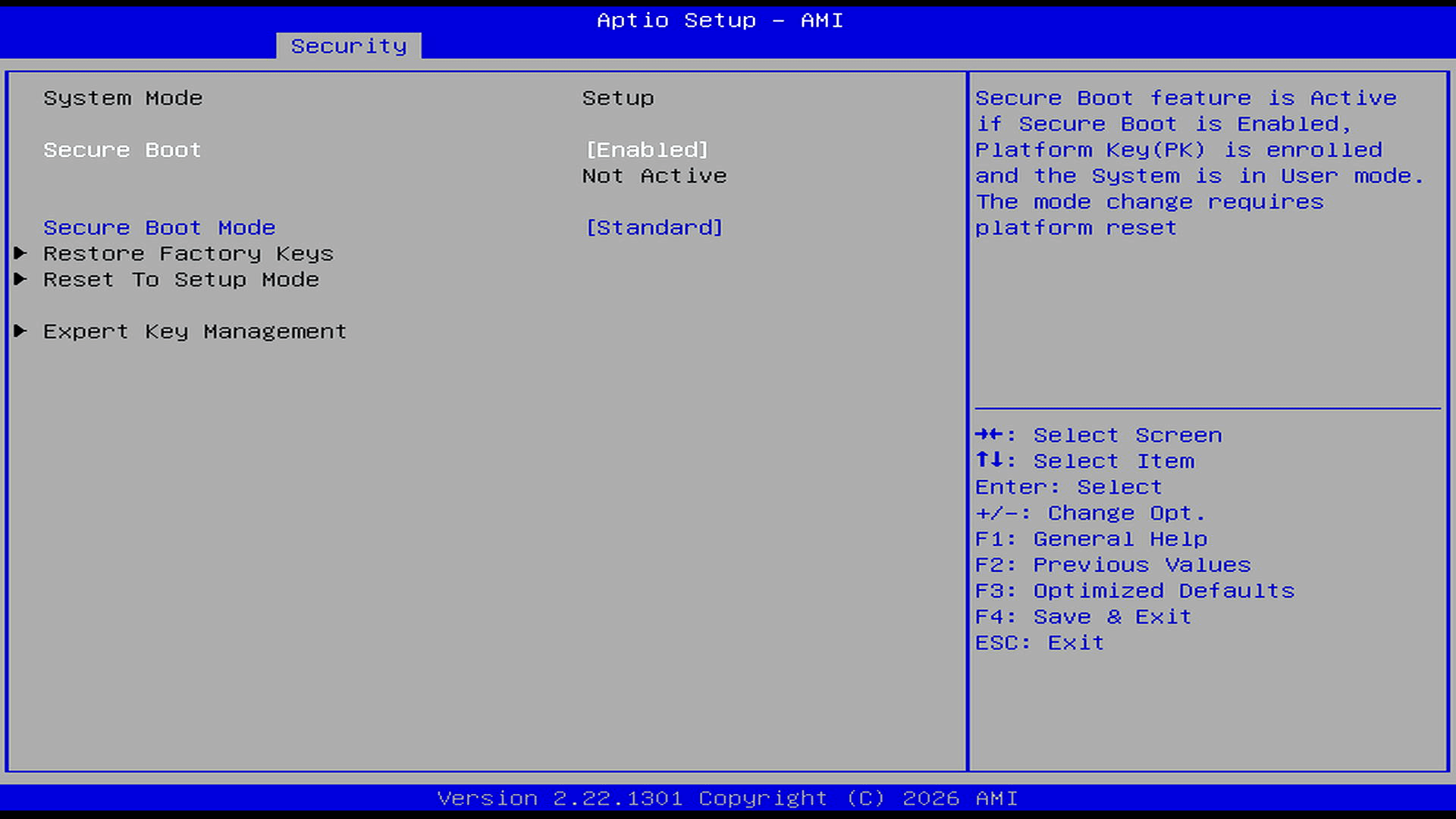
The Security section provides separate administrator and user passwords, with the latter acting as a power-on password. Secure Boot is enabled but not currently active because the system remains in Setup Mode without an enrolled Platform Key; factory keys can be restored from this page.
Boot
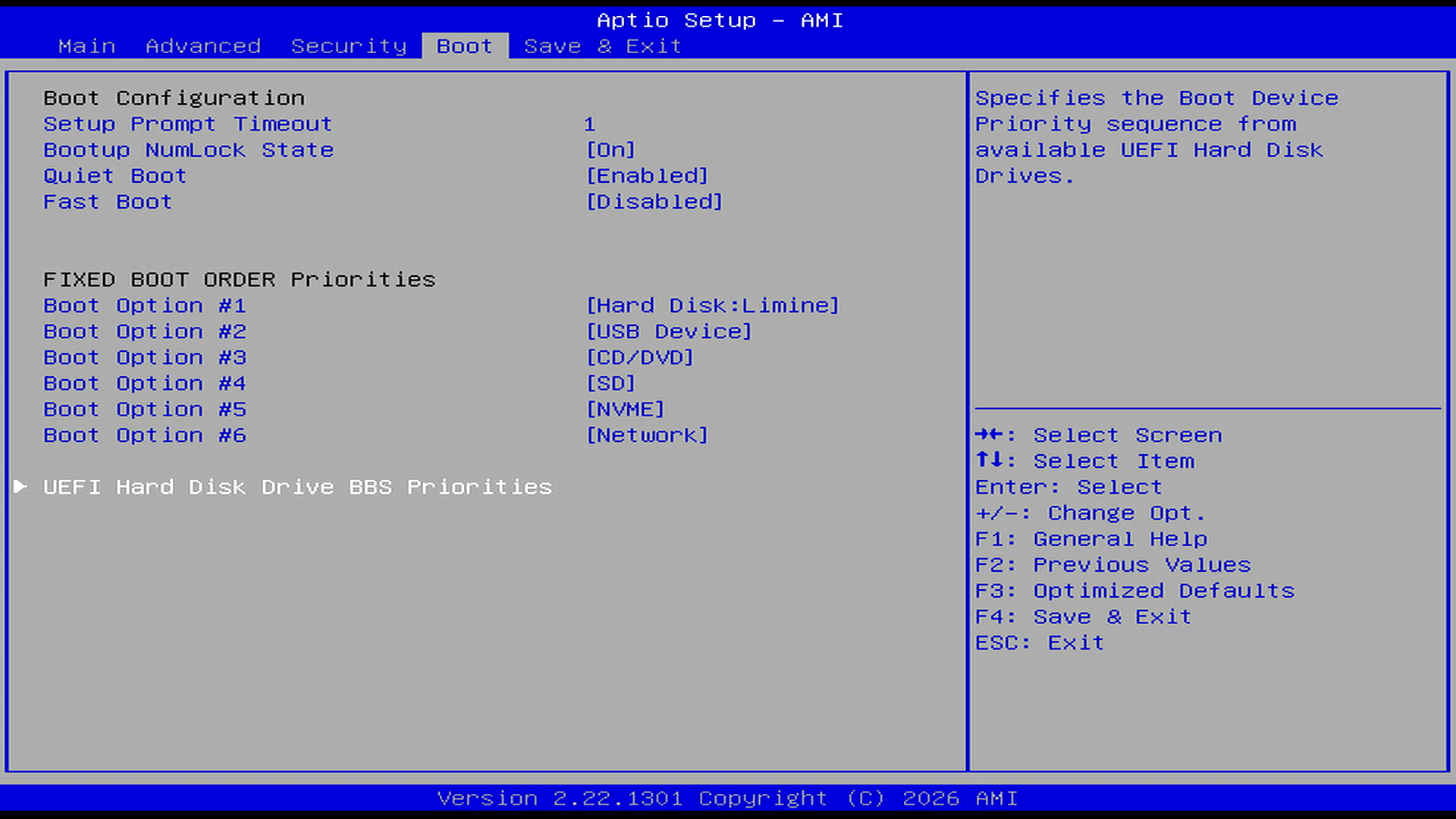
The Boot page offers straightforward control over startup behaviour and device priority. Limine is the first boot option, followed by USB storage, optical media, SD cards, NVMe storage and network boot. Quiet Boot is enabled, Fast Boot is disabled, and the firmware prompt is displayed for just one second.
Limine is a modern bootloader, broadly comparable to GRUB or systemd-boot. It starts Linux by loading the kernel and initial RAM filesystem, and can provide a menu for choosing between installed operating systems or kernels.
Complete list of articles in this series:
| Beelink EQi 304 Mini PC | |
|---|---|
| Introduction | Introduction to the series and interrogation of the machine |
| Benchmarks | Benchmarking the Beelink EQi 304 Mini PC |
| Power | Testing and comparing the power consumption |
| BIOS | The BIOS, which stands for Basic Input/Output System, plays a crucial role |
| Cores | P-core and LP Efficient-cores examined |
| Noise | How quiet is this mini PC? |
| NPU and Llama | Testing the NPU with Llama models |
| Scheduling | Can Linux use its one fast CPU core efficiently? |
Please read our Comment Policy before commenting.