
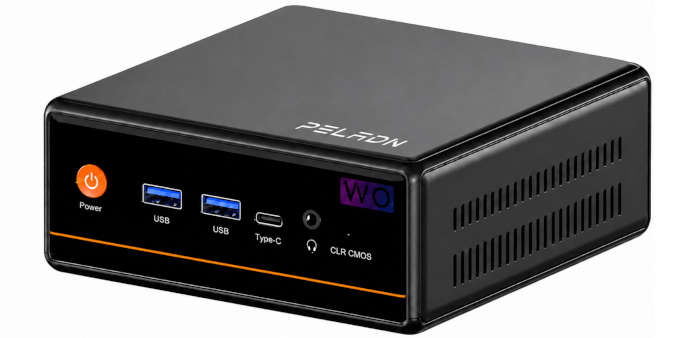
This article is part of a series looking at the PELADN WO4 5600H Mini PC.
The PELADN WO4 is built around a familiar idea: keep the price low, the design simple, and the performance good enough for everyday desktop use. Rather than chasing premium mini PC territory, we’ll see whether AMD’s Ryzen 5 5600H still has plenty to offer in a modest, affordable system.
The BIOS, short for Basic Input/Output System, remains one of the most important pieces of low-level software in a PC. This firmware performs the essential setup before the operating system takes over, initializing hardware and preparing the system to boot. Stored on the motherboard, it’s the first firmware that runs when you power on the machine.
For this quick look at the PELADN WO4 BIOS, I’m using a basic video capture device rather than a camera. That approach delivers far cleaner screenshots and makes the interface much easier to see. To keep things moving, I’m not covering every single menu item and option, but this tour should give a good sense of what’s on offer.
Press the Del key during boot to enter the BIOS. This opens the Main page, which is purely informational.
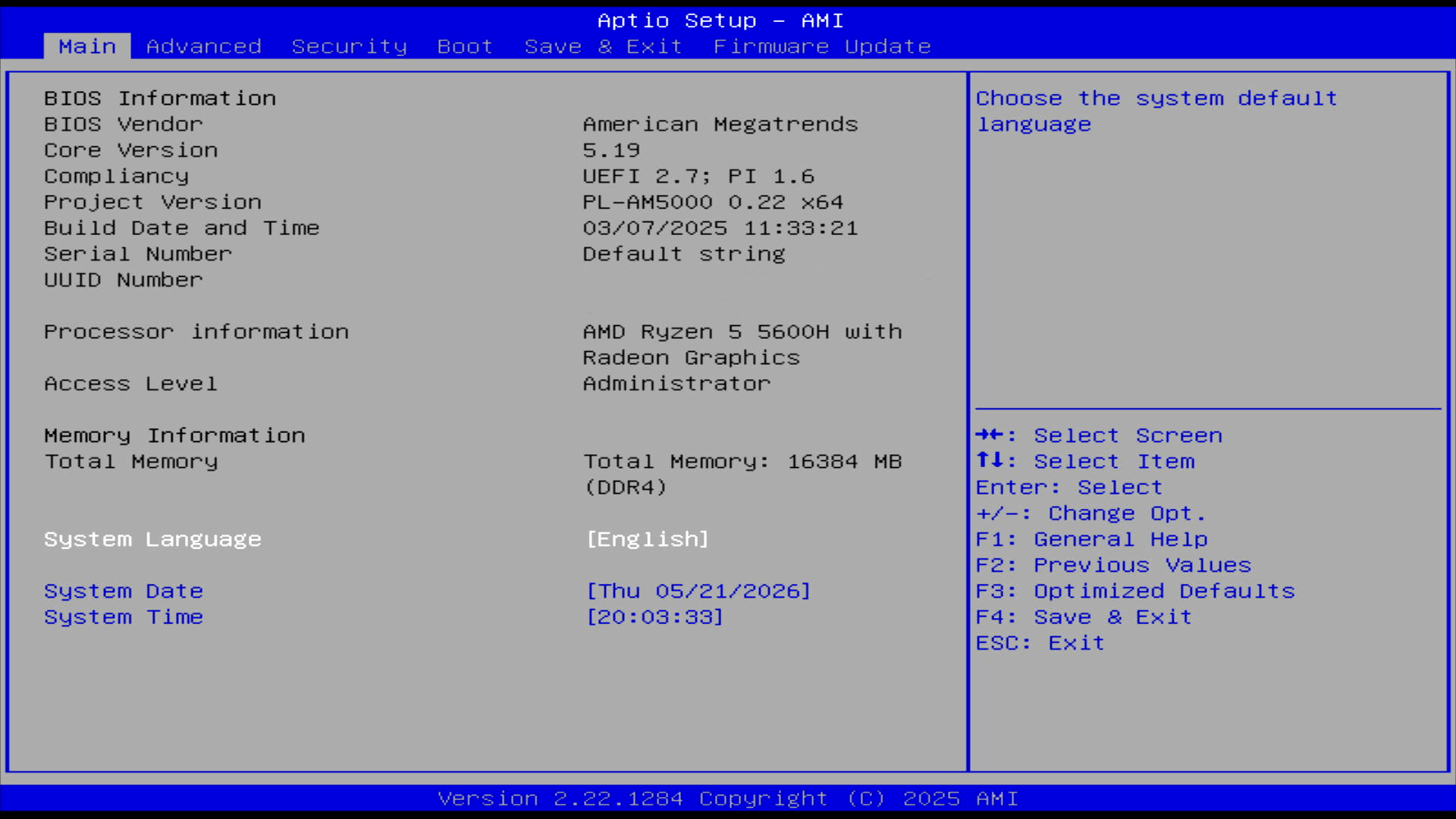
The WO4 uses a traditional AMI Aptio BIOS interface. The main screen identifies the firmware as PL-AM5000 0.22 x64, built on 7 March 2025, and confirms the review unit’s Ryzen 5 5600H processor and 16GB of DDR4 memory. The system serial number is left as “Default string”, which suggests the firmware has received only generic OEM provisioning.
Let’s look at the Advanced section.
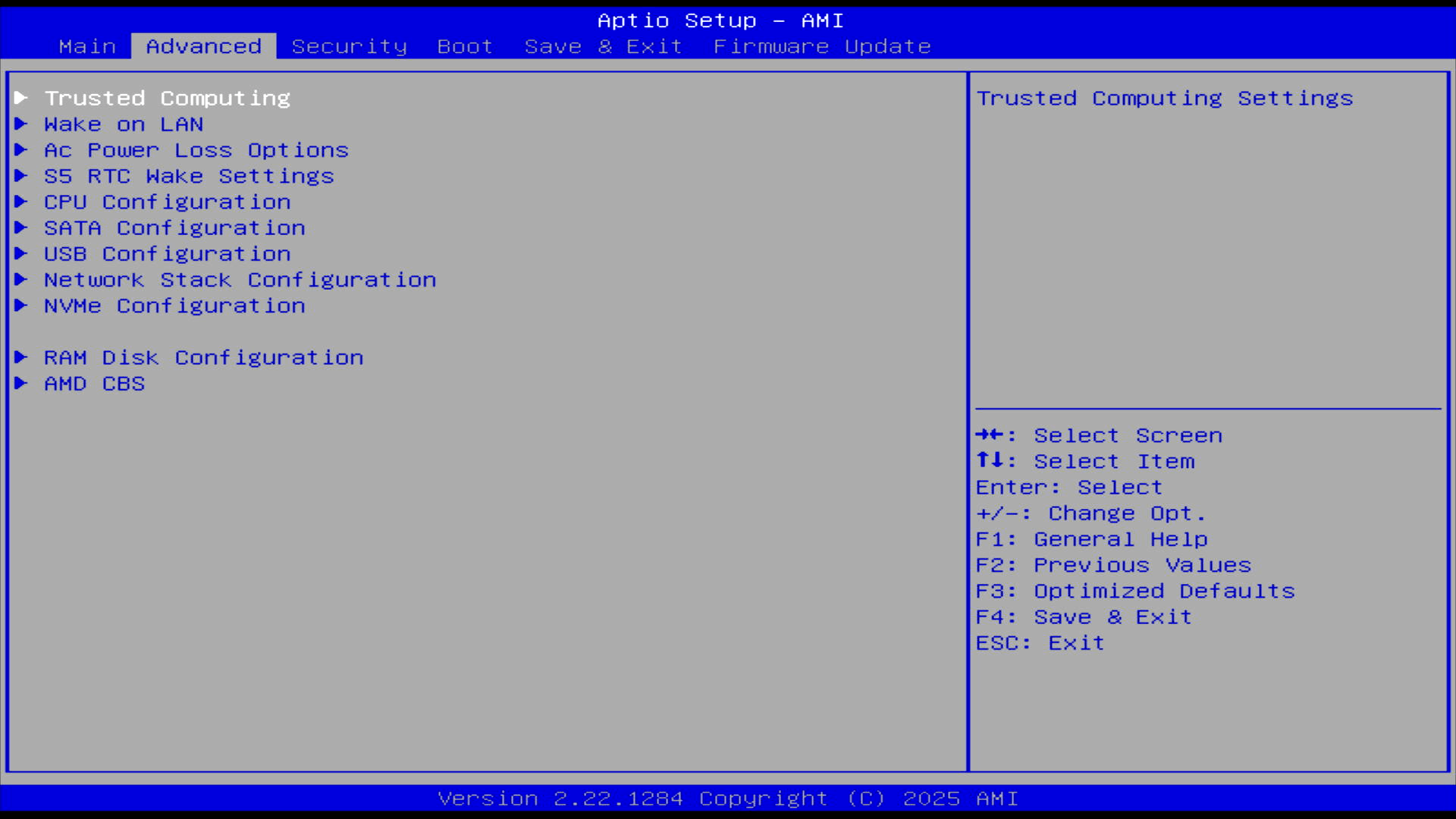
The BIOS isn’t especially locked down. It gives access to useful platform settings, particularly power recovery, wake options, storage, USB, networking, and AMD-specific CPU/platform controls.
Let’s take a look at a few of the sections. Here’s CPU configuration.
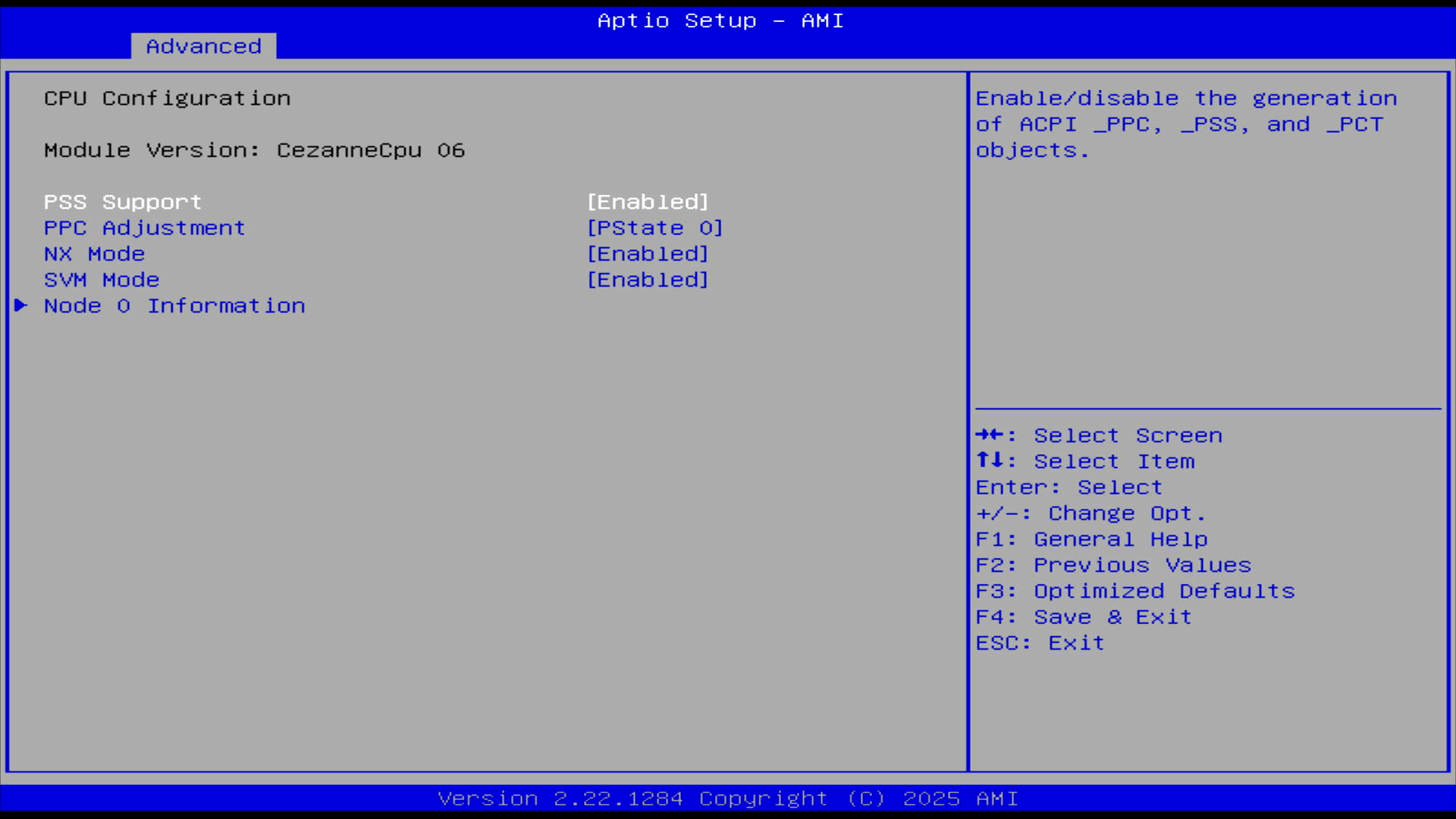
The settings shown are sensible defaults:
PSS Support: Enabled
This exposes ACPI processor performance states to the operating system. For Linux, it helps the OS understand available CPU frequency/performance states, though the actual driver in use may be amd-pstate or acpi-cpufreq depending on kernel and firmware behaviour.
PPC Adjustment: PState 0
This usually relates to the ACPI processor performance control limit. PState 0 normally represents the highest performance state, so it doesn’t look like the BIOS is artificially limiting the CPU here.
NX Mode: Enabled
This is a security feature, also known as No-eXecute / Execute Disable. It should remain enabled.
SVM Mode: Enabled
This is AMD virtualization support. Good to see it enabled by default, as it means Linux virtualization tools such as KVM/QEMU, VirtualBox, GNOME Boxes, and VMware can use hardware acceleration without a BIOS change.
What’s more interesting is what’s not shown. This page doesn’t expose obvious tuning options for TDP/cTDP, boost behaviour, SMT, or detailed power limits. So the BIOS gives basic CPU/security/virtualization controls, but not much in the way of performance tuning from this screen.
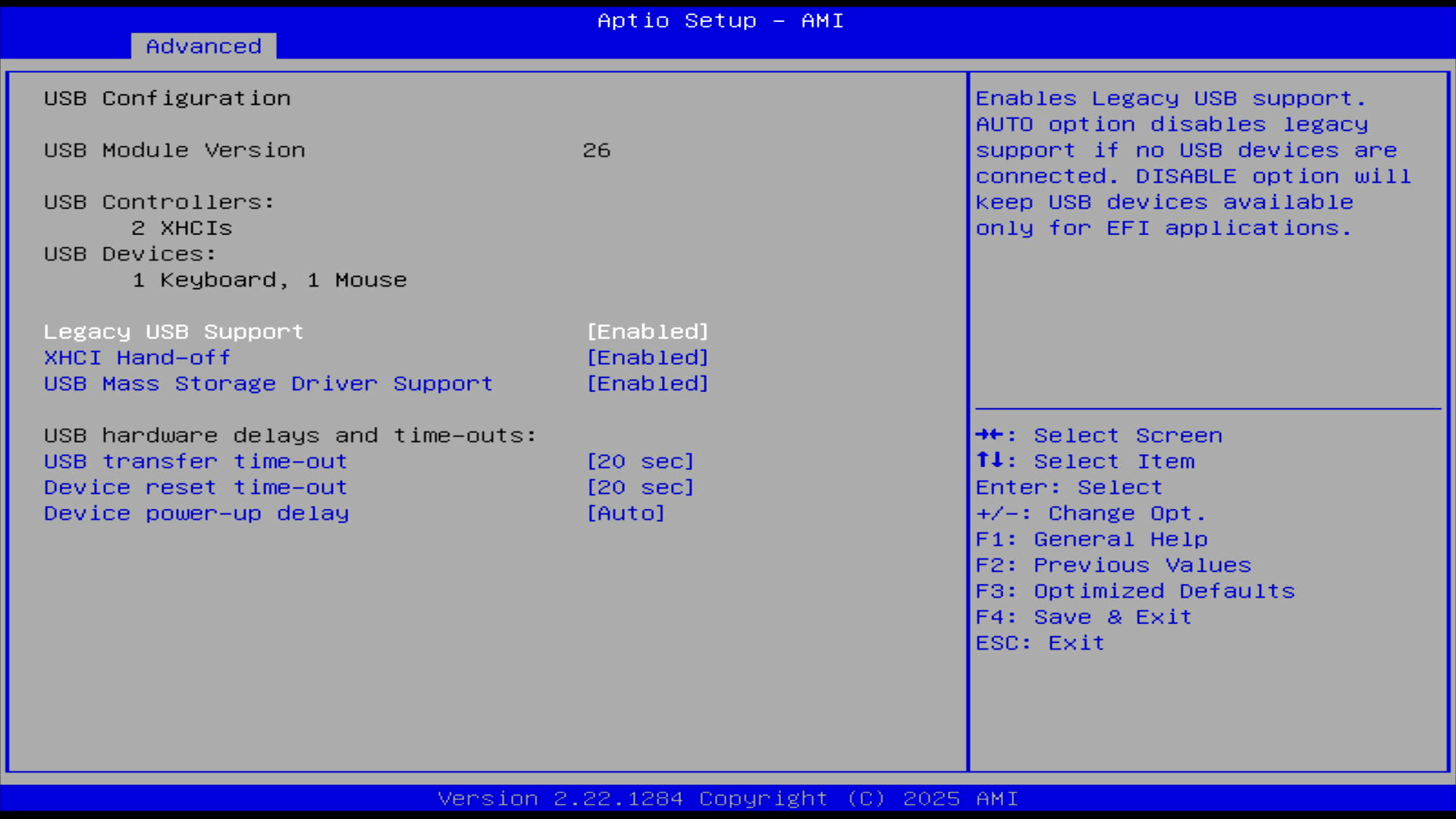
There’s nothing especially advanced here: no per-port disable options, no detailed USB speed/topology information, and no obvious USB power management controls. But the important thing is that the defaults are suitable for Linux installation and general use, with USB boot support enabled out of the box.
AMD CBS
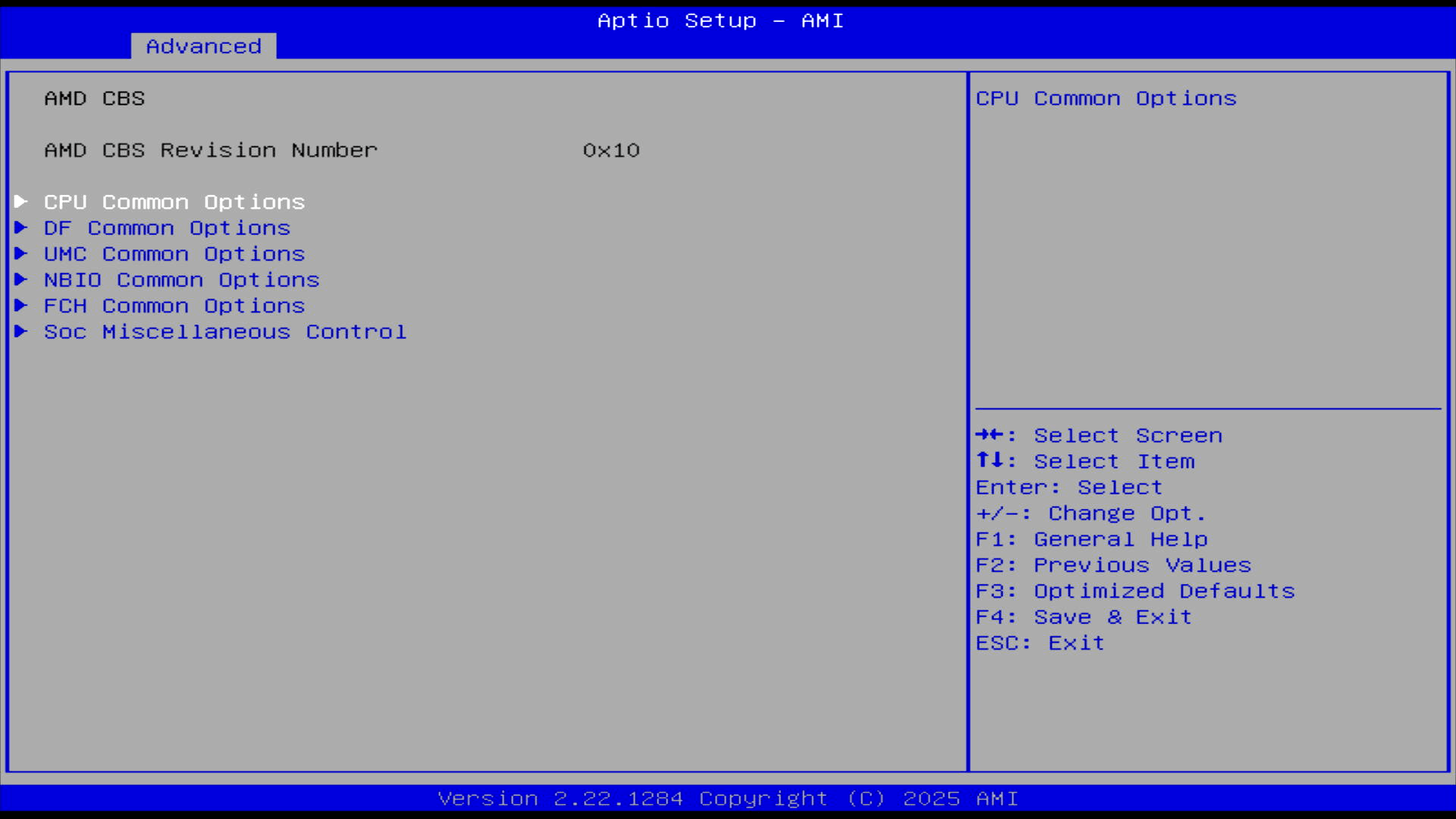
AMD CBS is the platform and SoC settings menu exposed through the AMI BIOS. It’s aimed more at system integrators and advanced users than everyday desktop use.
The submenus cover:
- CPU Common Options: CPU behaviour, power states, boost-related options, SMT, C-states, etc.
- DF Common Options: Data Fabric / Infinity Fabric settings.
- UMC Common Options: Unified Memory Controller settings, including RAM-related controls.
- NBIO Common Options: PCIe, integrated graphics and other I/O attached to the AMD SoC.
- FCH Common Options: chipset-style I/O settings, often SATA, USB and related platform devices.
- SOC Miscellaneous Control: assorted SoC-level controls.
Let’s look at the CPU Common Options:
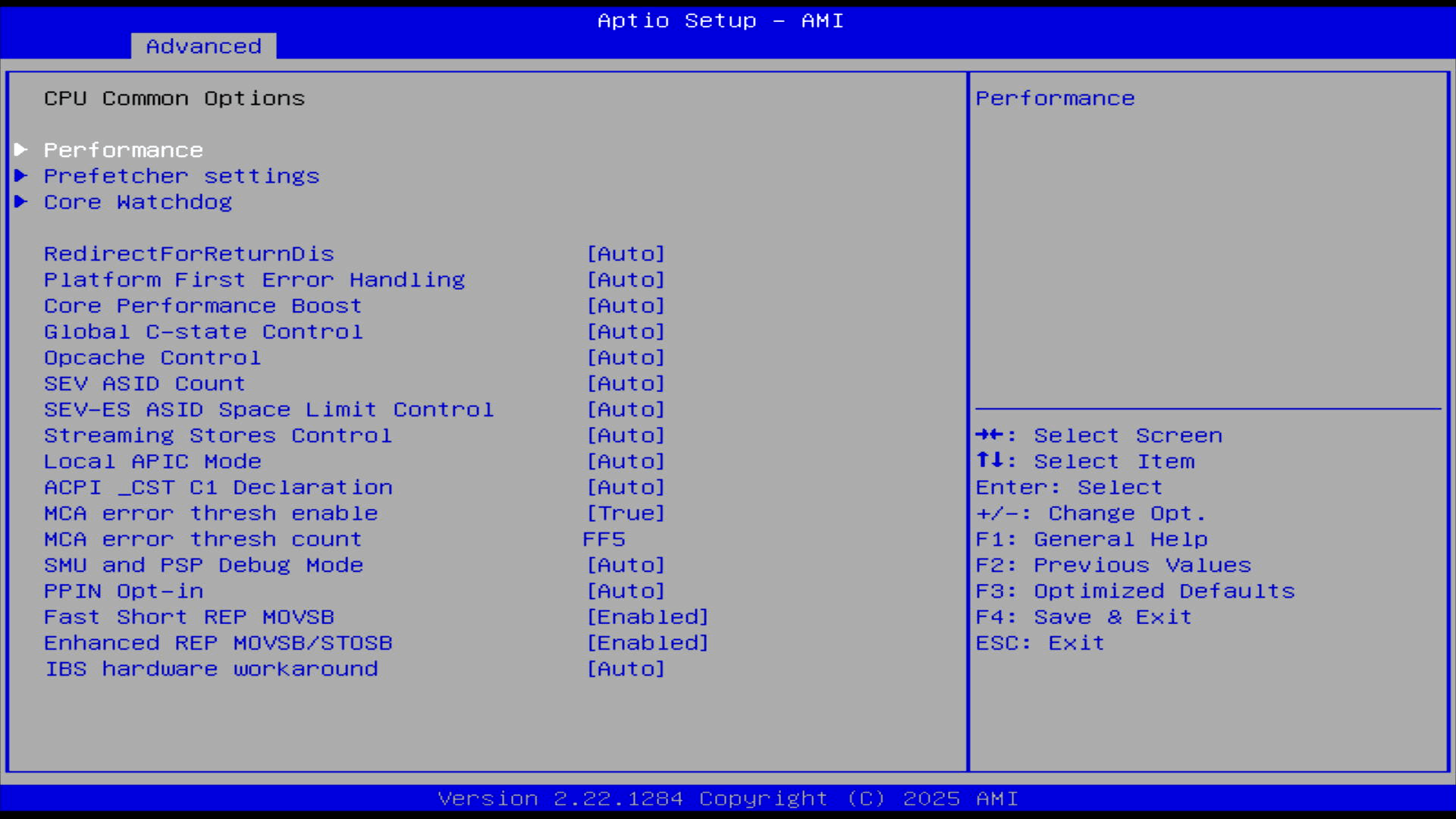
The AMD CBS section exposes a fairly extensive set of low-level CPU controls. Most options are left on Auto, including Core Performance Boost and Global C-state Control, which is sensible for general Linux use.
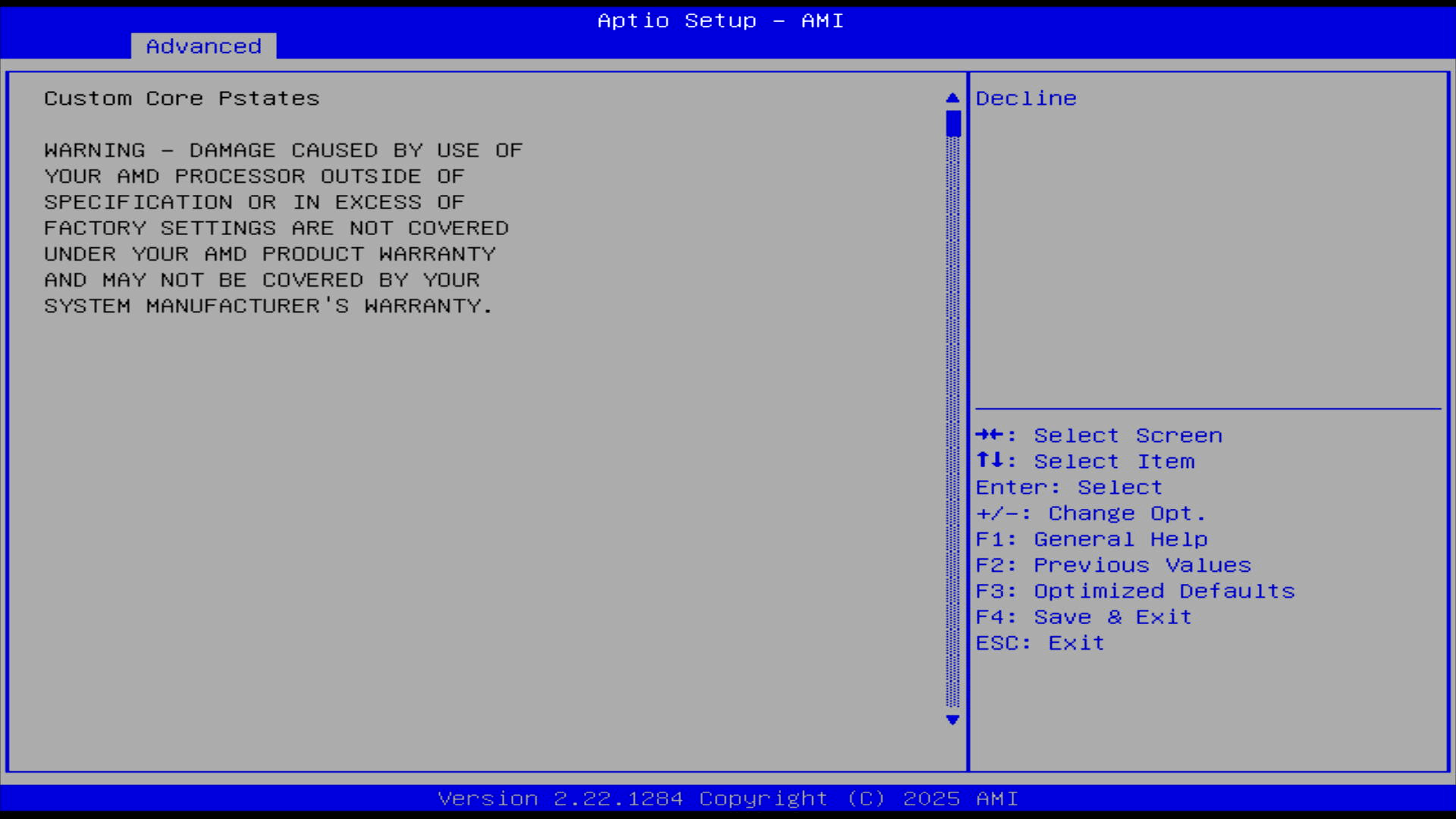
Although the WO4 exposes AMD CBS menus, the CPU “Performance” option only leads to Custom Core Pstates, behind an AMD warranty warning. There are no user-friendly controls for cTDP, package power limits, fan profiles, or simple performance modes in the BIOS.
In UMC Common Options, DRAM timing configuration is disabled, so there are no RAM timing controls to adjust here.
Security
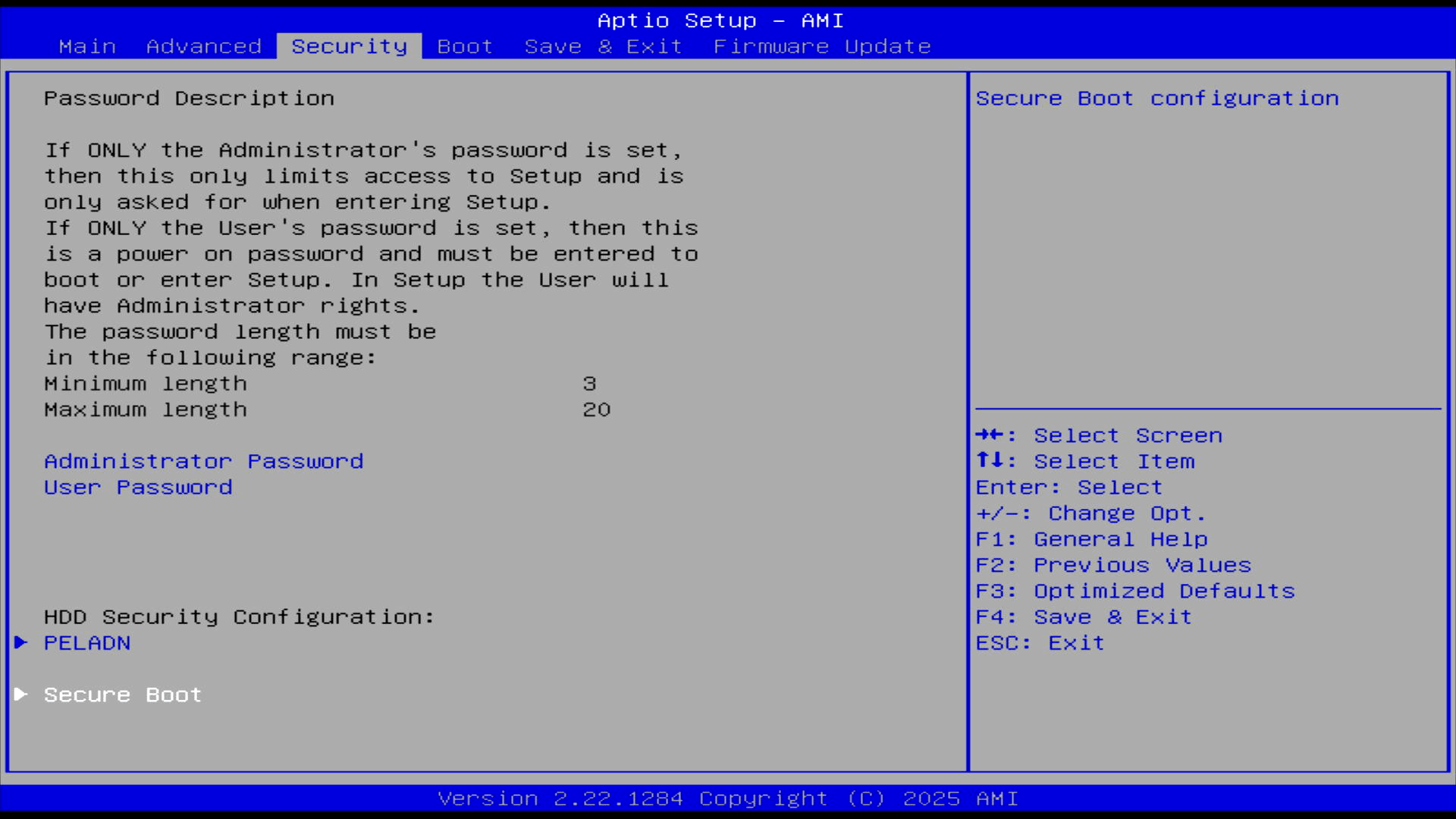
The Secure Boot setting is enabled by default, but enforcement isn’t active.
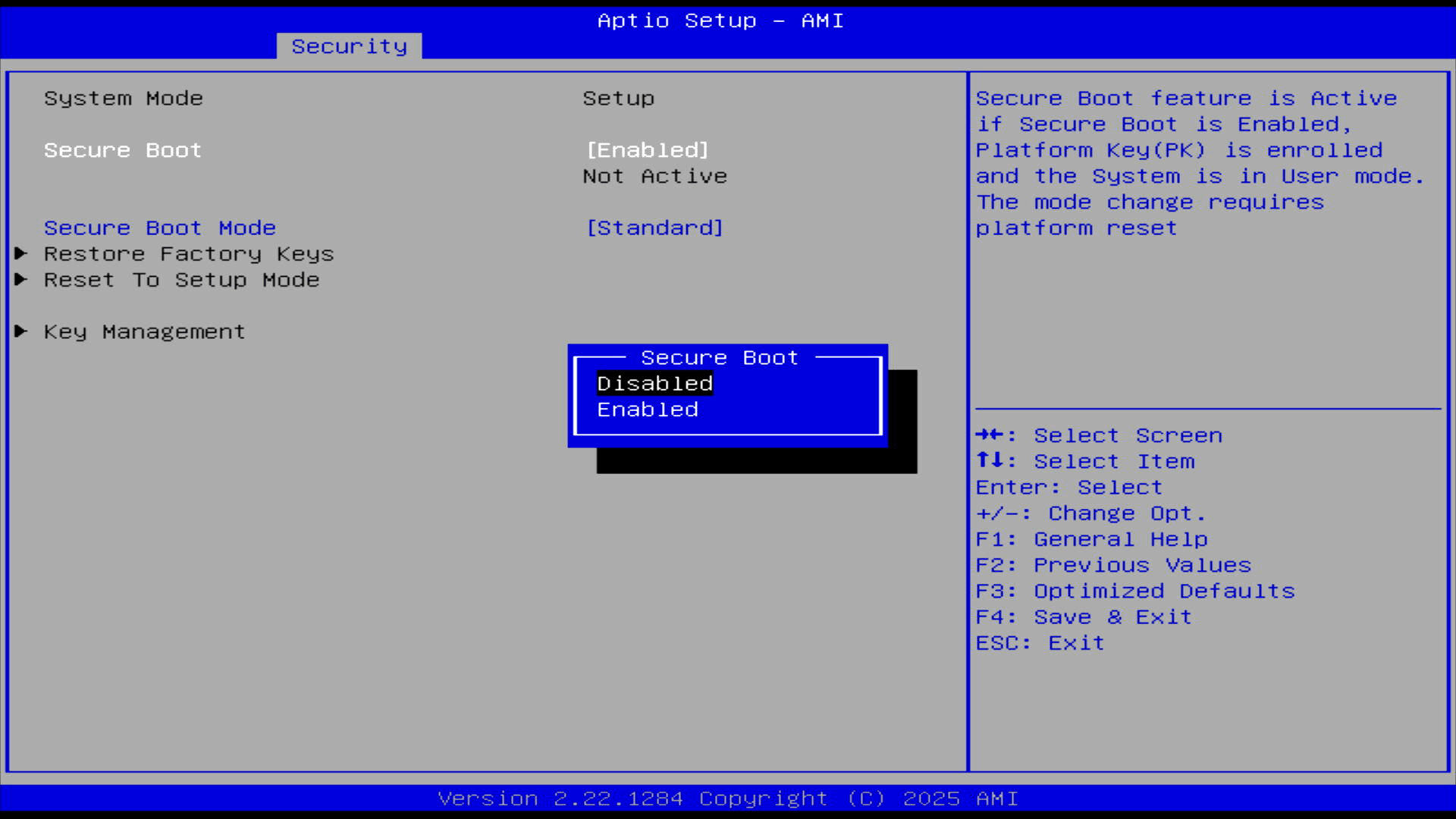
The Security tab exposes Secure Boot controls, including key management and the option to restore factory keys. Although Secure Boot is set to Enabled, it’s reported as Not Active because the system is in Setup mode. In practice, that means Secure Boot enforcement isn’t currently active, making Linux installation straightforward without needing to disable Secure Boot first.
Boot
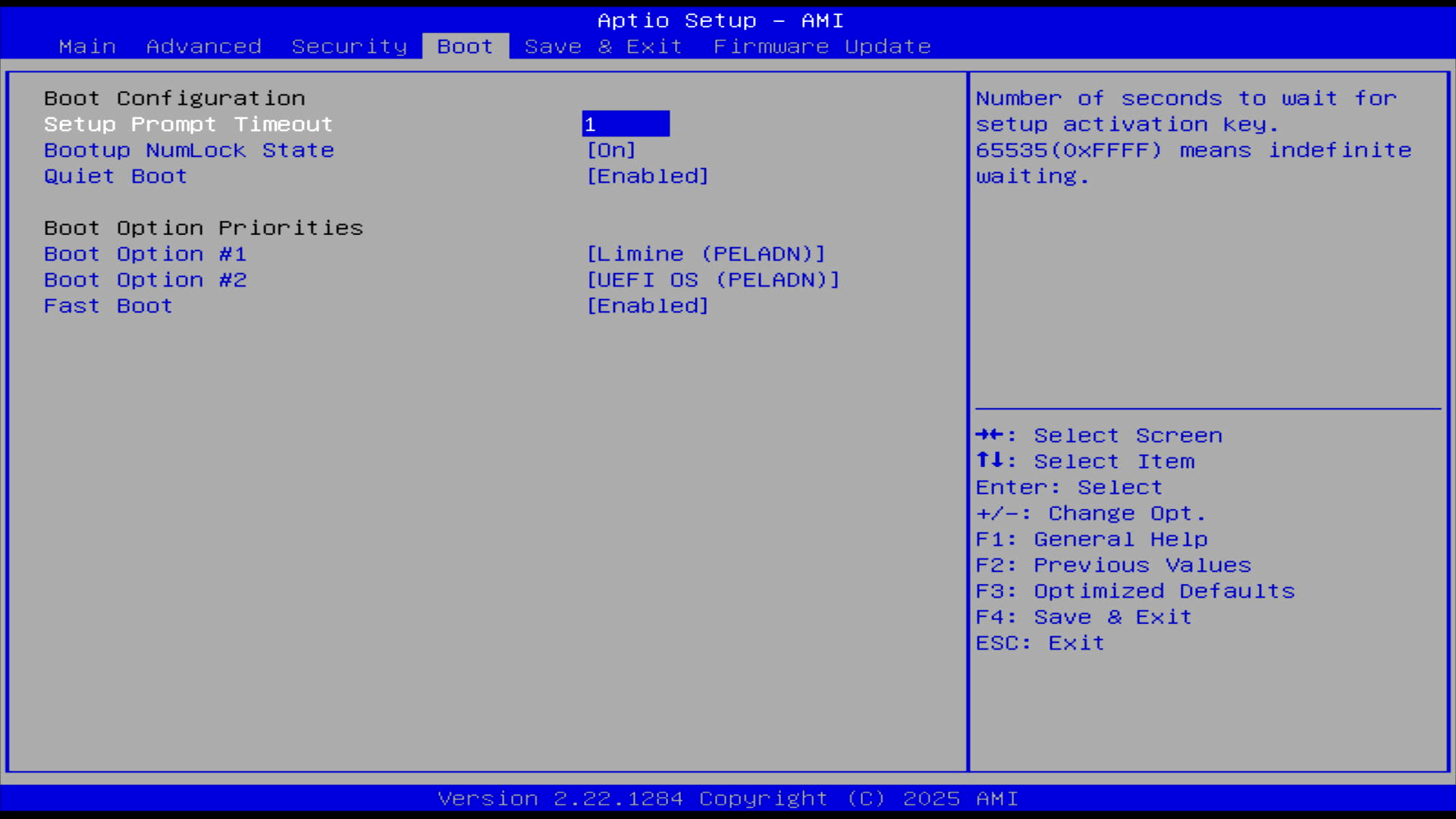
The Boot tab is straightforward. The WO4 ships with Quiet Boot and Fast Boot enabled, and a very short one-second setup prompt timeout. The primary boot entry is Limine on the internal PELADN-labelled drive because I’ve installed CachyOS. The defaults are fine for normal use.
Complete list of articles in this series:
| PELADN WO4 5600H Mini PC | |
|---|---|
| Introduction | Introduction to the series and interrogation of the machine |
| Benchmarks | Benchmarking the PELADN WO4 5600H Mini PC |
| Power | Testing and comparing the power consumption |
| Noise | How quiet is this mini PC? |
| BIOS | In the world of computing, BIOS, which stands for Basic Input/Output System, plays a crucial role |
| Wi-Fi | Measuring WiFi Performance |
Please read our Comment Policy before commenting.