

Our Machine Learning in Linux series focuses on apps that make it easy to experiment with machine learning. All the apps covered in the series can be self-hosted.
Running machine learning models locally has some obvious attractions. Your prompts and data remain on your own machine, there are no API charges, and you’re not dependent on a remote service remaining available. The downside is that setting up separate tools for image generation, large language models, speech recognition and text-to-speech can involve a fair amount of work.
Local AI Studio takes a different approach. It brings several types of local AI together in a single browser-based interface, with the aim of keeping configuration to a minimum.
The project is currently branded Portable AI Studio in its documentation, although the web interface still identifies itself as Local AI Studio. The project was previously known as Uncensored Local Studio.
The software offers image generation using Stable Diffusion, text chat using GGUF large language models, speech-to-text using Whisper, and text-to-speech using Kokoro. Processing takes place locally, with no external API keys or accounts required.
This is free and open source software.
Installation
I evaluated Local AI Studio using Kubuntu 26.04. There isn’t a DEB package or AppImage to install. Instead, clone the project’s GitHub repository.
$ git clone https://github.com/techjarves/Portable-Local-Studio.git
Change into the newly created directory.
$ cd Portable-Local-Studio
Make the Linux launcher executable.
$ chmod +x linux.sh
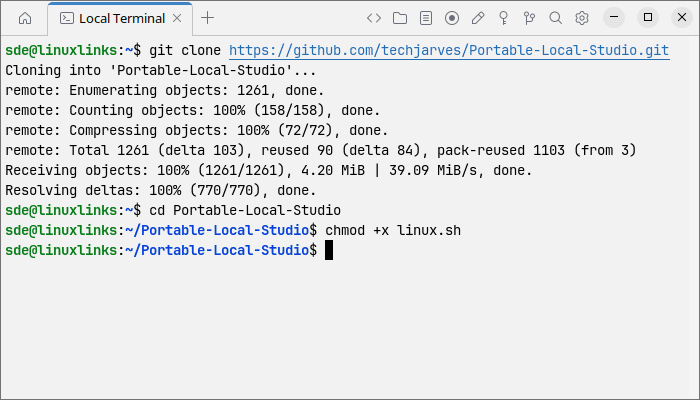
Now start the software with:
$ ./linux.sh
The first run performs considerably more work than subsequent launches. The script downloads its portable runtime and sets up the required inference backends. NVIDIA hardware can use CUDA or Vulkan, AMD GPUs can use ROCm or Vulkan, while Intel GPUs use Vulkan. There is also experimental OpenVINO support for Intel Core Ultra NPUs. CPU inference is available as a fallback.
I’m testing with a GeForce RTX 3060 Ti, so CUDA is the obvious choice for image generation.
One point worth noting is that the image and text workspaces use separate inference engines. Selecting a GPU backend for Stable Diffusion does not automatically mean the LLM backend is using the same acceleration method.
The interface itself is served locally and opened in a web browser. By default it uses port 1420.
The prebuilt Linux backends also need a reasonably recent distribution. They require glibc 2.38 or later, so older releases of Debian and Ubuntu may need either an operating-system upgrade or locally compiled backends. Kubuntu 26.04 presents no problem here.
In Operation
Local AI Studio is essentially a common front end for several established machine learning engines. Image generation is handled by stable-diffusion.cpp, large language models by llama.cpp, speech recognition by whisper.cpp, and text-to-speech by Kokoro. We’ve covered these technologies separately elsewhere in our Machine Learning in Linux series.
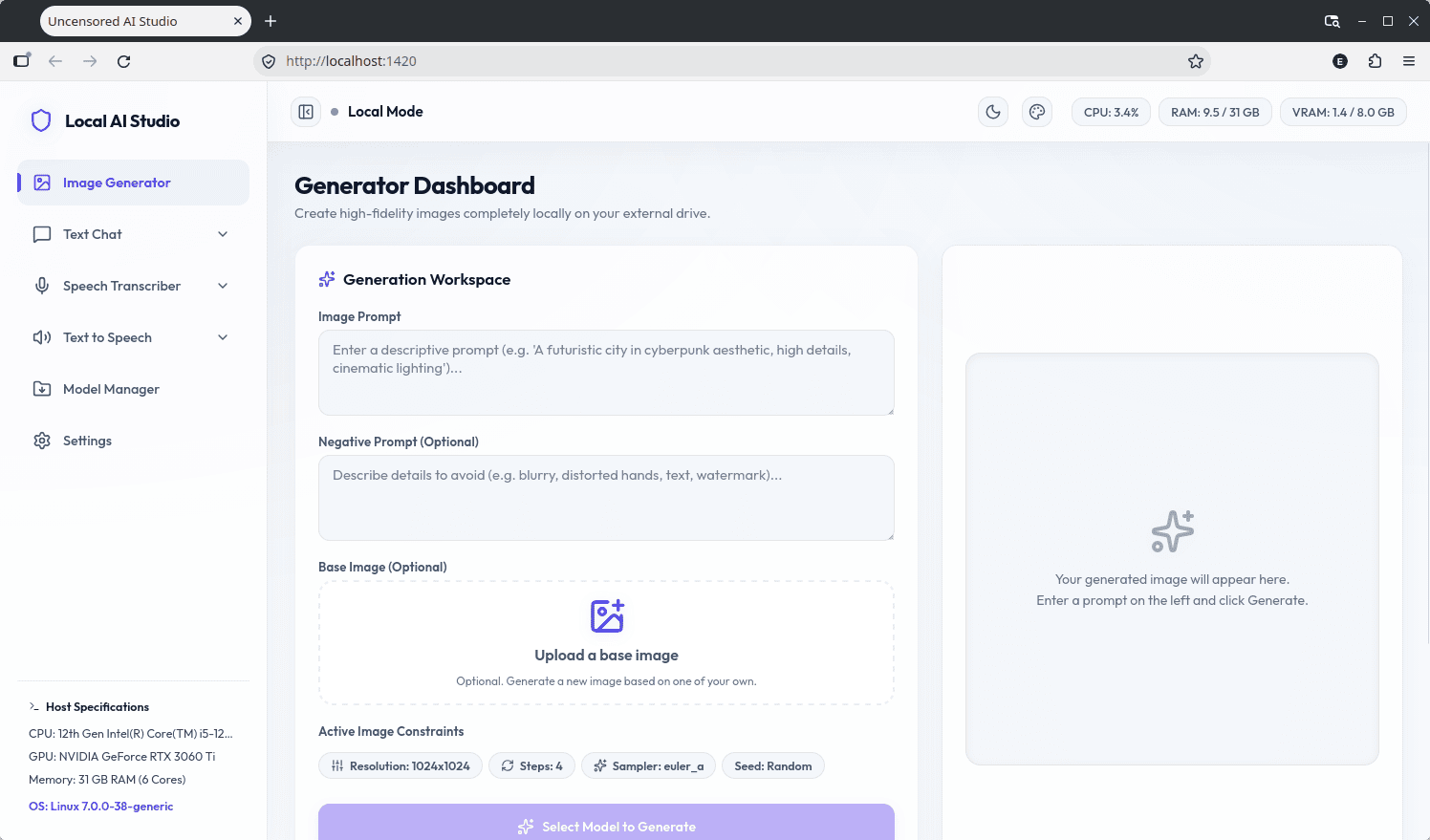
The interface displays CPU, RAM, GPU and VRAM usage across the top. The sidebar gives access to the main parts of the program:
- Image Generator – create images locally from text prompts or a source image.
- Text Chat – interact with locally hosted GGUF language models.
- Speech Transcriber – turn spoken audio into text using Whisper.
- Text to Speech – generate spoken audio from text using Kokoro.
- Model Manager – download, import and remove models.
- Settings – configure the application and its inference environment.
The bottom-left panel reports the detected host hardware and operating system. In this screenshot Local AI Studio has correctly identified the CPU, GeForce RTX 3060 Ti, system memory and Linux installation.
Model Manager
The Model Manager is the logical place to start, as most of the workspaces are of little use until you have downloaded a suitable model.
It provides a central location for the image-generation, LLM, Whisper and text-to-speech models used by Local AI Studio. There are curated models available directly from the interface, but you’re not restricted to these. Models can also be imported locally or downloaded by supplying a Hugging Face URL.
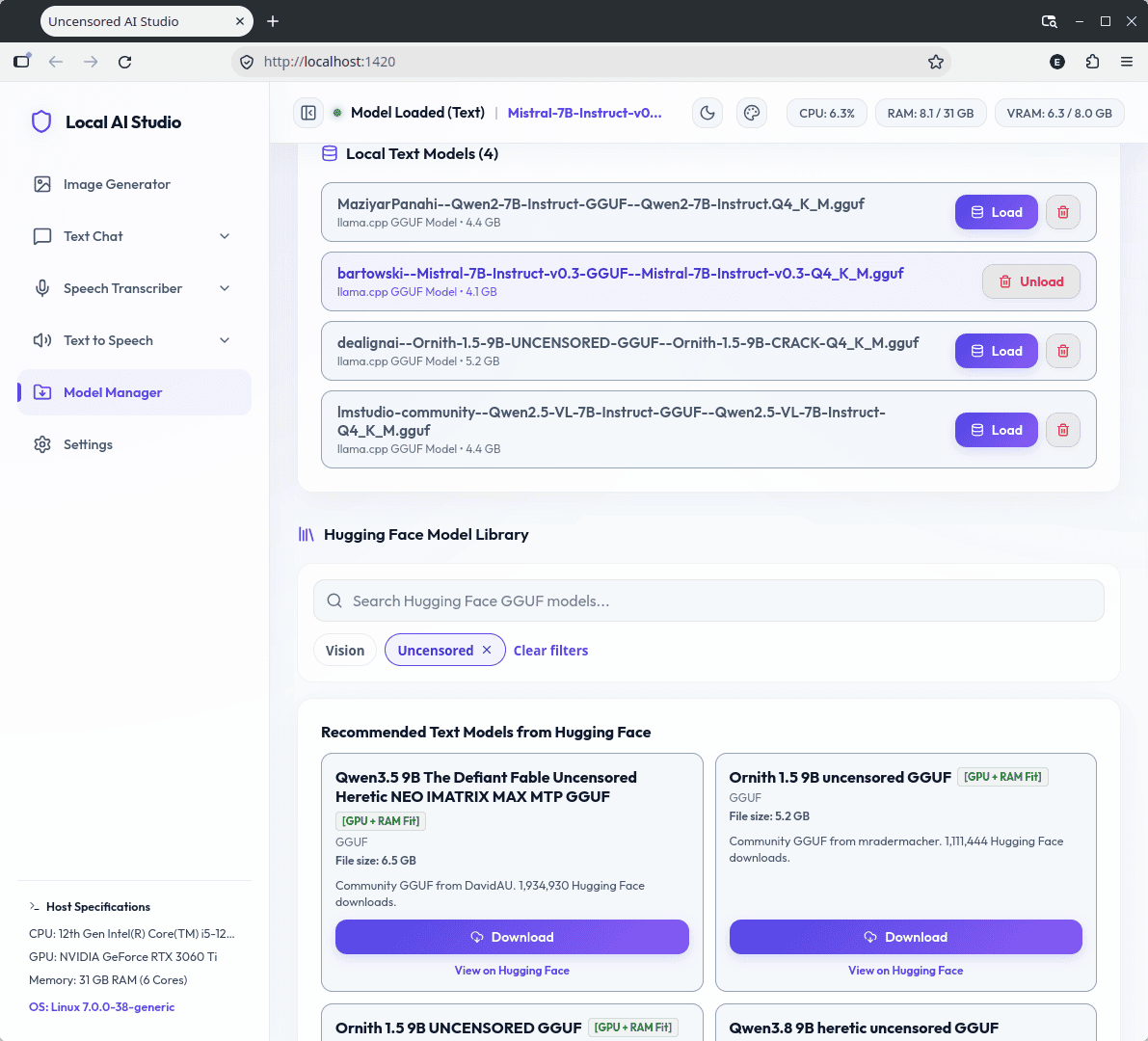
Model size matters. A model file occupying 6GB on disk does not necessarily require exactly 6GB of VRAM when loaded, and memory requirements vary with the model architecture, quantisation and runtime. On a GPU with 8GB of VRAM it’s therefore sensible to start with smaller models.
For this review I concentrated on quantised LLMs and Stable Diffusion 1.5 checkpoints that are a comfortable match for the RTX 3060 Ti. That’s one of the benefits of the Model Manager: you can start small rather than downloading several multi-gigabyte models and discovering afterwards that they are impractical on your hardware.
Image Generator
The Image Generator is a straightforward workspace for Stable Diffusion. There’s a positive prompt for describing the image you want and a negative prompt for telling the model what you’d rather avoid.
You can also supply a base image for image-to-image generation. Other controls include output resolution, number of inference steps, sampler and random seed. These are the important settings, without the bewildering collection of nodes and extensions found in some specialist Stable Diffusion interfaces.
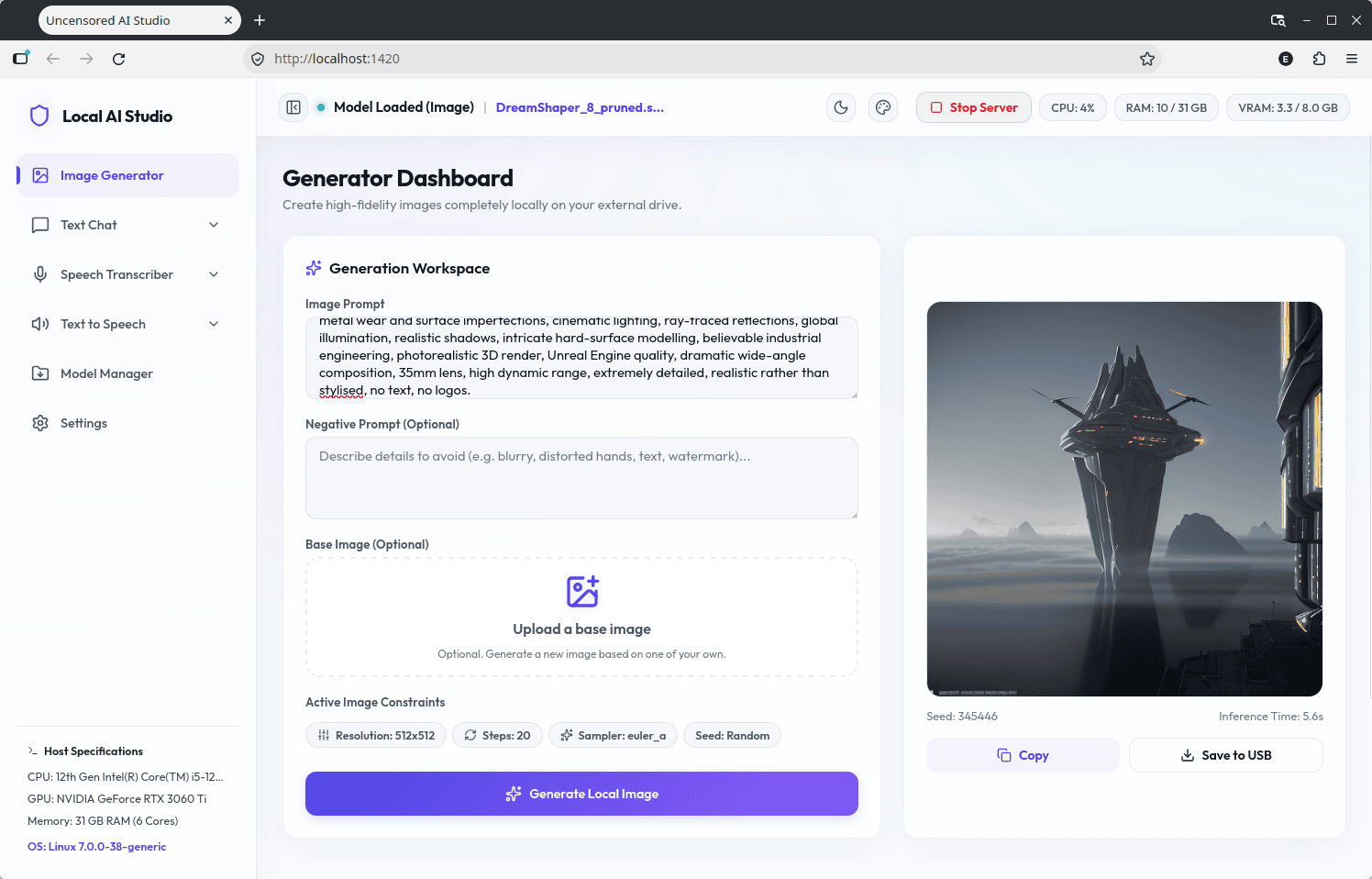
Local AI Studio supports conventional Stable Diffusion 1.5 and SDXL single-file checkpoints in formats such as Safetensors and CKPT. There is also limited support for complete GGUF image checkpoints.
The two 6.6GB SDXL models offered by the Model Manager proved too demanding for the available VRAM on my 8GB RTX 3060 Ti setup. They could potentially be run with more reliance on system memory or CPU processing, but performance suffers badly. For this machine, a smaller Stable Diffusion 1.5 model makes far more sense.
I therefore started with DreamShaper 8, a roughly 2.1GB Stable Diffusion 1.5 checkpoint. It is a versatile model that can produce anything from illustrations to fairly realistic images.
At 512×512 with 20 inference steps, an image took around five seconds to generate on the RTX 3060 Ti. That’s fast enough to experiment freely with prompts, seeds and settings rather than waiting around for each result.
Generated images are retained locally, with the program also keeping the associated prompt parameters and metadata. This makes it much easier to return to a successful generation later.
Local AI Studio isn’t limited to the models shown in the Model Manager, but that doesn’t mean every Safetensors file on Hugging Face will work. It expects models supported by stable-diffusion.cpp and is primarily designed around complete single-file checkpoints.
In particular, there is currently no support for LoRA or ControlNet. Newer workflows such as Flux, HiDream, Hunyuan, Wan and Qwen Image are also outside its scope. Anyone deeply involved in image generation will find ComfyUI or another specialist interface vastly more flexible.
Text Chat
Text Chat uses llama.cpp and works with GGUF language models. Models are stored in app/llm-models/, although they can normally be added through the interface instead of copying files there manually.
A small Qwen2.5 Coder model is offered as a starter download. More interesting models can be imported in exactly the same way, provided they are available in a GGUF format supported by llama.cpp.
My RTX 3060 Ti only has 8GB of VRAM, but that’s enough for plenty of useful 7B-class models when an appropriate quantisation is chosen. Larger models either require heavier quantisation, partial CPU offloading or substantially more memory.
I tested Qwen2 7B Instruct as well as Mistral 7B. With Mistral 7B I saw generation speeds of around 65 tokens per second on this system. That’s very responsive for interactive chat.
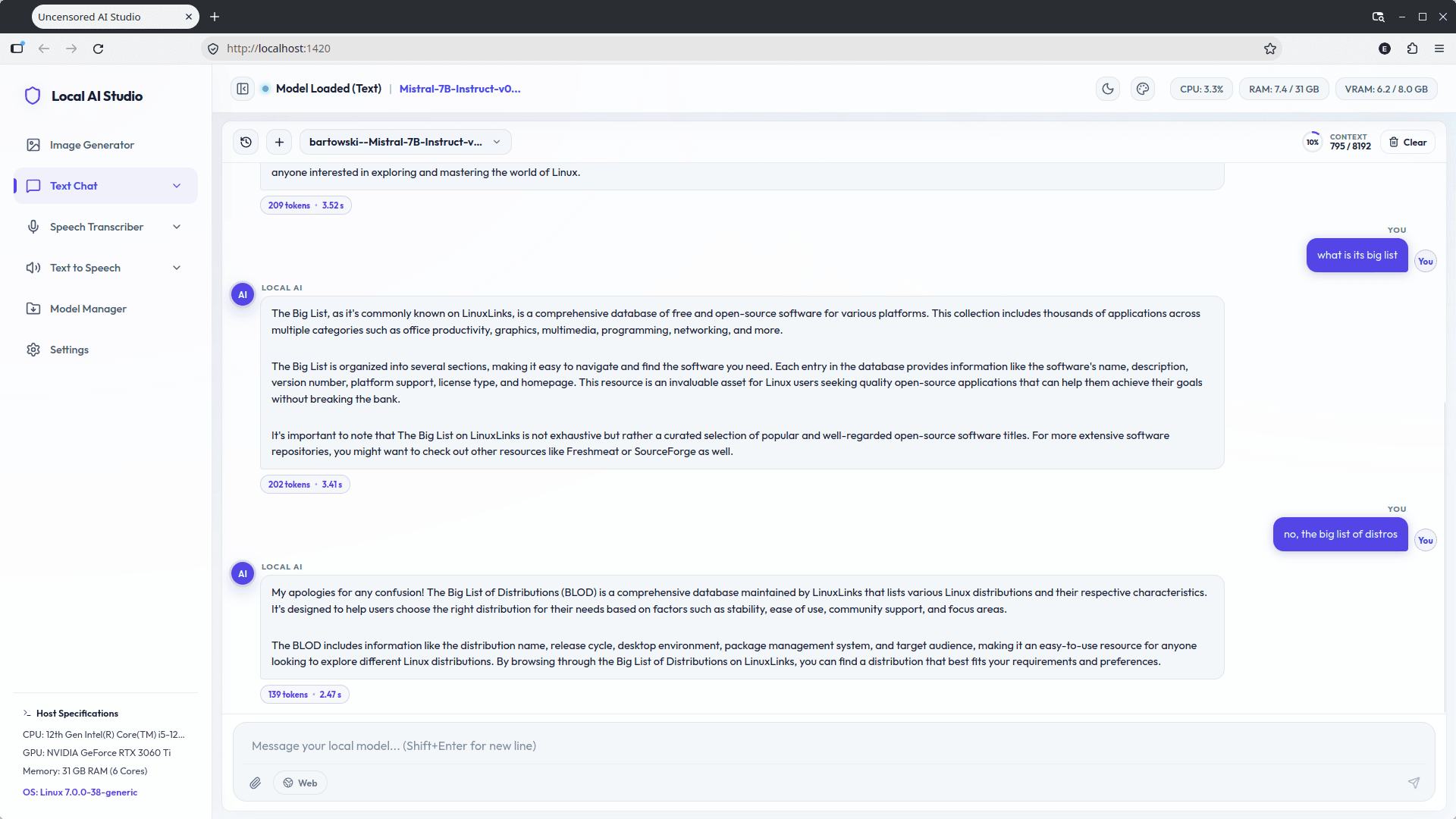
Don’t read too much into a single tokens-per-second figure. Performance changes substantially with the model, GGUF quantisation, context size and how much of the model is offloaded to the GPU.
It’s also worth watching GPU utilisation when first setting up Text Chat. The LLM and image-generation workspaces use separate backends, so GPU acceleration working perfectly for Stable Diffusion doesn’t by itself prove that llama.cpp is also using the GPU.
The chat interface is deliberately uncomplicated. That’s an advantage if you simply want to load a model and start talking to it, although dedicated LLM front ends offer many more options for elaborate workflows.
Speech Transcriber
Speech recognition is provided by whisper.cpp. Compatible Whisper models use its GGML .bin format and are stored under app/speech-models/.
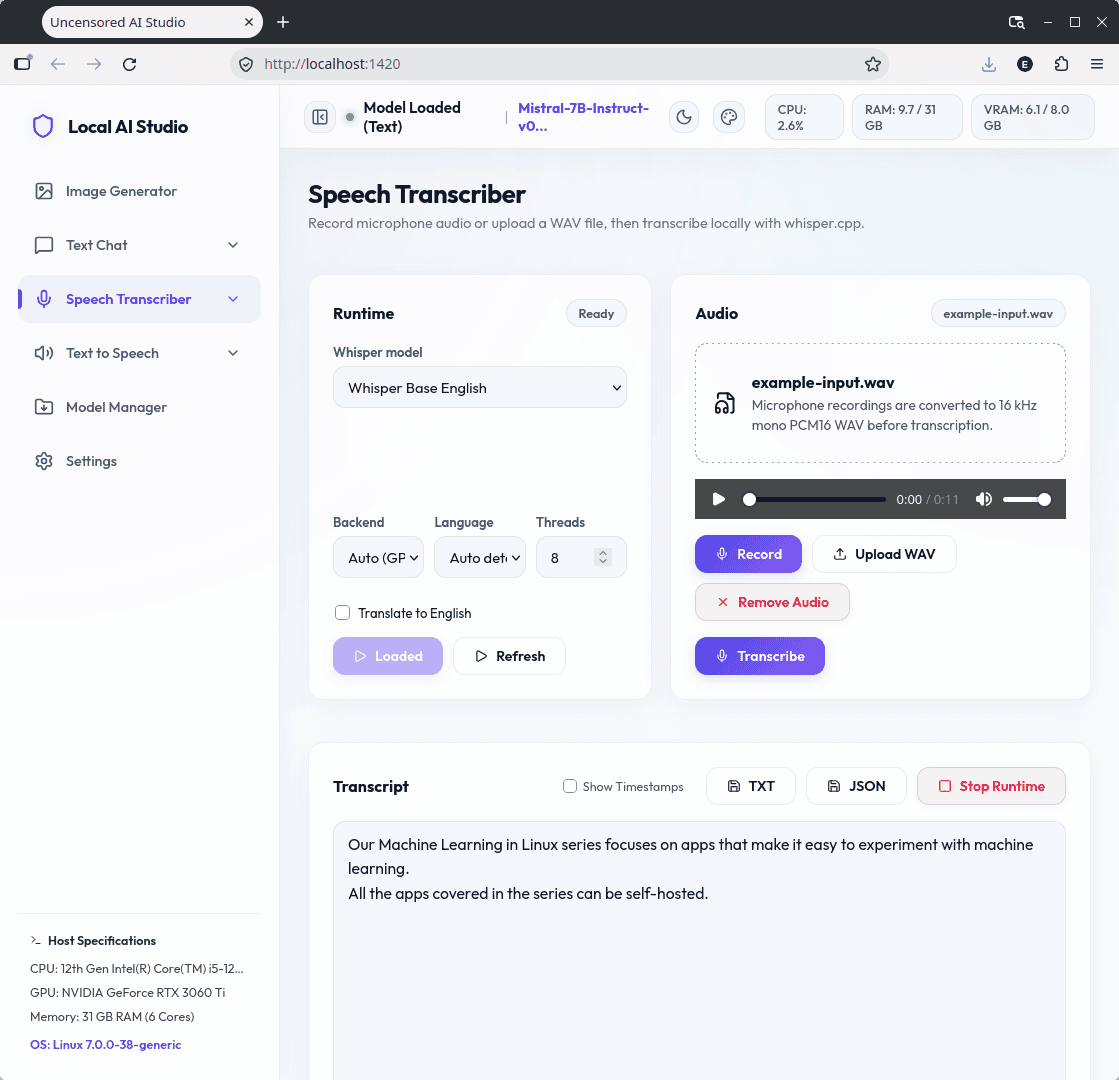
Whisper models span a wide range of sizes, so again there’s a choice between speed, memory consumption and transcription accuracy. For casual dictation a smaller model may be perfectly adequate, whereas more difficult recordings, accents or noisy material tend to benefit from a larger model.
There’s nothing especially novel about the transcription engine here. The attraction is having Whisper available alongside the other local AI functions without needing to set up and maintain a separate application.
Text to Speech
For text-to-speech, Local AI Studio uses Kokoro, specifically the compact Kokoro-82M model. Inference is handled locally through kokoro-js rather than being sent to a cloud speech service.
The interface lets you enter text, choose a voice and generate the audio locally.
I’ve reviewed Kokoro very recently, so see that article for a much closer look at the model itself. What matters here is that Local AI Studio integrates it cleanly with the rest of the package.
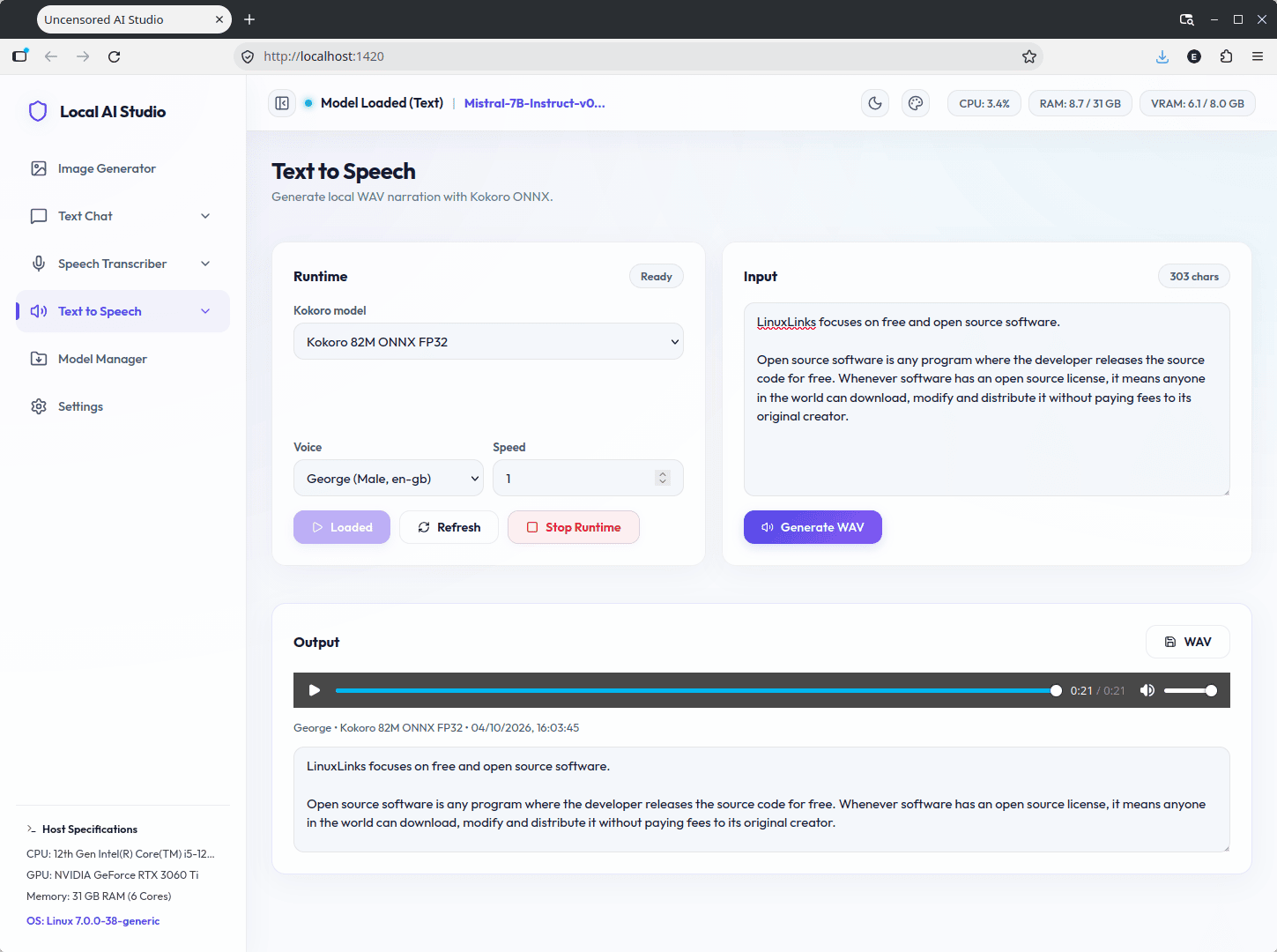
Here’s an example of the generated speech.
Summary
Local AI Studio is an interesting proposition. There are plenty of programs for chatting with local LLMs and no shortage of Stable Diffusion interfaces, but packages that combine image generation, LLMs, speech recognition and text-to-speech under one roof are less common.
Its strongest feature is convenience. The project takes care of much of the runtime and backend setup, provides a central model manager, and wraps four useful local AI technologies in a coherent interface. You don’t have to maintain several Python environments or learn four unrelated applications just to experiment with the different types of model.
I also like the fact that it remains fairly transparent about what is happening underneath. These aren’t proprietary inference engines. Local AI Studio is providing a common interface around stable-diffusion.cpp, llama.cpp, whisper.cpp and Kokoro.
The local-first design is another attraction. Once the software and models have been downloaded, inference takes place on your own hardware. Prompts, images, conversations and speech don’t need to be sent to an external service.
There are compromises. The Image Generator is much less capable than specialist software such as ComfyUI or Easy Diffusion. There’s no LoRA or ControlNet support and many of the newer image-generation architectures are unavailable. Similarly, people who spend most of their time with LLMs may prefer a dedicated chat application offering a wider range of model and conversation-management features.
The program also keeps the image and text engines separate so they don’t compete for RAM and VRAM. That’s a sensible decision, particularly on modest hardware, although it means Local AI Studio isn’t trying to become an elaborate workflow environment in which several models operate simultaneously.
But that’s not really the point of the project. Local AI Studio is at its best as a convenient way to explore several branches of local machine learning from one place.
If you only want image generation, only want to chat with LLMs, or only need Whisper, a specialist application will offer more depth. If you want to experiment with all four without assembling and maintaining four separate software stacks, Local AI Studio is well worth trying.
Website: github.com/techjarves/Portable-Local-Studio
Support:
Developer: Tech Jarves
License: MIT License
Local AI Studio is written in JavaScript. Learn JavaScript with our recommended free books and free tutorials.
Please read our Comment Policy before commenting.