
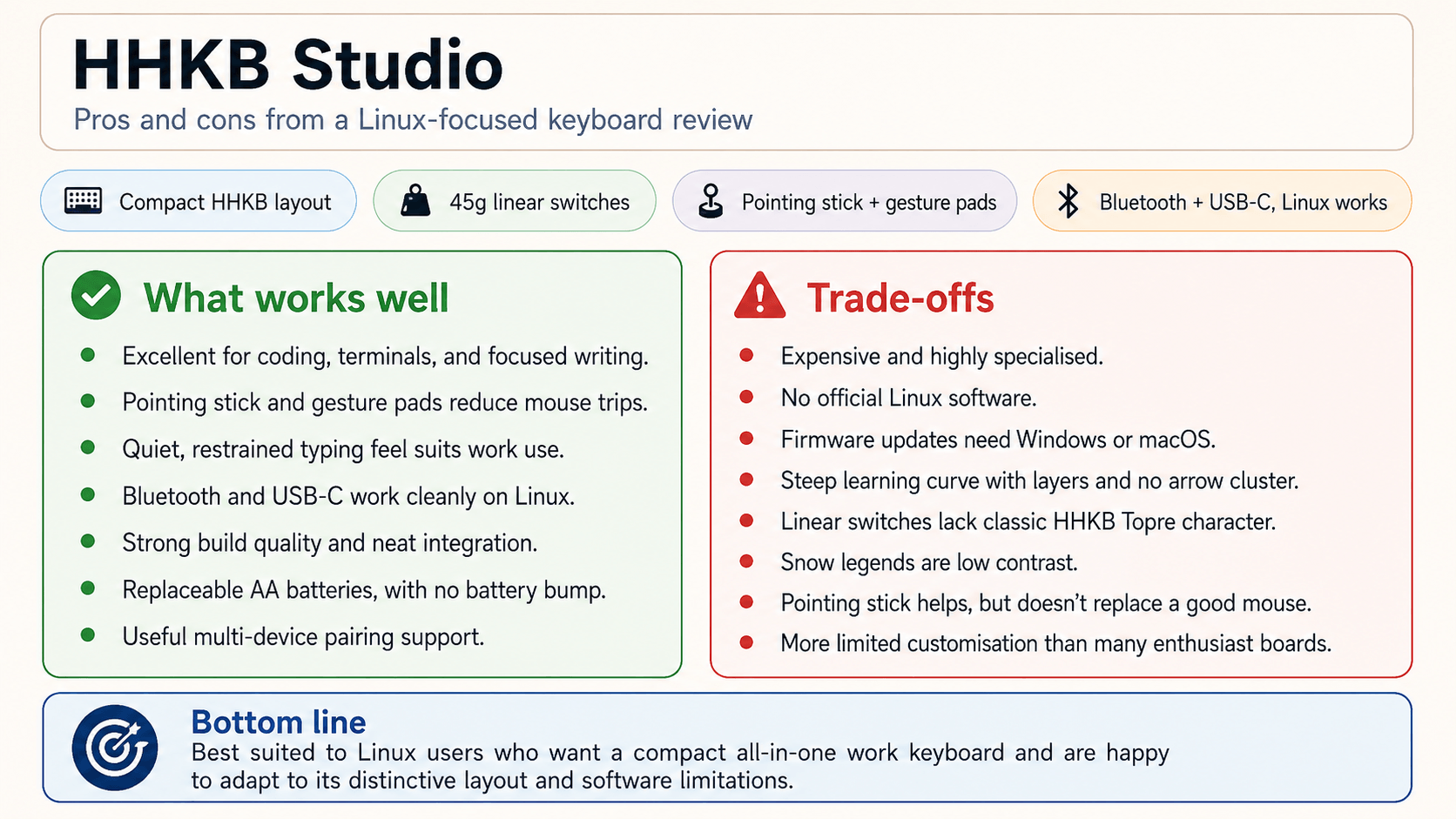
The HHKB Studio takes the familiar HHKB idea in a different direction. It keeps the compact, programmer-focused layout that defines the series, but moves away from the Topre switches used by models such as the HYBRID Type-S. Instead, this is a mechanical HHKB with a built-in pointing stick, gesture pads, Bluetooth and USB-C connectivity, and a design that tries to keep your hands on the keyboard for more of the working day.
That makes it an unusual keyboard to review from a Linux perspective. As a basic input device, it works without drama: typing, wired use, Bluetooth pairing, and standard mouse functions are all handled by Linux in the normal way. The more interesting question is how much of the Studio’s extra functionality is exposed cleanly outside Windows and macOS. PFU’s own keymap and firmware tools don’t have a native Linux version, so deeper customisation is still awkward unless you use another machine, third-party tools, or desktop-level remapping.
Even with that limitation, the HHKB Studio remains a distinctive option for Linux users who value compact layouts and minimal hand movement. It’s not simply a small keyboard, and it’s not just a Type-S with different switches. The pointing stick and gesture pads change the way the keyboard is meant to be used, making it especially relevant for terminal work, coding, writing, and desktop setups where reaching for a separate mouse breaks concentration.
What’s in the box
Keyboard
4 AA alkaline batteries
Information sheet
USB Type-C cable
The instruction sheet explains that you should first update the keyboard firmware. This must be done in Windows or macOS. Users need to download the latest version of the keymap tool and the firmware file. PFU’s keymap tool offers keymap customisation, keyboard shortcut assignment, and the option to change the behaviour of the gesture pad. The tool also lets you update the firmware. I’d much prefer Linux support for firmware updates, but it’s not a showstopper if you have occasional access to Windows or macOS.
Design
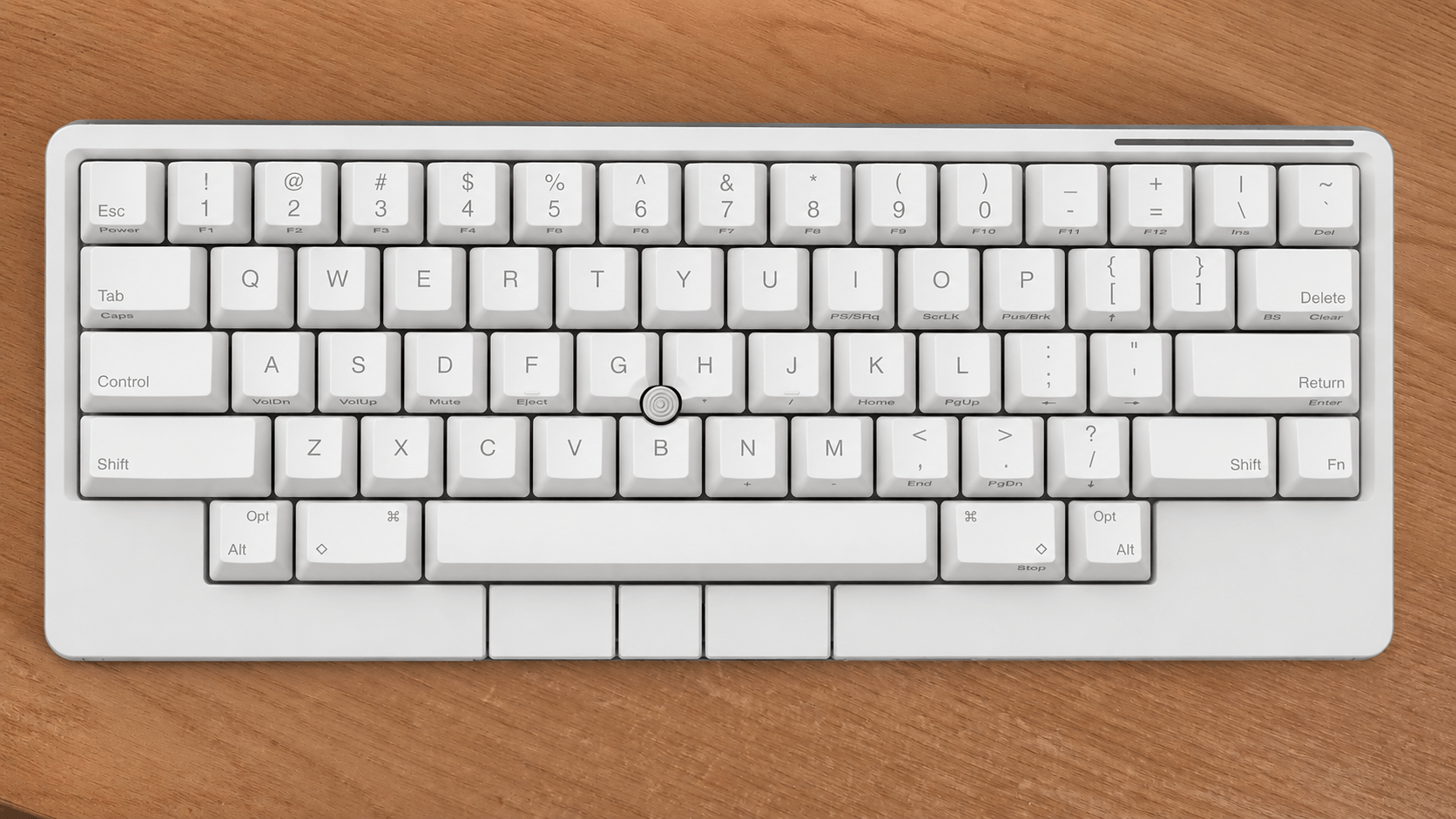
The HHKB Studio has the same deliberately compact footprint that defines the HHKB family, but its design is more ambitious than a conventional 60% keyboard. It removes the numeric keypad, function row, dedicated arrow keys, and navigation cluster, leaving a tight, symmetrical layout built around keeping the hands close to the home row. The result is a keyboard that looks sparse at first glance, but every omission is part of the HHKB approach: frequently used modifier keys are brought closer, while less common functions move to layers.
The layout will be familiar to existing HHKB users. Control sits where Caps Lock would normally be, the Escape key is easy to reach, and navigation keys are handled through the Fn layer rather than dedicated physical keys. This makes the Studio very different from most compact mechanical keyboards. It’s not simply a shrunken desktop keyboard; it’s a layout that expects you to adapt your typing habits around shortcuts, layers, and reduced hand movement.
What separates the Studio from other HHKB models is the integrated pointer system. A pointing stick sits in the middle of the keyboard, with mouse buttons positioned along the front edge. There are also four gesture pads: two on the front, one on the left side, and one on the right side. These additions make the keyboard feel more like a self-contained input device rather than just a typing tool. In theory, you can type, move the cursor, scroll, and trigger common actions without constantly reaching for a separate mouse. The gestures work on Linux without any configuration. They certainly take time to become accustomed to, but after a few weeks they begin to become second nature.
That said, the pointing stick and gesture pads are not equally useful in every situation. For scrolling through web pages, moving around documents, and making small pointer adjustments, the integrated controls are genuinely helpful. They reduce the number of times you need to reach for a mouse, which fits perfectly with the HHKB philosophy. But the Studio doesn’t fully replace a good mouse or trackball. Anything that needs fast, precise movement still feels better with a dedicated pointing device. The Studio is best understood as a keyboard that reduces mouse use, not one that eliminates it completely.
The case design is plain and functional rather than decorative. There’s no gaming styling, no RGB lighting, and no oversized branding. The Studio looks like a professional tool: compact, dense, and understated. The extra pointer and gesture controls make the front edge and sides busier than a standard HHKB, but the overall design still feels minimalist. It’s a keyboard aimed at people who value efficiency and a clean desk setup more than visual flair.
The Snow model has legends that are intentionally subdued. PFU’s grey/silver printing reduces visual clutter and gives the Studio a premium, minimalist look. The downside is readability: the legends don’t pop from the keycaps, which is a questionable choice on a keyboard with an unfamiliar layout, no dedicated arrow cluster, and several layer-based functions.
Typing Feel
The HHKB Studio is a clear break from the Topre-equipped Professional models. It uses 45 g linear mechanical switches, so the key press is much more direct and uniform from top to bottom. There’s no rounded tactile event part way through the travel, and the keyboard doesn’t have the same damped, domed character that people associate with classic HHKBs. Instead, the Studio feels closer to a refined MX-style board: predictable, stable, and easy to type on at speed, but also less distinctive than the Professional HYBRID Type-S.
The feel is light, clean, and fairly restrained. The switches don’t draw attention to themselves with a pronounced bump or a loud report, which suits the Studio’s role as a focused working keyboard rather than an enthusiast showpiece. I wouldn’t call it an upgrade over Topre, because it’s really a different interpretation of the HHKB idea. The Studio trades some of the old model’s character for a more conventional mechanical feel, easier switch replacement, and a typing experience that should be more immediately familiar to anyone coming from modern mechanical keyboards.
Sound
The HHKB Studio has a cleaner, more conventional mechanical sound than the Professional models. It’s fairly muted and controlled, without the sharp clatter found on many compact mechanical keyboards, but it doesn’t have the same rounded Topre character either. The result is a pleasant, work-friendly sound: neat, restrained, and easy to live with, though less distinctive than the classic HHKB tone.
Build quality
The HHKB Studio is still a plastic keyboard, but it doesn’t feel flimsy. The case has good rigidity for its size, with little obvious flex in normal typing, and the chassis feels tightly assembled rather than hollow or toy-like. The finish is clean, the seams are neat, and the removable battery cover sits securely without becoming a weak point in everyday use. It’s not trying to impress through weight, aluminium, or boutique keyboard construction, but the fit and finish are clearly above ordinary compact keyboards.
The extra input hardware is also well integrated. The pointing stick sits naturally between the keys, the front mouse buttons feel deliberate rather than tacked on, and the gesture pads don’t disrupt the basic shape of the keyboard. The keycaps feel solid under the fingers, and the Snow finish gives the board a calm, refined look, even if the pale legends reduce contrast. The overall impression is of a carefully engineered work keyboard: light enough to move around, sturdy enough for daily use, and more specialised than luxurious in feel.
Connectivity and support
The HHKB Studio supports both Bluetooth and USB-C, and can store pairing information for up to four Bluetooth devices. Switching between them is handled directly from the keyboard with Fn, Control, and the number keys, so moving between a Linux desktop, laptop, tablet, or phone is straightforward once everything has been paired.
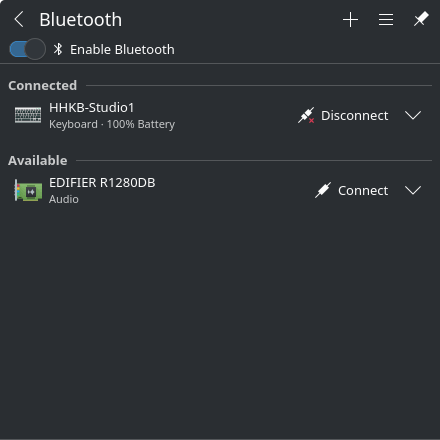
Power still comes from replaceable batteries rather than a sealed rechargeable pack, but the Studio handles this more neatly than the Professional HYBRID models. There’s no raised battery bump across the back of the keyboard, so the case has a cleaner, flatter profile on the desk. That makes the Studio look more integrated and modern, while still keeping the practical benefit of batteries that can be replaced in seconds. For a daily-use keyboard, I prefer that approach to a sealed internal battery that can fail long before the rest of the keyboard. I’ve had this happen with a couple of mechanical keyboards, where the internal cell appears to have failed and the spacebar constantly indicates that the keyboard is charging.
For day-to-day use on Linux, the Studio works as a normal keyboard and pointing device, so the absence of official software isn’t a deal-breaker. Basic remapping can still be handled in Linux through desktop settings or command-line tools. The limitation is that the Studio’s more advanced features, especially profile editing and gesture pad behaviour, are tied to PFU’s own software. That’s frustrating on a keyboard aimed at programmers, but it doesn’t stop the core typing, Bluetooth, USB-C, and pointing functions from working well.
There’s also an unofficial Linux utility on GitHub for modifying the HHKB Studio keymap. That helps, but it doesn’t completely solve the software issue. PFU’s official tooling remains Windows and macOS only, and firmware updates still need one of those platforms. For Linux users, the practical split is clear: the Studio works well as an input device, but its deeper configuration story is still weaker than it should be for a keyboard so clearly aimed at programmers and heavy keyboard users.
DIP Switches
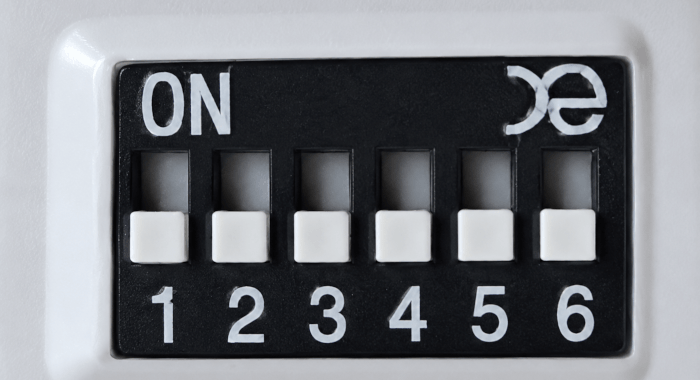
The HHKB Studio’s DIP switches are tucked away beneath the removable cover on the underside of the keyboard, alongside the battery compartment. They’re not meant for frequent adjustment, but they provide quick hardware-level control over the Studio’s extra input features. You can disable the mouse buttons, gesture pads, or pointing stick, change the scrolling direction, alter the Delete key behaviour, and disable Bluetooth power saving. It’s a practical touch, especially for Linux users, because these settings don’t depend on PFU’s keymap software.
Everyday use
For typing, coding, and terminal work, the HHKB Studio makes a lot of sense once you adapt to the layout. The Control key position remains one of its biggest strengths, and the compact form keeps shortcuts, navigation, and modifiers close to the home row. The pointing stick adds another layer to that idea: you can move the cursor or make small adjustments without taking your hands far from the keyboard.
It’s still not a layout I’d recommend casually to everyone. The missing function row, lack of dedicated arrow keys, unusual Delete/Backspace arrangement, and reliance on layers all take adjustment. Personally, I remap the Delete key.
The Studio is more flexible than the Professional models because of its integrated pointer and gesture pads, but it’s still a keyboard for people who are willing to learn its way of working rather than expecting a conventional desktop layout.
Summary
The HHKB Studio is a fascinating keyboard, but it’s not the HHKB I’d recommend to everyone. If you mainly want the classic HHKB typing feel, the Professional HYBRID Type-S still has the stronger identity. Topre remains the reason many people fall in love with HHKB keyboards in the first place, and the Studio’s linear mechanical switches, while very good, don’t have the same character.
But judged on its own terms, the Studio is much more than a mechanical HHKB variant. It’s an all-in-one input device built around keeping your hands close to the home row. The pointing stick, mouse buttons, gesture pads, Bluetooth switching, replaceable batteries, and compact layout all support that idea. Once you adapt to it, the keyboard does start to change the way you work.
For Linux users, the conclusion is mixed but mostly positive. The important everyday functions work well: typing, Bluetooth, USB-C, pointing, clicking, and gestures. The frustration is that PFU still doesn’t provide native Linux software for firmware updates or full configuration. That’s disappointing on a premium keyboard aimed at programmers, but it doesn’t ruin the product.
The HHKB Studio is expensive, specialised, and slightly eccentric, but it’s also beautifully thought through in places. If you want a conventional mechanical keyboard, there are cheaper and more flexible options. If you want a compact work keyboard that encourages a more keyboard-centred way of using your desktop, the Studio is one of the most interesting keyboards I’ve used under Linux.
The keyboard is sold through Amazon and other retailers. At the time of writing, it’s available from Amazon UK for £332.51. This is not an affiliate link.
Please read our Comment Policy before commenting.
Arrow keys are one of those things that seem optional until they’re gone. For writing, coding, terminal work, editing filenames, moving around forms, correcting text, scrolling through command history, and nudging the cursor through awkward UI fields, dedicated arrows aren’t just a convenience; they’re part of the rhythm of using a computer.
I understand the HHKB philosophy of keeping everything close to the home row, and for some users layers become second nature. But arrow keys are used so constantly, and often so instinctively, that hiding them behind a modifier can feel like adding friction to dozens of tiny actions throughout the day. A compact keyboard can be elegant, but for me the best compact layouts are the ones that save space without making basic navigation feel like a keyboard shortcut.