
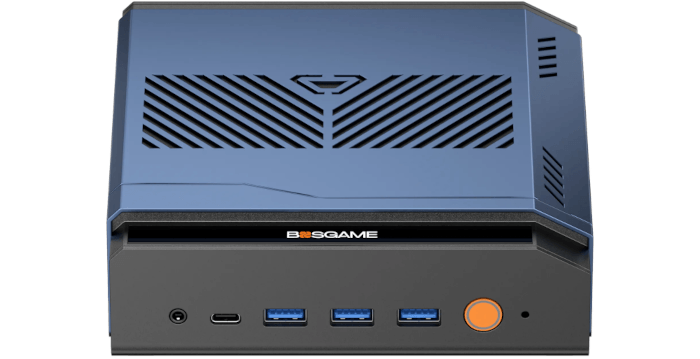
First Impressions of Running Linux on the M7
Like most mini PCs that aren’t sold as barebones, the M7 ships with Windows. In this case, it’s Windows 11 Pro. I’ll look at Windows later, mainly to see how well Windows Subsystem for Linux runs on this hardware. For now, though, Windows is gone. I wiped the drive and installed Linux, although dual boot was an option.
Before doing that, I let Windows grind through its first round of updates. It was interminably slow. That’s not a criticism of the M7. It’s a swipe at Microsoft’s painfully bloated update process. A fresh Windows install often has to pull in months of cumulative patches, security fixes, driver updates, .NET components, Microsoft Store updates and assorted background housekeeping. Then it has to stage, verify and apply them, often across several reboots. No wonder the first run feels endless.
I only put myself through it so I could image the drive with Clonezilla. That gives me a fully updated Windows 11 Pro snapshot I can restore later when I test Windows Subsystem for Linux.
With that safety net in place, I moved on to Linux. I use a USB key prepared with the versatile Ventoy tool to install Linux distributions. It’s a great way to carry lots of distributions on a single key without repeatedly flashing new images.
Unusually, Secure Boot is disabled in the BIOS by default. That means you can install a Linux distribution straight away, without accessing the BIOS. I still had a poke around the BIOS, as I’d expected to need to disable Secure Boot manually. It’s absolutely packed with options, more than I’ve ever seen in a mini PC BIOS. I’ll definitely do a full BIOS walkthrough in a later article in this series.
I installed CachyOS on the M7, and everything went swimmingly. CachyOS is remarkably quick to install, especially compared to the protracted setup process for Windows 11.
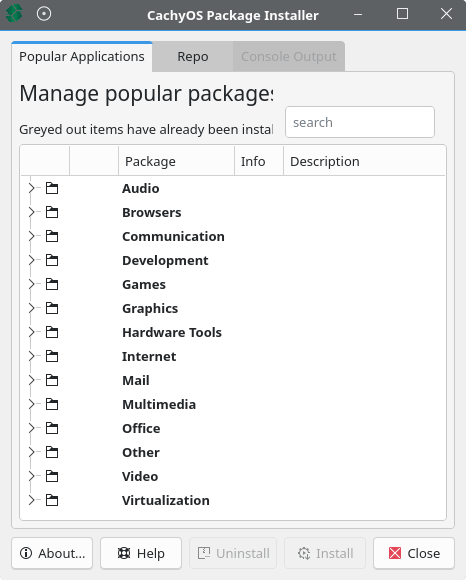
CachyOS ships with a small collection of bespoke utilities, including CachyOS Hello, the Package Installer, CachyOS Hardware Detection, cachy-chroot, cachyos-rate-mirrors and the Kernel Manager. None of these tools reinvents desktop Linux, but together they make the distribution feel more polished than a bare Arch installation, particularly when installing drivers, switching kernels, applying tweaks or recovering a damaged system.
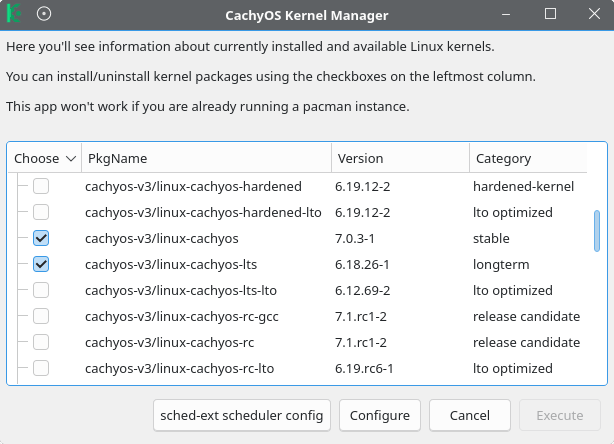
The M7 is a good candidate for CachyOS. Its Core Ultra 9 285H processor, Arc 140T graphics and fast NVMe storage give CachyOS’s modern kernel, scheduler tweaks and x86-64-v3 package optimisations something worthwhile to work with. The gains shouldn’t be overstated, as thermal limits in a compact chassis still matter, but CachyOS feels like a sensible choice for extracting a little more responsiveness from this hardware than a more conservative distribution.
For the Core Ultra 9 285H, the relevant point is that Intel lists AVX2 among the instruction set extensions. That makes CachyOS’s x86-64-v3 package path useful.
I’m running KDE Plasma as my desktop environment.
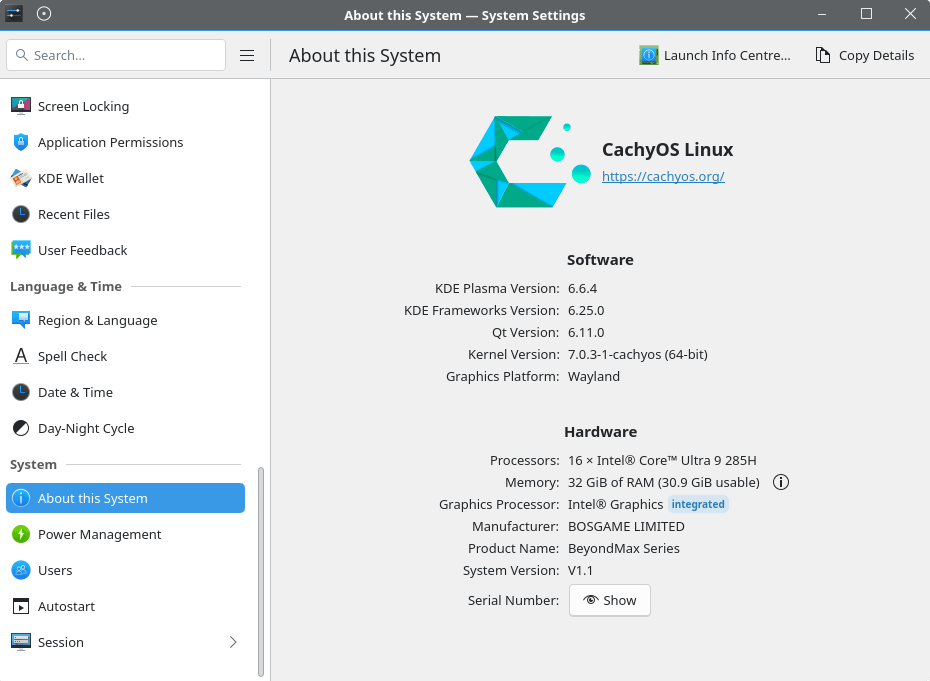
All the M7’s hardware works out of the box with the default kernel, including WiFi, Bluetooth, and displays running at their correct resolution and maximum refresh rate.
Intel AI Boost
Intel AI Boost is Intel’s name for the NPU, or Neural Processing Unit, built into many Intel Core Ultra processors. In simple terms, it’s a small dedicated AI accelerator inside the processor. Instead of using the main CPU or GPU for every AI-related task, the system can offload certain AI inference workloads to the NPU.
The Core Ultra 9 285H includes Intel’s AI Boost NPU, rated at up to 13 TOPS for INT8 workloads. It offers support for frameworks including OpenVINO, WindowsML, DirectML, ONNX Runtime, and WebNN.
The limitation is that it’s not a general-purpose performance monster. On the Core Ultra 9 285H, the 13 TOPS NPU is useful for supported AI workloads, but heavy local LLMs, Stable Diffusion, large image-generation models or demanding ML work will still be better suited to a strong discrete GPU. Think of Intel AI Boost as a low-power AI co-processor for everyday AI features, not as a substitute for an NVIDIA RTX card. To take things further, you can connect a dedicated GPU to the M7 via OCuLink, which can deliver around 90% of native desktop GPU performance in favourable conditions.
CachyOS recognises the Core Ultra 9 285H’s Intel AI Boost NPU out of the box. The NPU appears as an Intel processing accelerator, uses the intel_vpu kernel driver, and is exposed through /dev/accel/accel0. No additional kernel driver needed to be installed, although user-space software is still required to make practical use of the NPU for AI workloads.
Besides CachyOS, I’ve also tested Ubuntu 26.04 LTS on the M7.
Let’s delve into the M7’s hardware.
Next page: Page 3 – Interrogation of the System
Pages in this article:
Page 1 – Introduction and Design
Page 2 – First Impressions running Linux
Page 3 – Interrogation of the System
Complete list of articles in this series:
| Bosgame M7 Core Ultra 9 285H Mini PC | |
|---|---|
| Introduction | Introduction to the series and interrogation of the machine |
| Benchmarks | Benchmarking the Bosgame M7 Core Ultra 9 285H Mini PC |
| Power | Testing and comparing the power consumption |
| BIOS | In the world of computing, BIOS, which stands for Basic Input/Output System, plays a crucial role |
| Cores | Benchmarking the Bosgame M7’s Core Ultra 9 285H on Linux, comparing P-cores, E-cores and LP E-cores with Crafty, Coremark and smallpt. |
| Intel processors | P-Cores, E-Cores and LP E-Cores Compared Across 4 Intel Processors |
| More articles will be published next week | |
Please read our Comment Policy before commenting.