

This is the latest article in a series looking at a refurbished HP ProBook 440 G8 Laptop running Linux. In this instalment I take a look at setting up and configuring Ubuntu 25.10 on the laptop.
 Ubuntu is a popular free and open-source Linux-based operating system that is renowned for being a user-friendly and secure alternative to operating systems like Windows or macOS. Ubuntu is available for desktops, servers, and IoT devices. A large number of Linux distributions are also based on Ubuntu which can be viewed here.
I booted the Ubuntu 25.10 ISO from a USB flash drive. Booting from the USB key simply involves accessing the HP’s BIOS and selecting the key to boot.
Ubuntu’s installation is very simple and consists of a few steps where I choose my:
- Language
- Keyboard layout
- Whether or not to connect to the internet. This has the advantage of improving installation with compatibility checks and extra software packages. I chose to connect to a Wi-Fi network.
You’re next asked if you want to install Ubuntu or just to try it without making any changes to the computer. I chose the former.
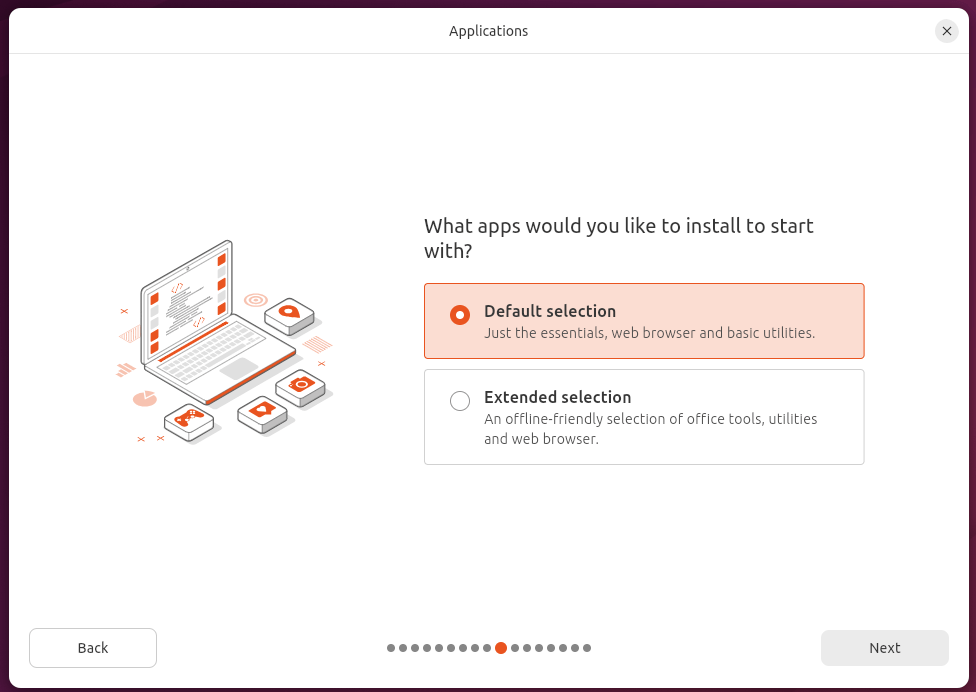
When installing you can choose either an interactive installation or an automated installation with autoinstall file. I went with the interactive installation with the default selection of apps,
The next choice is whether or not to install recommended proprietary software. By default Ubuntu doesn’t ship with any proprietary software. I chose not to install proprietary software or support for additional media formats.
The final option is whether to use a standard file system without encryption, or encrypt with a passphrase. I went with the former option
Next I need to create create my account (user name, computer name, and password), select a timezone, and then review my choices.
Now the installation proceeds. On the ProBook it takes 4 minutes to install Ubuntu 25.10.
After rebooting, I’m now in Ubuntu. The first thing to note is that the display scale is set to 125%. Given the 1920 x 1080 resolution I actually prefer the scale set to 100%. It also means I don’t need to use fractional scaling, which in the past can cause issues with the GNOME desktop environment.
An advantage of a refurbished machine is that as the hardware isn’t the very latest, fewer problems are experienced when configuring the machine. All the hardware works out of the box in Ubuntu with no additional drivers required.
Update the System
The first thing I always recommend is to update the system.
$ sudo apt update tells me there are 39 packages that can be upgraded.
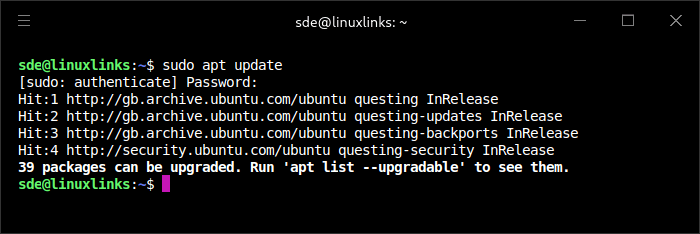
Issue the command:
$ sudo apt upgrade
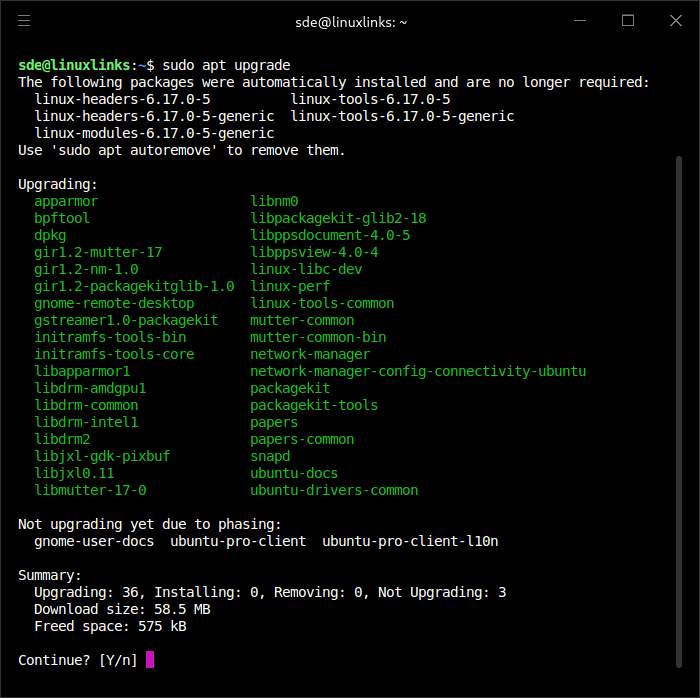
It only takes a minute or so to complete the upgrade. Contrast that with a Windows 11 update that can go on for an hour and require multiple reboots.

Swap File
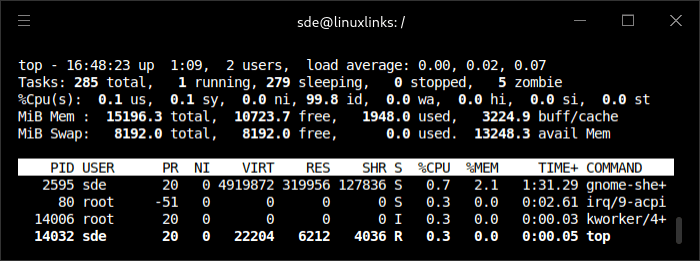
My laptop has 16GB of RAM which is a decent amount but my workflow is mostly geared around 32GB+ RAM machines. top shows that Ubuntu has set up a 4GB swap file.
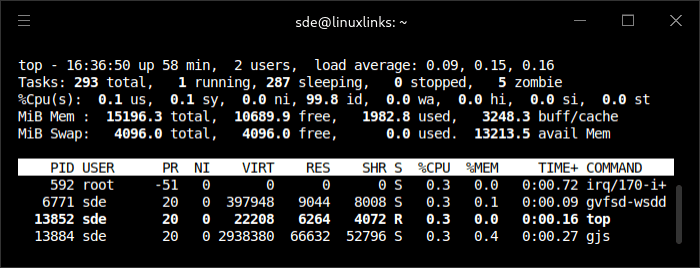
Having a larger swap file consumes more of the NVMe disk which is fairly small by modern standards (it’s only 256GB), but on balance, I’ll increase the swap file from 4GB to 8GB.
First, turn off the existing 4GB swap file.
$ sudo swapoff /swap.img
Now I’ll create a 8GB file.
$ sudo fallocate -l 8G /swap.img
Make that file a swap file
$ sudo mkswap /swap.img
Turn on the swap file:
$ sudo swapon /swap.img

Here’s top output showing the larger swap.
Other things I recommend:
Enable Flatpak support
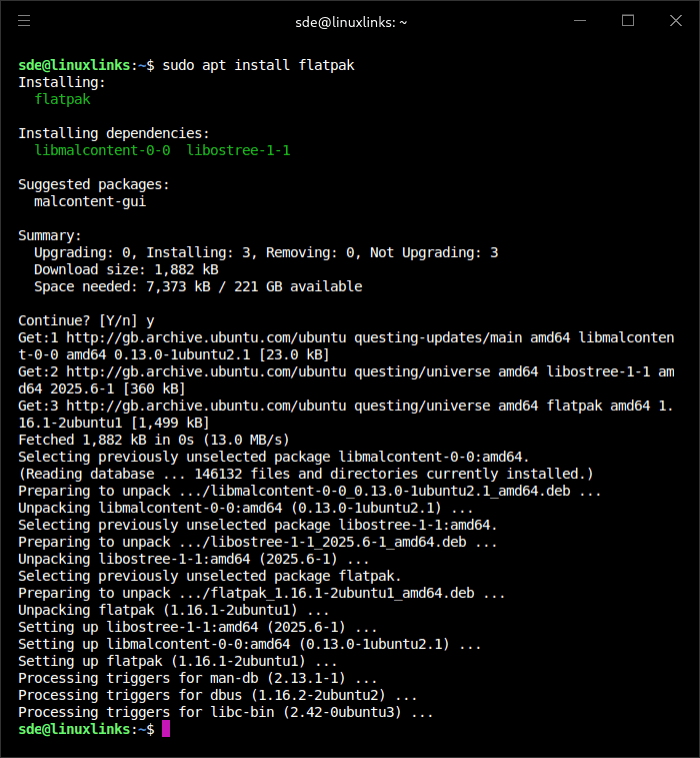
With Ubuntu I don’t have access to the Arch User Repository, an excellent way to explore new apps. Instead, I recommend enabling Flatpak support. There are many thousands of applications where a Flatpak is available.
To enable Flatpak support in Ubuntu issue the following commands in a terminal:
$ sudo apt install flatpak
$ flatpak remote-add --if-not-exists flathub https://dl.flathub.org/repo/flathub.flatpakrepo
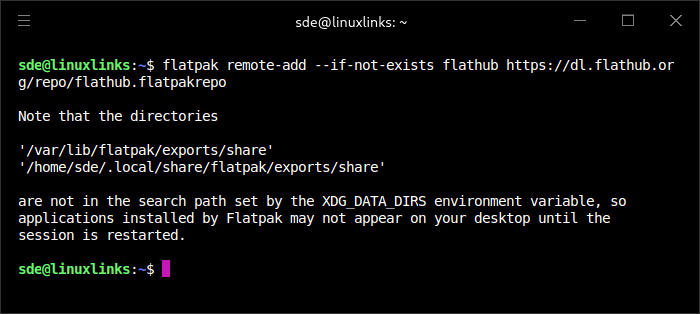
A reboot is then required.
Enable AppImage support
Another useful way of running Linux applications is with AppImage, a portable, non-install package format, that can be run directly (after adding the executable permission) to launch applications. With Ubuntu 25.10, we need to install libfuse2.
$ sudo apt install libfuse2t64
Add additional functionality
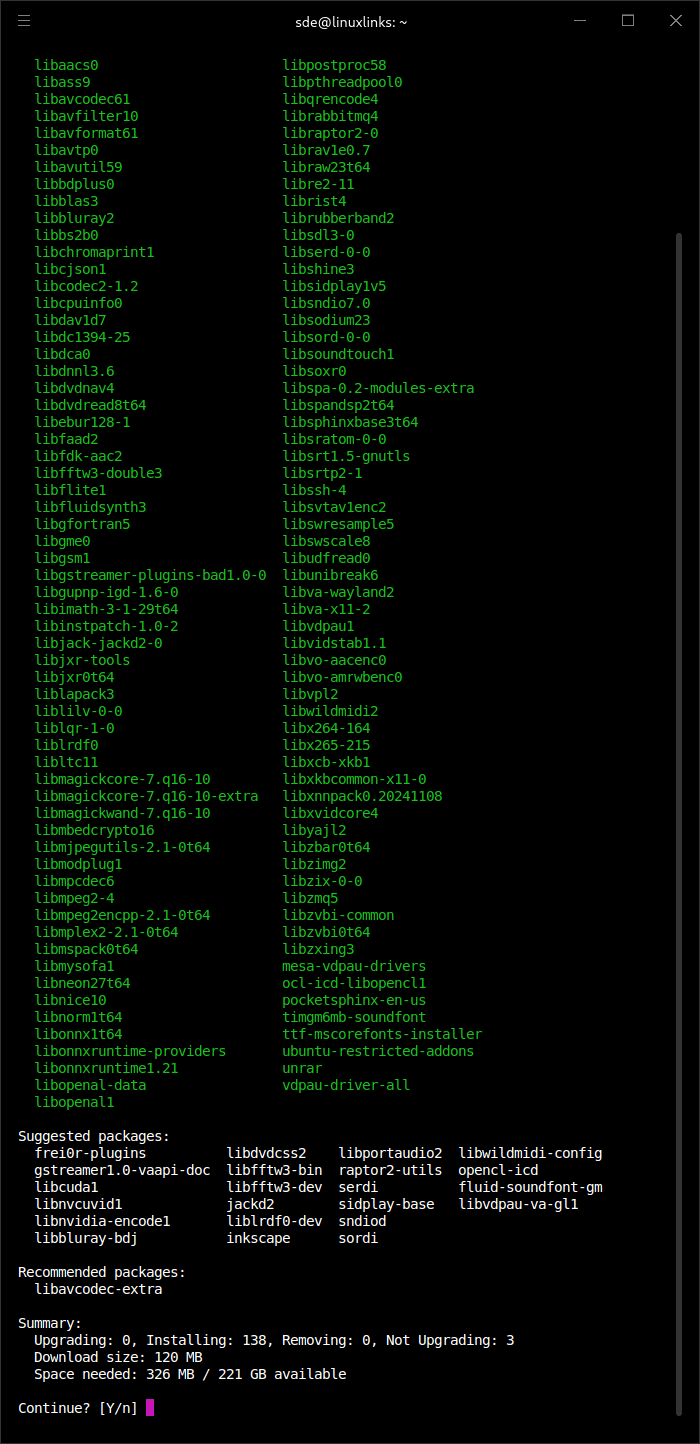
You might also want to add ubuntu-restricted-extras, a package that installs codecs, fonts, and other utilities not included in the default Ubuntu installation due to licensing restrictions. It lets you play a wider range of media formats (like MP3, MP4, and DVDs) and use Microsoft’s TrueType fonts by default.
$ sudo apt install ubuntu-restricted-extras
There are, of course, lots of other things you’ll probably want to do with a new installation of Ubuntu. Examples include installing software, configuring remote mount points, and configuring the desktop to name but 3.
Complete list of articles in this series:
| HP ProBook 440 G8 Laptop | |
|---|---|
| Introduction | Condition of the refurbished laptop |
| Specifications | Let's interrogate the laptop specifications |
| Benchmarks | Let's put the laptop through a series of benchmarks |
| Setting up Ubuntu 25.10 | A fairly brief walkthrough |