

This is the fifth article in a new series looking at a very interesting piece of kit from the folks at Orange Pi. It’s the Orange Pi 6 Plus single board computer.
This board is very different to the single-board computers I’ve previously covered. For example, it has a 12 core 64 bit ARMv9 processor with a total computing power of 45 TOPS (CPU/GPU/NPU).
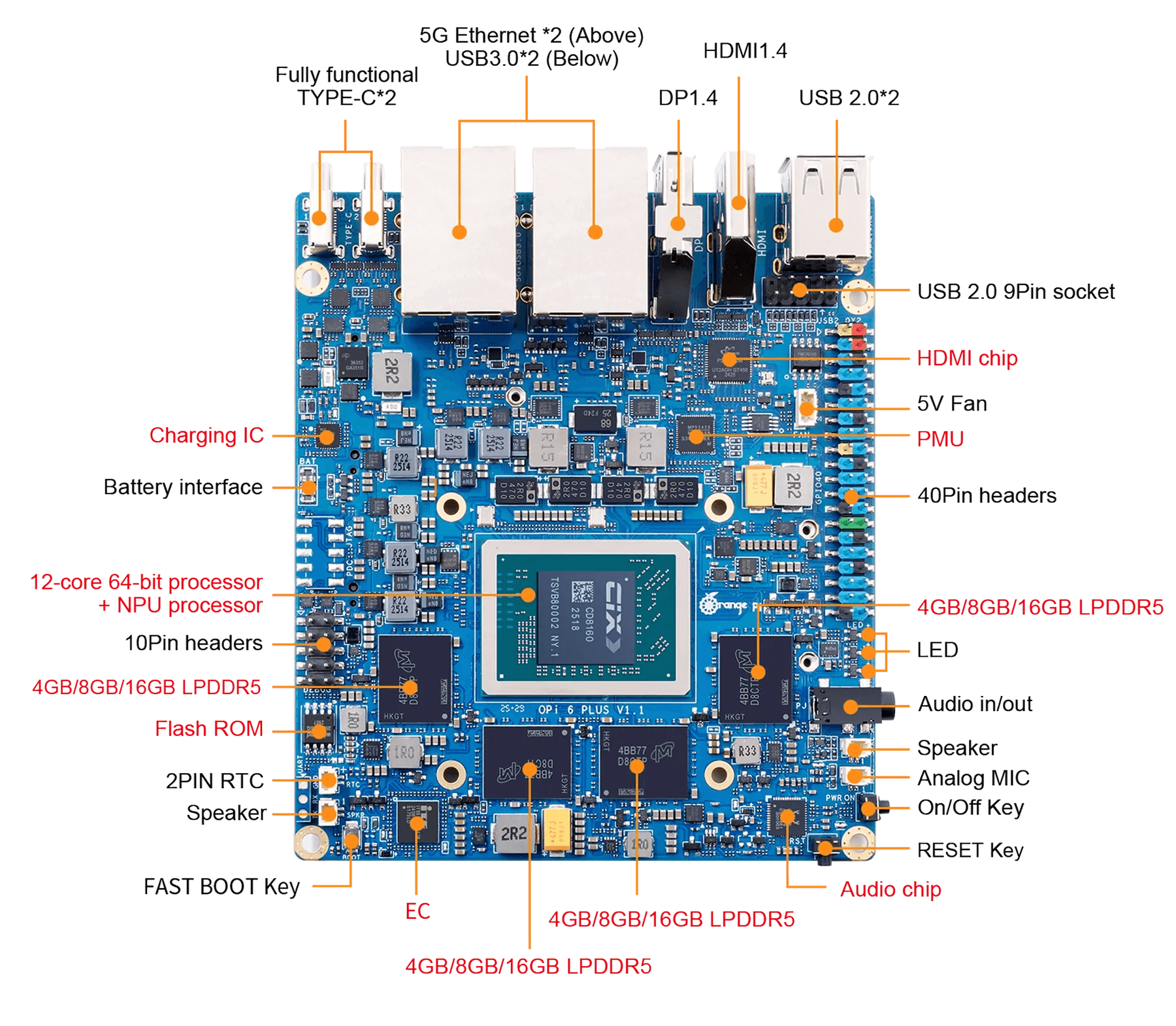
When the Pi 6 Plus was released, Orange Pi published a Debian image. While I’ve not yet written an article about Debian for this SBC, there is now an Ubuntu image available. In this article I take a look at this distro.
Ubuntu – setup
Like other single board computers, installing a distribution involves flashing a specific image to media. For the Pi 6 Plus the image can be flashed to a microSD card, an NMVe disk, or in my case a fast external USB key. The key I’m using has a read/write speed of around 1,000 MB/s, so much better performance than from any microSD card.
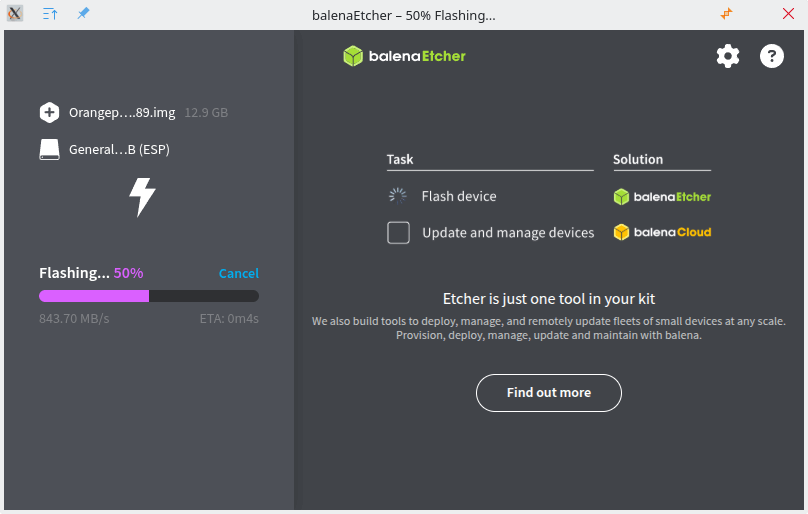
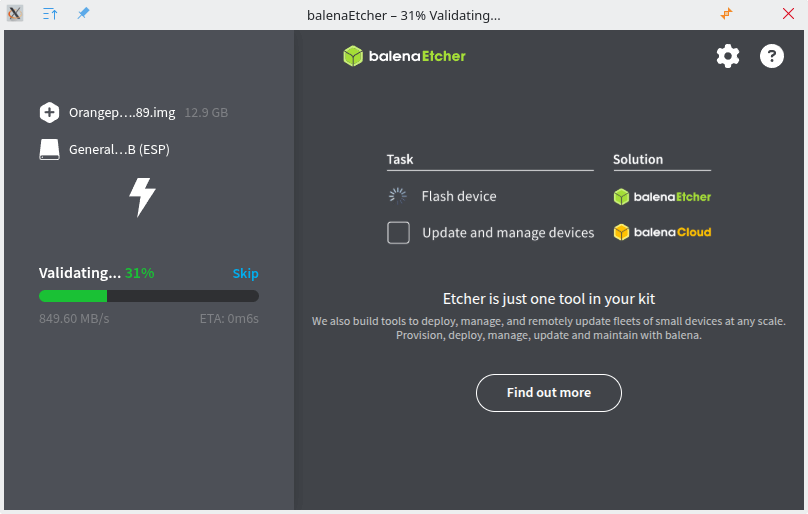
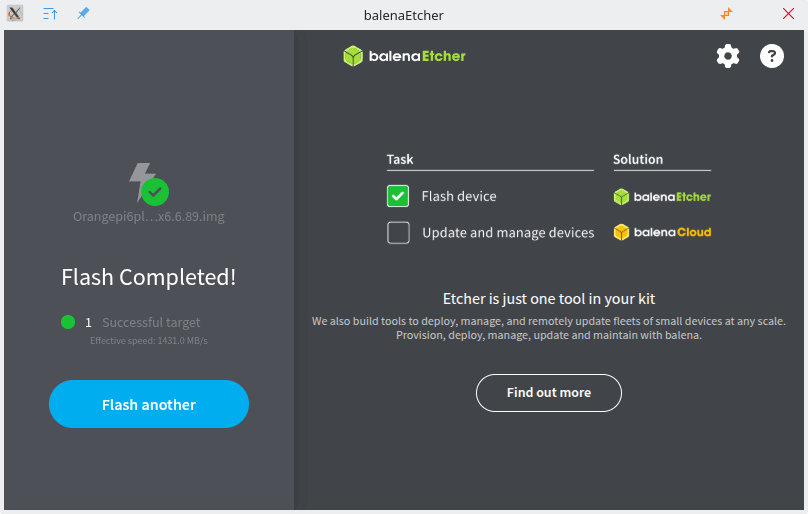
I wrote the Ubuntu image to my external USB drive using balenaEtcher (but you can use similar software). Download the Ubuntu image (Orangepi6plus_1.0.2_ubuntu_noble_desktop_gnome_linux6.6.89.img.xz) from Orange Pi’s website and extract the image from the compressed archive with a file manager or from the command-line.
Now I’ll flash the image to my USB key.
Next page: Page 2 – Running Ubuntu 24.04 LTS
Pages in this article:
Page 1 – Installing Ubuntu 24.04 LTS
Page 2 – Running Ubuntu 24.04 LTS
Page 3 – Installing Software
Complete list of articles in this series:
| Orange Pi 6 Plus | |
|---|---|
| Introduction | Introduction to the series and interrogation of the single-board computer |
| Benchmarks | Benchmarking the Orange Pi 6 Plus |
| Cores | The 3 different types of core |
| Power | Testing and comparing the power consumption |
| Ubuntu | Testing the Ubuntu 24.04 LTS image |
| BIOS | Exploring the BIOS |