
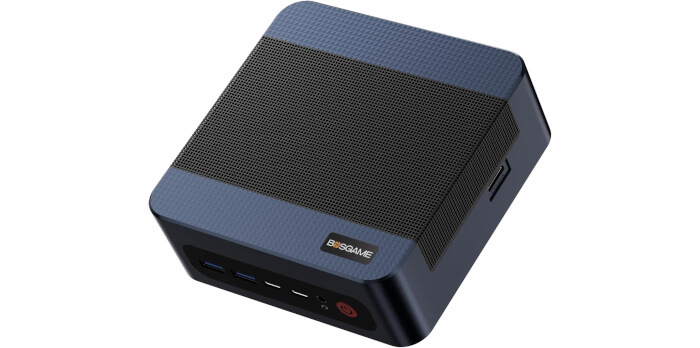
This is a series looking at the BOSGAME M4 Plus Mini PC running Linux. In this series, I examine every aspect of this Mini PC in detail from a Linux perspective.
The BOSGAME M4 Plus Mini PC is a powerful computer based on an AMD Ryzen 9 7940HS processor with integrated Radeon 780M graphics. It’s significantly cheaper than some of the other mini PCs I’m currently writing about. The machine came with 32GB of RAM and 1TB NVMe disk which will be sufficient for most use cases.
This article in the series offers a quick tour of the M4’s BIOS. I’m using a simple USB capture device lets me capture attractive screenshots of the BIOS which look decidedly better than any camera could take. I’m not providing images of everything possible for brevity.
Unlike some BIOS’s in modern mini PCs, there’s no graphical splash screen with the M4’s BIOS but it is a graphical interface. There’s a fairly spartan Setup menu. Let’s look at each of the main sections in turn.
Main
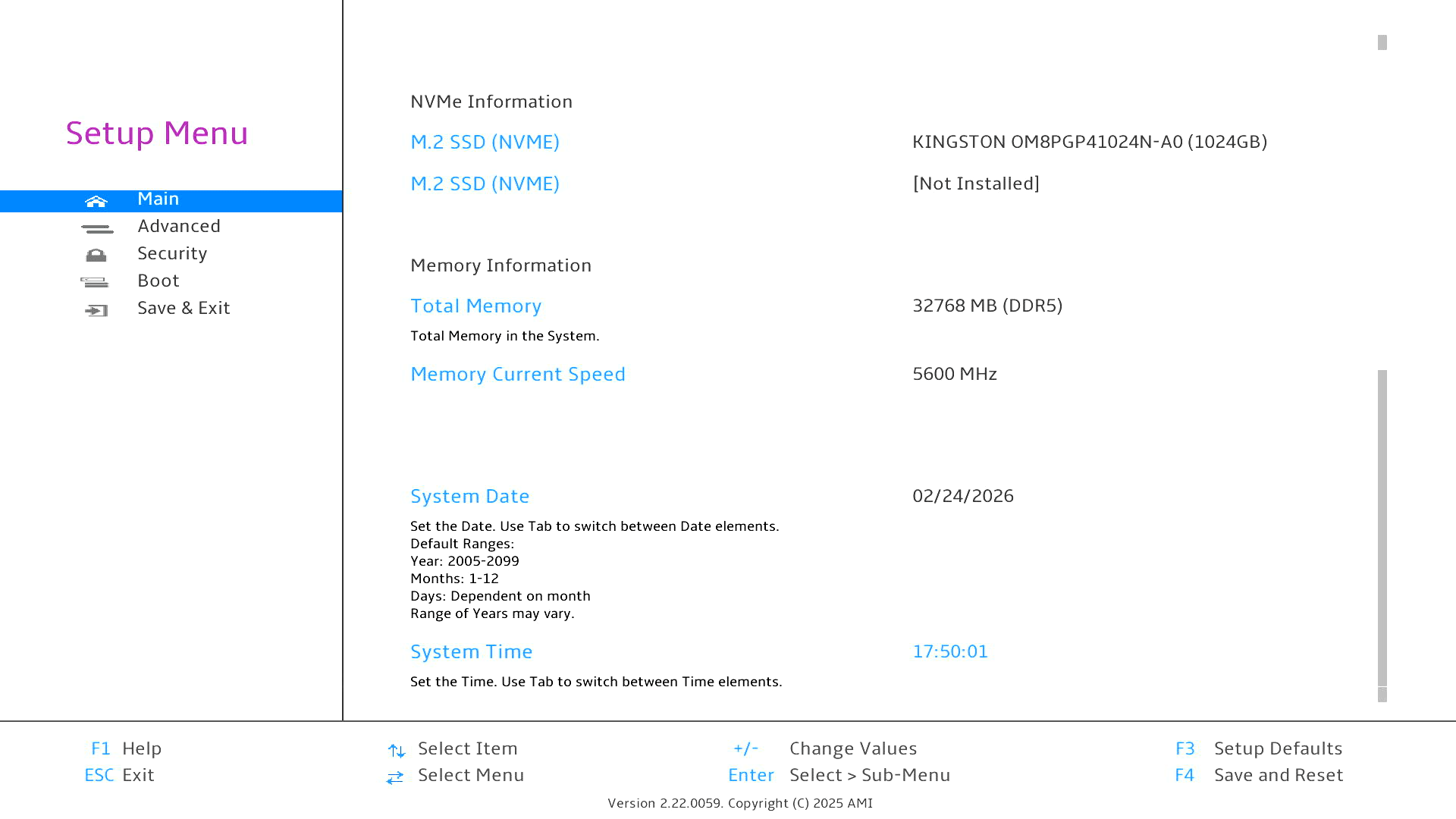
The main section gives some general information about the system including the BIOS version, build date, product name, serial number, UUID, processor, processor speed, NVMe, installed memory with clock speed, and the system date. As you’d expect really.
Advanced
This section is more interesting. Most of the options are fairly self-explanatory. The image below doesn’t show the final two sections. After CPU Configuration, there are sections titled “Hardware Monitor” and “I/O Port Access”. I cover them all below.
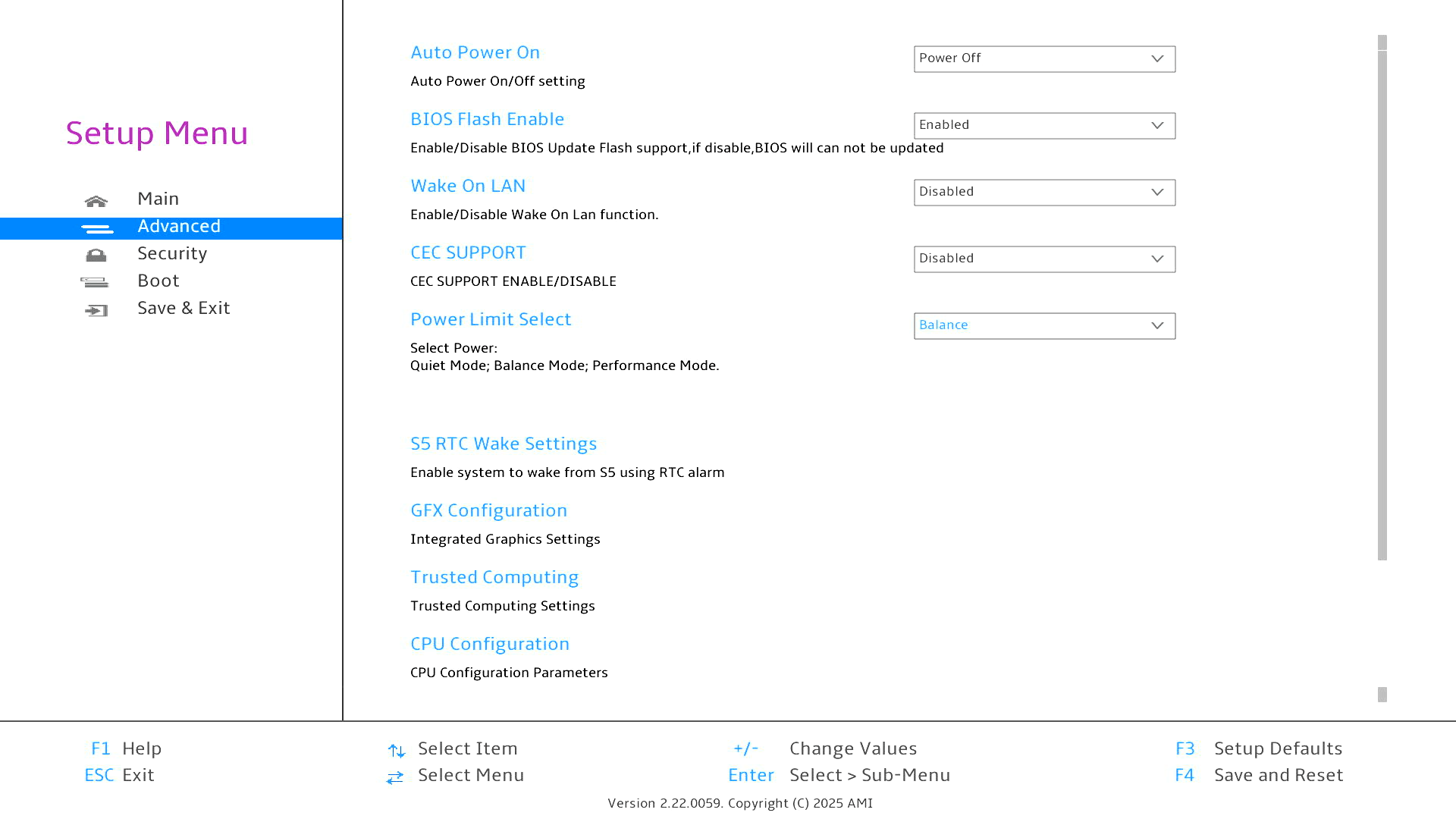
I’m showing the default settings.
Auto Power On (sometimes called Restore on AC Power Loss, AC Back, or Power On After Power Failure) controls what the computer does when it receives power.
BIOS Flash Enable – this controls whether the system firmware (BIOS/UEFI) is allowed to be updated (“flashed”).
Wake On LAN – a feature that lets you turn on or wake a computer remotely over a network. Instead of pressing the power button, another device sends a special network signal called a “magic packet”, and the computer powers on.
CEC Support – (Consumer Electronics Control) is an HDMI feature that lets devices control each other through the HDMI cable.
Power Limit Select – we can choose between Quiet mode, Balance Mode, or Performance Mode. Take a look at the benchmarks article for details.
S5 RTC Wake Settings allows the computer to automatically power on from a fully shut down state (S5) at a scheduled time using the system’s Real-Time Clock (RTC).
GFX Configuration
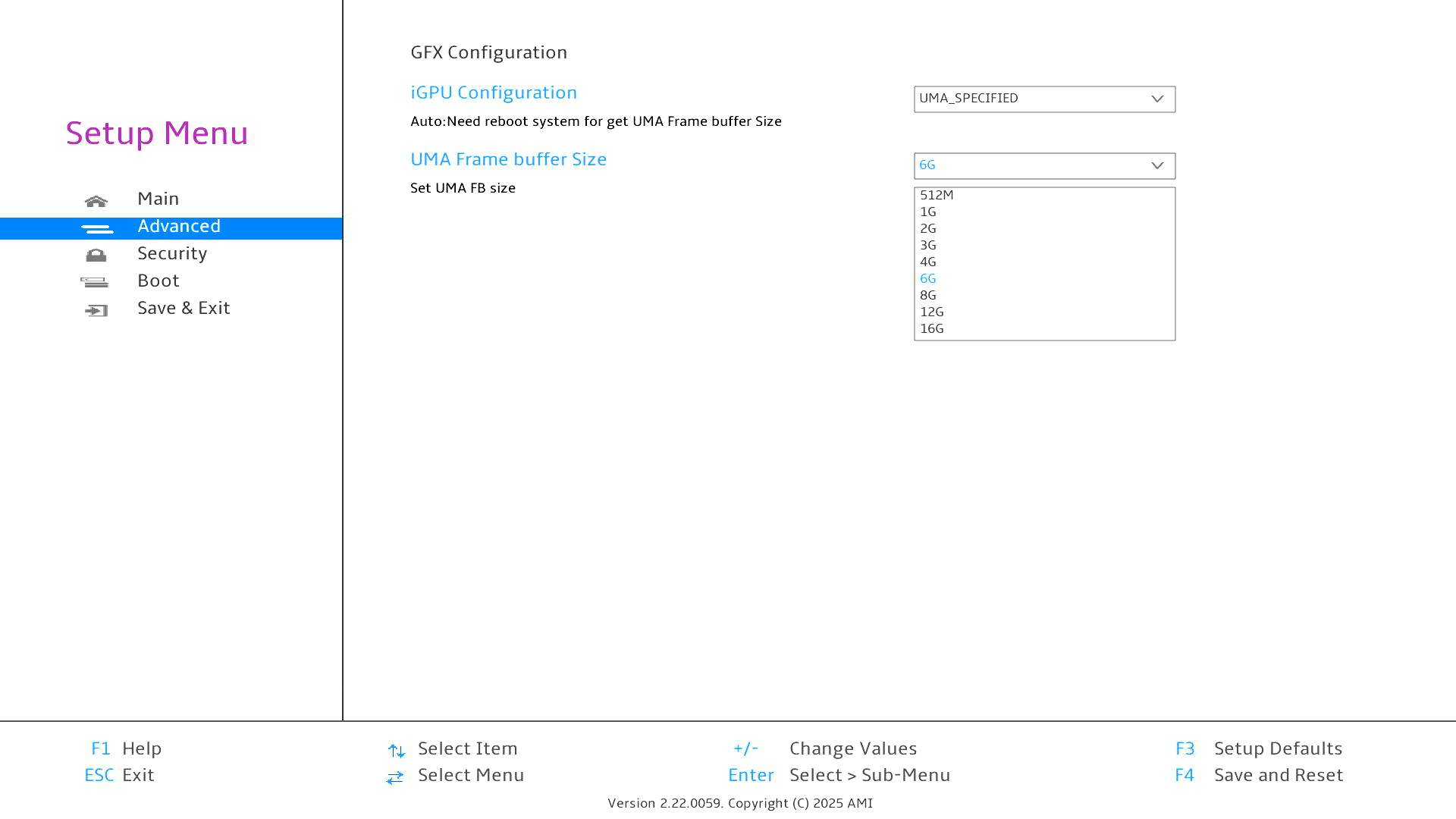
This section lets you modify the amount of system RAM allocated to the integrated GPU. By default, the iGPU Configuration is set to Auto with 6GB of RAM allocated to the iGPU.
But if I change the dropdown from Auto to UMA_SPECIFIED I can choose between the following allocation: 512MB, 1GB, 2GB, 3GB, 4GB, 6GB, 8GB, 12GB, or 16GB. Naturally the more RAM allocated to the iGPU reduces the amount available to the rest of the system.
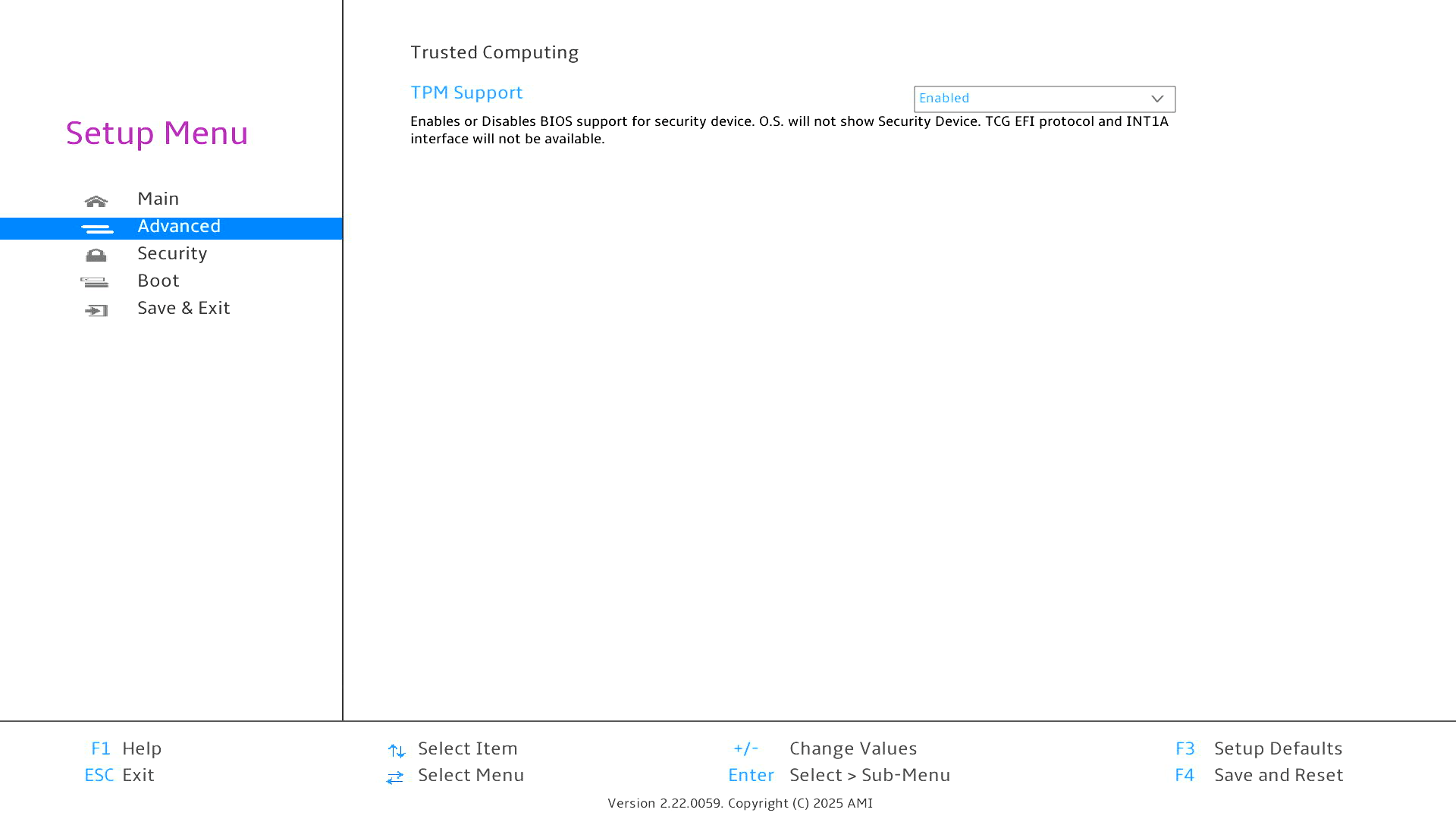
Trusted Computing
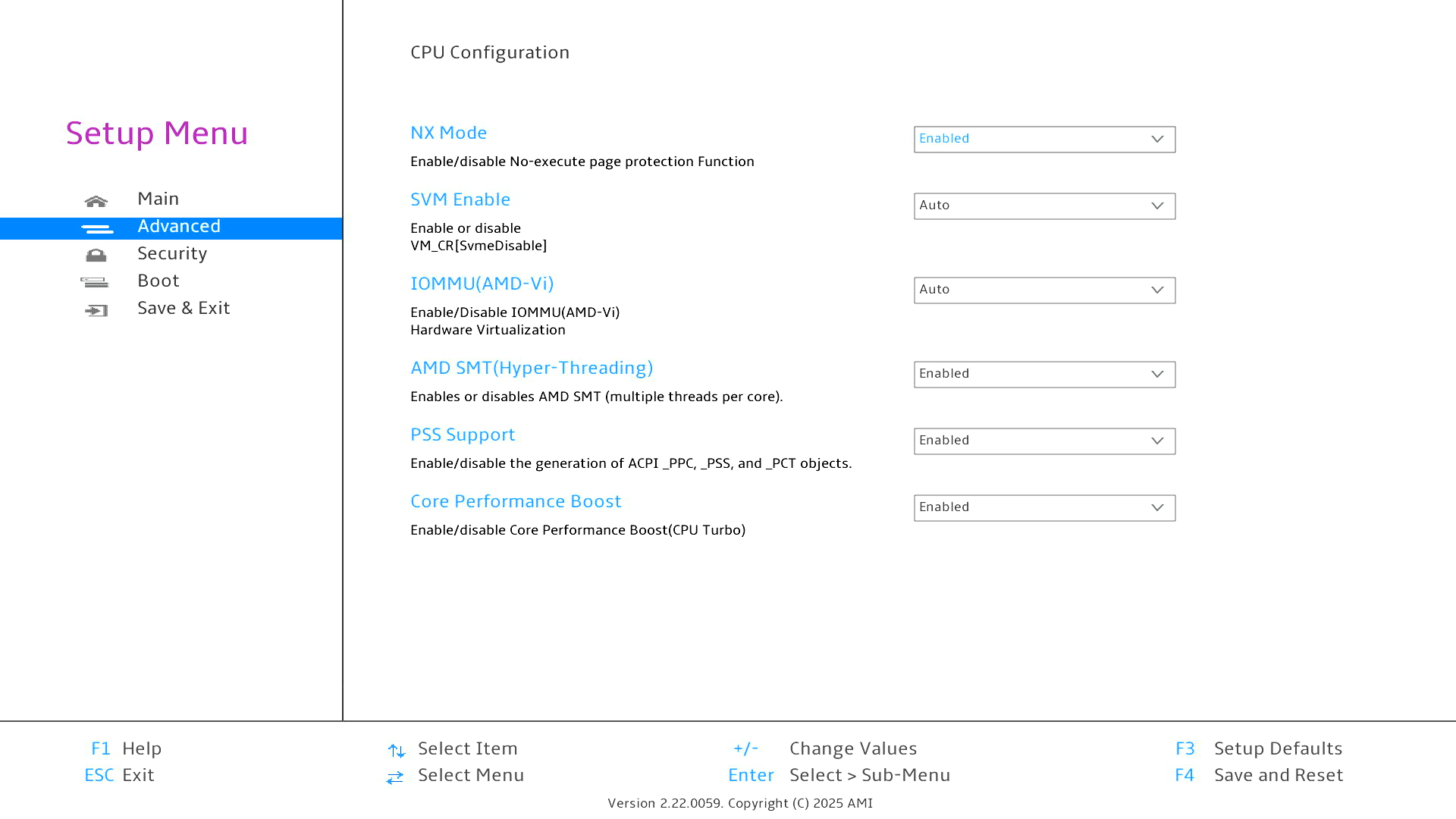
CPU Configuration
By default all the CPU options are enabled. There really isn’t any need to disable any of them, but if you have a niche requirement they might be helpful.
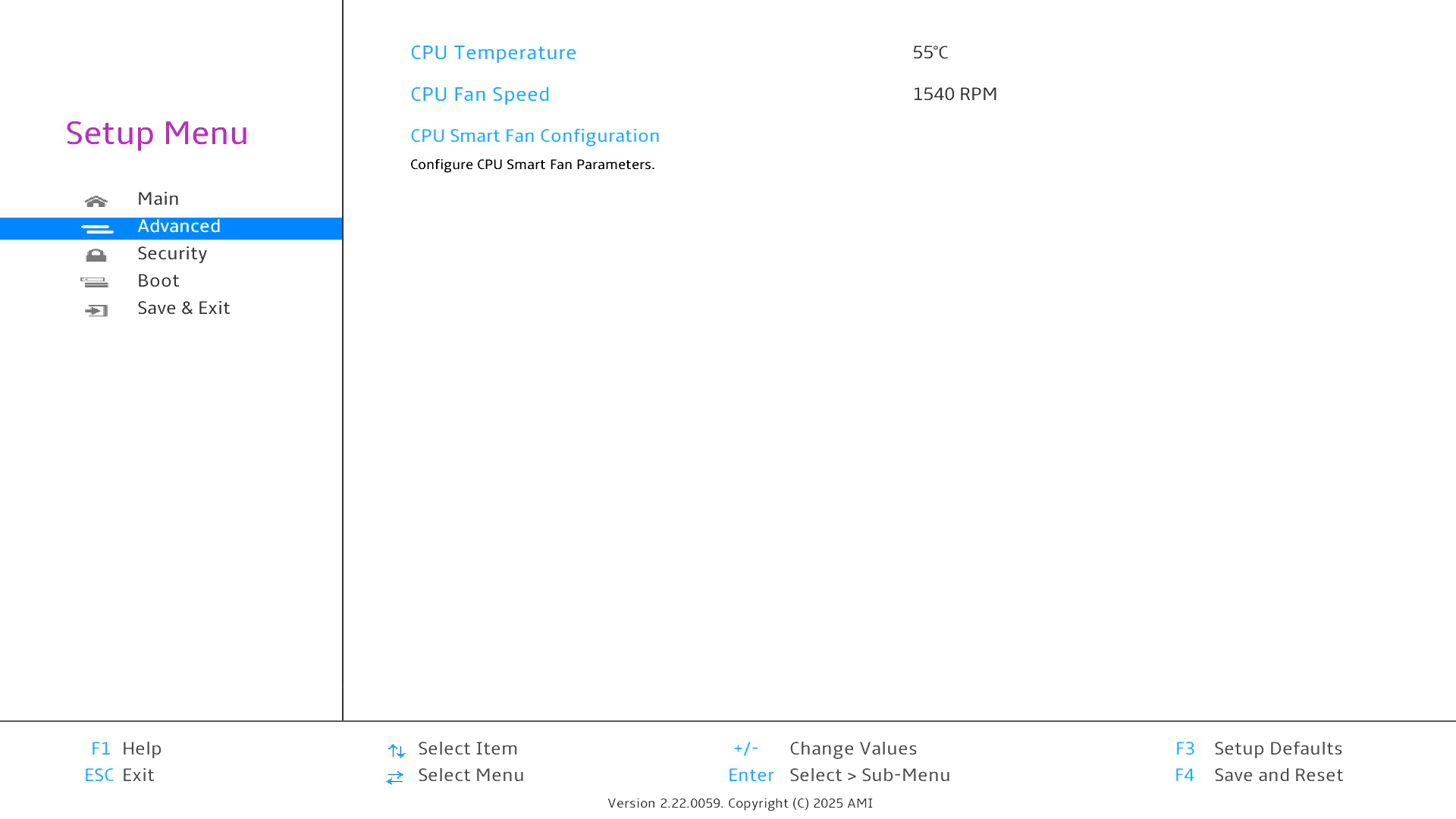
Hardware Monitor
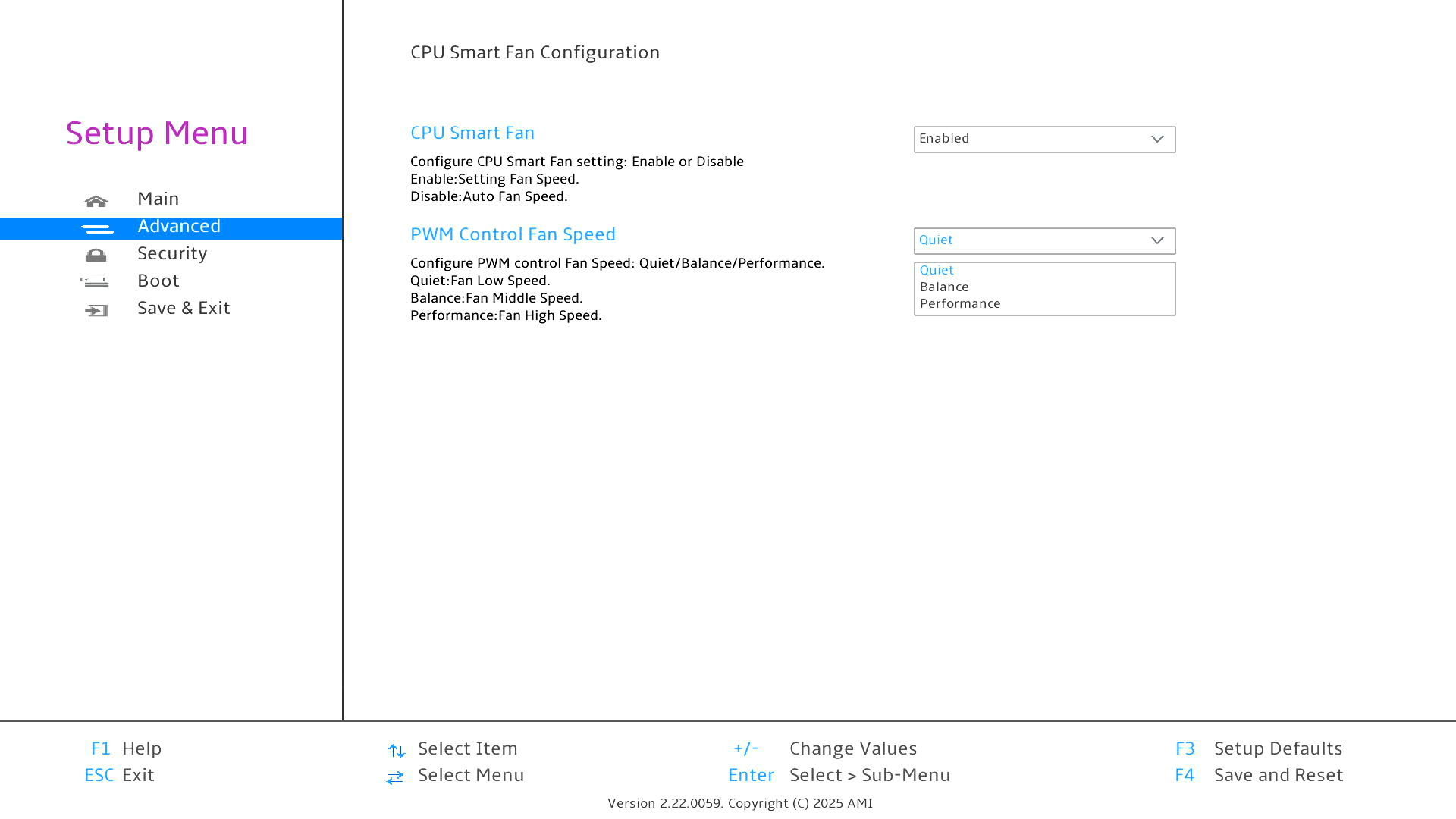
By default the CPU smart fan is enabled. There isn’t really any good reason to disable it, as the machine is quiet.
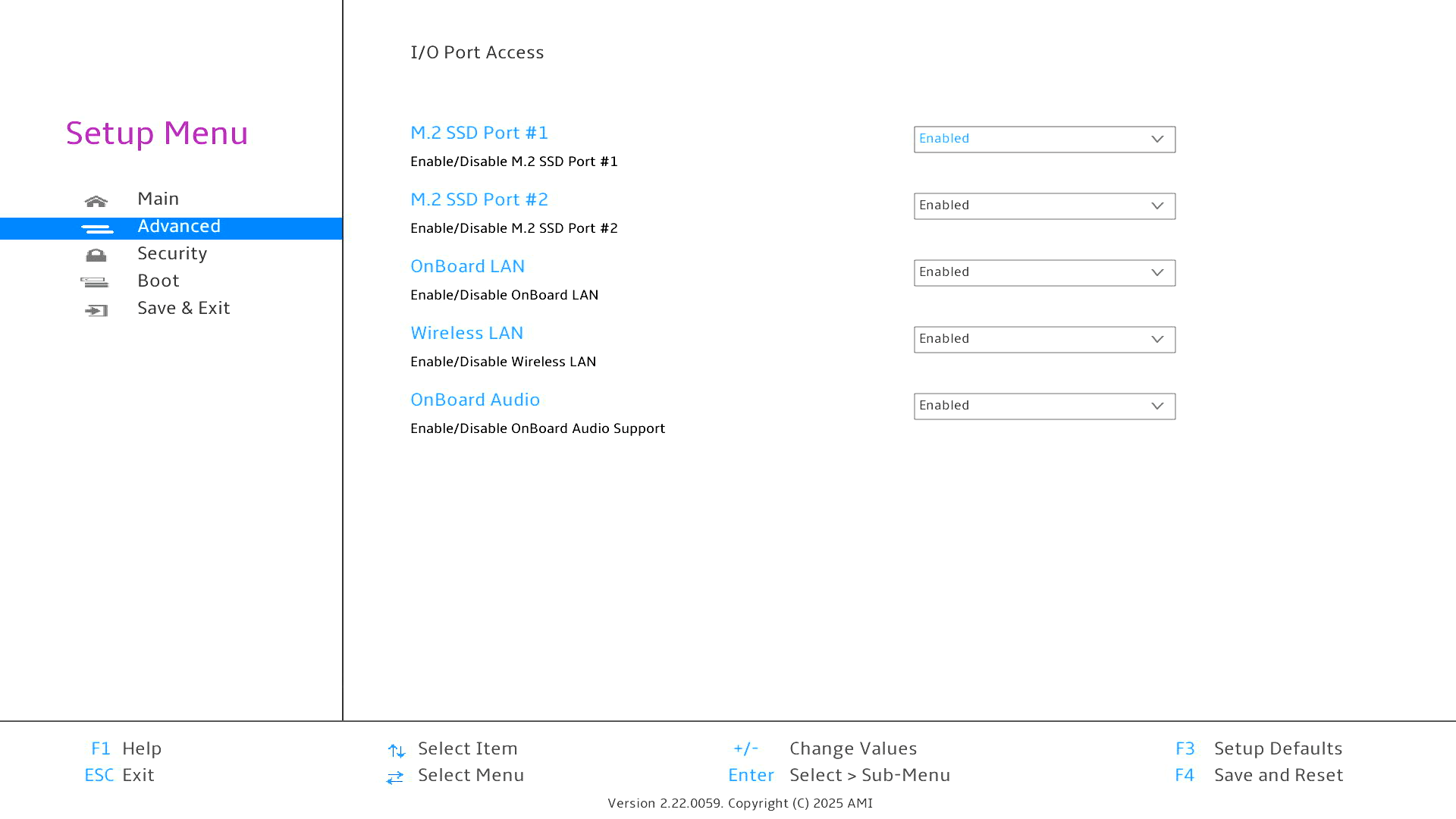
I/O Port Access
All of the I/O port access options are enabled by default.
Security
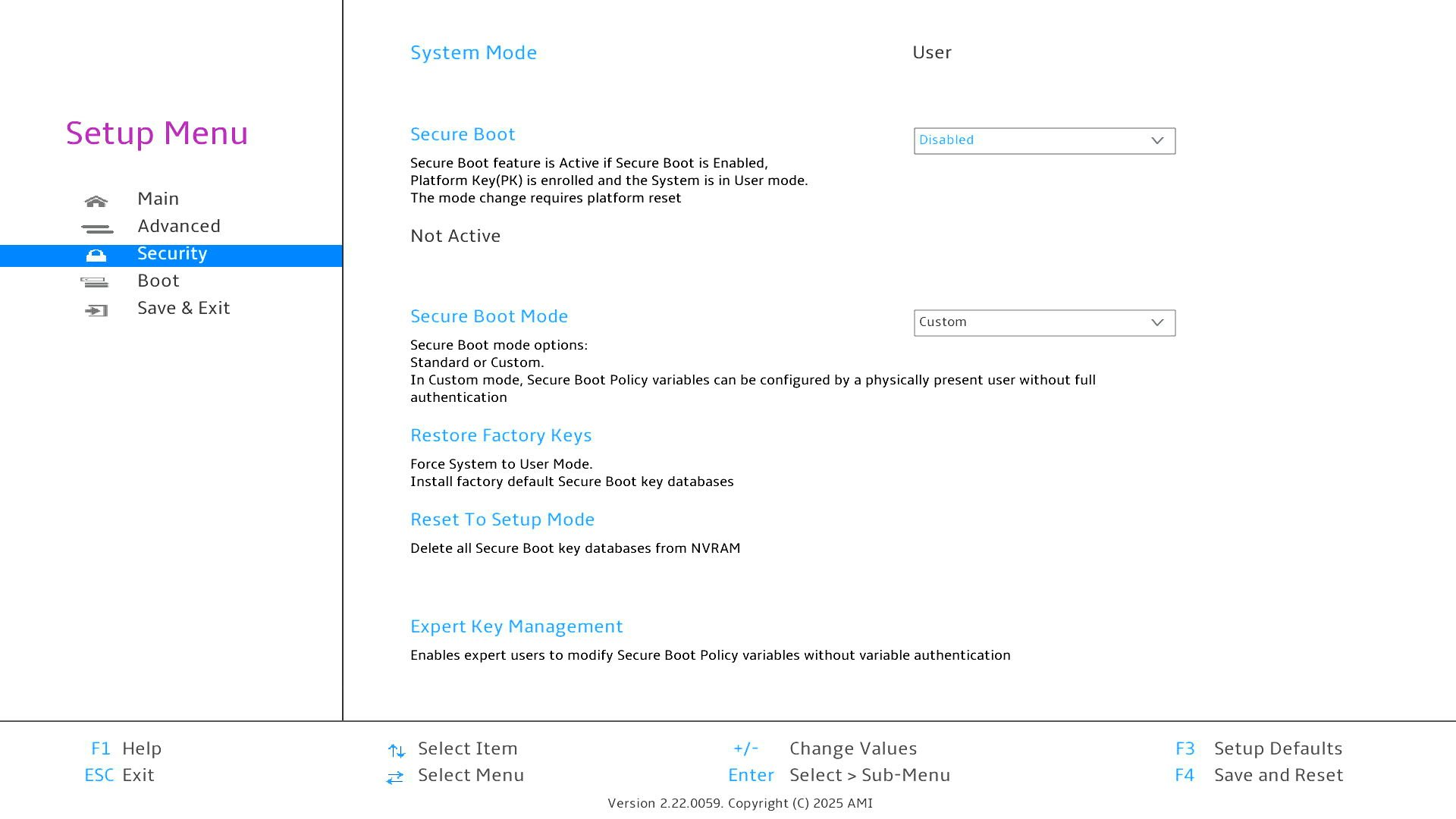
The machine has Secure Boot enabled in the BIOS which stops installing a Linux distribution on the machine. The first step is therefore to turn off Secure Boot.
Boot
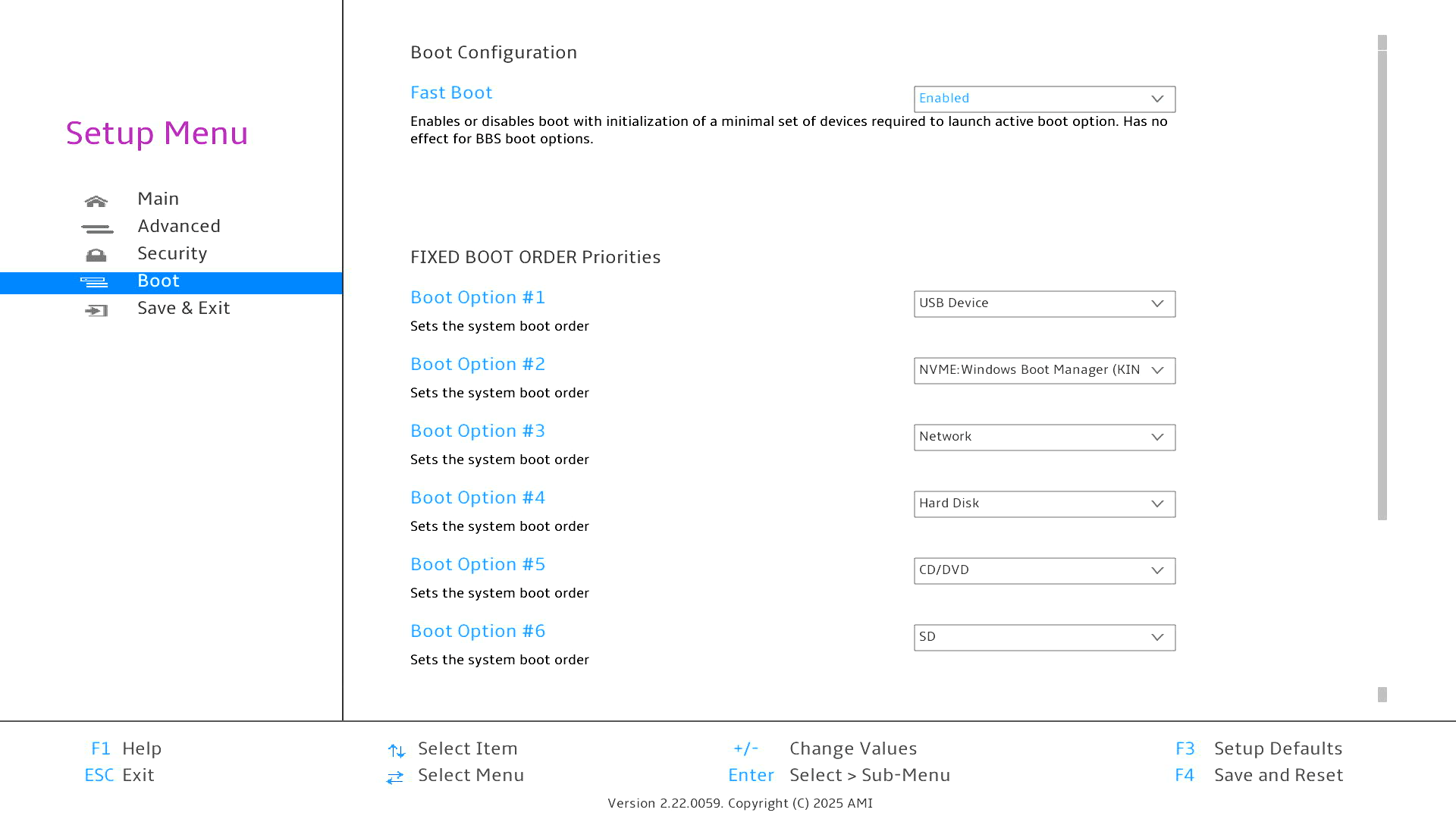
The final section is also useful as it lets you choose the boot order. The M4 offers fast USB ports, so I’ve used the boot order in the past to boot from USB external devices.
Complete list of articles in this series:
| BOSGAME M4 Plus Mini PC | |
|---|---|
| Introduction | Introduction to the series and interrogation of the machine |
| Benchmarks | Benchmarking the BOSGAME M4 Plus |
| Power | Testing and comparing the power consumption |
| Cores | AMD Ryzen 9 7940HS |
| Noise | Comparing the machine's noise with other mini PCs |
| BIOS | Frmware stored on a small memory chip on the motherboard |